
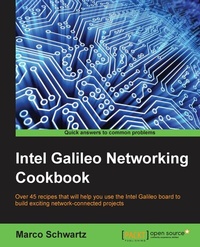
Intel Galileo Networking Cookbook
Over 50 recipes that will help you use the Intel Galileo board to build exciting network-connected projects
1. Auflage
Erschienen am 8. Juli 2025
174 Seiten
978-1-78528-172-3 (ISBN)
Beschreibung

Over 45 recipes that will help you use the Intel Galileo board to build exciting network-connected projectsKey FeaturesBook DescriptionArduino is an electronic prototyping platform used by millions of people around the world. Intel Galileo is fully Arduino compatible; hence it combines the high performance of Intel with the simplicity of Arduino Software Development Environment. This makes it the ideal platform to build exciting projects, especially in the field of web-based connected applications and the Internet of Things. The book features several recipes all based on the Intel Galileo board, and that exploit the powerful features of the board. Each chapter explores a given field using the Galileo board. The book is mainly divided in three parts. The first part is all about learning the basics of the Intel Galileo board, but it uses some of the powerful features of the board such as connecting external sensors and complex hardware devices, compared with more basic Arduino boards. Then, the book dives into the topics related to networking and the Internet of Things. You will learn how to run a web server on the board and log data using a cloud-based service. Finally, the book ends with a chapter that aims to build a complete home automation hub using the Galileo board. This chapter uses everything that was learned in the book to make a home automation system using the Galileo board and Arduino.What you will learn - Set up your Galileo board for the Internet of Things
- Connect external sensors to the Intel Galileo
- Create and run a web server on the Galileo board
- Control hardware devices from the Galileo
- Host webbased applications on the Intel Galileo
- Monitor data from the cloud using the Galileo
- Build a complete home automation hub using the Galileo board
Who this book is forIf you have already worked on ARM boards like Arduino, but now want to learn Intel Galileo, then this book is for you. Knowledge of C programming language is required.
- Connect external sensors to the Intel Galileo
- Create and run a web server on the Galileo board
- Control hardware devices from the Galileo
- Host webbased applications on the Intel Galileo
- Monitor data from the cloud using the Galileo
- Build a complete home automation hub using the Galileo board
Who this book is forIf you have already worked on ARM boards like Arduino, but now want to learn Intel Galileo, then this book is for you. Knowledge of C programming language is required.
Alle Preise
Weitere Details
Weitere Ausgaben
Andere Ausgaben
Marco Schwartz
Intel Galileo Networking Cookbook
Buch
08/2015
Packt Publishing
55,10 €
Versand in 3-4 Wochen
Person
Schwartz Marco :
Marco Schwartz is an electrical engineer, entrepreneur, and blogger. He has a master's degree in electrical engineering and computer science from Supélec, France, and a master's degree in micro engineering from the Ecole Polytechnique Fédérale de Lausanne (EPFL), Switzerland. He has more than five years' experience working in the domain of electrical engineering. Marco's interests center around electronics, home automation, the Arduino and Raspberry Pi platforms, open source hardware projects, and 3D printing. He has several websites about the Arduino, including the Open Home Automation website, which is dedicated to building home automation systems using open source hardware. Marco has written another book on home automation and the Arduino, called Home Automation With Arduino: Automate Your Home Using Open-source Hardware. He has also written a book on how to build Internet of Things projects with the Arduino, called Internet of Things with the Arduino Yun, by Packt Publishing.
Marco Schwartz is an electrical engineer, entrepreneur, and blogger. He has a master's degree in electrical engineering and computer science from Supélec, France, and a master's degree in micro engineering from the Ecole Polytechnique Fédérale de Lausanne (EPFL), Switzerland. He has more than five years' experience working in the domain of electrical engineering. Marco's interests center around electronics, home automation, the Arduino and Raspberry Pi platforms, open source hardware projects, and 3D printing. He has several websites about the Arduino, including the Open Home Automation website, which is dedicated to building home automation systems using open source hardware. Marco has written another book on home automation and the Arduino, called Home Automation With Arduino: Automate Your Home Using Open-source Hardware. He has also written a book on how to build Internet of Things projects with the Arduino, called Internet of Things with the Arduino Yun, by Packt Publishing.
Inhalt
- Cover
- Copyright
- Credits
- About the Author
- About the Reviewers
- www.PacktPub.com
- Table of Contents
- Preface
- Chapter 1: Installing and Configuring Linux
- Introduction
- Configuring your Galileo for the first time
- Using a simple Linux image
- Using the IoT Linux image
- Accessing the Galileo board remotely
- Installing and updating modules
- Accessing Galileo via Wi-Fi
- Troubleshooting Linux installation issues
- Chapter 2: Connecting External Sensors
- Introduction
- Using the Arduino IDE with the Galileo board
- Connecting an analog sensor
- Connecting a digital sensor
- Connecting an LCD screen
- Displaying the temperature on an LCD screen
- Troubleshooting the usual issues with sensors
- Chapter 3: Controlling Hardware Devices
- Introduction
- Connecting a relay
- Connecting a DC motor
- Connecting an XBee module
- Controlling a servomotor from a rotating knob
- Using the SD card reader to log data
- Troubleshooting the usual issues
- Chapter 4: Creating a Web Server
- Introduction
- Using the Intel XDK software
- Running a simple Node.js server
- Using Express on Galileo
- Reading pins via a web server
- Controlling pins via a web server
- Creating an API to control Galileo
- Troubleshooting web server issues
- Chapter 5: Hosting Applications on the Galileo Board
- Introduction
- Creating a file-sharing server
- Accessing weather data remotely
- Tweeting from the Galileo board
- Accessing web APIs via Temboo
- Accessing more APIs via Temboo
- Troubleshooting application issues
- Chapter 6: Local Network Monitoring
- Introduction
- Accessing measured data remotely
- Logging data in a local database
- Displaying measurements stored in a database
- Live data visualization
- Troubleshooting the usual issues with sensors
- Chapter 7: Cloud Data Monitoring
- Introduction
- Building and testing hardware for cloud monitoring
- Sending data to a cloud device
- Monitoring data remotely from a dashboard
- Logging data in an online datasheet
- Controlling your board from anywhere in the world
- Troubleshooting cloud monitoring issues
- Chapter 8: Building a Home Automation System
- Introduction
- Choosing the right components
- Building a Wi-Fi Arduino sensor module
- Connecting Arduino modules to the Galileo board
- Building an interface for your home automation system
- Connecting your home automation system to the Web
- Accessing your home automation system from anywhere
- Troubleshooting issues with your home automation system
- Index