

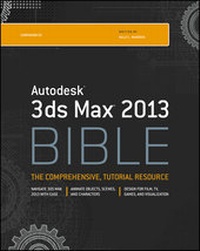
Autodesk 3ds Max 2013 Bible
Erschienen am 6. August 2012
840 Seiten
978-1-118-48334-3 (ISBN)
Beschreibung

Updated version of the bestselling 3ds Max book on themarket
Autodesk 3ds Max is top animation software used by developers,visual effects artists, and graphic designers in film, television,and the game industry. One place designers turn for crucialinformation on how to use 3ds Max is this in-depth book. Whetheryou're a beginner just itching to create something right away or anexperienced user checking out the latest and greatest features,you'll find it here. See what's new, what's tried and true, andjust how creative you can get using the tips, tricks, andtechniques in this essential reference. Every previous edition hasbeen a top-seller.
* Packs expert advice, timesaving tips, and more than 150step-by-step tutorials into over 800 pages that help you masterthis complex software
* Gives you in-depth coverage of all new features, as well as thebasics
* Jump-starts your learning on day one with a Quick Starttutorial, so you can create an exciting animation right away
* Provides you with access to all before-and-after example filesfrom each tutorial, plus unique models and textures that you cancustomize on the companion CD
* Includes extra content from previous editions of the 3ds MaxBible, including bonus Quick Start tutorials from previouseditions
Whether you're just starting out or getting up to speed on 3dsMax 2013, this comprehensive book will get you there.
Weitere Details
Weitere Ausgaben
Andere Ausgaben
Kelly L. Murdock
Autodesk 3ds Max 2013 Bible
Buch
09/2012
Wiley
69,37 €
Artikel ist vergriffen; siehe andere Ausgabe
Person
Kelly L. Murdock has been writing computer books for many years. His credits include eleven editions of the bestselling 3ds Max Bible, five editions of Adobe Creative Suite Bible, Edgeloop Character Modeling For 3D Professionals Only, and many other books. He holds a degree in engineering with an emphasis on computer graphics.
Inhalt
- Autodesk® 3ds Max® 2013 Bible
- About the Author
- Contents
- Preface
- The Growth of 3ds Max?
- About This Book
- Acknowledgments
- Part I: Getting Started with Autodesk 3ds Max 2013
- Quick Start: Falling from a Tightrope
- Planning the Production
- Setting Up the Scene
- Adding a Camera and Light
- Animating the Great Fall
- Summary
- Chapter 1: Exploring the Interface
- Learning the Interface Elements
- Using the Menus
- Using the Toolbars
- Using the Viewports
- Using the Command Panel
- Using the Lower Interface Bar Controls
- Interacting with the Interface
- Using Workspaces
- Getting Help
- Summary
- Chapter 2: Controlling the Viewports
- Understanding 3D Space
- Using the Navigation Gizmos
- Controlling Viewports with a Scroll Wheel Mouse
- Using the Viewport Navigation Controls
- Changing the Viewport Display
- Enhancing the Viewport
- Displaying Materials, Lighting, and Shadows in the Viewport
- Working with Viewport Backgrounds
- Summary
- Chapter 3: Working with Files
- Working with 3ds Max Scene Files
- Importing and Exporting
- Using the File Utilities
- Accessing File Information
- Summary
- Part II: Manipulating Objects
- Chapter 4: Creating and Editing Primitive Objects
- Selecting System Units
- Creating Primitive Objects
- Using Modeling Helpers
- Summary
- Chapter 5: Selecting Objects and Using Layers
- Selecting Objects
- Setting Object Properties
- Hiding and Freezing Objects
- Using Layers
- Using the Scene Explorer
- Summary
- Chapter 6: Transforming Objects, Pivoting, Aligning, and Snapping
- Translating, Rotating, and Scaling Objects
- Working with the Transformation Tools
- Using Pivot Points
- Using the Align Commands
- Using Grids
- Using Snap Options
- Summary
- Chapter 7: Cloning Objects and Creating Object Arrays
- Cloning Objects
- Understanding Cloning Options
- Mirroring Objects
- Cloning over Time
- Spacing Cloned Objects
- Using the Clone and Align Tool
- Creating Arrays of Objects
- Summary
- Chapter 8: Grouping, Linking, and Parenting Objects
- Working with Groups
- Understanding Parent, Child, and Root Relationships
- Building Links between Objects
- Displaying Links and Hierarchies
- Working with Linked Objects
- Summary
- Part III: Modeling 3D Assets
- Chapter 9: Introducing Subobjects and Modifiers and Using the Modifier Stack
- Exploring the Model Types
- Understanding Normals
- Working with Subobjects
- Introducing Modifiers
- Exploring the Modifier Stack
- Summary
- Chapter 10: Drawing and Editing 2D Splines and Shapes
- Drawing in 2D
- Editing Splines
- Summary
- Chapter 11: Modeling with Polygons
- Understanding Poly Objects
- Creating Editable Poly Objects
- Editing Poly Objects
- Summary
- Chapter 12: Using the Graphite Modeling Tools
- Working with the Graphite Modeling Tools
- Using the Freeform Tools
- Using the Object Paint Tools
- Summary
- Chapter 13: Working with Compound Objects
- Understanding Compound Object Types
- Morphing Objects
- Creating a Terrain Object
- Working with BlobMesh Objects
- Working with ProBoolean and ProCutter Objects
- Summary
- Part IV: Applying Materials and Textures
- Chapter 14: Creating and Applying Standard Materials with the Slate Material Editor
- Understanding Material Properties
- Working with the Slate Material Editor
- Using the Standard Material
- Using Shading Types
- Accessing Other Parameters
- Summary
- Chapter 15: Adding Material Details with Maps
- Understanding Maps
- Creating Textures with External Tools
- Summary
- Chapter 16: Creating Compound Materials and Using Material Modifiers
- Using Compound Materials
- Applying Multiple Materials
- Using the Matte/Shadow Material
- Material Modifiers
- Summary
- Chapter 17: Unwrapping UVs
- Mapping Modifiers
- Using the Unwrap UVW Modifier
- Using the Edit UVWs Interface
- Summary
- Part V: Working with Cameras, Lighting, and Rendering
- Chapter 18: Configuring and Aiming Cameras
- Learning to Work with Cameras
- Setting Camera Parameters
- Summary
- Chapter 19: Using Lights and Basic Lighting Techniques
- Understanding the Basics of Lighting
- Getting to Know the Light Types
- Creating and Positioning Light Objects
- Viewing a Scene from a Light
- Altering Light Parameters
- Summary
- Chapter 20: Rendering a Scene and Enabling Quicksilver
- Working with Render Parameters
- Using the Rendered Frame Window
- Summary
- Chapter 21: Using Atmospheric and Render Effects
- Adding an Environment Background
- Using Exposure Controls
- Creating Atmospheric Effects
- Using the Fire Effect
- Using the Fog Effect
- Adding Render Effects
- Using Render Effects
- Summary
- Chapter 22: Rendering with mental ray and iray
- Enabling mental ray and iray
- Working with iray
- Tutorial: Starting iray
- Working with mental ray
- Summary
- Chapter 23: Compositing with Render Elements and the Video Post Interface
- Using External Compositing Packages
- Using Render Elements
- Using State Sets
- Completing Post-Production with the Video Post Interface
- Working with Sequences
- Adding and Editing Events
- Working with Ranges
- Summary
- Part VI: Animating Objects and Scenes
- Chapter 24: Understanding Animation and Keyframes
- Using the Time Controls
- Working with Keys
- Using the Track Bar
- Viewing and Editing Key Values
- Using the Motion Panel
- Using Ghosting
- Animating Objects
- Working with Previews
- Using the RAM Player
- Tutorial: Using the RAM Player to Combine Rendered Images into a Video File
- Summary
- Chapter 25: Animating with Constraints and Simple Controllers
- Restricting Movement with Constraints
- Understanding Controller Types
- Assigning Controllers
- Examining Some Simple Controllers
- Summary
- Chapter 26: Using Animation Layers and Animation Modifiers
- Using the Animation Layers Toolbar
- Working with Animation Layers
- Saving and Loading Animation Files
- Using the Animation Modifiers
- Summary
- Chapter 27: Wiring Parameters
- Wiring Parameters
- Collecting Parameters
- Adding Custom Parameters
- Summary
- Chapter 28: Editing Animation Curves in the Track View
- Learning the Track View Interface
- Working with Keys
- Editing Time
- Editing Curves
- Filtering Tracks and Creating Track Sets
- Working with Controllers
- Using the ProSound Plug-in
- Summary
- Part VII: Working with Characters
- Chapter 29: Understanding Rigging, Kinematics, and Working with Bones
- Understanding Rigging
- Building a Bones System
- Using the Bone Tools
- Forward Kinematics versus Inverse Kinematics
- Creating an Inverse Kinematics System
- Summary
- Chapter 30: Skinning Characters
- Understanding Your Character
- Animated Skin Modifiers
- Using Character Animation Techniques
- Summary
- Chapter 31: Animating Characters with CAT
- Character Creation Workflow
- Creating a CAT Rig
- Animating a CAT Rig
- Summary
- Part VIII: Dynamic Animation
- Chapter 32: Creating Particles
- Understanding the Various Particle Systems
- Creating a Particle System
- Using the Spray and Snow Particle Systems
- Using the Super Spray Particle System
- Using the Blizzard Particle System
- Using the PArray Particle System
- Using the PCloud Particle System
- Using Particle System Maps
- Summary
- Chapter 33: Using Space Warps
- Creating and Binding Space Warps
- Understanding Space Warp Types
- Combining Particle Systems with Space Warps
- Summary
- Appendix A: What's New with Autodesk 3ds Max 2013
- Major Improvements
- Minor Improvements
- Appendix B: What's on the CD-ROM
- System Requirements
- Using the CD with Windows
- What's on the CD
- Troubleshooting
- Customer Care
- Index
- Obtaining the CD
