

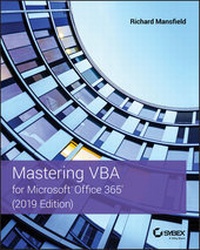
Mastering VBA for Microsoft Office 365, 2019 Edition
4. Auflage
Erschienen am 2. Juli 2019
944 Seiten
978-1-119-57941-0 (ISBN)
Beschreibung

Customize and ramp-up Office 365 applications
NOTE: Please click Downloads (located in the menu on the left) to download "Full Code Download."
The revised 2019 edition of Mastering VBA Microsoft Office 365 offers an accessible guide that shows how to extend the capabilities of Office 365 applications with VBA programming. Written in clear terms and understandable language, the book includes systematic tutorials and contains both intermediate and advanced content for experienced VB developers. Designed to be comprehensive, the book addresses not just one Office application, but the entire Office suite. To enhance understanding, the content is explored in real-world projects in Word, Excel, Outlook, and PowerPoint.
Since the technical programming methods in the Office applications continue to evolve, the updated 2019 edition reviews the changes to the program. Code libraries, the API, and the object model for each Office program have been modified during the three years since the last version of this book. Various elements within VBA have been deprecated or replaced, and the surface UI changed as well. The updated 2019 edition covers topics such as:
* Recording macros and getting started with VBA
* Learning how to work with VBA
* Using loops and functions
* Using message boxes, input boxes, and dialog boxes
* Creating effective code
* XML-based files, ActiveX, the developer tab, content controls, add-ins, embedded macros, and security
Written for all levels of Microsoft Office 365 users, Mastering VBA Microsoft Office 365: 2019 Edition explains how to customize and automate the Office suite of applications.
NOTE: Please click Downloads (located in the menu on the left) to download "Full Code Download."
The revised 2019 edition of Mastering VBA Microsoft Office 365 offers an accessible guide that shows how to extend the capabilities of Office 365 applications with VBA programming. Written in clear terms and understandable language, the book includes systematic tutorials and contains both intermediate and advanced content for experienced VB developers. Designed to be comprehensive, the book addresses not just one Office application, but the entire Office suite. To enhance understanding, the content is explored in real-world projects in Word, Excel, Outlook, and PowerPoint.
Since the technical programming methods in the Office applications continue to evolve, the updated 2019 edition reviews the changes to the program. Code libraries, the API, and the object model for each Office program have been modified during the three years since the last version of this book. Various elements within VBA have been deprecated or replaced, and the surface UI changed as well. The updated 2019 edition covers topics such as:
* Recording macros and getting started with VBA
* Learning how to work with VBA
* Using loops and functions
* Using message boxes, input boxes, and dialog boxes
* Creating effective code
* XML-based files, ActiveX, the developer tab, content controls, add-ins, embedded macros, and security
Written for all levels of Microsoft Office 365 users, Mastering VBA Microsoft Office 365: 2019 Edition explains how to customize and automate the Office suite of applications.
Weitere Details
Weitere Ausgaben
Andere Ausgaben
Buch
07/2019
19. Auflage
Sybex Inc.,U.S.
50,00 €
Versand in 15-20 Tagen
Person
Richard Mansfield is a widely recognized expert on computer programming. He's the author of more than 44 computer books that have sold over half a million copies worldwide. They include Visual Basic .NET Power Toolkit, Visual Basic .NET Database Programming For Dummies, and Programming: A Beginner's Guide, as well as several previous editions of Mastering VBA for Microsoft Office. Richard is also the former editor of Compute! magazine.
Inhalt
- Cover
- Title Page
- Copyright
- Acknowledgments
- About the Author
- About the Technical Editor
- Contents
- Introduction
- Where to Get This Book ' s Example Code
- If You Have Questions
- What Can I Do with VBA ?
- What ' s in This Book?
- How Should I Use This Book?
- Is This Book Suitable for Me?
- Conventions Used in This Book
- For More Information
- Part 1 Recording Macros and Getting Started with VBA
- Chapter 1 Recording and Running Macros in the Office Applications
- What Is VBA and What Can You Do with It?
- The Difference between Visual Basic and Visual Basic for Applications
- What Are Visual Basic .NET and Visual Basic Express?
- Understanding Macro Basics
- Recording a Macro
- Displaying the Developer Tab on the Ribbon
- Planning the Macro
- Starting the Macro Recorder
- Naming a Macro
- Running a Macro
- Recording a Sample Word Macro
- Recording a Sample Excel Macro
- Create a Personal Macro Workbook If You Don't Have One Yet
- Record the Macro
- Specifying How to Trigger an Existing Macro
- Assigning a Macro to a Quick Access Toolbar Button in Word
- Assigning a Macro to a Shortcut Key Combination
- Deleting a Macro
- The Bottom Line
- Chapter 2 Getting Started with the Visual Basic Editor
- Opening the Visual Basic Editor
- Opening the Visual Basic Editor with a Macro Selected
- Opening the Visual Basic Editor Directly
- Navigating to a Macro
- Using the Visual Basic Editor's Main Windows
- The Project Explorer
- The Object Browser
- The Code Window
- The Properties Window
- The Immediate Window
- Setting Properties for a Project
- Customizing the Visual Basic Editor
- Choosing Editor and View Preferences
- Choosing and Laying Out the Editor Windows
- Customizing the Toolbar and Menu Bar
- Customizing the Toolbox
- The Bottom Line
- Chapter 3 Editing Recorded Macros
- Testing a Macro in the Visual Basic Editor
- Stepping Through a Macro
- Setting Breakpoints
- Commenting Out Lines
- Stepping Out of a Macro
- Editing a Word Macro
- Stepping Through the Transpose_Word_Right Macro
- Running the Transpose_Word_Right Macro
- Creating a Transpose_Word_Left Macro
- Saving Your Work
- Editing an Excel Macro
- Unhiding the Personal Macro Workbook
- Opening a Macro for Editing
- Editing a Macro
- Editing a PowerPoint Macro
- Reducing the Size of Your Macro
- Saving Your Work
- The Bottom Line
- Chapter 4 Creating Code from Scratch in the Visual Basic Editor
- Setting Up the Visual Basic Editor to Create Macros
- Creating a Procedure for Word
- Creating a Macro for Excel
- Creating a Procedure for PowerPoint
- Creating a Procedure for Access
- The Bottom Line
- Part 2 Learning How to Work with VBA
- Chapter 5 Understanding the Essentials of VBA Syntax
- Getting Ready
- Procedures
- Functions
- Subprocedures
- Statements
- Keywords
- Expressions
- Operators
- Variables
- Constants
- Arguments
- Specifying Argument Names vs. Omitting Argument Names
- When to Include the Parentheses around an Argument List
- Objects
- Collections
- Properties
- Methods
- Events
- The Bottom Line
- Chapter 6 Working with Variables, Constants, and Enumerations
- Working with Variables
- Choosing Names for Variables
- Declaring a Variable
- Choosing the Scope and Lifetime of a Variable
- Specifying the Data Type for a Variable
- Working with Constants
- Declaring Your Own Constants
- Choosing the Scope or Lifetime for Constants
- Working with Enumerations
- The Bottom Line
- Chapter 7 Using Array Variables
- What Is an Array?
- Declaring an Array
- Storing Values in an Array
- Multidimensional Arrays
- Declaring a Dynamic Array
- Redimensioning an Array
- Returning Information from an Array
- Erasing an Array
- Determining Whether a Variable Is an Array
- Finding the Bounds of an Array
- Sorting an Array
- Searching an Array
- Performing a Linear Search Through an Array
- Binary Searching an Array
- The Bottom Line
- Chapter 8 Finding the Objects, Methods, and Properties You Need
- What Is an Object?
- The Benefits of OOP
- Understanding Creatable Objects
- Properties
- Methods
- Working with Collections
- Working with an Object in a Collection
- Adding an Object to a Collection
- Finding the Objects You Need
- Using the Macro Recorder to Add Code for the Objects You Need
- Using the Object Browser
- Using Help to Find the Object You Need
- Using the Auto List Members Feature
- Using Object Variables to Represent Objects
- Team Programming and OOP
- The Bottom Line
- Part 3 Making Decisions and Using Loops and Functions
- Chapter 9 Using Built-In Functions
- What Is a Function?
- Using Functions
- Passing Arguments to a Function
- Using Functions to Convert Data
- Using the Asc Function to Return a Character Code
- Using the Val Function to Extract a Number from the Start of a String
- Using the Str Function to Convert a Number into a String
- Using the Format Function to Format an Expression
- Using Predefined Numeric Formats
- Creating a Numeric Format
- Creating a Date or Time Format
- Creating a String Format
- Using the Chr Function and Constants to Enter Special Characters in a String
- Using Functions to Manipulate Strings
- Using the Left, Right, and Mid Functions to Return Part of a String
- Using the Left Function
- Using the Right Function
- Using the Mid Function
- Using InStr and InStrRev to Find a String Within Another String
- Using LTrim, RTrim, and Trim to Remove Spaces from a String
- Using Len to Check the Length of a String
- Using StrConv, LCase, and UCase to Change the Case of a String
- Using the StrComp Function to Compare Apples to Apples
- Using VBA's Mathematical Functions
- Using VBA's Date and Time Functions
- Using the DatePart Function to Parse Dates
- Calculating Time Intervals Using the DateDiff Function
- Using the DateAdd Function to Add or Subtract Time from a Date
- Using File-Management Functions
- Checking Whether a File Exists Using the Dir Function
- Returning the Current Path
- The Bottom Line
- Chapter 10 Creating Your Own Functions
- Components of a Function
- Creating a Function
- Starting a Function Manually
- Starting a Function by Using the Add Procedure Dialog Box
- Passing Arguments to a Function
- Declaring the Data Types of Arguments
- Specifying an Optional Argument
- Controlling the Scope of a Function
- Examples of Functions for All VBA-Enabled Office Applications
- How Functions Return Information
- Returning Text Data from a Function
- Creating a Function for Word
- Creating a Function for Excel
- Creating a Function for PowerPoint
- Creating a Function for Access
- The Bottom Line
- Chapter 11 Making Decisions in Your Code
- How Do You Compare Things in VBA?
- Testing Multiple Conditions by Using Logical Operators
- If Blocks
- If. . .Then
- If...Then...Else Statements
- If. . .Then. . .ElseIf. . .Else Statements
- Creating Loops with If and GoTo
- Nesting If Blocks
- Select Case Blocks
- Syntax
- Example
- When Order Matters
- The Bottom Line
- Chapter 12 Using Loops to Repeat Actions
- When Should You Use a Loop?
- Understanding the Basics of Loops
- Using For. . .Loops for Fixed Repetitions
- For. . .Next Loops
- For Each. . .Next Loops
- Using an Exit For Statement
- Using Do. . .Loops for Variable Numbers of Repetitions
- Do While. . .Loop Loops
- Do. . .Loop While Loops
- Do Until. . .Loop Loops
- Do. . .Loop Until Loops
- Using an Exit Do Statement
- Is the Exit Do Statement Bad Practice?
- While. . .Wend Loops
- Nesting Loops
- Avoiding Infinite Loops
- The Bottom Line
- Part 4 Using Message Boxes, Input Boxes, and Dialog Boxes
- Chapter 13 Getting User Input with Message Boxes and Input Boxes
- Opening a Macro
- Displaying Status-Bar Messages in Word and Excel
- Message Boxes
- The Pros and Cons of Message Boxes
- Message-Box Syntax
- Displaying a Simple Message Box
- Displaying a Multiline Message Box
- Choosing Buttons for a Message Box
- Choosing an Icon for a Message Box
- Setting a Default Button for a Message Box
- Controlling the Modality of a Message Box
- Specifying a Title for a Message Box
- Title Bars Can Provide Useful Information
- Adding a Help Button to a Message Box
- Specifying a Help File for a Message Box
- Using Some Arguments Without Others
- Retrieving a Value from a Message Box
- Input Boxes
- Input-Box Syntax
- Retrieving Input from an Input Box
- Forms: When Message Boxes and Input Boxes Won't Suffice
- The Bottom Line
- Chapter 14 Creating Simple Custom Dialog Boxes
- When Should You Use a Custom Dialog Box?
- Creating a Custom Dialog Box
- Designing a Dialog Box
- Inserting a User Form
- Choosing User-Form Grid Settings
- Renaming a User Form
- Adding Controls to the User Form
- Grouping Controls
- Renaming Controls
- Moving a Control
- Changing the Caption on a Control
- Key Properties of the Toolbox Controls
- Working with Groups of Controls
- How to Group Controls
- Ungrouping Controls
- Sizing Grouped Controls
- Deleting Grouped Controls
- Working with One Control in a Group
- Aligning Controls
- Placing Controls
- Adjusting the Tab Order of a Form
- Linking a Form to a Procedure
- Loading and Unloading a Form
- Displaying and Hiding a Form
- Setting a Default Command Button
- Retrieving the User's Choices from a Dialog Box
- Returning a String from a Text Box
- Returning a Value from an Option Button
- Returning a Value from a Check Box
- Returning a Value from a List Box
- Returning a Value from a Combo Box
- Examples Showing How to Connect Forms to Procedures
- Word Example: The Move-Paragraph Procedure
- General Example: Opening a File from a List Box
- Building the User Form
- Creating the Code for the User Form
- Using an Application's Built-In Dialog Boxes
- Displaying a Built-In Dialog Box
- Setting and Restoring Options in a Built-In Dialog Box
- Which Button Did the User Choose in a Dialog Box?
- Specifying a Time-Out for a Dialog Box
- The Bottom Line
- Chapter 15 Creating Complex Forms
- Creating and Working with Complex Dialog Boxes
- Updating a Dialog Box to Reflect the User's Choices
- Revealing a Hidden Part of a Form
- Tracking a Procedure in a Form
- Using Multipage Dialog Boxes and TabStrip Controls
- Creating a Modeless Dialog Box
- Specifying a Form's Location Onscreen
- Using Events to Control Forms
- Events Unique to the UserForm Object
- Events That Apply to Both UserForms and Container Controls
- Events That Apply to Many or Most Controls
- Events That Apply Only to a Few Controls
- The Bottom Line
- Part 5 Creating Effective Code
- Chapter 16 Building Modular Code and Using Classes
- Creating Modular Code
- What Is Modular Code?
- Advantages of Using Modular Code
- How to Approach Creating Modular Code
- Arranging Your Code in Modules
- Calling a Procedure
- Making Logical Improvements to Your Code
- Making Visual Improvements to Your Code
- Creating and Using Classes
- What Can You Do with Class Modules?
- A Brief Overview of Classes
- Planning Your Class
- Creating a Class Module
- Naming the Class
- Setting the Instancing Property
- Declaring Variables and Constants for the Class
- Adding Properties to the Class
- Adding Methods to a Class
- Using Your Class
- The Bottom Line
- Chapter 17 Debugging Your Code and Handling Errors
- Principles of Debugging
- The Different Types of Errors
- Language Errors
- Compile Errors
- Runtime Errors
- Program Logic Errors
- VBA's Debugging Tools
- Break Mode
- The Step Over and Step Out Commands
- The Locals Window
- The Watch Window
- The Immediate Window
- The Call Stack Dialog Box
- Dealing with Infinite Loops
- Dealing with Runtime Errors
- When Should You Write an Error Handler?
- Trapping an Error
- Disabling an Error Trap
- Resuming After an Error
- Getting a Description of an Error
- Raising Your Own Errors
- Suppressing Alerts
- Handling User Interrupts in Word, and Excel
- Disabling User Input While a Procedure Is Running
- Disabling User Input While Part of a Macro Is Running
- Documenting Your Code
- The Bottom Line
- Chapter 18 Building Well-Behaved Code
- What Is a Well-Behaved Macro?
- Retaining or Restoring the User Environment
- Leaving the User in the Best Position to Continue Working
- Keeping the User Informed During the Procedure
- Manipulating the Cursor
- Displaying Information at the Beginning of a Macro
- Communicating with the User via a Message Box or Dialog Box at the End of a Macro
- Creating a Log File
- Making Sure a Macro Is Running Under Suitable Conditions
- Cleaning Up After a Procedure
- Undoing Changes a Macro Has Made
- Removing Scratch Files and Folders
- The Bottom Line
- Chapter 19 Exploring VBA's Security Features
- Understanding How VBA Implements Security
- Signing Your Macro Projects with Digital Signatures
- What Is a Digital Certificate?
- Getting a Digital Certificate
- Choosing a Suitable Level of Security
- Understanding the Security Threats Posed by VBA
- Protecting Against Macro Viruses
- Specifying a Suitable Security Setting
- Additional Office Security Features
- File Block Settings
- Locking Your Code
- The Bottom Line
- Part 6 Programming the Office Applications
- Chapter 20 Understanding the Word Object Model and Key Objects
- Examining the Word Object Model
- Working with the Documents Collection and the Document Object
- Creating a Document
- Creating a Template
- Saving a Document
- Saving a File for the First Time or as a Different File
- Saving a Document That Has Already Been Saved
- Saving All Open Documents
- Checking Whether a Document Contains Unsaved Changes
- Opening a Document
- Closing a Document
- Changing a Document's Template
- Printing a Document
- Working with the ActiveDocument Object
- Working with the Selection Object
- Checking the Type of Selection
- Checking the Story Type of the Selection
- Getting Other Information About the Current Selection
- Inserting Text at a Selection
- Inserting a Paragraph in a Selection
- Applying a Style
- Extending an Existing Selection
- Collapsing an Existing Selection
- Creating and Using Ranges
- Defining a Named Range
- Redefining a Range
- Using the Duplicate Property to Store or Copy Formatting
- Manipulating Options
- Making Sure Hyperlinks Require Ctrl+Clicking
- Turning Off Overtype
- Setting a Default File Path
- Turning Off Track Changes
- The Bottom Line
- Chapter 21 Working with Widely Used Objects in Word
- Using Find and Replace via VBA
- Understanding the Syntax of the Execute Method
- Putting Find and Replace to Work
- Working with Headers, Footers, and Page Numbers
- Understanding How VBA Implements Headers and Footers
- Getting to a Header or Footer
- Checking to See If a Header or Footer Exists
- Linking to the Header or Footer in the Previous Section
- Creating a Different First-Page Header
- Creating Different Odd- and Even-Page Headers
- Adding Page Numbers to Your Headers and Footers
- Working with Sections, Page Setup, Windows, and Views
- Adding a Section to a Document
- Changing the Page Setup
- Opening a New Window Containing an Open Document
- Closing All Windows Except the First for a Document
- Splitting a Window
- Displaying the Document Map for a Window
- Scrolling a Window
- Arranging Windows
- Positioning and Sizing a Window
- Making Sure an Item Is Displayed in the Window
- Changing a Document's View
- Switching to Read Mode
- Zooming the View to Display Multiple Pages
- Working with Tables
- Creating a Table
- Selecting a Table
- Converting Text to a Table
- Ensuring That a Selection Is Within a Table
- Finding Out Where a Selection Is Within a Table
- Sorting a Table
- Adding a Column to a Table
- Deleting a Column from a Table
- Setting the Width of a Column
- Selecting a Column
- Adding a Row to a Table
- Deleting a Row from a Table
- Setting the Height of One or More Rows
- Selecting a Row
- Inserting a Cell
- Returning the Text in a Cell
- Entering Text in a Cell
- Deleting Cells
- Selecting a Range of Cells
- Converting a Table or Rows to Text
- The Bottom Line
- Chapter 22 Understanding the Excel Object Model and Key Objects
- Getting an Overview of the Excel Object Model
- Understanding Excel's Creatable Objects
- Managing Workbooks
- Creating a Workbook
- Saving a Workbook
- Accessing Cloud Storage
- Opening a Workbook
- Closing a Workbook
- Sharing a Workbook
- Protecting a Workbook
- Working with the ActiveWorkbook Object
- Working with Worksheets
- Inserting a Worksheet
- Deleting a Worksheet
- Copying or Moving a Worksheet
- Printing a Worksheet
- Protecting a Worksheet
- Working with the ActiveSheet Object
- Working with the Active Cell or Selection
- Working with the Active Cell
- Working with the User's Selection
- Working with Ranges
- Working with a Range of Cells
- Creating a Named Range
- Deleting a Named Range
- Working with a Named Range
- Working with the Used Range
- Working with SpecialCells
- Entering a Formula in a Cell
- Setting Options
- Setting Options in the Application Object
- Setting Options in a Workbook
- The Bottom Line
- Chapter 23 Working with Widely Used Objects in Excel
- Working with Charts
- Creating a Chart
- Specifying the Source Data for the Chart
- Specifying a Chart Type
- Working with Series in the Chart
- Adding a Legend to the Chart
- Adding a Chart Title
- Working with a Chart Axis
- Formatting Headers and Footers
- Working with Windows Objects
- Opening a New Window on a Workbook
- Closing a Window
- Activating a Window
- Arranging and Resizing Windows
- Zooming a Window and Setting Display Options
- Working with Find and Replace
- Searching with the Find Method
- Continuing a Search with the FindNext and FindPrevious Methods
- Replacing with the Replace Method
- Searching for and Replacing Formatting
- Adding Shapes
- The Bottom Line
- Chapter 24 Understanding the PowerPoint Object Model and Key Objects
- Getting an Overview of the PowerPoint Object Model
- Understanding PowerPoint's Creatable Objects
- Working with Presentations
- Creating a New Presentation Based on the Default Template
- Opening an Existing Presentation
- Opening a Presentation from the Cloud
- Saving a Presentation
- Closing a Presentation
- Exporting a Presentation or Some Slides to Graphics
- Printing a Presentation
- Working with the Active Presentation
- Working with Windows and Views
- Working with the Active Window
- Opening a New Window on a Presentation
- Closing a Window
- Activating a Window
- Arranging and Resizing Windows
- Changing the View
- Working with Panes
- Working with Slides
- Adding a Slide to a Presentation
- Inserting Slides from an Existing Presentation
- Finding a Slide by Its ID Number
- Changing the Layout of an Existing Slide
- Deleting an Existing Slide
- Copying and Pasting a Slide
- Duplicating a Slide
- Moving a Slide
- Accessing a Slide by Name
- Working with a Range of Slides
- Formatting a Slide
- Setting a Transition for a Slide, a Range of Slides, or a Master
- Working with Masters
- Working with the Slide Master
- Working with the Title Master
- Working with the Handout Master
- Working with the Notes Master
- Deleting a Master
- The Bottom Line
- Chapter 25 Working with Shapes and Running Slide Shows
- Working with Shapes
- Adding Shapes to Slides
- Deleting a Shape
- Selecting All Shapes
- Repositioning and Resizing a Shape
- Copying Formatting from One Shape to Another
- Working with Text in a Shape
- Animating a Shape or a Range of Shapes
- Working with Headers and Footers
- Returning the Header or Footer Object You Want
- Displaying or Hiding a Header or Footer Object
- Setting the Text in a Header or Footer
- Setting the Format for Date and Time Headers and Footers
- Setting Up and Running a Slide Show
- Controlling the Show Type
- Creating a Custom Show
- Deleting a Custom Show
- Starting a Slide Show
- Changing the Size and Position of a Slide Show
- Moving among Slides
- Pausing the Show and Using White and Black Screens
- Starting and Stopping Custom Shows
- Exiting a Slide Show
- The Bottom Line
- Chapter 26 Understanding the Outlook Object Model and Key Objects
- Getting an Overview of the Outlook Object Model
- The Outlook Object Model
- Understanding Where Outlook Stores VBA Macros
- Understanding Outlook's Most Common Creatable Objects
- Working with the Application Object
- Introducing the NameSpace Object
- Working with Namespaces
- Understanding Inspectors and Explorers
- Creating Items
- Quitting Outlook
- Understanding General Methods for Working with Outlook Objects
- Using the Display Method
- Using the Close Method
- Using the PrintOut Method
- Using the Save Method
- Using the SaveAs Method
- Working with Messages
- Creating a New Message
- Working with the Contents of a Message
- Adding an Attachment to a Message
- Sending a Message
- Working with Calendar Items
- Creating a New Calendar Item
- Working with the Contents of a Calendar Item
- Working with Tasks and Task Requests
- Creating a Task
- Working with the Contents of a Task Item
- Assigning a Task to a Colleague
- Searching for Items
- The Bottom Line
- Chapter 27 Working with Events in Outlook
- How Event-Handler Procedures Differ from Ordinary Macros
- Working with Application-Level Events
- Using the Startup Event
- Using the Quit Event
- Using the ItemSend Event
- Using the NewMail Event
- Using the AdvancedSearchComplete and the AdvancedSearchStopped Events
- Using the MAPILogonComplete Event
- Using the Reminder Event
- Using the OptionsPagesAdd Event
- Working with Item-Level Events
- Declaring an Object Variable and Initializing an Event
- Understanding the Events That Apply to All Message Items
- Understanding the Events That Apply to Explorers, Inspectors, and Views
- Events That Apply to Folders
- Understanding the Events That Apply to Items and Results Objects
- Understanding the Events That Apply to Reminders
- Understanding the Events That Apply to Synchronization
- Understanding Quick Steps
- The Bottom Line
- Chapter 28 Understanding the Access Object Model and Key Objects
- Getting Started with VBA in Access
- Creating a Module in the VBA Editor
- Creating a Function
- Using the Macro Designer
- Creating an Access-Style Macro to Run a Function
- Translating an Access-Style Macro into a VBA Macro
- Using an AutoExec Macro to Initialize an Access Session
- Running a Subprocedure
- Understanding the Option Compare Database Statement
- Getting an Overview of the Access Object Model
- Understanding Creatable Objects in Access
- Opening and Closing Databases
- Using the CurrentDb Method to Return the Current Database
- Closing the Current Database and Opening a Different Database
- Communicating Between Office Applications
- Opening Multiple Databases at Once
- Closing a Database
- Creating and Removing Workspaces
- Working with the Screen Object
- Using the DoCmd Object to Run Access Commands
- Using the OpenForm Method to Open a Form
- Using the PrintOut Method to Print an Object
- Using the RunMacro Method to Run an Access-Style Macro
- The Bottom Line
- Chapter 29 Accessing One Application from Another Application
- Understanding the Tools Used to Communicate Between Applications
- Using Automation to Transfer Information
- Understanding Early and Late Binding
- Creating an Object with the CreateObject Function
- Returning an Object with the GetObject Function
- Examples of Using Automation with the Office Applications
- Using the Shell Function to Run an Application
- Using Data Objects to Store and Retrieve Information
- Creating a Data Object
- Storing Information in a Data Object
- Returning Information from a Data Object
- Assigning Information to the Clipboard
- Finding Out Whether a Data Object Contains a Given Format
- Communicating via DDE
- Using DDEInitiate to Start a DDE Connection
- Using DDERequest to Return Text from Another Application
- Using DDEPoke to Send Text to Another Application
- Using DDEExecute to Have One Application Execute a Command in Another
- Using DDETerminate to Close a DDE Channel
- Using DDETerminateAll to Close All Open DDE Channels
- Communicating via SendKeys
- Going Beyond VBA
- The Bottom Line
- Appendix A The Bottom Line
- Chapter 1: Recording and Running Macros in the Office Applications
- Chapter 2: Getting Started with the Visual Basic Editor
- Chapter 3: Editing Recorded Macros
- Chapter 4: Creating Code from Scratch in the Visual Basic Editor
- Chapter 5: Understanding the Essentials of VBA Syntax
- Chapter 6: Working with Variables, Constants, and Enumerations
- Chapter 7: Using Array Variables
- Chapter 8: Finding the Objects, Methods, and Properties You Need
- Chapter 9: Using Built-in Functions
- Chapter 10: Creating Your Own Functions
- Chapter 11: Making Decisions in Your Code
- Chapter 12: Using Loops to Repeat Actions
- Chapter 13: Getting User Input with Message Boxes and Input Boxes
- Chapter 14: Creating Simple Custom Dialog Boxes
- Chapter 15: Creating Complex Forms
- Chapter 16: Building Modular Code and Using Classes
- Chapter 17: Debugging Your Code and Handling Errors
- Chapter 18: Building Well-Behaved Code
- Chapter 19: Exploring VBA's Security Features
- Chapter 20: Understanding the Word Object Model and Key Objects
- Chapter 21: Working with Widely Used Objects in Word
- Chapter 22: Understanding the Excel Object Model and Key Objects
- Chapter 23: Working with Widely Used Objects in Excel
- Chapter 24: Understanding the PowerPoint Object Model and Key Objects
- Chapter 25: Working with Shapes and Running Slide Shows
- Chapter 26: Understanding the Outlook Object Model and Key Objects
- Chapter 27: Working with Events in Outlook
- Chapter 28: Understanding the Access Object Model and Key Objects
- Chapter 29: Accessing One Application from Another Application
- Index
- EULA
