

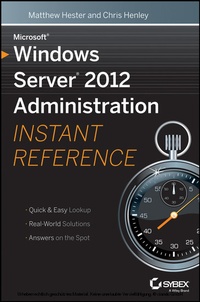
Microsoft Windows Server 2012 Administration Instant Reference
1. Auflage
Erschienen am 4. Juni 2013
592 Seiten
978-1-118-75381-1 (ISBN)
Als Download verfügbar
Beschreibung

Fast, accurate answers for common Windows Server questions
Serving as a perfect companion to all Windows Server books, this reference provides you with quick and easily searchable solutions to day-to-day challenges of Microsoft's newest version of Windows Server. Using helpful design features such as thumb tabs, tables of contents, and special heading treatments, this resource boasts a smooth and seamless approach to finding information. Plus, quick-reference tables and lists provide additional on-the-spot answers.
- Covers such key topics as server roles and functionality, user and group maintenance, directory management and replication, and backup and recovery
- Addresses automating administrative tasks and managing server remote access
- Helps you with disk management and storage, folder security, and performance tuning
- Walks you through common troubleshooting issues as well as maintaining and controlling the centralized desktop
Microsoft Windows Server 2012 Administration Instant Reference is a must-have resource for finding quick answers quickly!
Weitere Details
Weitere Ausgaben
Andere Ausgaben
Matthew Hester | Chris Henley
Microsoft Windows Server 2012 Administration Instant Reference
Buch
07/2013
Sybex Inc.,U.S.
33,00 €
Versand in 15-20 Tagen
Inhalt
- Intro
- Microsoft® Windows Server® 2012 Administration: Instant Reference
- Copyright
- Acknowledgments
- About the Authors
- Contents at a Glance
- Contents
- Introduction
- Who Should Read This Book
- How to Contact the Authors
- Part I: Getting Started
- Chapter 1: Getting Started with Windows Server 2012
- Plan for Windows Server 2012
- Understand Hardware Requirements
- Understand Windows Server 2012 Editions and Roles
- Understand Server Core
- Consider Your Licensing Options
- Install Windows Server 2012
- Perform a Windows Server 2012 Full Installation
- Perform a Windows Server 2012 Server Core Installation
- Use sconfig to Configure Your Windows Server 2012 Server Core
- Upgrade to Windows Server 2012
- Install Windows Server 2012 Server Unattended
- Migrate to Windows Server 2012
- Install Windows Server 2012 Migration Tools
- Migrate to Windows Server 2012
- A New Server Manager
- Chapter 2: Adding Server Roles and Functionality
- Plan for Windows Server 2012 Roles
- Plan for Active Directory
- Plan for Hyper-V
- Understand Remote Desktop Services
- Understand Windows Server 2012 Features
- Install Windows Server 2012 Roles
- Install Roles on a Windows Server 2012 Full Server Installation
- Install Roles on a Windows Server 2012 Server Core Installation
- Chaper 3: Automating Administrative Tasks with Windows Server 2012
- Understand the Basics of Windows PowerShell v3
- Understand Windows PowerShell v3 Terminology and Structure
- Enable Windows PowerShell v3
- Understand Security in Windows PowerShell
- Learn to Help Yourself to PowerShell
- Take the Next Step
- Use PowerShell Remoting
- Enable PowerShell Remoting
- Run Remote Commands
- Understand PowerShell Integrated Scripting Environment (ISE)
- Work with the PowerShell ISE
- Part II: Manage Active Directory and Local Users
- Chaper 4: Maintaining Users and Groups
- Understand Local Users and Groups
- Learn Default Local Users and Groups
- Administer Local Users and Groups
- Understand Local User Rights
- Work with Local Account Policies
- Understand Active Directory Users and Groups
- Learn Active Directory Users and Groups Terminology
- Join an Active Directory Domain as a Member
- Work with Active Directory and Local Groups
- Manage Users and Groups in Active Directory
- Automate User and Group Management
- Load AD PowerShell Modules
- Work with Users and Groups in PowerShell
- Use the AD Recycle Bin
- Chaper 5: Managing and Replicating Active Directory
- Manage the Active Directory Database
- Maintain FSMO Roles
- Transfer FSMO Roles
- Defragment the Directory Database
- Audit Active Directory Service
- Use Fine-Grained Password Policy
- Create PSOs
- Understand Active Directory Replication
- Understand the Components of Replication
- Understand the Physical Constructs of Replication
- Chapter 6: Maintaining and Controlling the Centralized Desktop
- Understand Group Policy
- Know the Difference Between Policy and Preferences
- Understand the Scope of Group Policy Management
- Understand and Control the Order of Precedence
- Learn Group Policy Processing
- Administer Group Policy
- Use the Group Policy Management Console
- Use the Group Policy Management Editor
- Automate Group Policy Administrator Tasks
- Troubleshoot Group Policy
- Use the Group Policy Modeling Wizard
- Use Tools to See the RSOP
- Part III: Data Access and Management
- Chaper 7: Configuring Folder Security, Access, and Replication
- Implement Permissions
- Set Standard NTFS Permissions
- Set Special NTFS Permissions
- View Effective NTFS Permissions
- Take Ownership of an NTFS Folder
- Share Folders
- Create a Shared Folder
- Implement Advanced Sharing
- Resolve Permission Conflicts
- Configure Offline File Caching
- Secure Folders and Files
- Configure the Encrypting File System
- Configure BitLocker Drive Encryption
- Install and Enable BitLocker
- Recover BitLocker
- Use the BitLocker To Go Tool
- Implement the Distributed File System
- Configure a DFS Namespace
- Configure Replication Groups
- Enable Previous Versions of Files
- Restore a Previous Version
- Chapter 8: Backing Up and Recovering Your Server
- Understand Backup and Recovery
- Understand Backup and Recovery Terminology
- Use Backup and Recovery Tools
- Manage Backup and Recovery
- Back Up Your Server
- Recover Your Data
- Recover via Shadow Copy
- Perform Backup and Recovery with Command Tools
- Use wbadmin.exe
- Use PowerShell
- Chaper 9: Managing Disks and Disk Storage
- Understand the Basics
- Learn Disk Management and Storage Terminology
- Work with Your Storage
- Work with Partitions
- Use DiskPart
- Work with RAID Volumes
- Understand RAID Levels
- Implement RAID
- Manage Disk Storage
- Manage Disk Storage Quotas
- Work with Data Deduplication
- Work with Storage Spaces
- Understand Storage Spaces
- Create and Configure Storage Spaces
- Part IV: Network Configuration and Communication
- Chaper 10: Maintaining Your Web Server
- Install Internet Information Services
- Understand Internet Information Services Role Services
- Install IIS on Windows Server 2012 Full Server Installation
- Install IIS on Windows Server 2012 Core Server
- Manage Internet Information Services
- Work with the IIS Management Console
- Remotely Manage IIS Servers
- Manage IIS with PowerShell
- Work with Websites
- Understand the Basics of IIS Websites
- Work with Applications
- Integrate PHP Applications in IIS
- Chapter 11: Administering DNS
- Add and Remove DNS Servers
- Add a DNS Server
- Configure a New DNS Server
- Add Query Forwarding
- Configure a Caching-Only DNS Server
- Remove a DNS Server
- Manage a DNS Server
- Change the Address of a DNS Server
- Configure a DNS Server to Listen Only on a Selected Address
- Scavenge Properties for DNS
- Manage DNS Integration with Active Directory
- Change Zone Replication
- Manage Zone Database Files
- Configure Single-Label DNS Resolution
- Troubleshoot DNS
- Chapter 12: Troubleshooting TCP/IP
- Understand TCP/IP Basics
- Troubleshoot TCP/IP
- Understand Troubleshooting Tools
- Troubleshoot IPv6
- Verify Connectivity for IPv6
- Verify Responsiveness
- Check the Routing Table for IPv6
- Validate DNS Name Resolution for IPv6 Addresses
- Flush the DNS Cache
- Test IPv6 TCP Connections
- Troubleshoot IPv4
- Use the Network Connection Repair Tool
- Verify IPv4 Connectivity
- Verify Responsiveness
- Check the Routing Table for IPv4
- Validate DNS Name Resolution for IPv4 Addresses
- Flush the DNS Cache
- Test IPv4 TCP Connections
- Part V: Manage Desktop and Server Virtualization
- Chapter 13: Managing Remote Access to Your Server
- Understand Remote Desktop Services
- Understand the Remote Desktop Services Role
- Install Remote Desktop Services Role Services
- Manage Remote Desktop Services
- Administer Remote Desktop Session Host
- Activate Remote Desktop Licensing Server
- Configure Remote Desktop Gateway
- Configure Remote Desktop Connection Broker
- Configure Remote Desktop Web Access
- Work with Virtual Desktop Infrastructure
- Work with Remote Clients
- Install and Configure Windows Server 2012 VPNs
- Install and Configure DirectAccess
- Chapter 14: Maintaining Virtual Machines
- Understand Virtualization with Hyper-V
- Install Hyper-V
- Work with Virtual Networks
- Build Virtual Machines
- Create a Virtual Machine
- Create Virtual Hard Disks
- Work with Virtual Machine Settings
- Install an Operating System
- Connect to a Virtual Machine
- Use Snapshots
- Import a Virtual Machine
- Export a Virtual Machine
- Replicate a Virtual Machine
- Part VI: Server Tuning and Maintenance
- Chapter 15: Tuning and Monitoring Performance
- Analyze Server Roles
- Understand the Best Practices Analyzer
- Use the Best Practices Analyzer
- Use PowerShell with the Best Practices Analyzer
- View Server Performance Data
- Create a System Health Report
- Understand Performance Monitor
- View Server Events
- Work with the Event Viewer
- Chapter 16: Keeping Your Servers Up-to-Date
- Work with Windows Updates
- Find Out What Updates Are
- Use Windows Update
- Enable Automatic Updates
- View Installed Updates
- Remove an Update
- Install Automatic Updates Between Scheduled Times
- Use Group Policy to Configure Automatic Updates
- Work with Windows Server Update Services
- Do a Simple WSUS Deployment
- Get WSUS Updates on Disconnected Networks
- Use WSUS with Branch Cache
- Learn the WSUS Requirements
- Get More Information on WSUS
- Index

