

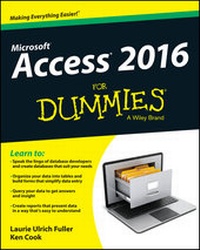
Access 2016 For Dummies
Beschreibung

If you don't know a relational database from an isolationist table--but still need to figure out how to organize and analyze your data--Access 2016 For Dummies is for you. Written in a friendly and accessible manner, it assumes no prior Access or database-building knowledge and walks you through the basics of creating tables to store your data, building forms that ease data entry, writing queries that pull real information from your data, and creating reports that back up your analysis. Add in a dash of humor and fun, and Access 2016 For Dummies is the only resource you'll need to go from data rookie to data pro!
This expanded and updated edition of Access For Dummies covers all of the latest information and features to help data newcomers better understand Access' role in the world of data analysis and data science. Inside, you'll get a crash course on how databases work--and how to build one from the ground up. Plus, you'll find step-by-step guidance on how to structure data to make it useful, manipulate, edit, and import data into your database, write and execute queries to gain insight from your data, and report data in elegant ways.
* Speak the lingo of database builders and create databases that suit your needs
* Organize your data into tables and build forms that ease data entry
* Query your data to get answers right
* Create reports that tell the story of your data findings
If you have little to no experience with creating and managing a database of any sort, Access 2016 For Dummies is the perfect starting point for learning the basics of building databases, simplifying data entry and reporting, and improving your overall data skills.
Alle Preise
Weitere Details
Weitere Ausgaben
Andere Ausgaben
Personen
Inhalt
Part I: Getting Started with Access 2016 5
Chapter 1: Access 2016 Basic Training 7
Chapter 2: Navigating the Access Workspace 27
Chapter 3: Database Basics 49
Chapter 4: Sounds Like a Plan 67
Part II: Getting It All on the Table 77
Chapter 5: Table Tune Ups 79
Chapter 6: Remodeling Your Data 97
Chapter 7: Types, Masks, and Triggers 113
Part III: Data Management Mania 137
Chapter 8: A Form for All Reasons 139
Chapter 9: Importing and Exporting Data 157
Chapter 10: Automatic Data Editing 171
Chapter 11: Access and the Web 183
Part IV: The Power of Questions 203
Chapter 12: Finding, Filtering, and Sorting Your Data -- Fast 205
Chapter 13: I Was Just Asking . for Answers 221
Chapter 14: I Want These AND Those OR Them 247
Chapter 15: Number Crunching with the Total Row 255
Chapter 16: Express Yourself with Formulas 267
Chapter 17: Take Charge with Action Queries 281
Part V: Simple and Snazzy Reporting 291
Chapter 18: Fast and Furious Automatic Reporting 293
Chapter 19: Professionally Designed Reports Made Easy 315
Chapter 20: Headers and Footers and Groups, Oh My! 341
Chapter 21: Magical Mass Mailings 361
Part VI: More Power to You 369
Chapter 22: Analyze This! 371
Chapter 23: Steer Users in the Right Direction with Navigation Forms 381
Part VII: The Part of Tens 391
Chapter 24: Ten Common Problems 393
Chapter 25: Ten Uncommon Tips 403
Appendix A: Getting Help 409
Index 417
Chapter 1
Access 2016 Basic Training
In This Chapter
Deciding when to use Access
Discovering what's new in Access 2016
Unlocking the basics of working with Access
Figuring out how to get started
Access 2016, the most recent version of the Microsoft Office database application, continues to be a very powerful program. You probably already know that, and perhaps that power is what made you choose Access for managing your data and to also reach for this book. Great decisions so far!
For all of its power, Access is pretty friendly to new users. In fact, with just the basic functionality that you'll discover in this book, you'll be able to put Access through many of its most important paces, yet you'll be working with wizards and other onscreen tools that keep you at a comfortable arm's distance from the software's inner workings, the things that programmers and serious developers play with. There. Don't you feel better now?
You don't have to use every feature and tool and push the edges of the Access envelope. In fact, you can use very little of everything Access has to offer and still create quite a significant solution to your needs for storing and accessing data - all because Access can really "do it all" - enabling you to set up a database quickly, build records into that database, and then use that data in several useful ways. Later on, who knows? You may become an Access guru.
In this chapter, you'll discover what Access does best (and when you might want to use another tool instead), and you'll get a look at what's new and improved in Access 2016 (compared to Access 2013). You'll see how it does what it does, and hopefully you'll begin to understand and absorb some basic terminology.
Now, don't panic; nobody's expecting you to memorize tons of complex vocabulary or anything scary like that. The goal here (and in the next two chapters) with regard to terms is to introduce you to some basic words and general concepts intended to help you make better use of Access - as well as better understand later chapters in this book, if you choose to follow us all the way to its stunning, life-altering conclusion.
What Is Access Good For, Anyway?
What is Access good for? That's a good question. Well, the list of what you can do with it is a lot longer than the list of what you can't do with it - of course, especially if you leave things like "wash your car" and "put away the dishes" off the "can't do" list. When it comes to data organization, storage, and retrieval, Access is at the head of the class.
Building big databases
Okay, what do I mean by big database? Any database with a lot of records - and by a lot, I mean hundreds. At least. And certainly if you have thousands of records, you need a tool like Access to manage them. Although you can use Microsoft Excel to store lists of records, it limits how many you can store (no more than the number of rows in a single worksheet). In addition, you can't use Excel to set up anything beyond a simple list that can be sorted and filtered. So anything with a lot of records and complex data is best done in Access.
Some reasons why Access handles big databases well are
- Typically, a big database has big data-entry needs. Access offers not only forms but also features that can create a quick form through which someone can enter all those records. This can make data entry easier and faster and can reduce the margin of error significantly. (Check out Chapter 8 for more about building forms.)
- When you have lots and lots of records, you also have lots of opportunities for errors to creep in. This includes duplicate records, records with misspellings, and records with missing information - and that's just for openers. So you need an application such as Access to ferret out those errors and fix them. (Chapter 10 lays out how you can use Access to find and replace errors and search for duplicate entries.)
- Big databases mean big needs for accurate, insightful reporting. Access has powerful reporting tools you can use to create printed and onscreen reports - and those can include as few or as many pieces of your data as you need, drawn from more than one table if need be. You can tailor your reports to your audience, from what's shown on the reports pages to the colors and fonts used.
- Big databases are hard to wade through when you want to find something. Access provides several tools for sorting, searching, and creating your own specialized tools (known as queries) for finding the elusive single record or group of records you need.
- Access saves time by making it easy to import and recycle data. You may have used certain tools to import data from other sources - such as Excel worksheets (if you started in Excel and maxed out its usefulness as a data-storage device) and Word tables. Access saves you from reentering all your data and allows you to keep multiple data sources consistent.
Building apps
There are several ways to build apps - a term that's come to mean an application that runs on a smartphone or tablet - but that also applies to SharePoint, with Access 2016.
You can build an app using the Access 2016 Web App template or build a custom web app, starting from scratch. You can download an app from the Office Store and then customize it. You can also build a standard database, just like you always have in Access, and publish that via the web.
Now, that said, this is not a book about apps or building them. The goal of this book is to show you how to use Access to build databases for use on a computer (a desktop or laptop/notebook). If you need to create a database app for use on a smartphone or tablet, you can take a look at Dummies.com or check out iOS 6 Application Development For Dummies, published by Wiley, or explore instructions available online by Googling How do I create a database app with Access 2016.
Creating databases with multiple tables
Whether your database holds 100 records or 100,000 records (or more), if you need to keep separate tables and relate them for maximum use of the information, you need a relational database - and that's Access. How do you know whether your data needs to be in separate tables? Think about your data - is it very compartmentalized? Does it go off on tangents? Consider the following example and apply the concepts to your data and see if you need multiple tables for your database.
The Big Organization database
Imagine you work for a very large company, and the company has data pertaining to their customers and their orders, the products the company sells, its suppliers, and its employees. For a complex database like this one, you need multiple tables, as follows:
- One table houses the customer data - names, addresses, phone numbers, and email addresses.
- A second table contains the customers' orders, including the name of the customer who placed the order, the salesperson who handled the sale, shipping information, and the date of the order.
- A third table contains information on the products the company sells, including product numbers, supplier names, prices, and the number of items in stock.
- A fourth table contains supplier data - about the companies from which the main organization obtains its inventory of products to resell to customers. The table contains the company names, their contact person, and the address, email, and phone number information to reach them.
- A fifth table contains employees' data - from the date they were hired to their contact information to their job title - and also contains notes about them, sort of a summary of their resumes for reference.
Other tables exist, too - to keep a list of shipping companies and their contact information (for shipping customer orders), an expense table (for the expenses incurred in running the business), and other tables that are used with the main four tables. The need for and ways to use the main tables and these additional tables are covered later in this book, as you find out how to set up tools for data entry, look up records, and create reports that provide varying levels of detail on all the data you've stored.
Because you don't have to fill in every field for each record - in any table in the database - if you don't have a phone number or don't know an email address, for example, it's okay to leave those fields blank until you've obtained that information.
Fail to plan? Plan to fail
If you think carefully about your database, how you use your data, and what you need to know about your employees, customers, volunteers, donors, products, or projects - whatever you're storing information about - you can plan
- How many tables you'll need
- Which data will go into which table
- How you'll use the tables together to get the reports you need
Of course, everyone forgets something, and...
