

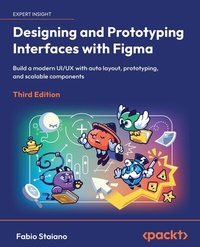
Designing and Prototyping Interfaces with Figma
Description

Key Features
Third edition of the bestselling book, updated with a new project, refreshed interface, and the latest design trends
Build adaptive, production-ready UIs with variables, modes, components, variants, AI, and Auto Layout
Prototype branched flows with conditional interactions and interactive components
Book DescriptionFigma has evolved, and so should your workflow. In this fully updated third edition of Designing and Prototyping Interfaces with Figma, you will explore the platform's most powerful additions, including Variables, Conditional Prototyping, and a redesigned interface that reshapes how you work. This edition is built around a new, real-world project that takes you from brief to handoff and anchors every concept in practical, day-to-day design tasks. Across the project, you will create responsive layouts with Auto Layout, components, and variants; build scalable design systems; and prototype realistic, branched flows with conditional interactions. You will test on devices, collect feedback, and iterate with confidence, applying patterns and checklists that translate directly to team workflows and real product constraints. Collaboration gets equal focus. You will learn how Dev Mode bridges the work of designers and developers for a smoother, more structured handoff with clear specs and variable-aware inspection. The book closes with a pragmatic look at emerging AI-powered tools, helping you evaluate where they might add value without replacing your creative judgment. Whether you are new to UI/UX design or sharpening your practice, you will come away with a proven workflow to ship adaptive, production-ready designs.What you will learn
Create mobile-first wireframes focused on structure, using shape tools, the Pen tool, and vector networks
Use Variables and Modes to manage content, states, and themes at scale
Prototype realistic flows with transitions, Smart Animate, overlays, and interactive components
Make layouts truly responsive with Auto Layout, nesting, resizing, and constraints
Build, document, and maintain scalable design systems with Components, Styles, and Dev Mode for handoff
Explore AI plugins as an optional aid to support, not replace, your design workflow
Who this book is forThis book is for aspiring UX/UI designers who want to get started with Figma as well as established designers who want to migrate to Figma from other design tools. This guide will provide you with a walkthrough of the entire process of creating a full-fledged prototype for a responsive interface using all the tools and features that Figma has to offer. As a result, this book is suitable for both UX and UI designers, product and graphic designers, as well as anyone who wants to explore the complete design process from scratch.
All prices
More details
Other editions
New editions
Additional editions
Person
After several years at the Italian creative agency Geko, where he later became a company partner, he contributed to digital products for established brands while supporting the local creative community. He began teaching user interface and web design in 2016 at The Guru Lab and later expanded his skills at the Apple Developer Academy, specializing in frontend development.
Today, Fabio works as a design consultant, teaches at design academies, and delivers corporate training programs in Italy and abroad, focusing on interface design, design systems, and prototyping.
Content
Exploring Figma and Transitioning from Other Tools
Structuring Moodboards, Personas, and User Flows within FigJam
Getting to Know Your Design Environment
Wireframing a Mobile-First Experience Using Vector Shapes
Designing Consistently Using Grids, Colors, and Typography
Creating a Responsive Mobile Interface Using Auto Layout
Building Components and Variants in a Collaborative Workspace
User Interface Design on Tablet, Desktop, and the Web
Prototyping with Transitions, Smart Animate, and Interactive Components
Testing and Sharing Your Prototype in Browsers and Real Devices
Exporting Assets and Managing the Handover Process
Expanding Your Workflow with Resources, Plugins, Widgets, and AI Tools
Going Advanced with Variables and Conditional Prototyping
1
Exploring Figma and Transitioning from Other Tools
Design tools don't just shape what you create; they shape how you think. Whether you're just getting started or already have experience in the field, the platform you use can either limit or elevate your creative process. Choosing the right tool means choosing how you collaborate, how you prototype, and how you grow as a designer. This is where Figma shines. It's not just about knowing every feature; it's about embracing a design philosophy built on clarity, speed, and collaboration. A standout aspect of Figma is its multiplayer functionality, which enables real-time teamwork and a frictionless workflow. This makes it not just a powerful tool but also a shared space for creativity and decision-making, resonating deeply within today's design culture.
Figma is one of the most advanced design tools available, continually introducing new features and enhancements. This commitment to advancement has transformed Figma into more than just a tool, but an indispensable assistant for countless designers, supporting them from the research phases all the way through to prototyping.
In this chapter, you will learn how Figma manages to consistently push the envelope and why it has become the favorite tool for many in the design community.
Figma is open to everyone and very flexible in many ways, allowing for personalized usage and adaptability to various design needs. It offers a variety of plans, including a free one, which is perfect for beginners in design and with no huge limits. This chapter contains detailed information about all of these and will help you to make your own choices. Here, you will also learn how to switch to Figma from other tools, namely Sketch and Adobe XD.
After that, we will look at how Figma presents you with a welcome screen, where you will explore all the buttons, toolbars, and areas, such as drafts, teams, projects, and Community. It may seem overwhelming at first, but don't worry, we'll go over all the topics step by step. By the end of this chapter, you'll be ready to start putting Figma into practice.
In this chapter, we are going to cover the following main topics:
- What makes Figma different, and why it's become the go-to tool for designers
- Transitioning smoothly from Sketch, Adobe XD, or other tools
- A guided tour of Figma's new welcome experience and interface layout
Free Benefits with Your Book
Your purchase includes a free PDF copy of this book along with other exclusive benefits. Check the Free Benefits with Your Book section in the Preface to unlock them instantly and maximize your learning experience.
Getting to know Figma
Figma is more than just a design tool. It's a real-time collaborative platform built for interface design, prototyping, and team workflows. Whether you're working solo or with an entire product team, it lets you move seamlessly from idea to execution, all in one place, without ever switching tools.
Figure 1.1 - Figma's icon
There are plenty of design apps out there, but Figma stands out for good reason. It's not just the most popular UI design platform today; it's also one of the most versatile and collaborative. What makes it special?
First and foremost: real-time collaboration. Designers, developers, and product managers can work on the same file simultaneously, just like in Google Docs. This multiplayer approach makes teamwork smoother, faster, and more transparent. One of Figma's mottos says it best: Collaboration is hard. We make it easier.
Second, Figma brings together the entire design process in one place. You can brainstorm ideas in FigJam, a visual whiteboarding tool for mapping flows, gathering feedback, or running workshops. Then, you can design precise, interactive interfaces in Design files and, if needed, build and present full presentations directly within Figma Slides. You can also create and publish public-facing pages using Figma Sites, perfect for documentation, project hubs, or portfolios with no coding required. And with Figma Buzz, you can design social media content such as posts, carousels, or short-form video frames using built-in templates tailored for each platform. Everything lives in the same ecosystem, deeply integrated and accessible to your entire team.
And because Figma runs in the cloud, you can use it right in your browser on Windows, macOS, Linux, or ChromeOS, or download the desktop app for a more focused workspace. Your work is saved and synced automatically as you go. If you lose connection, no worries: Figma will store your changes locally and sync them once you're back online.
But Figma is also an incredible community-powered ecosystem. Thousands of designers around the world contribute to templates, plugins, widgets, and reusable components. Whether you need a dashboard UI, a localization plugin, or a color contrast checker, chances are someone has already shared it. You can even build and publish your own resources in the Figma Community.
Of course, no design tool (Figma included) will make you a great designer on its own. The real value lies in how it frees up your time and attention to focus on what matters: users, clarity, and creative problem-solving.
Ready to see it in action? Let's take a closer look.
Creating an account
The first step is simple: head over to figma.com and create your free account. You can sign up with an email and password, or use your Google credentials to speed things up. No installations, no complicated setup, and you're ready to go in seconds.
Figure 1.2 - The registration popup
Once you're in, Figma will prompt you with some questions about you and how you'll use Figma. Fast forward through those, select Starter plan, and head straight to the welcome screen, where your design journey begins.
Choosing the right plan
Figma offers a free Starter plan, perfect for anyone beginning their journey in UX/UI design. It includes everything you need to get started: access to design and prototyping features, unlimited drafts, unlimited viewers, and up to three team files with up to three pages per file. You'll also get a 30-day version history and the ability to collaborate in real time.
If you're working solo or just experimenting, this plan gives you more than enough, without hidden fees or surprise limits. And yes, you can stay on the free plan as long as you want. For more advanced workflows, Figma offers three paid plans:
- Professional: Great for freelancers or small teams. It includes unlimited team files and pages, full version history, shareable design systems, Dev Mode, and custom file permissions. You can pay monthly or yearly.
- Organization: Built for growing teams that need more structure and governance. It adds file branching, shared fonts, advanced analytics, private plugins, and tighter security controls. Annual billing only.
- Enterprise: Tailored for large organizations with strict compliance, security, and SSO requirements.
Figure 1.3 - Plan chart
Are you a student or a teacher? If yes, then you can unlock the Professional plan for free at figma.com/education.
Once your account is ready, you can use Figma directly in the browser-on any system. Chrome, Firefox, Safari, and Edge all work great. You can also install the desktop app on macOS or Windows from figma.com/downloads, which gives you better font support and tab management.
Up next, we'll compare the desktop and web versions to help you choose your preferred setup.
Desktop app versus web app
Technically speaking, there's no major difference between using Figma in your browser or as a desktop app, since both give you the same design and prototyping experience. Figma is a cloud-based tool, so neither version works offline unless your edits are temporarily cached (as we saw earlier).
So, why bother downloading the app? Simple: focus and performance. With the desktop app, you avoid the clutter and distractions of browser tabs. You also reduce the risk of crashes or slowdowns caused by other open websites. If you like a clean, minimal workspace, the desktop version is the way to go.
There are also some practical advantages. You can use native OS features, such as keyboard shortcuts, window management, and quick app switching (? + tab on macOS; Alt + Tab on Windows). And here's one more thing: compatibility. Some browsers, especially Safari, may cause missing keyboard shortcuts or incompatibilities when running FigJam. The desktop app helps you avoid these limitations and ensures a more stable and consistent experience.
But perhaps the most important difference is access to local fonts. In the desktop app,...
