

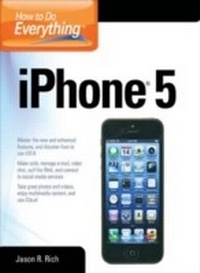
How to Do Everything
iPhone 5
1st Edition
Published on 19. December 2012
804 pages
978-0-07-180334-2 (ISBN)
Available for download
Description

Maximize the power of your iPhone 5 Master the versatile features of your iPhone 5 and stay organized, connected, informed, and entertained. How to Do Everything: iPhone 5 covers iOS 6 and the new capabilities added to the core functions and apps, such as Contacts, Calendar, Reminders, Notes, Safari, Mail, Camera, Maps, FaceTime, and iTunes. Youll also learn how to use iCloud, Notification Center, and Siri. Plus, discover tips on finding and downloading additional apps that can dramatically increase your iPhones performance. This hands-on guide covers it all! Get assistance from Siri and use the Dictation feature Import and sync data from your computer, iCloud, and other iOS devices Discover preinstalled apps and download additional apps Make and receive calls, use voicemail, and set up custom ringtones Manage Contacts and stay organized with Calendar, Reminders, and Notes Surf the Web with Safari Shoot, edit, and share photos and videos Navigate with turn-by-turn directions using the newly redesigned Maps app Manage e-mail accounts, use text messaging, and connect to social media networks, including Facebook and Twitter Video chat via FaceTime or Skype Experience multimedia entertainment and read e-books and digital editions of newspapers and magazines Play exciting single- and multi-player games Protect and troubleshoot your iPhone 5
More details
Other editions
Additional editions
Book
02/2013
Osborne/McGraw-Hill
€33.70
Article not available at the moment
Content
- Cover
- Title Page
- Copyright Page
- Dedication
- Contents
- Acknowledgments
- Introduction
- PART I Get to Know Your iPhone 5
- CHAPTER 1 Discover What's Great About the iPhone
- Get to Know Your New iPhone 5
- Battery Life of the iPhone 5
- Acquaint Yourself with the Anatomy of the iPhone 5
- Discover the Many Ways to Interact with Your iPhone
- Learn About the iPhone 5's Useful New Features
- Choose the Perfect iPhone 5 for Yourself
- Choose the Color of Your iPhone
- Choose a Storage Capacity
- Select a Wireless Service Provider and Service Plan
- CHAPTER 2 Set Up and Configure Your iPhone 5
- Charge Your New iPhone's Battery
- Activate and Set Up Your New iPhone
- Set Up as New iPhone
- Restore from iCloud Backup
- Restore from ilunes Backup
- Set Your Phone in Sleep or Airplane Mode
- Place Your iPhone in Sleep Mode So It Can Continue to Function with the Display Turned Off
- In Airplane Mode, Your iPhone Can't Transmit
- Turn Wi-Fi On and Off Separately
- Enjoy Peace and Quiet by Silencing Your iPhone
- Customize the Notification Center
- Get to Know the Notification Center Screen
- Customize the Notification Center
- CHAPTER 3 Use iPhone's Basic Functions
- Get Acquainted with the iPhone's Virtual Keyboard
- Configure the Virtual Keyboard Options
- Create and Use Custom Keyboard Shortcuts
- Learn When and How to Tap, Swipe, Flick, or Pinch the iPhone's Multi-Touch Display
- Discover the Multiple Functions of the iPhone's Home Button
- Run Multiple Apps Simultaneously and Easily Switch Between Them ..
- Access Music Controls and Rotation Lock Using the Home Button
- Use Siri to Control Your iPhone Verbally
- Initiate a Call with Siri
- Launch Apps Using Siri
- Use Siri to Communicate via the Messages App
- Tell Siri to Enter Meeting and Schedule Info into the Calendar App
- Query Siri About Sports, Movies, and Restaurants
- Get Directions Using Siri's Full Integration with the Maps App
- Control the Music App with Your Voice
- Prepare for the Weather with Siri
- Let Siri Help You Manage Your To-Do Items or Notes
- Use Siri to Get Stock Prices, Update Your Facebook Page, Send Tweets, and Much More
- Ask Siri Questions and Get Quick Answers
- Fine-Tune Siri's Performance Through Practice
- Deactivate Siri
- Enter Text into Apps via Your iPhone Using the Dictation Feature
- Interact with Your iPhone However You'd Like
- CHAPTER 4 Back Up, Sync, and Import Your Existing Data into Your iPhone
- Create and Maintain a Backup of Your iPhone
- Create and Maintain an iTunes Sync Backup
- Create and Maintain an iCloud Backup
- Restore Data from a Backup
- Sync Data, Documents, Files, and Photos Using iTunes Sync
- Use iCloud to Wirelessly Sync Data, Documents, Files, and Photos
- Sync Purchased Content via iCloud
- Set Up Your iPhone to Auto-Sync New Purchases
- Share Files Using Other Cloud-Based File-Sharing Services
- Sync Other Data and Files Between Your Computer, Network, and iPhone
- Share Data and Files with Online-Based Applications
- Use the Share Button Incorporated into Many Apps
- PART II Learn the Basics of iOS 6
- CHAPTER 5 Discover the Apps That Come Preinstalled with iOS 6
- Explore the Apps That Come Preinstalled on the iPhone 5
- App Store
- Calculator
- Calendar
- Camera
- Clock
- Contacts
- FaceTime
- Find My iPhone
- Game Center
- iBooks
- ilunes
- Maps
- Messages
- Music
- Newsstand
- Notes
- Passbook
- Phone
- Photos
- Reminders
- Safari
- Stocks
- Videos
- Voice Memos
- Weather
- New and Improved iPhone Functions That Work with iOS 6 and Your Favorite Apps
- Siri
- Notification Center
- Location Services
- Facebook and Twitter Integration
- Share Capabilities
- iCloud
- Dictation
- AirPrint
- AirPlay
- iOS 6's Other Features
- CHAPTER 6 Customize Your iPhone
- Customize Your iPhone's Lock Screen and Home Screen
- Turn On the Passcode Lock Feature
- Customize the Passcode Lock Feature's Functionality
- Select a Wallpaper Graphic for Your Lock Screen and Your Home Screen. .
- Rearrange the App Icons on the Home Screen
- Create Custom App Folders to Organize Your Home Screen
- Remove App Icons from a Folder
- Delete Apps from Your iPhone
- Purchase Additional iCloud Online Storage Space
- Back Up Your iPhone Using iCloud Backup
- Personalize the Sound and Vibration Options of Your iPhone
- Temporarily Turn Off All Sound Generated by Your iPhone
- Assign Custom Ringtones to Specific Contacts
- Use Your iPhone with a Wide Range of Bluetooth Accessories
- Adjust iPhone Settings to Help Maintain Your Privacy
- Configure Privacy Settings
- Configure Restrictions
- Adjust App-Specific Settings to Customize Their Functionality
- PART III Use Your iPhone's Built-in Apps
- CHAPTER 7 Make and Receive Calls
- Launch the Phone App
- Choose How You'll Speak with Someone on the Phone
- Hold the Phone Up to Your Ear
- Use the Built-in Speakerphone Feature
- Use a Corded Headset
- Use a Wireless Bluetooth Headset
- Answer Incoming Calls
- Answer an Incoming Call While Using the iPhone
- Answer an Incoming Call from the Lock Screen
- Answer an Incoming Call When Already Engaged in a Call
- Manage Incoming Calls Using New iOS 6 Features
- Use the Reply With Message Feature
- Use the Remind Me Later Feature
- Manage Voicemails
- Make Calls from Your iPhone
- Create Favorites and Initiate Calls from Your Favorites List
- Call People from Your Recents List
- Find and Call Anyone in Your Contacts Database
- Dial Any Phone Number Manually Using the Keypad
- Initiate FaceTime Calls from the Phone App
- Use Other Options While You're Engaged in a Call
- Participate in Conference Calls
- Customize the Phone App from Within Settings
- CHAPTER 8 Manage Contacts on Your iPhone
- Create a Customized Contacts Database Using the Contacts App
- Let's Take a Closer Look at the Contacts App
- Add New Entries to Your Contacts Database
- Add Pictures to Your Contacts Entries
- Add Contact Entries from the Maps App
- Add Contact Entries from the Phone App
- Edit Existing Contact Entries
- Find and Access Contacts Data
- Use the Interactive Fields in a Contact Entry
- Share Your Contacts Data Manually
- Sync Your Contacts Database with iCloud
- Sync Your Contacts Database with Other Services
- CHAPTER 9 Send and Receive E-mail Using the Mail App
- Set Up Your Existing E-mail Accounts to Work with the Mail App
- Customize the Mail App
- Read and Manage Incoming E-mails Using the Mail App
- View the Contents of One Inbox or All Inboxes
- Switch Between E-mail Accounts
- Create a Custom Mailbox
- Access E-mail from Your Inboxes
- Read Individual E-mails
- Reply Tb or Forward Incoming E-mails
- Flag Incoming E-mails and/or Mark Them as Unread
- Delete Incoming E-mails
- Move Incoming E-mails to Another Mailbox or Folder
- Add an E-mail's Sender to Your VIP List
- Compose and Send a New Outgoing E-mail
- Stay Connected via the Mail App, Wherever You Are
- CHAPTER 10 Surf the Web with Safari
- Get Acquainted with the Latest Version of the Safari Web Browser
- Make Webpages Easier to Read Using the Reader Feature
- Utilize Safari's Share Button
- Access Your Web Surfing History
- Manage Safari Bookmarks
- Read Webpage Content Offline Using the Reading List Feature
- Switch Between Open Browser Screens
- Discover the New iCloud Tabs Feature
- Customize the Safari App from Settings
- Use Other Web Browsers to Surf the Web
- Stay Active on the Online Social Networking Services
- Use the Official Facebook App
- Use the Official Twitter App
- Use an Unofficial Facebook or Twitter App
- Use Optional Apps for Google +, Instagram, LinkedIn, and More
- CHAPTER 11 Shoot, Edit, and Share Photos and Videos
- Become Familiar with Your iPhone's Built-In Cameras
- Shoot Photos Using the Camera App
- Shoot Photos Using the Camera App
- Snap Clear, Vibrant Photos Using Your iPhone 5
- Shoot Videos Using the Camera App
- Use the Photos App to View, Edit, and Enhance Your Photos
- Navigate the Albums Screen of the Photos App
- View and Edit the Contents of an Album
- View Individual Photos Stored in an Album
- Edit and Enhance Individual Photos
- Geo-Tag Your Photos and Video
- Share Your Photos and Videos
- Share Your Contents of an Album
- Share Individual Photos Stored in an Album
- Use Other Options to Share Your Photos Online
- Sync Your Photos Using iCloud's Photo Stream
- Discover the Hundreds of Other Photography-Related Apps Available from the App Store
- CHAPTER 12 Use the New Maps App to Navigate Your World
- Turn On Location Services and Siri Before Using Maps
- Get Acquainted with the Newly Revamped Maps App
- Obtain Turn-by-Turn Directions Between Start and End Locations
- Change Your Map View
- View a Map of Any Location
- Access the Maps App from the Contacts App
- Use the Maps App with Siri
- Find Third-Party Maps Apps
- CHAPTER 13 Organize Your Life with the Calendar, Reminders, and Notes Apps
- Manage Your Schedule Using the Calendar App
- View One Calendar at a Time, or View Multiple Calendars Simultaneously
- Add a New Calendar or Edit or Delete an Existing Calendar
- Manually Enter New Events into the Calendar App
- View, Edit, and Delete Events
- Access Calendar Information Using Siri
- Set Up the Calendar App to Work with the Notification Center
- Create and Manage To-Do Lists Using the Reminders App
- View, Search, Create, Edit, or Delete a List
- Manage and View a Specific List
- Customize Each To-Do Item in a List from Its Details Screen
- Compose, View, Organize, and Share Text-Based Memos Using the Notes App
- Useful Features of the Notes App
- Create a New Note from Scratch
- Managing Your Notes
- CHAPTER 14 Communicate Using Video Conferencing and Text Messaging
- Use FaceTime for Video Conferencing
- Accept FaceTime Calls
- Initiate a FaceTime Call
- Initiate a FaceTime Call via Your Favorites List
- Participate in a FaceTime Call
- Use FaceTime Alternatives for Video Conferencing
- Use the Messages App for Text Messaging and Instant Messaging
- Set Up the Messages App to Work with Apple's iMessage Service
- Send and Receive Text/Instant Messages Using the Messages App
- Use Alternative Options to iMessage and the Messages App
- PART IV Your iPhone Is a Portable Entertainment System
- CHAPTER 15 Use Your iPhone to Experience Multimedia Entertainment
- Gather Entertaining Content Using the iTunes App
- Shop for Music Using the iTunes App
- Purchase or Rent Movies from Your iPhone
- Purchase Single Episodes or Entire Seasons of Your Favorite TV Shows
- Search the iTunes Store for Whatever You're Looking For
- Discover What Else You Can Access from the iTunes App
- Discover the Cost of Purchasing, Renting, or Streaming Content
- Experience Your Digital Music Library with the Music App
- Enjoy Your Digital Music On Your iPhone
- Control the Music App from the Lock Screen and While in Multitasking Mode
- Use the Music App with External Speakers
- Watch Video Content Acquired from the iTunes Store Using the Videos App
- Discover the New Passbook App
- CHAPTER 16 Use Your iPhone as an E-book Reader
- Customize the iBooks App from Settings
- Explore the iBooks Library Screen
- Shop for E-books at iBookstore
- Find Details on an E-book's Info Screen
- Read an E-book Using iBooks
- Manually Set Bookmarks as You Read
- Interact with the Book Through the Table of Contents
- Adjust the Look of an E-book's Text on the iPhone's Screen
- Perform a Keyword Search Within an E-book
- View PDF Files Using iBooks
- Read Newspapers and Magazines Using the Newsstand App
- CHAPTER 17 Play Games on Your iPhone
- Discover iPhone 5 Games Suitable for People of All Ages
- Distinguish Between Single-Player and Multiplayer Games
- Discover Games You'll Love
- Sample 12 Awesome Games Worth Playing
- Experience Multiplayer Games on Game Center
- PART V Extend the Capabilities of Your iPhone
- CHAPTER 18 Find and Install Additional Apps
- Discover New Apps in the App Store
- Quickly Locate a Specific App Using Its Name or a Keyword
- Browse the App Store's Featured Offerings
- View Charts of the Most Popular Apps
- Rely on the Genius to Help You Find Apps
- Learn All About an App on the App's Info Screen
- Get All the Details About an App
- Read Reviews for an App Before Acquiring It
- Find Related Apps
- Acquire an App from Its Info Screen
- Discover the Difference Between Paid and Free Apps
- Acquire Free Apps
- Acquire Apps by Paying for Them
- Keep Your Apps Up to Date
- Obtain Apple's Own 'Must Have' Apps That Are Optional
- Discover Additional Ways to Use iPhone Apps to Improve Your Life
- Use Your iPhone with Other Gadgets and Technology
- CHAPTER 19 Protect Your iPhone
- Select a Clear Protective Film for the iPhone's Screen
- Apply a Custom "Skin" to Encase the Entire iPhone
- Choose the Perfect Case or Cover for Your iPhone
- Discover the Benefits of Investing in AppleCare +
- Evaluate Third-Party iPhone Insurance Options
- Discover What to Do if Your iPhone Gets Damaged
- Strategies for Replacing a Lost, Stolen, or Damaged iPhone
- APPENDIX A Troubleshoot iPhone Problems
- Fix Common iPhone-Related Problems
- What to Do if Your iPhone Gets Lost or Stolen
- What to Do if Your iPhone Gets Damaged
- What to Do if Your iPhone Starts Acting Sluggish
- What to Do if Your iPhone Won't Make or Receive Calls
- What to Do if Your iPhone Can't Access the Internet
- Dealing with Other iPhone-Related Problems
- Try to Prevent Problems, but Be Prepared if Any Arise
- Index

