

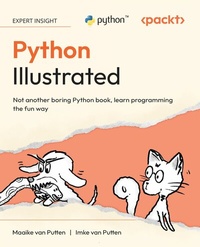
Python Illustrated
Description

Key Features
Follow an adorable, illustrated teaching cat with sharp coding instincts as your guide
Build confidence and coding skills with step-by-step explanations that gradually increase your understanding
Reinforce your learning through mini-projects and exercises at the end of every chapter
Purchase of the print or Kindle book includes a free PDF eBook
Book DescriptionThis is not your average Python programming book, because the world doesn't need another one of those. Instead, it's an illustrated, fun, and hands-on guide that treats learning Python like the adventure it should be. It's designed especially for beginners who want to understand how code works without getting overwhelmed. You'll be guided by a cheeky, know-it-all cat who's surprisingly good at teaching Python from scratch. Don't worry about going through it alone; a slightly moody dachshund dog is your study buddy, learning right alongside you. Each chapter introduces a core programming concept, explains it with a playful twist, and reinforces it through human-friendly examples, analogies, and exercises. Whether you're a software professional or someone who's never written a single line of code, this book will help you build real Python coding skills... and even enjoy the process (shocking, right?). Forget dry tutorials and walls of text. Python Illustrated speaks to visual learners, creative thinkers, cat lovers, dog lovers, and anyone who prefers their learning with a dash of humor. From writing your first function to understanding object-oriented programming, you'll build a solid foundation in Python (without the usual headaches). What you will learn
Set up Python and write your first program
Understand variables, data types, and conditional statements
Use loops, lists, dictionaries, and tuples to handle data efficiently
Write and use functions to create reusable code
Manage files and understand object-oriented programming and inheritance
Debug your Python code to ensure it works flawlessly
Discover how you can keep learning and building beyond this book
Who this book is forThis book is ideal for anyone with a sense of humour who's new to Python or programming in general. It takes a step-by-step hands-on approach that will work for anyone with a practical mindset. Whether you're a student or a professional developer looking to expand your skill set, this book offers a comprehensive and enjoyable learning experience.
All prices
More details
Other editions
Additional editions
Persons
When she's not crafting charming course materials or solving design challenges, she's probably sewing something amazing, running wheelchair skills workshops to empower others with practical tools for independence. Having experienced firsthand how these skills can radically improve quality of life and freedom, she's passionate about paying it forward and helping others navigate the world with more confidence.
Imke's creativity, empathy and resourcefulness make her an irreplaceable creative force.
Content
Get Your Computer Ready to Code Python
Understanding Variables and Data Types
Working with Conditional Statements
Using Lists, Tuples, and Dictionaries
Iterating with Loops
Writing Functions and Using Built-In Functions
Handling Files and Exceptions
Creating and Using Classes
Understanding Inheritance
Debugging Our Code
Next Steps
1
Get Your Computer Ready to Code Python
To make the most out of this book, it's best to follow along on your computer. But you can't just go ahead and write code on any computer; it's often required to get your computer ready to go. You do this by installing some necessary programs. We'll start by making sure you're ready to code. After this chapter, you'll have written your first line of code and run your first program. Exciting, isn't it?
Exploring Python features
Before we get too excited and jump into the installation straight away, let's take a sneak peek at what Python can do. Think of this as sniffing around before committing to the full pounce.
In short, here is why you'd want to learn Python as your programming language:
- Python's syntax is designed to be readable and straightforward. For a programming language, it's simple. It's like a warm sunbeam on the floor: inviting and comfortable.
- From web development to data analysis, Python wears many hats. Or should I say, many collars? It's a language that can be used for many different purposes and is therefore a great pick.
- Python has a supportive and loving community. An active community means tons of libraries and frameworks to play with. If you get stuck, there's practically always someone who has asked the same question before. And if not, they're rushing to answer your question on Stack Overflow. Stack Overflow is a forum that is used to solve mostly coding issues.
Setting up your system can be tricky and even a little frustrating if it doesn't take the happy path directly, but I promise you it's worth it!
Technical requirements
What do you need to run Python? Well, if you really, really had to, you could even learn it on your phone, tablet, or Chromebook. It's not ideal, but if you're motivated enough, you can make it work. At the end of this chapter, I will show you how to set that up. I just wanted to start by telling you not to be discouraged by not having fancy gear; we can make this work with almost anything. Just skip to the end of this chapter if that's you.
While phones and tablets might be possible, they're far from ideal for coding Python. A bit more of a mainstream setup for learning Python is some sort of personal computer. Ideally, you have a laptop or PC with the following specifications:
- Windows, macOS, or Linux as the operating system. Yes, even that old laptop in your closet might do.
- 8 GB RAM is comfy, but if you have 4 GB RAM and an extra splash of patience, it can work as well.
- An Intel i5 or equivalent processor is nice. Of course, anything faster is even better. An i3 will work too, but be prepared for some extra coffee breaks while things load.
- 2 GB of free disk space should suffice. That's like, what, a dozen cat videos?
- Install rights - sometimes, when it's a laptop from work or school, you might not be free to just go ahead and install applications without permission. If you can't install, hop to the end of this chapter, where I discuss how to use Python in the browser.
As you can tell, there's some flexibility here. I'm a big fan of using whatever you have. Once it gets more serious and you have the budget, upgrade your laptop. Python is not too heavy, but some of the programs we use for writing our Python code are. Not having the recommended laptop but using a more basic Python editor instead can be a perfectly fine solution to get started.
If you follow the steps, your system should be ready. The following installation steps are for Linux, macOS, and Windows laptops. For all of these steps, understanding and being able to use the terminal is important. Let's talk about that first.
The terminal
In movies, you might have seen scenes where hackers are doing their magic work, breaking into some sort of system. The application that they typically use when doing this is the terminal.
We might be less cool than those villains or superheroes in the movies, but we will use the terminal as well. When writing and running code, you'll be using a terminal every now and then, or in some cases quite often.
At this point, you might not know what a terminal even is. In the next image, you can see a picture of a terminal.
A terminal is a different way of controlling your computer. As a user, you are used to giving your computer instructions with the mouse and the keyboard. For example, if you want to open your mailbox, you can click on the application icon. This mouse click is an instruction your computer understands, and it will proceed to open the mailbox.
By typing text in the terminal, you can also give your computer instructions. As a bonus, it makes you look like one of those cool hackers from the movies. The terminal is the application that you are using to type these commands; it's sometimes also called the command line.
Here are some things you can do with the command line:
- Create, edit, and delete files
- Install applications
- Run applications
- Check versions
- And a lot more!
We'll be using the command line to install Python, add Python libraries, and run Python files. In order to use the command line, you'll have to know which commands to use. It's very possible that you don't know any. No problem! I will tell you what to type and what it means as we go.
Opening a terminal
Before we install Python, we'll need to check whether Python is already installed. To do that, we'll need a terminal. How to open a terminal depends on the system you're using.
For Linux, depending on your distribution, you can use the shortcut Ctrl + Alt + T. If that doesn't work, you can open the application menu (sometimes called Activities) and look for the applications. There, you can search for terminal. Click on the terminal icon. That should open the terminal.
For Windows, there are two built-in terminals: the command prompt and PowerShell. Either one of those is fine. You can open the command prompt with the shortcut Windows button + R. Or, you can type cmd in the search box in the start bar. If you don't have a search box in the start bar, you'll have to click on the Windows icon first and type it in the search box that pops up as part of the menu. Again, the terminal should open.
Lastly, for macOS, I like to use the Spotlight search. This can be done by pressing Cmd + Space. This brings up a search box. In there, we can type Terminal and press Enter. If that doesn't work, you can use Launchpad. Click the Launchpad icon in your dock and use the search bar at the top to look for Terminal. Click the Terminal app and it should open.
Now that you have the terminal open, let's give it a spin.
Speaking the terminal's language
The terminal might look like a dark and scary place, but it's really just a simple conversation with your computer. You type a command, press Enter, and your computer responds. Each command is like a magic word that makes something happen. The terminal is in a certain folder on your computer. This is like when you have File Explorer or the Finder application open; you are in the folder that you see.
On mine, in the image with the command line, we are at the location ~. Which means that I'm currently in my home directory. The home directory is known as the default user folder. If you're not sure where you are, you can ask the terminal where you are. Here's how it's done on macOS/Linux. In the terminal, type the following:
pwd Then press Enter. This pwd stands for "print working directory." In my case, you can see I'm in the user's home directory, the user folder. This is the default folder where I am when I start the terminal like this.
On Windows, you can see the directory by looking at the terminal window. It tells you where you are.
If you want to change the directory, you can. There are three things you can do when it comes to changing directories: step inside a folder, step up a folder to the parent directory, or go to a complete path that starts from the root of the file system. You change the directory with the cd command. After the command, you specify where to go.
You can step inside a folder that is in the directory where you are. You can do this with the following:
cd foldername The cd stands for "change directory." After executing the command, you're in the subfolder with the name foldername. You can go to the parent folder. This is done with the following:
cd .. You can go to a location that you know the absolute path of. The absolute path starts from the root of the filesystem. This example is for Windows:
C:\Users\Zia This example is for Linux and macOS:
/home/zia If you want to know which files and directories are in the directory that you are in, there's a command for that too....
