

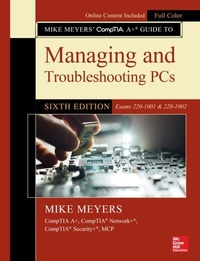
Mike Meyers' CompTIA A+ Guide to Managing and Troubleshooting PCs, Sixth Edition (Exams 220-1001 & 220-1002)
1st Edition
Published on 10. May 2019
1314 pages
978-1-260-45507-6 (ISBN)
Available for download
Description

Publisher's Note: Products purchased from Third Party sellers are not guaranteed by the publisher for quality, authenticity, or access to any online entitlements included with the product.Fully Updated, Essential Skills for a Successful IT CareerWritten by the leading authority on CompTIA A+ certification and training, this four-color guide will help you pass CompTIA A+ exams 220-1001 and 220-1002 and become a certified IT professional with proven expertise in hardware and software. Mike Meyers' CompTIA A+(R) Guide to Managing and Troubleshooting PCs, Sixth Edition offers complete coverage of the latest exam objectives. You'll get on-the-job tips, end-of-chapter review questions, and hundreds of photographs and illustrations.Learn how to:*Work with CPUs, RAM, BIOS, motherboards, power supplies, and other personal computer components*Install, configure, and maintain hard drives*Manage input devices and removable media*Set up, upgrade, and maintain all versions of Windows*Troubleshoot and fix computer problems*Establish users and groups*Set up video and multimedia cards*Administer smartphones, tablets, and other mobile devices*Set up wired and wireless networks*Connect to the Internet*Protect your personal computer and your network*Install printers and other peripherals*Implement virtualization and cloud-based technologies*Understand safety and environmental issuesOnline content includes:*Practice exams for 1001 & 1002*One hour+ of free video training from Mike Meyers*TotalSim online simulations of performance-based questions*A list of free networking utilities
More details
Other editions
Additional editions
Mike Meyers
Mike Meyers' CompTIA A+ Guide to Managing and Troubleshooting PCs, Sixth Edition (Exams 220-1001 & 220-1002)
Book
06/2019
6th Edition
McGraw-Hill Education
€81.83
Article exhausted; check for reprint
Content
- Cover
- About the Author
- Title Page
- Copyright Page
- Acknowledgments
- About this Book
- Contents at a Glance
- Contents
- Introduction
- Instructor Web Site
- Chapter 1 Safety and Professionalism
- 1002
- The Professional Tech
- Appearance
- The Traits of a Tech
- Effective Communication
- Assertive Communication
- Respectful Communication
- Getting Answers
- Expectations and Follow-up
- Be Prepared!
- Electrostatic Discharge (ESD)
- Antistatic Tools
- Electromagnetic Interference (EMI)
- Radio Frequency Interference (RFI)
- Physical Tools
- Personal Safety
- Troubleshooting Methodology
- Chapter 1 Review
- Chapter 2 The Visible Computer
- Historical/Conceptual
- The Computing Process
- The Computing Parts
- Stages
- Why the Process Matters to Techs
- Breaking It Down
- 1001
- Computing Hardware
- 1002
- Computing Software
- Common Operating System Functions
- User Interfaces
- File Structures and Paths
- The Tech Launch Points
- Chapter 2 Review
- Chapter 3 CPUs
- Historical/Conceptual
- CPU Core Components
- The Man in the Box
- Registers
- Clock
- Back to the External Data Bus
- Memory
- Memory and RAM
- Address Bus
- 1001
- Modern CPUs
- Developers
- Technology
- Selecting and Installing CPUs
- Selecting a CPU
- Installation Issues
- Troubleshooting CPUs
- Symptoms of Overheating
- Catastrophic Failure
- Beyond A+
- Intel Core M
- Chapter 3 Review
- Chapter 4 RAM
- Historical/Conceptual
- Understanding DRAM
- Organizing DRAM
- Practical DRAM
- DRAM Sticks
- Consumer RAM
- Types of RAM
- SDRAM
- RDRAM
- 1001
- DDR SDRAM
- DDR2
- DDR3
- DDR3L/DDR3U
- DDR4
- RAM Variations
- Working with RAM
- Do You Need More RAM?
- Getting the Right RAM
- Installing DIMMs
- Installing SO-DIMMs in Laptops
- Troubleshooting RAM
- Chapter 4 Review
- Chapter 5 Firmware
- 1001
- We Need to Talk
- Talking to the Keyboard
- BIOS
- CMOS and RTC
- Typical System Setup Utility
- Graphical UEFI System Setup Utility
- Text-Based UEFI Intel-Based Setup Utility
- Other BIOS Security Settings
- Exiting and Saving Settings
- Option ROM and Device Drivers
- Option ROM
- Device Drivers
- BIOS, BIOS, Everywhere!
- Power-On Self Test (POST)
- Before and During the Video Test: The Beep Codes
- Text Errors
- POST Cards
- The Boot Process
- Care and Feeding of BIOS/UEFI and CMOS
- Default/Optimized Settings
- Clearing CMOS RTC RAM
- Losing CMOS RTC Settings
- Flashing the ROM
- Chapter 5 Review
- Chapter 6 Motherboards
- Historical/Conceptual
- How Motherboards Work
- Form Factors
- 1001
- Chipset
- Standard Components
- Additional Components
- Expansion Bus
- Structure and Function of the Expansion Bus
- PCI
- Mini-PCI
- PCI Express
- Installing Expansion Cards
- Troubleshooting Expansion Cards
- Upgrading and Installing Motherboards
- Choosing the Motherboard and Case
- Installing the Motherboard
- Troubleshooting Motherboards
- Symptoms
- Techniques
- Options
- Chapter 6 Review
- Chapter 7 Power Supplies
- Historical/Conceptual
- Understanding Electricity
- 1001
- Powering the PC
- Supplying AC
- 1002
- 1001
- Supplying DC
- Installing and Maintaining Power Supplies
- Installing
- Cooling
- Troubleshooting Power Supplies
- No Motherboard
- Switches
- When Power Supplies Die Slowly
- Fuses and Fire
- Beyond A+
- Modular Power Supplies
- Temperature and Efficiency
- Chapter 7 Review
- Chapter 8 Mass Storage Technologies
- Historical/Conceptual
- How Hard Drives Work
- Magnetic Hard Drives
- 1001
- Solid-State Drives
- Hybrid Hard Drives
- Connecting Mass Storage
- PATA
- SATA
- eSATA and Other External Drives
- Refining Mass Storage Communication
- Protecting Data with RAID
- RAID
- Implementing RAID
- Software Versus Hardware
- Dedicated RAID Boxes
- Installing Drives
- Choosing Your Drive
- PATA Drive Installation
- Cabling SATA Drives
- Connecting Solid-State Drives
- BIOS Support: Configuring CMOS and Installing Drivers
- Troubleshooting Hard Drive Installation
- Chapter 8 Review
- Chapter 9 Implementing Mass Storage
- Historical/Conceptual
- Hard Drive Partitions
- 1002
- Master Boot Record
- Dynamic Disks
- GUID Partition Table
- Other Partition Types
- When to Partition
- Partition Naming Problems
- Hard Drive Formatting
- File Systems in Windows
- FAT32
- NTFS
- exFAT
- File Systems in macOS
- File Systems in Linux
- The Partitioning, Formatting, and Pooling Process
- Bootable Media
- Partitioning and Formatting with the Installation Media
- Disk Management
- Formatting a Partition
- Storage Spaces
- Maintaining and Troubleshooting Hard Drives
- Maintenance
- 1001
- Troubleshooting Hard Drive Implementation
- Beyond A+
- Third-Party Partition Tools
- Chapter 9 Review
- Chapter 10 Essential Peripherals
- 1001
- Supporting Common Ports
- Serial Ports
- USB Ports
- FireWire Ports
- Thunderbolt Ports
- General Port Issues
- Common Peripherals
- Keyboards
- Pointing Devices
- Biometric Devices
- Smart Card Readers
- Barcode/QR Scanners
- Touch Screens
- KVM Switches
- Game Controllers and Joysticks
- Digitizers
- Multimedia Devices and Formats
- Storage Devices
- Flash Memory
- Optical Media
- Chapter 10 Review
- Chapter 11 Building a PC
- 1001
- Specialized PCs
- Prerequisites to Building
- Custom PCs for Specific Jobs
- Standard Thick Clients
- Thin Clients
- Virtualization Workstation
- Gaming PC
- Graphics/CAD/CAM Design Workstation
- Audio/Video Editing Workstation
- Network Attached Storage Devices
- 1002
- Installing and Upgrading Windows
- Media Sources
- Types of Installation
- The OS Installation Process
- Troubleshooting Installation Problems
- Post-Installation Tasks
- Patches, Service Packs, and Updates
- Upgrading Drivers
- Restoring User Data Files (If Applicable)
- Install Essential Software
- Migrating and Retiring Systems
- No Installation Is Perfect
- Beyond A+
- Privacy Concerns with Windows 10
- Chapter 11 Review
- Chapter 12 Windows Under the Hood
- 1002
- Registry
- Accessing the Registry
- Registry Components
- Talkin' Registry
- Manual Registry Edits
- Command-Line Registry Editing Tools
- The Boot Process
- Applications, Processes, and Services
- Task Manager
- Resource Monitor
- Performance Tools
- Tools for Programmers
- Component Services
- Data Sources
- Chapter 12 Review
- Chapter 13 Users, Groups, and Permissions
- 1002
- Authentication with Users and Groups
- User Accounts
- Passwords
- Groups
- Standard User and Elevated Privileges
- Configuring Users and Groups in Windows
- Authorization Through NTFS
- NTFS Permissions
- Inheritance
- Permission Propagation
- Techs and Permissions
- Permissions in Linux and macOS
- Sharing Resources Securely
- Sharing Folders and Files
- Locating Shared Folders
- Administrative Shares
- Protecting Data with Encryption
- Beyond Sharing Resources
- Security Policies
- User Account Control
- How UAC Works
- UAC in Modern Windows
- Chapter 13 Review
- Chapter 14 Maintaining and Optimizing Operating Systems
- 1002
- Maintaining Operating Systems
- Patch Management
- Managing Temporary Files in Windows
- Registry Maintenance
- Disk Maintenance Utilities
- Scheduling Maintenance
- Controlling Autostarting Software
- Handy Windows Administration Tools
- Optimizing Operating Systems
- Installing and Removing Software
- Installing and Optimizing a Device
- Performance Options
- Preparing for Problems
- Backing Up Personal Data
- System Restore in Windows
- Chapter 14 Review
- Chapter 15 Working with the Command-Line Interface
- 1002
- Deciphering the Command-Line Interface
- Shells
- Accessing the Command-Line Interface in Windows
- Accessing the Command-Line Interface in macOS and Linux
- The Command Prompt
- Closing the Terminal
- File Formats and Filenames
- Drives and Folders
- Mastering Fundamental Commands
- Structure: Syntax and Switches
- Viewing Directory Contents: dir and ls
- Changing Directory Focus: The cd Command
- Moving Between Drives
- Making Directories: The md/mkdir Command
- Removing Directories: The rd/rmdir Command
- Running a Program in Windows
- Running a Program in macOS and Linux
- Working with Files
- Using Wildcards to Locate Files
- Deleting Files
- Copying and Moving Files
- Pruning and Grafting Folder Trees
- Assorted Windows Commands
- chkdsk (/f /r)
- format
- hostname
- gpupdate
- gpresult
- sfc
- shutdown
- Using Special Keys in Windows
- PowerShell
- Assorted macOS and Linux Commands
- ifconfig
- iwconfig
- ps
- grep
- apt-get/APT
- vi
- dd
- shutdown
- passwd
- Scripting
- Script Types and Languages
- Anatomy of a Script
- Environment Variables
- Chapter 15 Review
- Chapter 16 Troubleshooting Operating Systems
- 1002
- Failure to Boot
- Failure to Boot: Hardware or Configuration
- Failure to Boot: Windows
- Failure to Boot: Linux
- Failure to Start Normally
- Device Drivers
- Registry
- Advanced Startup Options
- Rebuild Windows Profiles
- Troubleshooting Tools
- More Control Panel Tools
- Application Problems
- Application Installation Problems
- Problems with Uninstalling
- Compatibility
- Missing File or Incorrect File Version
- Unresponsive Apps
- Application Crashes
- Volume Shadow Copy Service and System Protection
- Chapter 16 Review
- Chapter 17 Display Technologies
- Video Displays
- LCD Monitors
- Historical/Conceptual
- 1001
- Projectors
- VR Headsets
- Common Monitor Features
- Display Adapters
- Motherboard Slot
- Graphics Processor
- Video Memory
- Integrated GPUs
- Connector Types and Associated Cables
- Installing and Configuring Video
- Software
- 1002
- Working with Drivers
- Historical/Conceptual
- 3-D Graphics
- 1002
- Troubleshooting Video
- Troubleshooting Video Cards and Drivers
- Troubleshooting Monitors
- Troubleshooting Projectors
- Beyond A+
- Additional Display Topics
- MicroLED
- High Dynamic Range
- Adaptive Sync
- Video Modes
- eGPUs
- Chapter 17 Review
- Chapter 18 Essentials of Networking
- 1001
- Roles Hosts Play in Networks
- Historical/Conceptual
- Networking Technologies
- 1001
- Frames and NICs
- Ethernet
- Ethernet with Twisted Pair
- Ethernet with Alternative Connections
- Implementing Ethernet
- The Typical LAN
- Structured Cabling
- Going Wide
- Chapter 18 Review
- Chapter 19 Local Area Networking
- 1001/1002
- TCP/IP
- Network Addressing with IPv4
- TCP/UDP
- Network Addressing with IPv6
- Installing and Configuring a Wired Network
- Installing a NIC
- Configuring IP Addressing
- Connecting to a Switch
- Sharing and Security
- Network Shares
- Network Organization
- Troubleshooting Networks
- Repairing Physical Cabling
- Fixing Common Problems
- Chapter 19 Review
- Chapter 20 Wireless Networking
- Historical/Conceptual
- Wireless Networking Components
- 1001
- Wireless Networking Software
- Wireless Network Modes
- 1002
- Wireless Networking Security
- 1001
- Speed and Range Issues
- Wireless Networking Standards
- IEEE 802.11-Based Wireless Networking
- Other Wireless Standards
- 1002
- Installing and Configuring Wireless Networking
- Wi-Fi Configuration
- Bluetooth Configuration
- Cellular Configuration
- Troubleshooting Wi-Fi
- Hardware Troubleshooting
- Software Troubleshooting
- Connectivity Troubleshooting
- Configuration Troubleshooting
- Chapter 20 Review
- Chapter 21 The Internet
- Historical/Conceptual
- How the Internet Works
- Internet Tiers
- TCP/IP: The Common Language of the Internet
- Internet Service Providers
- Connection Concepts
- 1001
- Connecting to the Internet
- Dial-Up
- DSL
- Cable
- Fiber
- Wi-Fi
- Line-of-Sight Wireless
- Cellular
- Satellite
- Connection to the Internet
- Internet Application Protocols
- 1002
- The World Wide Web
- File Transfer Protocol (FTP)
- Telnet and SSH
- SFTP
- Voice over IP
- Remote Desktop
- Virtual Private Networks
- File Sharing
- Internet Utility Protocols
- 1001
- The Internet of Things
- Internet Troubleshooting
- No Connectivity
- Limited Connectivity
- Local Connectivity
- Slow Transfer Speeds
- Beyond A+
- Online Gaming
- Chapter 21 Review
- Chapter 22 Virtualization
- 1001
- Benefits of Virtualization
- Power Saving
- Hardware Consolidation
- System Management and Security
- Research
- Implementing Virtualization
- Meet the Hypervisor
- Emulation Versus Virtualization
- Client-Side Virtualization
- Server-Side Virtualization
- To the Cloud
- The Service-Layer Cake
- Ownership and Access
- Why We Cloud
- Chapter 22 Review
- Chapter 23 Portable Computing
- Historical/Conceptual
- Portable Computing Devices
- Taxonomy
- 1001
- Input Devices
- Display Types
- Extending Portable Computers
- Single-Function Ports
- Networking Options
- Portable-Specific Expansion Slots
- Storage Card Slots
- General-Purpose Ports
- Managing and Maintaining Portable Computers
- Batteries
- Power Management
- Cleaning
- Heat
- Protecting the Machine
- Upgrading and Repairing Laptop Computers
- Disassembly Process
- Standard Upgrades
- Hardware/Device Replacement
- Troubleshooting Portable Computers
- Power and Performance
- Components
- Chapter 23 Review
- Chapter 24 Understanding Mobile Devices
- 1001
- Mobile Computing Devices
- Device Variants
- Mobile Hardware Features
- 1002
- Mobile Operating Systems
- Development Models
- Apple iOS
- Google Android
- Mobile OS Features
- Configuring a Mobile Device
- Enhancing Hardware
- Installing and Configuring Apps
- Network Connectivity
- Data
- Synchronization
- Mobile Device Communication and Ports
- Chapter 24 Review
- Chapter 25 Care and Feeding of Mobile Devices
- 1001/1002
- Troubleshooting Mobile Device Issues
- Troubleshooting Tools
- Touchscreen and Display Issues
- App Not Loading
- Overheating
- Slow Performance
- Battery Life
- Swollen Battery
- Frozen System
- Cannot Broadcast to an External Monitor
- No Sound from Speakers
- Connectivity and Data Usage Issues
- GPS and Location Services Problems
- System Lockout
- Encryption Problems
- Securing Mobile Devices
- BYOD Versus Corporate-Owned Devices
- Profile Security Requirements
- Preventing Physical Damage
- Combating Malware
- Dealing with Loss
- Recovering from Theft
- Securing Your Data
- Mobile OS and Application Security Issues
- Troubleshooting Tools
- Risks, Symptoms, and Clues
- Chapter 25 Review
- Chapter 26 Printers and Multifunction Devices
- 1001
- Printer and Multifunction Device Components and Technologies
- Printers
- Scanners
- Copy and Fax Components
- Automatic Document Feeders
- Connectivity
- The Laser Printing Process
- Processing
- Charging
- Exposing
- Developing
- Transferring
- Fusing
- Cleaning
- Installing a Multifunction Device
- Setting Up Printers in Windows
- 1002
- 1001
- Configuring Print Settings
- Optimizing Print Performance
- Managing Public/Shared/Networked Devices
- Troubleshooting Printers
- Troubleshooting General Issues
- Troubleshooting Impact Printers
- Troubleshooting Thermal Printers
- Troubleshooting Inkjet Printers
- Troubleshooting Laser Printers
- Troubleshooting 3-D Printers
- Chapter 26 Review
- Chapter 27 Securing Computers
- 1002
- Analyzing Threats
- Unauthorized Access
- Social Engineering
- Denial of Service
- Data Destruction
- Administrative Access
- System Crash/Hardware Failure
- Physical Theft
- Malware
- Environmental Threats
- Security Concepts and Technologies
- Access Control
- Data Classification and Compliance
- Licensing
- Incident Response
- Network Security
- Malicious Software
- Malware Signs and Symptoms
- Malware Prevention and Recovery
- Firewalls
- Internet Appliances
- Authentication and Encryption
- Wireless Issues
- Chapter 27 Review
- Chapter 28 Operational Procedures
- 1002
- Documentation Best Practices
- Network Documentation
- Company Policies
- Inventory Management
- Managing Change Management
- Change Management Processes
- Implementing Change (Scenario)
- Disaster Prevention and Recovery
- Power Protection
- Backup and Recovery Procedures
- Account Recovery
- Beyond A+
- Chapter 28 Review
- Appendix A Mapping to the CompTIA A+ Objectives
- 220-1001 Exam Objectives
- 220-1002 Exam Objectives
- Appendix B About the Online Content
- System Requirements
- Your Total Seminars Training Hub Account
- Privacy Notice
- Single User License Terms and Conditions
- TotalTester Online
- Pre-Assessment Test
- Other Online Book Resources
- TotalSims for A+
- Mike's Video Training
- Playing the Mike Meyers Introduction Video
- Mike's Cool Tools
- Technical Support
- Glossary
- Index

