

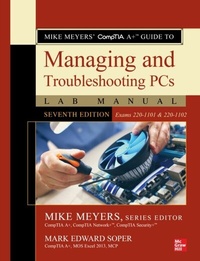
Mike Meyers' CompTIA A+ Guide to Managing and Troubleshooting PCs Lab Manual, Seventh Edition (Exams 220-1101 & 220-1102)
1st Edition
Published on 13. January 2023
931 pages
978-1-264-71167-3 (ISBN)
Available for download
Description

Bestselling CompTIA A+ author Mark E. Soper and Series Editor Mike Meyers provide a comprehensive update to this hands-on lab manual that covers the 2022 update to the examsThis practical workbook contains more than 140 labs that challenge you to solve real-world problems by applying key concepts. Thoroughly revised for the 220-1101 and 220-1102 exam objectives, this book maps directly to Mike Meyers CompTIA A+ Guide to Managing and Troubleshooting PCs, Seventh Edition. You will get complete materials lists, setup instructions, and start-to-finish lab scenarios. Hint and Warning icons guide you through tricky situations, and post-lab questions measure your knowledge.Mike Meyers CompTIA A+ Guide to Managing and Troubleshooting PCs Lab Manual, Seventh Edition covers:Hardware and OS TroubleshootingProfessional BehaviorWindows 10/11 Configuration and MaintenancemacOS and Linux Configuration and MaintenanceCPUs and RAMBIOS and UEFI FirmwareMotherboards, Expansion Cards, and PortsPower Supplies and Mass StoragePC Assembly and ConfigurationUsers, Groups, and PermissionsDisplay TechnologiesLocal Area and Wi-Fi NetworkingThe InternetVirtualizationPortable and Mobile Device Configuration and ManagementPrinters and PeripheralsComputer SecurityOperational Procedures
More details
Other editions
Additional editions
Mike Meyers | Mark Soper
Mike Meyers' CompTIA A+ Guide to Managing and Troubleshooting PCs Lab Manual, Seventh Edition (Exams 220-1101 & 220-1102)
Book
01/2023
7th Edition
McGraw-Hill Education
€82.00
Article exhausted; check different version
Content
- Intro
- Cover
- Title Page
- Copyright Page
- Dedication
- Contents at a Glance
- Contents
- Acknowledgments
- Additional Resources for Teachers
- Chapter 1 Safety and Professionalism
- Lab Exercise 1.01: Safeguarding Your IT Future-Becoming a Professional
- Lab Exercise 1.02: Avoiding the Rude Computer Technician Stereotype
- Lab Exercise 1.03: Collecting Information Professionally
- Lab Exercise 1.04: Communicating Effectively
- Lab Exercise 1.05: Integrating Safety into the Workplace
- Lab Exercise 1.06: Taming Electrostatic Discharge
- Lab Exercise 1.07: Understanding the Troubleshooting Methodology
- Lab Analysis Test
- Key Term Quiz
- Chapter 2 The Visible Computer
- Lab Exercise 2.01: Exploring the Functions and Components of a PC
- Lab Exercise 2.02: Examining User-Accessible Components
- Lab Exercise 2.03: Recognizing External Connections
- Lab Exercise 2.04: Navigating the Windows 10 Desktop and Tablet Interfaces
- Lab Exercise 2.05: Navigating the Windows 11 Desktop and Tablet Interfaces
- Lab Exercise 2.06: Managing Files and Folders in Windows
- Lab Exercise 2.07: Using the Control Panel in Windows
- Lab Exercise 2.08: Using the Settings App in Windows 10/11
- Lab Exercise 2.09: Getting Familiar with the macOS Interface
- Lab Analysis Test
- Key Term Quiz
- Chapter 3 CPUs
- Lab Exercise 3.01: Identifying CPU Characteristics
- Lab Exercise 3.02: Recognizing CPU Sockets
- Lab Exercise 3.03: Cooling Your CPU
- Lab Exercise 3.04: Exploring CPU Specifications with CPU-Z
- Lab Exercise 3.05: Removing and Installing a CPU
- Lab Analysis Test
- Key Term Quiz
- Chapter 4 RAM
- Lab Exercise 4.01: Determining the Amount of RAM in a PC
- Lab Exercise 4.02: Identifying Types of RAM
- Lab Exercise 4.03: Removing and Installing RAM
- Lab Exercise 4.04: Exploring RAM Specifications with CPU-Z
- Lab Analysis Test
- Key Term Quiz
- Chapter 5 Firmware
- Lab Exercise 5.01: Identifying UEFI/BIOS Firmware
- Lab Exercise 5.02: Accessing BIOS/UEFI Settings via the BIOS/UEFI Settings Program
- Lab Exercise 5.03: Configuring and Clearing BIOS/UEFI Settings Program Passwords
- Lab Exercise 5.04: Configuring BIOS/UEFI Settings
- Lab Analysis Test
- Key Term Quiz
- Chapter 6 Motherboards
- Lab Exercise 6.01: Researching New Motherboards
- Lab Exercise 6.02: Identifying Internal Expansion Slots
- Lab Exercise 6.03: Removing Expansion Cards
- Lab Exercise 6.04: Removing a Motherboard
- Lab Exercise 6.05: Identifying Motherboard Features
- Lab Exercise 6.06: Installing a Motherboard
- Lab Exercise 6.07: Installing Expansion Cards
- Lab Exercise 6.08: Exploring Motherboard Features with CPU-Z
- Lab Exercise 6.09: Managing Hardware with Device Manager
- Lab Analysis Test
- Key Term Quiz
- Chapter 7 Power Supplies
- Lab Exercise 7.01: Measuring AC Voltage Levels
- Lab Exercise 7.02: Testing Power Supply Output
- Lab Exercise 7.03: Choosing a Power Supply
- Lab Exercise 7.04: Replacing a Power Supply
- Lab Exercise 7.05: Understanding Power Protection
- Lab Analysis Test
- Key Term Quiz
- Chapter 8 Mass Storage Technologies
- Lab Exercise 8.01: Installing Serial ATA Hard Drives
- Lab Exercise 8.02: Choosing External Hard Drives
- Lab Exercise 8.03: Comparing SATA Solid-State Drives and Magnetic Hard Drives
- Lab Exercise 8.04: Choosing and Using an M.2 SSD
- Lab Exercise 8.05: Troubleshooting Hard Drive Installations
- Lab Exercise 8.06: Configuring a Hardware RAID
- Lab Analysis Test
- Key Term Quiz
- Chapter 9 Implementing Mass Storage
- Lab Exercise 9.01: Creating and Formatting Partitions with Windows Installation Media
- Lab Exercise 9.02: Creating and Formatting Partitions with GParted
- Lab Exercise 9.03: Using Windows Tools to Create and Format Partitions
- Lab Exercise 9.04: Converting Basic Disks to Dynamic Disks with Disk Management
- Lab Exercise 9.05: Implementing Software RAID 0 with Disk Management
- Lab Exercise 9.06: Maintaining and Troubleshooting Hard Drives
- Lab Analysis Test
- Key Term Quiz
- Chapter 10 Essential Peripherals
- Lab Exercise 10.01: Troubleshooting and Benchmarking USB
- Lab Exercise 10.02: Disassembling and Cleaning a Keyboard
- Lab Exercise 10.03: Troubleshooting and Adjusting a Pointing Device
- Lab Exercise 10.04: Installing Sound
- Lab Exercise 10.05: Installing Optical Drives
- Lab Analysis Test
- Key Term Quiz
- Chapter 11 Installing and Upgrading Operating Systems
- Lab Exercise 11.01: Verifying Operating System Requirements
- Lab Exercise 11.02: Checking Hardware Compatibility with Windows 11
- Lab Exercise 11.03: Performing a Clean Installation of Windows 11
- Lab Exercise 11.04: Upgrading from Windows 10 to Windows 11
- Lab Exercise 11.05: Post-Installation Tasks: Drivers and Updates
- Lab Exercise 11.06: Installing Ubuntu Linux
- Lab Analysis Test
- Key Term Quiz
- Chapter 12 Windows Under the Hood
- Lab Exercise 12.01: Editing the Windows Registry
- Lab Exercise 12.02: Using the Task Manager
- Lab Exercise 12.03: Working with Services
- Lab Analysis Test
- Key Term Quiz
- Chapter 13 Users, Groups, and Permissions
- Lab Exercise 13.01: Managing Users in Windows
- Lab Exercise 13.02: Defining NTFS Permissions
- Lab Exercise 13.03: Sharing Files and Folders
- Lab Exercise 13.04: Encrypting Important Data
- Lab Exercise 13.05: Configuring User Account Control
- Lab Exercise 13.06: Using BitLocker To Go
- Lab Exercise 13.07: Setting File Permissions in Linux
- Lab Analysis Test
- Key Term Quiz
- Chapter 14 Maintaining and Optimizing Operating Systems
- Lab Exercise 14.01: Backing Up and Restoring in Windows 10 and 11
- Lab Exercise 14.02: Using File History in Windows 10 and 11
- Lab Exercise 14.03: Using System Restore
- Lab Exercise 14.04: Managing Updates and Patches in Windows 10 and 11
- Lab Exercise 14.05: Scheduling Maintenance in Windows
- Lab Exercise 14.06: Installing and Removing Applications and Windows Components in Windows
- Lab Exercise 14.07: Backing Up with Time Machine in macOS
- Lab Exercise 14.08: Managing Updates and Patches in macOS
- Lab Analysis Test
- Key Term Quiz
- Chapter 15 Working with the Command-Line Interface
- Lab Exercise 15.01: Exploring the Command-Line Interface in Windows
- Lab Exercise 15.02: Exploring the Command-Line Interface in Linux
- Lab Exercise 15.03: Navigating Basic Commands in Windows
- Lab Exercise 15.04: Navigating Basic Commands in Linux
- Lab Analysis Test
- Key Term Quiz
- Chapter 16 Troubleshooting Operating Systems
- Lab Exercise 16.01: Examining and Configuring Log Files in Event Viewer
- Lab Exercise 16.02: Troubleshooting in Safe Mode
- Lab Exercise 16.03: Repairing from Windows Installation Media
- Lab Analysis Test
- Key Term Quiz
- Chapter 17 Display Technologies
- Lab Exercise 17.01: Installing Video
- Lab Exercise 17.02: Configuring Multiple Displays
- Lab Exercise 17.03: Troubleshooting Video
- Lab Analysis Test
- Key Term Quiz
- Chapter 18 Essentials of Networking
- Lab Exercise 18.01: Identifying Local Area Network Hardware
- Lab Exercise 18.02: Evaluating a UTP Cable
- Lab Exercise 18.03: Determining a MAC Address
- Lab Analysis Test
- Key Term Quiz
- Chapter 19 Local Area Networking
- Lab Exercise 19.01: Exploring Local Area Network Configuration Options
- Lab Exercise 19.02: Verifying TCP/IP Settings in Windows
- Lab Exercise 19.03: Verifying TCP/IP Settings in Linux
- Lab Exercise 19.04: Verifying TCP/IP Settings in macOS
- Lab Exercise 19.05: Testing Your LAN Connections in Windows, Linux, and macOS
- Lab Exercise 19.06: Sharing Folders in Windows
- Lab Analysis Test
- Key Term Quiz
- Chapter 20 Wireless Networking
- Lab Exercise 20.01: Setting Up a Wireless Network
- Lab Exercise 20.02: Configuring and Securing a Wireless Network
- Lab Exercise 20.03: Troubleshooting Wireless Connectivity in Windows
- Lab Exercise 20.04: Resetting a Wireless Router
- Lab Analysis Test
- Key Term Quiz
- Chapter 21 The Internet
- Lab Exercise 21.01: Assessing Current Internet Connectivity
- Lab Exercise 21.02: Evaluating Internet Connection Choices
- Lab Exercise 21.03: Working with Firewalls and Ports
- Lab Analysis Test
- Key Term Quiz
- Chapter 22 Virtualization
- Lab Exercise 22.01: Identifying Virtualization Technologies
- Lab Exercise 22.02: Installing and Using VirtualBox
- Lab Exercise 22.03: Installing and Using Hyper-V
- Lab Analysis Test
- Key Term Quiz
- Chapter 23 Portable Computing
- Lab Exercise 23.01: Researching Laptop Upgrade Paths
- Lab Exercise 23.02: Replacing and Upgrading RAM
- Lab Exercise 23.03: Replacing and Upgrading SATA Mass Storage
- Lab Exercise 23.04: Installing an M.2 SSD
- Lab Exercise 23.05: Adjusting Power Management to Optimize Battery Life in Windows 10
- Lab Exercise 23.06: Adjusting Power Management to Optimize Battery Life in Windows 11
- Lab Exercise 23.07: Browsing the Latest Portable PCs
- Lab Analysis Test
- Key Term Quiz
- Chapter 24 Understanding Mobile Devices
- Lab Exercise 24.01: Comparing Mobile Device Platforms
- Lab Exercise 24.02: Installing Mobile Applications
- Lab Exercise 24.03: Setting Up E-mail on a Mobile Device
- Lab Exercise 24.04: Using Wi-Fi and Bluetooth on a Mobile Device
- Lab Exercise 24.05: Researching Chargers and Charging Ports
- Lab Exercise 24.06: Researching Wearables
- Lab Analysis Test
- Key Term Quiz
- Chapter 25 Maintaining and Securing Mobile Devices
- Lab Exercise 25.01: Configuring Mobile Device Security
- Lab Exercise 25.02: Installing Updates
- Lab Exercise 25.03: Backing Up and Resetting a Mobile Device
- Lab Analysis Test
- Key Term Quiz
- Chapter 26 Printers and Multifunction Devices
- Lab Exercise 26.01: Examining Types of Printers
- Lab Exercise 26.02: Installing a Printer in Windows
- Lab Exercise 26.03: Supporting a Multifunction Device
- Lab Exercise 26.04: Maintaining and Troubleshooting Printers
- Lab Analysis Test
- Key Term Quiz
- Chapter 27 Securing Computers
- Lab Exercise 27.01: Configuring Local Policies
- Lab Exercise 27.02: Reviewing Security Events
- Lab Exercise 27.03: Removing Malware from a Computer
- Lab Exercise 27.04: Researching Missing Security Fixes with Belarc Advisor
- Lab Analysis Test
- Key Term Quiz
- Chapter 28 Operational Procedures
- Lab Exercise 28.01: Diagramming a Network
- Lab Exercise 28.02: Evaluating Power Distribution and Protection Hardware
- Lab Exercise 28.03: Comparing Backup Methods
- Lab Exercise 28.04: Creating a Password Reset Disk
- Lab Analysis Test
- Key Term Quiz
- Index

