

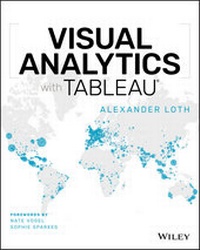
Visual Analytics with Tableau
Description

A four-color journey through a complete Tableau visualization
Tableau is a popular data visualization tool that's easy for individual desktop use as well as enterprise. Used by financial analysts, marketers, statisticians, business and sales leadership, and many other job roles to present data visually for easy understanding, it's no surprise that Tableau is an essential tool in our data-driven economy.
Visual Analytics with Tableau is a complete journey in Tableau visualization for a non-technical business user. You can start from zero, connect your first data, and get right into creating and publishing awesome visualizations and insightful dashboards.
. Learn the different types of charts you can create
. Use aggregation, calculated fields, and parameters
. Create insightful maps
. Share interactive dashboards
Geared toward beginners looking to get their feet wet with Tableau, this book makes it easy and approachable to get started right away.
More details
Other editions
Additional editions
Person
Alexander Loth is a data scientist with over 10 years' experience in the Enterprise software space, focused primarily on Digital Transformation, Big Data, Machine Learning, and Business Analytics. Since 2015 he has been with Tableau Software as Digital Strategist in Frankfurt, Germany where he guides organizations to evolve their data-driven culture. Prior to Tableau, Alexander was a Data Scientist at CERN and worked as a consultant for Capgemini and in software engineering at SAP.
Content
About the Author vii
About the Technical Editors ix
Credits xi
Acknowledgments xiii
Foreword by Nate Vogel xxi
Foreword by Sophie Sparkes xxiii
Introduction xxv
Chapter 1: Introduction and Getting Started with Tableau 1
The Advantages of a Modern Analytics Platform 2
My Personal Tableau Story 3
The Tableau Application Suite 4
Installing Tableau Desktop 5
System Requirements for Tableau Desktop 5
Downloading and Installing Tableau Desktop 6
Registering and Activating Tableau Desktop 6
Data Preparation 6
Crosstab Reports with Wide Tables 7
Preparing Your Data for Analysis 8
Long Tables Suitable for Analysis 8
The Sample Dataset 9
Finding the Dataset 9
Understanding the Data 10
Opening the Excel File Containing the Sample Dataset 11
The Tableau Workspace 13
The Menu Bar 15
The Data Pane 16
Working with Measures and Dimensions 17
Visualizing a First Measure 17
Breaking Down a Measure Based on a Dimension 17
Working with Marks 19
Working with Color 20
Adding More Information to Tooltips 21
Saving, Opening, and Sharing Your Workbooks 21
Saving Workbooks 21
Opening Workbooks 23
Sharing Workbooks with Tableau Reader 23
Chapter 2: Adding Data Sources in Tableau 25
Setting Up a Data Connector 26
Connecting to a File 27
Connecting to a Server 28
Connecting to a Cloud Service 30
Selecting Data Tables 31
Adding a Table to a Data Model 31
Joins 31
Unions 34
Specific Unions (Manual) 34
Wildcard Unions (Automatic) 35
Data Extracts and Live Connections 36
Live Connections 36
Untethered with a Data Extract 37
Data Protection and Data Governance 38
Editing the Model's Metadata 38
Data Types 40
Changing a Field's Data Type 41
Adding Hierarchies, Calculated Fields, and Table Calculations 41
Data Collection 42
Data Collection with IFTTT and Google Sheets 42
Website Analysis with Google Analytics 43
Checklist for Increasing Performance 46
General Advice for Performance Optimization 46
Performance Optimization with Files and Cloud Services 47
Performance Optimization with Database Servers 48
Chapter 3: Creating Data Visualizations 49
Chart Types 50
Ready, Set, Show Me 52
How Show Me Works 52
Scatter Plots 52
Bar Charts, Legends, Filters, and Hierarchies 53
Bar Charts 54
Hierarchies 54
Filters 55
Line Charts 57
Straight Lines 57
Adjusting the Time Dimension 58
Step Charts 59
Jump Lines 59
Continuous Date Fields 61
Highlight Tables 64
Step 1: Cross Tables 64
Step 2: Add Color 64
Step 3: Change the Mark Type 66
Heatmaps 67
Step 1: Build the Table 67
Step 2: Choose an Interesting Color Palette 68
Step 3: Change the Size of Marks 69
Bullet Charts 69
Step 1: Side-By-Side Bars 71
Step 2: Overlay the Measures 71
Cumulative Sums with Waterfall Charts 73
Step 1: Sorted Bar Chart 73
Step 2: Cumulative Sum and Gantt bars 74
Step 3: Calculate the Step Size 75
Reflection: The Anatomy of a Tableau Visualization 77
Chapter 4: Aggregate Functions, Calculated Fields, and Parameters 81
Aggregate Functions 82
Calculated Fields 84
Aggregations in Calculated Fields 86
Text Operators 88
Splits 88
Shortening Character Strings 89
Converting Between Uppercase and Lowercase 90
Replacing Substrings 90
Date Fields 90
Date Parts 90
Traditional Gregorian and ISO 8601 Calendars 91
Date Calculations 92
Parsing Date Parts 92
Date Format Conversions 93
Logical Functions in Calculated Fields 94
Case Discrimination 94
Case Discrimination with IF-THEN-ELSE Logic 95
Case Discrimination with the IIF Function 96
Working with NULL Values 97
Parameters 97
Creating a Parameter and Displaying the Control Element 97
Parameters in Calculated Fields 98
Searching Text Fields 100
Chapter 5: Table Calculations and Level of Detail Calculations 105
Different Types of Calculations 106
Order of Processing Steps 107
Quick Table Calculations 107
Setting Up a Quick Table Calculation 107
Duplicate as Crosstab 110
Editing Table Calculations 110
Customized Table Calculations 113
Bump Charts 113
Dual Axis Charts 116
Adjustable Moving Average 118
Level of Detail Expressions 123
Keywords and Syntax 123
Cohort Analysis 124
Regional Averages 125
Higher-Level Regions 127
Chapter 6: Maps 131
Symbol Maps 132
Filled Maps 134
Density Maps 134
Map Layers 136
Maps with Pie Charts 137
Creating a Pie Chart Map 138
Adding a Filter 138
Dual Axis Map 139
Viz in Tooltip 140
Step 1: Create the Second Chart 141
Step 2: Embedding the Chart in Tooltips 142
Reflection: The Anatomy of a Tableau Map 143
Alternative Map Services 144
Mapbox Maps 145
Mapbox Account and Token 145
Mapbox in Tableau 146
Using the Background Map 146
Spatial Data 147
Undersea Communication Cables 148
Open Data 152
Chapter 7: Advanced Analytics: Trends, Forecasts, Clusters, and other Statistical Tools 155
Overview of the Tableau Analytics Pane 156
Constant, Average, and Reference Lines 157
Trend Lines 157
Adding Trend Lines 158
Trend Line Options 160
Line and Trend Model Description 161
Forecasts 162
Adding a Forecast Line to the View 162
Forecast Settings 162
Model Description 164
Cluster Analysis 166
Clustering in Tableau 166
Saving and Working with Clustering Results 167
Python, R, and MATLAB Integration 168
Getting Started with Python and TabPy 169
Connecting Tableau with TabPy 170
Python Scripts in Calculated Fields 172
Trellis Chart with Python Script 173
R Integration 174
Security 175
Example: Local Regression with R 175
MATLAB Integration 178
Chapter 8: Interactive Dashboards 181
Preliminary Considerations 182
Creating a New Dashboard 183
The Dashboard Pane 184
Placing Charts on the Dashboard 185
Dashboard Titles 187
Navigation Buttons 188
Dashboard Actions 191
Filter Actions 191
Adding and Editing Filter and Highlight Actions 193
Adding Web Content via URL Actions 195
Email Notifications via URL Actions 198
Dashboard Starters: Templates for Cloud Data 199
Dashboard Best Practices and Inspiration 201
Design Tips for Creating a Dashboard 201
Tableau Public: A Gallery of Inspiration 202
Chapter 9: Sharing Insights with Colleagues and the World 205
Preliminary Considerations 206
Tableau Online and Tableau Server 207
Publishing 207
Ask Data 211
Tableau Mobile 212
Tableau Public 213
Publishing to Tableau Public 214
Your Tableau Public Profile 216
Web Embedding 216
Chapter 10: Data Preparation with Tableau Prep 221
Connecting to Data 222
Wildcard Unions 226
Additional Connections 228
Inspecting the Data 229
Removing Unneeded Fields 230
Data Cleaning and Formatting 231
Cleaning Steps and the Profile Pane 231
Calculated Fields 233
Built-in Cleaning Features 235
Renaming Cleaning Steps 235
Unions 237
Joins 238
Splits 239
Grouping 240
Joining 240
Running the Flow and Outputting the Data 242
Saving Flows 244
Index 245
Chapter 1
Introduction and Getting Started with Tableau
Tableau was created to empower people to analyze their data regardless of the level of their technical know-how. At the core of Tableau is VizQL, an innovative visual query language that translates mouse inputs such as drag-and-drop into database queries. This allows the user to quickly find insights in their data and to share the results with others.
Crucially, it is not necessary to know what you are looking for or how you want to present your findings. Instead, with Tableau, you can immerse yourself in data. Through visual analysis, you will be able to unearth patterns and relationships in your data that you might not have known existed. In this regard, Tableau is different from other tools, which often require you to know beforehand in what form you want to display your data.
The purpose of this chapter is to introduce you to the different products that make up the Tableau application suite, the Tableau user interface, and to how Tableau processes your data. We will also introduce the sample dataset that is used throughout this book and provide a first glimpse of the possibilities that Tableau gives you for creating data visualizations.
By the end of this chapter you will be able to:
- Install Tableau on your computer.
- Identify data that is suitable for analysis.
- Create your first data visualization in Tableau.
THE ADVANTAGES OF A MODERN ANALYTICS PLATFORM
The first thing you typically do in Tableau is to connect to a dataset. The data can come from simple files, databases, data cubes, data warehouses, Hadoop clusters, or even different cloud services such as Google Analytics. Next, you interact with the Tableau interface to query your data visually and to display the results in various types of charts and maps. Then, you can collate the individual charts in a dashboard in order to put them into the right context.
Finally, depending on the product used, there are different options for communicating the results with others, from sending individual workbooks, to embedding interactive dashboards, to sharing them on social media. Tableau helps you with both the analysis as well as the communication of results, by providing capabilities such as the creation and sharing of explanatory diagrams, data stories, and interactive dashboards (see Figure 1.1).
Figure 1.1 An interactive sales dashboard. We will build this in Chapter 8.
MY PERSONAL TABLEAU STORY
I first came across Tableau in 2009, when I was writing my thesis at CERN, the European Organization for Nuclear Research in Geneva. I was exploring the landscape of available tools for the visualization and communication of data because I was not happy with the clunky, inflexible solutions that were commonly used back then.
Like most of my colleagues at CERN, I spent a lot of time aggregating data in Python, a popular universal programming language, only to then visualize it in another tool, the command-line tool GnuPlot. It was a struggle to keep all the scripts well maintained, and even small changes required a lot of time and effort.
When new data came in, the scripts had to be re-run. The resulting visualizations were, of course, static and didn't offer any interactivity to the end user. And the software packages I used had a lot of dependencies that had to be resolved every time a new version became available.
When I eventually learned about Tableau, I was amazed by the ease of use of the graphical interface and the possibility of being able to interact with my data directly. Every time I dropped another measure or dimension onto the canvas, I got new insights from my data. What used to take me hours could now be done in minutes, and it was fun, to boot! The interactivity of the resulting dashboards and the ability to have them automatically refresh when the underlying data changed sealed the deal for me. I was a fan. I still feel as passionately about Tableau today as I did back then, and I hope to be able to impart some of that enthusiasm to the readers of this book.
THE TABLEAU APPLICATION SUITE
Some readers may have bought this book because they already have one or more Tableau products installed on their machine and would like to jump right in and learn how to use them. But for those who are not so familiar with the different Tableau products, here is a quick overview:
Tableau Desktop Tableau Desktop is an application for Windows and Mac, appreciated by both analysts and business users. In Tableau Desktop, you can connect to flat files (such as Excel and CSV files) and save your workbooks to your local hard drive. To tap into an organization's IT infrastructure, you can also use Tableau Desktop to connect to a host of different database solutions, and you can share your workbooks via Tableau Server or the cloud-based Tableau Online.
Tableau Prep Tableau Prep is the latest addition to the Tableau product suite and is designed to help you prepare your data before you analyze it in Tableau Desktop. The visual interface allows you to quickly merge differently formatted datasets, clean the data, and unify the level of aggregation. Tableau Prep fits seamlessly into your analysis workflow.
Tableau Server Tableau Server is a platform for data analysis and is used by small family-run businesses and large Fortune 500 companies alike. It is intended for the organization-wide provision of data visualizations and dashboards that can be viewed in a browser and are frequently embedded into the organization's intranet.
Tableau Online Tableau Online is a Tableau-hosted solution for storing and deploying dashboards. It provides similar functionality to Tableau Server but is a cloud-based service. No purchase and maintenance of server hardware is necessary here.
Tableau Public Tableau Public is a hosting service for the publication of data visualizations to the web. It is used by newsrooms and bloggers but also by companies, research institutes, governmental bodies, and non-governmental organizations that aim to get their data stories into the public eye. The interactive visualizations can be viewed in the browser directly on the Tableau Public platform, or they can be embedded into blogs and websites.
Tableau Reader Tableau Reader is a free desktop application that allows you to open and interact with Tableau workbook files that have been created in Tableau Desktop. However, it is not possible to make any changes to the visualizations in Tableau Reader.
NOTE The figures throughout this book show Tableau Desktop version 2019.1, unless stated otherwise. The web-edit screen of Tableau Server and Tableau Online contains a number of features that you might recognize from Tableau Desktop. But the functionality of the browser-based products is still limited when it comes to creating new visualizations and dashboards. Therefore, I advise you to install Tableau Desktop on your machine, especially if you are still new to Tableau. The following section will provide more information about the system requirements and the installation process of Tableau Desktop.
INSTALLING TABLEAU DESKTOP
Installing Tableau Desktop is a simple process and takes only a few minutes. Therefore, this will be a very brief section.
System Requirements for Tableau Desktop
Before installing Tableau Desktop, be sure your machine meets the necessary requirements for this application. Tableau Desktop is available for Windows and Mac.
These are the official minimum requirements for a Windows installation:
- Microsoft Windows 7 or later (64-bit)
- Microsoft Server 2008 R2 or later
- Intel Pentium 4 or AMD Opteron processor or later
- 2 GB RAM
- At least 1.5 GB of free hard disk space
These are the official minimum requirements for a Mac installation:
- iMac/MacBook 2009 or later
- OS X 10.10 or later
- At least 1.5 GB of free hard disk space
Should you wish to work with large datasets, I recommend the following additional specifications:
- Latest service pack or update for your operating system
- Intel Core i3/i5/i7/i9 or AMD FX processor or later
- At least 8 GB RAM
- Solid-state drive (SSD) with at least 20 GB of free space
- Full-HD resolution (1920 × 1080 pixels) or higher with 32-bit color depth
Downloading and Installing Tableau Desktop
If you don't already have Tableau Desktop installed on your machine, use this link to download the latest trial version: https://www.tableau.com/products/desktop.
Make sure you are logged in to your machine as administrator and that you have the rights to install software on the machine. Run the installer as you normally would, given your operating system:
On a Windows Machine Open the setup (EXE) file, and accept any safety prompts from your OS.
On a Mac Open the image (DMG) file, and double-click the installation package (PKG) file to start the installation.
Follow the prompts during the setup process. Changes to the installation path or similar changes usually are not required.
Registering and Activating Tableau Desktop
Once the installation process is completed, open Tableau...
