

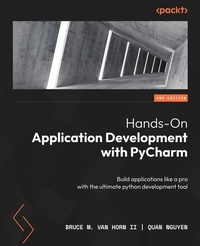
Hands-On Application Development with PyCharm
Build applications like a pro with the ultimate python development tool
2nd Edition
Published on 20. October 2023
652 pages
978-1-83763-697-6 (ISBN)
Description

Unleash the power of PyCharm to craft business, scientific, and web applications in Python with this definitive guideKey Features - Learn basic to advanced PyCharm concepts to improve developer efficiency on your Python projects
- Learn with practical examples that focus on efficient application development
- Explore features such as code automation, graphical debugging, and remote development
- Purchase of the print or Kindle book includes a free PDF eBook
Book DescriptionIn the quest to develop robust, professional-grade software with Python and meet tight deadlines, it's crucial to have the best tools at your disposal. In this second edition of Hands-on Application Development with PyCharm, you'll learn tips and tricks to work at a speed and proficiency previously reserved only for elite developers. To achieve that, you'll be introduced to PyCharm, the premiere professional integrated development environment for Python programmers among the myriad of IDEs available. Regardless of how Python is utilized, whether for general automation scripting, utility creation, web applications, data analytics, machine learning, or business applications, PyCharm offers tooling that simplifies complex tasks and streamlines common ones. In this book, you'll find everything you need to harness PyCharm's full potential and make the most of Pycharm's productivity shortcuts. The book comprehensively covers topics ranging from installation and customization to web development, database management, and data analysis pipeline development helping you become proficient in Python application development in diverse domains. By the end of this book, you'll have discovered the remarkable capabilities of PyCharm and how you can achieve a new level of capability and productivity.What you will learn - Explore basic and advanced PyCharm features
- Set up, configure, and customize your Python projects in PyCharm
- Develop web applications with Flask, Django, FastAPI, and Pyramid
- Discover PyCharm's capabilities for database management and data visualization
- Explore code automation, debugging, and remote development in PyCharm
- Perform data science tasks using Jupyter notebooks, NumPy, and pandas
Who this book is forThis book is for Python practitioners and learners looking to boost their productivity and proficiency by harnessing the features and capabilities of PyCharm, all while gaining insights into best practices for modern application development. Basic knowledge of Python is required, making the book accessible to both newcomers and experienced Python developers.
- Learn with practical examples that focus on efficient application development
- Explore features such as code automation, graphical debugging, and remote development
- Purchase of the print or Kindle book includes a free PDF eBook
Book DescriptionIn the quest to develop robust, professional-grade software with Python and meet tight deadlines, it's crucial to have the best tools at your disposal. In this second edition of Hands-on Application Development with PyCharm, you'll learn tips and tricks to work at a speed and proficiency previously reserved only for elite developers. To achieve that, you'll be introduced to PyCharm, the premiere professional integrated development environment for Python programmers among the myriad of IDEs available. Regardless of how Python is utilized, whether for general automation scripting, utility creation, web applications, data analytics, machine learning, or business applications, PyCharm offers tooling that simplifies complex tasks and streamlines common ones. In this book, you'll find everything you need to harness PyCharm's full potential and make the most of Pycharm's productivity shortcuts. The book comprehensively covers topics ranging from installation and customization to web development, database management, and data analysis pipeline development helping you become proficient in Python application development in diverse domains. By the end of this book, you'll have discovered the remarkable capabilities of PyCharm and how you can achieve a new level of capability and productivity.What you will learn - Explore basic and advanced PyCharm features
- Set up, configure, and customize your Python projects in PyCharm
- Develop web applications with Flask, Django, FastAPI, and Pyramid
- Discover PyCharm's capabilities for database management and data visualization
- Explore code automation, debugging, and remote development in PyCharm
- Perform data science tasks using Jupyter notebooks, NumPy, and pandas
Who this book is forThis book is for Python practitioners and learners looking to boost their productivity and proficiency by harnessing the features and capabilities of PyCharm, all while gaining insights into best practices for modern application development. Basic knowledge of Python is required, making the book accessible to both newcomers and experienced Python developers.
All prices
More details
Other editions
Additional editions
Bruce M. Van Horn II | Quan Nguyen
Hands-On Application Development with PyCharm
Build applications like a pro with the ultimate python development tool
Book
10/2023
2nd Edition
Packt Publishing
€55.80
Shipment within 3-4 weeks
Previous edition
Quan Nguyen Nguyen
Hands-On Application Development with PyCharm
Accelerate your Python applications using practical coding techniques in PyCharm
E-Book
06/2024
1st Edition
Packt Publishing Limited
from
€35.41
Available for download
Content
- Cover
- Title Page
- Copyright and Credits
- Contributors
- Table of Contents
- Preface
- Part 1: The Basics of PyCharm
- Introduction to PyCharm - the Most Popular IDE for Python
- Technical requirements
- The continued success of Python
- The philosophy of IDEs
- PyCharm as a Python IDE
- Intelligent coding assistance
- Streamlined programming tools
- Web development options
- Scientific computing support
- Understanding the Professional, Community, and Educational editions
- Summary
- Questions
- Further reading
- Installing and Configuring PyCharm
- Technical requirements
- Downloading PyCharm the traditional way
- JetBrains Toolbox
- Installing Toolbox in Windows
- Installing Toolbox in macOS
- Installing PyCharm with Toolbox
- Launching PyCharm using Toolbox
- Installing an alternate version or uninstalling
- Updating PyCharm using Toolbox
- Launching and registering PyCharm
- Setting up PyCharm
- Appearance and behavior
- Working with projects
- Creating a new project
- Running a PyCharm project
- Cloning this book's code from GitHub
- Setting up your GitHub account
- Cloning the book's repository
- Summary
- Questions
- Further reading
- Part 2: Improving Your Productivity
- Customizing Interpreters and Virtual Environments
- Technical requirements
- Virtual environments
- Creating a virtual environment by hand
- Creating a project in PyCharm (revisited)
- Using an existing virtual environment
- Changing the interpreter for a project
- Activating virtualenv
- Using the integrated terminal
- Working with the REPL in the console window
- Working with third-party package libraries
- Adding third-party libraries in PyCharm
- Removing third-party libraries in PyCharm
- Using a requirements.txt file
- The new Python Packages window
- Professional features important to virtual environments
- Importing projects into PyCharm
- Importing a project cloned from a repository
- Dealing with invalid interpreters
- Working with run configurations
- PyCharm's project files
- Summary
- Questions
- Further reading
- Editing and Formatting with Ease in PyCharm
- Technical requirements
- Code analysis, inspection, and suggestion
- It duzunt assewm yew cna spel
- It understands your code
- Postfix code completion
- Hippie completion
- Indexing
- Power Save Mode
- Customizing code completion
- Match case
- Sorting suggestions alphabetically
- Machine learning assisted completions
- Showing the documentation popup in [...] ms
- Parameter info
- Code analysis and automated fixes
- Problem detection
- Syntax errors
- Duplicated code
- PEP-8 problems
- Dead code
- Method signature mismatches
- The road to good code is paved with PyCharm's intentions
- Refactoring
- What is refactoring?
- Refactoring tools in PyCharm
- Documentation
- Working with docstrings
- Summary
- Questions
- Further reading
- Version Control with Git in PyCharm
- Technical requirements
- Version control and Git essentials
- Setting up Git on your computer
- Setting your default username and email address
- Generating an SSH key
- Adding your SSH key to your GitHub account
- Setting up a repository manually
- Master versus main branches in GitHub
- Manually initializing the repository
- Working with remotes
- Adding a remote on GitHub
- The first push
- Making, committing, and pushing a change
- Working with Git in the IDE
- Version control in PyCharm
- Creating a new project from scratch using VCS tooling in PyCharm
- Initializing the local Git repository
- Adding a remote on GitHub
- Adding project files
- Adding a .gitignore file
- Pulling and pushing
- Branching and merging
- Creating a branch
- Switching between branches
- Merging
- Viewing the branch diagram
- Diffs and conflict resolution
- Viewing diffs
- Summary
- Questions
- Further reading
- Seamless Testing, Debugging, and Profiling
- Technical requirements
- Testing, testing, 1-2-3
- Unit testing in Python using PyCharm
- Choosing a test library
- Adding a bank account class
- Testing the bank account class
- Running the tests
- Fixing the failing tests
- Testing the fault paths
- Generating tests automatically
- Generating the transaction test
- Working with PyCharm's debugger
- Using the debugger to find and fix our test problem
- Checking test coverage
- Test coverage output
- Profiling performance
- Profiling in PyCharm
- Comparing performance versus the built-in sum() function
- Viewing the call graph
- Navigating using the performance profile
- Performance cProfile snapshots
- Summary
- Questions
- Further reading
- Part 3: Web Development in PyCharm
- Web Development with JavaScript, HTML, and CSS
- Technical requirements
- Introduction to HTML, JavaScript, and CSS
- Writing code with HTML
- Creating HTML in PyCharm
- Creating an empty project
- Previewing web pages
- Reloading the browser view on save
- Using the PyCharm HTML preview
- Configuring the available browsers
- Navigating structure code with the structure window
- Adding the CSS
- Using color selectors
- Adding JavaScript
- Adding some JavaScript code
- Adding the elements to the HTML file
- Debugging client-side JavaScript
- Working with Emmet templating
- HTML project types in PyCharm Professional
- HTML 5 Boilerplate
- Previewing and editing graphics with external tools
- Uploading your site to a server
- Creating a Bootstrap project
- Working with modern JavaScript and NodeJS
- Creating a NodeJS project
- Creating a React project
- Other frontend frameworks
- Summary
- Questions
- Building a Dynamic Web Application with Flask
- Technical requirements
- Web basics - client-server architecture
- Exploring the request-response mechanism in HTTP - how clients and servers communicate
- What is Flask?
- Request-response handling and routing with Werkzeug
- Templating with Jinja2
- A note on naming files and folders
- Creating a Flask application in PyCharm Professional
- Creating a dynamic web application
- Setting up the static parts
- Running the Flask app
- Let's make it look a little better
- Adding some CSS
- Making the page dynamic
- Editor enhancements for working with Flask and Jinja2
- Summary
- Further reading
- Creating a RESTful API with FastAPI
- Technical requirements
- There is no REST in a wicked stateless world
- Creating a FastAPI project in PyCharm Professional
- Running the FastAPI project
- Working with PyCharm's HTTP Requests
- Examining the details of the return
- We just generated a new run configuration
- Using Before launch actions in run configurations
- Working with HTTP Request environments
- Let's get CRUDdier and then get testier!
- Getting testier
- Creating the tests
- Editing and debugging a full stack app by attaching projects
- Creating a React app in a separate project
- Attaching the project to your FastAPI project we created earlier
- Summary
- Questions
- Further reading
- More Full Stack Frameworks - Django and Pyramid
- Technical requirements
- What's all this fuss about Django?
- Django framework components
- Creating a Django project
- Structure of a Django project
- Initial configuration
- Running the Django project
- Creating Django models
- Performing migrations using manage.py
- The Django admin interface
- Creating a superuser and logging in
- Adding the Author and Book models to the admin interface
- Creating Django views
- What's with the weird Python icon in the template gutter?
- Run it!
- Building Pyramid applications with PyCharm
- Creating a Pyramid project
- Summary
- Questions
- Further reading
- Understanding Database Management in PyCharm
- Technical requirements
- Relational databases in a nutshell
- Structured Query Language
- The two halves of SQL
- Relationships
- More relational structures
- Database terminology uses simple English plurals
- Database tooling in PyCharm
- Setting up a MySQL database server with Docker
- Installing and running the MySQL container
- Stopping and starting the container
- Connecting to data sources using PyCharm
- Creating a new database
- Setting the SQL dialect (this is crucial)
- Grouping and color coding data sources
- Database design and manipulation
- Creating a table
- Altering existing structures
- Generating scripts
- Querying the data source using SQL
- Ad hoc queries
- Generating SQL statements
- Running the query
- Exporting query results
- Working with SQL files
- Summary
- Further reading
- Part 4: Data Science with PyCharm
- Turning On Scientific Mode
- Technical requirements
- Creating a scientific project in PyCharm
- Additional configuration for science projects in PyCharm
- Markdown plugins
- Adding images
- Installing the CSV plugin
- Installing the cell mode plugin
- Installing packages
- Backfill your requirements.txt file
- Adding some sciency code
- Toggling scientific mode
- Understanding the advanced features of PyCharm's scientific projects
- The documentation viewer
- Using code cells in PyCharm
- Using PyCharm code cells
- The cell mode plugin
- Summary
- Questions
- Dynamic Data Viewing with SciView and Jupyter
- Technical requirements
- Data viewing made easy with PyCharm's SciView panel
- Viewing and working with plots
- Heatmaps and correlational data
- Viewing and working with data
- Filtering in the Data tab
- Understanding IPython and magic commands
- Installing and setting up IPython
- Introducing IPython magic commands
- Leveraging Jupyter notebooks
- Understanding Jupyter basics
- The idea of iterative development
- Jupyter notebooks in PyCharm
- Creating a notebook and adding our code
- Documenting with Markdown and LaTeX
- Adding our plots
- Executing the cells
- Odds and ends
- Summary
- Questions
- Building a Data Pipeline in PyCharm
- Technical requirements
- Working with datasets
- Starting with a question
- Archived user data
- Tappy data
- Data collection
- Downloading from an external source
- Manually collecting/web scraping
- Collecting data via third parties
- Database exports
- Version control for datasets
- Using Git Large File Support
- Data cleansing and preprocessing
- A toxic data example peripherally involving ninjas
- Exploratory analysis in PyCharm
- Data cleansing
- Exploring the second dataset
- Refactoring for scale
- Data analysis and insights
- Starting the notebook and reading in our processed data
- Using charts and graphs
- Machine learning-based insights
- Scripts versus notebooks in data science
- Summary
- Questions
- Further reading
- Part 5: Plugins and Conclusion
- More Possibilities with Plugins
- Technical requirements
- Bundled plugins and JetBrains Marketplace
- The plugins window
- Bundled plugins
- JetBrains Marketplace
- Making your own plugins
- Requiring plugins for your projects
- Useful miscellaneous plugins
- Code with me (and never be lonely again)
- Remote development
- Configuring remote development in PyCharm
- Creating a remote project
- Let's try that again
- Creating a virtual environment on the remote
- Other considerations
- Working with Docker
- The bundled Docker plugin
- Create the project
- Add a Docker run configuration
- Summary
- Your Next Steps with PyCharm
- Miscellaneous topics in PyCharm
- Remote virtual environments
- Working with HashiCorp Vagrant
- Tracking your time
- TODO list
- Macros
- Notifications
- New features in 2023.2
- Black integration
- GitLab integration
- Run anywhere
- AI Assistant
- Jupyter Notebook support for Polars
- Summary and closing remarks
- Further reading
- Index
- Other Books You May Enjoy
