

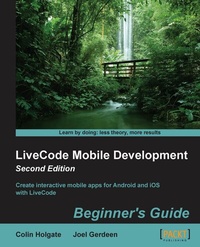
LiveCode Mobile Development Beginner's Guide (2nd Edition)
Description

Book DescriptionThe ideal reader for this book would be someone who already knows LiveCode, is interested in creating mobile apps, and wants to save the many hours it took for me to track down all of the information on how to get started! Chapter 1, LiveCode Fundamentals, will help those of you who know programming but are not familiar with LiveCode. The knowledge you've acquired should be enough for you to benefit from the remainder of the book.What you will learn
Create a simple sample application and build its interface
Write code using a multimedia scrapbook as an example application
Make a "To do/reminders" application
Upload your final app to the app stores
Create a jigsaw puzzle app that takes advantage of several mobile device features
Make standardlooking buttons and fields and programmatically create the screen layout
Preview LiveCode version 8 Widget and Builder capabilities
Who this book is for
All prices
More details
Other editions
Additional editions
Persons
Colin Holgate was originally trained as a telecommunications technician in the Royal Air Force, but with the advent of the personal computer era he transitioned to working as a technical support engineer for companies that included Apple Computer UK. In 1992 he moved to the USA, to become a full time multimedia programmer, working for The Voyager Company. In that role he programmed several award winning CD-ROMs, including A Hard DayaEUR (TM)s Night and This Is Spinal Tap. For the last 12 years Colin has worked for Funny Garbage, a New York City based web design company. In addition to using Adobe Director and Adobe Flash for online and kiosk application, he has used LiveCode for in-house production tools. At the introduction of LiveCode for Mobile at the RunRevLive Conference in 2011, Colin entered, and won a contest to create a mobile application made with LiveCode.W Gerdeen Joel :
Joel Gerdeen obtained a PhD in engineering mechanics and biomedical engineering from Iowa State University, where he started using computers in experimental research. In his first employment as a structural analyst, he developed software to assist other engineers to graphically model heavy machinery. His support of engineering computer usage transitioned into a career of software project management at FMC, Honeywell, and BAE Systems, all of which were Fortune 100 companies. Joel has experienced computing evolution from loading machine code through switches on a DEC minicomputer to booting a Raspberry Pi from a microSD card. He has worked with microprocessors, timesharing, personal computers, mainframe business systems, and latest mobile devices. After 35 years of employment, Joel ventured into mobile software development in 2010, working with a small start-up company and publishing numerous apps on both Apple and Google app stores. After working with separate iOS and Android development environments, he discovered LiveCode and was able to build on his former HyperCard experience. Joel is also active in the mobile development community in Minneapolis and has presented LiveCode at local conferences.
Content
LiveCode Fundamentals
Getting Started with LiveCode Mobile
Building User Interfaces
Using Remote Data and Media
Making a Jigsaw Application
Making a Reminder Application
Deploying to Your Device
Appendix: Appendix A
Time for action - making the calculator buttons
Using the screenshot shown at the start of this chapter as a guide, let's build the calculator buttons (the scripts you will type are also listed if you later want to make sure you typed them correctly):
- If you're not already there, go to the second card, the currently empty one.
- Make sure the Edit button is selected in the Tools palette and drag a Push button to the card, to the position of the
7button. - In the Basic Properties panel of the Inspector palette, set the Style drop-down menu to Rounded Rectangle (in real life, you would take the time to have nice graphical buttons; here, you are just matching my ugly "programmer art"!).
- Set the name of the button to
number7and the label to7. - Select Object Script from the Object menu to see the starter script as you did with the Begin button.
- In the empty line between
on mouseUpandend mouseUp, typenumberPressed the label of me. Note thatnumberPressedis a new handler that needs to be defined later. When used,merefers to the current object; in this case, the button pressed. - Close and save the script.
- Select the button and make a copy of it by choosing Duplicate Objects from the Edit menu and position it where the 8 button will be. Copy/Paste and Alt-drag are two other ways to duplicate an object.
- Set the name to
number8, and label to8. - Repeat steps 8 and 9 for the buttons 9, 4, 5, 6, 1, 2, 3, 0, and the decimal point using the corresponding number instead of
8. For the decimal point, let the name bedecimalpoint. - Duplicate one of the buttons again, name the new button
divide, and type/for its label. - Select
Object Scriptfor the divide button and changenumberPressedin the middle line to sayoperatorPressed, making the whole lineoperatorPressed the short name of me. - Duplicate the divide button three more times and set the names to
multiply,plus, andminus. Set the labels to*,+, and-. - Duplicate the divide button again, giving the new button a name
equalsand a label=, and change the middle line of script to sayequalsPressed. - Duplicate the = button and set the new button's name to
toggleSignand label to+-; then, change the middle line of script totoggleSign. - Duplicate the = button and set the new button's name to
clearand label toC; then, change the middle line of script to beclearPressed. - Drag a Label field from the Tools palette and in the Inspector palette, choose
Text Formattingfrom the drop-down menu. In theText Formattingsettings, choose a nice looking font, right-justified text, and a large font size. Name the fielddisplay. - Edit the script of the
displayfield. With fields, you don't get the starter script that you get with buttons, so you will need to type themouseUplines yourself. Type these three lines in the script:on mouseUp,set the clipboarddata["TEXT"] to me, andend mouseUp. DO enter the quote marks on either side of the word"TEXT". - Move all the buttons in their right spots and select the sets of buttons to then use the Align tools and make your calculator layout match the screenshot.
- Save it now!
What just happened?
Quite a lot just happened! We have now made all the card level objects and typed in their scripts. Most of the scripts are "calling" up to a card level handler that we will be setting up next. Before doing that, it's worth trying to understand some of the lines we just entered.
Verbosity, synonyms, and "me"
The English-like nature of the programming language in LiveCode is amazingly powerful, but rigidly so. In some other tools, you have a choice of whether you want to use verbose English-like syntax, less verbose, or what is called dot syntax. The Lingo language, in Adobe Director, is a good comparison.
Suppose we want to change the text inside a field, that is the first entry of a director movie's cast, we can perform the following verbose syntax:
put "hello world" into the text of member 1We can perform a slightly less verbose syntax:
the text of member 1 = "hello world"Or, we can perform a dot-syntax:
member(1).text = "hello world"In LiveCode, there isn't a choice. What you type has to be in the form of:
put value into containerHowever, you do have a choice about whether to use a long version of a word, short version, or an abbreviated form. There are also synonyms, which allow you to use a word that makes more sense to you.
Here are the two ways of saying the same thing, with the second variation using an abbreviated form of the keywords:
put character 3 of word 2 of card field "name of field 1" into aVariable put char 3 of word 2 of fld 1 into aVariableWhen you are dealing with the contents of the object that has the script running, you can use the keyword me to save on some typing, and LiveCode will also try to work out what you have in mind, if possible.
Take the lines we have entered as examples:
numberPressed the label of meHere, numberPressed will propagate up to a card handler that we will add (soon) and the label of me will look at the Label that you have set for the object that the script is inside of:
In this case, me would normally refer to the object (as is the case with the label of me), but because we gave the extra clue of ["TEXT"], LiveCode knows that it's the text contents of the field that have the script and not the field itself. Still, because there is potential for confusion, when reading your own code later, you could add a couple of words to make the meaning more clear:
Note
By the way, the display field script is not needed for the calculator to work. It's just there so that at any point of time, you can click on the field and have the current value copied to the clipboard in order to paste it in other applications.
You might choose to be more verbose than is needed, just for readability reasons, and in these chapters, this is going to be the case. It is easier to tell what is going to happen by using:
put the text of me into textvariableThe following will be less verbose compared to the preceding entry, even though they are equally valid:
put me into textVariableIn either case, as it's a field, LiveCode knows what you meant.
You see in the script that we typed short name of me, what's that all about? Objects in LiveCode have a lengthy description of where they are located, for example, the buttonname button of the 1234 card ID of the path/to/stack.livecode stack. In the calculator application, we need only the single word that you set as the name of the button. If we asked for name of me, it would still say "the buttonname button". To just grab the name itself, we use short name of me.
There are times when you will want to use the other variations of name, including the long name and the abbreviated name, which you can read about in the LiveCode Dictionary entry for name. In addition to a description of the different ways to use name, there are a number of cautions you need to be aware of.
Tip
Case sensitivity
If any of you use advanced LiveCode, you may notice that in some cases, I have the casing wrong. LiveCode doesn't mind what casing you have used and so, when I incorrectly said clipboarddata instead of clipboardData, it didn't matter. This feature isn't unique to LiveCode, but it is common among near-English programming languages to not demand that the user gets the casing exactly right before the command works.
Adding the card handlers
If you dared to go ahead and tried using the calculator buttons, you will see a lot of script errors. We need to add in the card level handlers to be at the receiving end of the calls that the buttons make. Instead of walking you through, typing a line of code at a time, it probably would be quicker to present the lines in one go and explain what each...

