

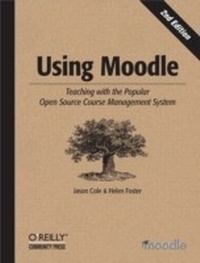
Using Moodle
Teaching with the Popular Open Source Course Management System
1st Edition
Published on 15. November 2007
284 pages
978-0-596-55498-9 (ISBN)
Description

Using Moodle is a complete, hands-on guide for instructors learning how to use Moodle, the popular course management system (CMS) that enables remote web-based learning and supplements traditional classroom learning. Updated for the latest version, this new edition explains exactly how Moodle works by offering plenty of examples, screenshots and best practices for its many features and plug-in modules.Moodle gives teachers and trainers a powerful set of web-based tools for a flexible array of activities, including assignments, forums, journals, quizzes, surveys, chat rooms, and workshops. This book is not just a how-to manual. Every chapter includes suggestions and case studies for using Moodle effectively. By itself, Moodle won't make your course better. Only by applying effective educational practices can you truly leverage its power. With this book, you will:Get a complete overview CMS in general and Moodle in particular. Review Moodle's basic interface and learn to start a course.Learn to add Moodle tools to your course, and how different tools allow you to give quizzes and assignments, write journals, create pathed lessons, collaboratively develop documents, and record student grades.Discover some of the creative ways teachers have used Moodle. There are plenty of ideas for effectively using each tool.Effectively manage your Moodle course, such as adding and removing users, and creating user groups. Learn to use Moodle's built-in survey functions for assessing your class.Find out how to administer an entire Moodle site. A system administrator usually handles these functions, but if you're on your own, there's a lot of power behind the curtain.Using Moodle is both a guide and a reference manual for this incredibly powerful and flexible CMS. Authored by the Moodle community, this authoritative book also exposes little known but powerful hacks for more technically savvy users, and includes coverage of blogs, RSS, databases, and more. For anyone who is using, or thinking of using, this CMS, Using Moodle is required reading.
More details
Other editions
Additional editions
Jason Cole | Helen Foster
Using Moodle
Teaching with the Popular Open Source Course Management System
Book
12/2007
2nd Edition
O'Reilly
€37.50
Shipment within 10-20 days
Content
- Intro
- Table of Contents
- Preface
- What Is Moodle?
- Who Is This Book For?
- Prerequisites-What Do You Need Before You Start?
- About Us
- How to Use This Book
- Conventions Used in This Book
- Safari® Enabled
- Acknowledgments
- Chapter 1. Introduction
- What Is a Course Management System?
- Why Should You Use a CMS?
- What Makes Moodle Special?
- Free and Open Source
- Educational Philosophy
- Community
- Chapter 2. Moodle Basics
- Getting Started
- The Moodle Interface
- Languages
- Moodle's Help System and Documentation
- Creating an Account
- Editing Your User Profile
- A First Look at a Course
- Course Formats
- Course Settings
- Editing Mode
- Adding Content to a Course
- Summary
- Chapter 3. Creating and Managing Content
- Adding Content to Moodle
- Adding a Label
- Composing a Text Page
- Window options
- Common module settings
- Composing a Web Page
- Using the HTML editor
- Linking to a File or Web Site
- Uploading files
- Creating links to other web sites
- Window options
- Parameters
- Displaying a Directory
- Adding an IMS Content Package
- Adding Media Content
- Adding Multilanguage Content
- Managing and Updating Your Content
- File Area Tools
- Tracking Versions
- Effective Content Practices
- File Formats
- Reducing File Sizes
- Strategy 1: Save your PowerPoint presentations as PDF
- Strategy 2: Scan articles as text, not images
- Strategy 3: Reduce your image size and use compression
- Creative Content
- Uploading lecture notes
- External web sites
- Summary
- Chapter 4. Managing Your Class
- Understanding and Using Roles
- Assigning Roles in Your Course
- Removing Students
- Managing Enrollment
- Capabilities and Permissions
- Role Overrides
- Assigning Roles in Activities
- Student Groups
- Backups
- Restoring and Copying Courses
- Reports
- Chapter 5. Forums, Chats, and Messaging
- Forums
- Creating a Forum
- Using Forums
- Searching Forums
- Managing Forums
- Managing expectations
- Behavior issues
- Archiving forums
- Forum Capabilities
- Effective Forum Practices
- Starting the discussion
- Encouraging participation
- Grading forums
- Creative Forum Uses
- Peer assessment
- Q & A forums for problem solving
- Interviews
- Debates
- Role-playing and storytelling
- Frequently asked questions
- Reading study groups
- Social forum
- Chats
- Creating a Chat
- Using Chats
- Chat Capabilities
- Effective Chat Practices
- Creative Chat Practices
- Online office hours
- Group chats
- Last-minute exam preparation
- Messaging
- Using Messaging
- Sending messages
- Reading and replying to messages
- Searching messages
- Managing contacts
- Message history
- Message settings
- Messaging Capabilities
- Effective Messaging Practices
- Add contacts
- Use the participants list
- Creative Messaging Practices
- Tutorial support
- Encouraging participation
- Summary
- Chapter 6. Quizzes
- How to Create a Quiz
- Creating the Quiz Body
- Creating Questions for a Quiz
- Multiple-choice questions
- Short-answer questions
- Numerical questions
- Matching questions
- Random short-answer matching questions
- Calculated questions
- Essay questions
- Embedded answers (Cloze)
- Importing Questions
- Exporting Questions
- Adding Questions to a Quiz
- Random questions
- Managing Quizzes
- Quiz Capabilities
- Effective Quiz Practices
- Quiz Strategies
- Creative Quiz Uses
- Chapter checks
- Test practice
- Data gathering
- Progressive testing
- Quiz Security and Cheating
- Chapter 7. Assignments
- Assignment Types
- Creating Assignments
- Assignment Capabilities
- Managing Assignment Submissions
- Effective Assignment Practices
- Creative Assignment Practices
- Summary
- Chapter 8. Glossaries
- Creating Glossaries
- Using Glossaries
- Adding Entries
- Glossary Categories
- Autolinking
- Importing and Exporting Glossary Entries
- Commenting on Entries
- Printing a Glossary
- Glossary Capabilities
- Effective Glossary Practices
- Glossary Basics
- Creative Glossary Strategies
- Collaborative glossaries
- Mini-projects
- Collaborative quiz questions
- Credit for word use
- Summary
- Chapter 9. Lessons
- Creating a Lesson
- Managing Lessons
- Lesson Capabilities
- Effective Lesson Practices
- Branching Quizzes
- Flash Cards
- Creative Lesson Uses
- Simulations and case studies
- Chapter 10. Wikis
- Creating Wikis
- Managing Wikis
- Creating Wiki Pages
- Administering a Wiki
- Wiki Capabilities
- Effective Wiki Practices
- Wiki Basics
- Creative Wiki Practices
- Group lecture notes
- Group project management
- Brainstorming
- Contribute to other wikis
- Chapter 11. Blogs
- Using Blogs
- Adding Blog Entries
- Viewing Blog Entries
- Blog visibility
- Blog preferences
- Blog Tags
- Blog Tags block
- Blog Capabilities
- Effective Blog Practices
- Creative Blog Practices
- Group work with tags
- One-minute responses
- Chapter 12. Databases
- Creating Databases
- Adding a Database
- Creating Fields
- Editing Templates
- Add template
- Single template
- List template
- RSS template
- CSS template
- JavaScript template
- Managing Databases
- Quality Data
- Rating
- Database Presets
- Database Capabilities
- Effective Database Practices
- Creative Database Practices
- Student files area
- Collaborative research
- Voting and comments
- Chapter 13. Grades and Scales
- Using Grades
- Set Preferences
- Advanced Features
- Set Categories
- Set Weights
- Set Grade Letters
- Grade Exceptions
- Student Grade View
- Creating Scales
- Effective Grade and Scale Practices
- Grade Practices
- Backups
- Extra credit
- Curves and grade letters
- Categories and Weights
- Creative Grade Uses
- Scale Practices
- Chapter 14. Surveys and Choices
- Surveys
- Creating Surveys
- Administering Surveys
- Survey Capabilities
- Choices
- Creating Choices
- Administering Choices
- Choice Capabilities
- Using Surveys and Choices
- Chapter 15. Putting It All Together
- What Is a Learning Environment?
- Course Design Patterns
- Introductory Survey Course
- Skills Development Course
- Theory/Discussion Course
- Capstone Course
- Chapter 16. Moodle Administration
- Notifications
- Users
- Authentication
- Accounts
- Browse list of users
- Add a new user
- Upload users
- User profile fields
- Permissions
- Define roles
- Assign global roles
- User policies
- Courses
- Add/edit courses
- Enrollments
- Course Request
- Backups
- Location
- Language
- Language Settings
- Language Editing
- Language Packs
- Modules
- Activities
- Blocks
- Filters
- Security
- Site Policies
- HTTP Security
- Module Security
- Notifications
- Anti-Virus
- Appearance
- Themes
- Theme settings
- Theme selector
- Calendar
- Filter Settings
- HTML Editor
- Moodle Docs
- My Moodle
- Course Managers
- Sticky Blocks
- Front Page
- Front Page Settings
- Front Page Roles
- Front Page Backup
- Site Files
- Server
- System Paths
- Session Handling
- RSS
- Debugging
- Statistics
- HTTP
- Maintenance Mode
- Cleanup
- Environment
- PHP Info
- Performance
- Networking
- Reports
- Course Overview
- Logs
- Statistics
- Miscellaneous
- Experimental
- XMLDB Editor
- Moodle Support
- Index
