

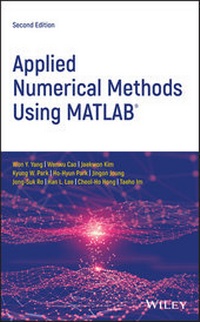
Applied Numerical Methods Using MATLAB
Description

This accessible book makes use of MATLAB¯® software to teach the fundamental concepts for applying numerical methods to solve practical engineering and/or science problems. It presents programs in a complete form so that readers can run them instantly with no programming skill, allowing them to focus on understanding the mathematical manipulation process and making interpretations of the results.
Applied Numerical Methods Using MATLAB¯®, Second Edition begins with an introduction to MATLAB usage and computational errors, covering everything from input/output of data, to various kinds of computing errors, and on to parameter sharing and passing, and more. The system of linear equations is covered next, followed by a chapter on the interpolation by Lagrange polynomial. The next sections look at interpolation and curve fitting, nonlinear equations, numerical differentiation/integration, ordinary differential equations, and optimization. Numerous methods such as the Simpson, Euler, Heun, Runge-kutta, Golden Search, Nelder-Mead, and more are all covered in those chapters. The eighth chapter provides readers with matrices and Eigenvalues and Eigenvectors. The book finishes with a complete overview of differential equations.
* Provides examples and problems of solving electronic circuits and neural networks
* Includes new sections on adaptive filters, recursive least-squares estimation, Bairstow's method for a polynomial equation, and more
* Explains Mixed Integer Linear Programing (MILP) and DOA (Direction of Arrival) estimation with eigenvectors
* Aimed at students who do not like and/or do not have time to derive and prove mathematical results
Applied Numerical Methods Using MATLAB¯®, Second Edition is an excellent text for students who wish to develop their problem-solving capability without being involved in details about the MATLAB codes. It will also be useful to those who want to delve deeper into understanding underlying algorithms and equations.
More details
Other editions
Additional editions
Persons
Won Y. Yang, PhD, is a Professor in the Department of Electrical Engineering at Chung-Ang University in Seoul, Korea.
Wenwu Cao, PhD, is a Professor in the Department of Materials Science and Engineering at Penn State University in University Park, Pennsylvania.
Jaekwon Kim, PhD, is a Professor in the Department of Electrical Engineering at Yongsei University in Wonju, Korea.
Kyung W. Park, PhD, is a Professor in the Department of Electrical Engineering at Yonsei University, Wonju, Korea.
Ho-Hyun Park, PhD, is a Professor in the School of Electrical and Electronics Engineering at Chung-Ang University in Seoul, Korea.
Jingon Joung, PhD, is a Professor in the Department of Electrical Engineering at Chung-Ang University in Seoul, Korea.
Jong-Suk Ro is Creative Research Engineer Development at Brain Korea 21 Plus, Seoul National University in Seoul, Korea.
Han L. Lee, PhD, is a Professor in the Department of Electrical Engineering at Chung-Ang University in Seoul, Korea.
Cheol-Ho Hong is Assistant Professor in the School of Electrical and Electronics Engineering at Chung-Ang University in Seoul, Korea.
Taeho Im, PhD, is a Professor in Oceanic IT Engineering at Hoseo University in Asan, Korea.
Content
Preface xv
Acknowledgments xvii
About the Companion Website xix
1 MATLAB Usage and Computational Errors 1
1.1 Basic Operations of MATLAB 2
1.1.1 Input/Output of Data from MATLAB Command Window 3
1.1.2 Input/Output of Data Through Files 3
1.1.3 Input/Output of Data Using Keyboard 5
1.1.4 Two-Dimensional (2D) Graphic Input/Output 6
1.1.5 Three Dimensional (3D) Graphic Output 12
1.1.6 Mathematical Functions 13
1.1.7 Operations on Vectors and Matrices 16
1.1.8 Random Number Generators 25
1.1.9 Flow Control 27
1.2 Computer Errors vs. Human Mistakes 31
1.2.1 IEEE 64-bit Floating-Point Number Representation 31
1.2.2 Various Kinds of Computing Errors 35
1.2.3 Absolute/Relative Computing Errors 37
1.2.4 Error Propagation 38
1.2.5 Tips for Avoiding Large Errors 39
1.3 Toward Good Program 42
1.3.1 Nested Computing for Computational Efficiency 42
1.3.2 Vector Operation vs. Loop Iteration 43
1.3.3 Iterative Routine vs. Recursive Routine 45
1.3.4 To Avoid Runtime Error 45
1.3.5 Parameter Sharing via GLOBAL Variables 49
1.3.6 Parameter Passing Through VARARGIN 50
1.3.7 Adaptive Input Argument List 51
Problems 52
2 System of Linear Equations 77
2.1 Solution for a System of Linear Equations 78
2.1.1 The Nonsingular Case (M = N) 78
2.1.2 The Underdetermined Case (M < N): Minimum-norm Solution 79
> N): Least-squares Error Solution 82
2.1.4 Recursive Least-Squares Estimation (RLSE) 83
2.2 Solving a System of Linear Equations 86
2.2.1 Gauss(ian) Elimination 86
2.2.2 Partial Pivoting 88
2.2.3 Gauss-Jordan Elimination 97
2.3 Inverse Matrix 100
2.4 Decomposition (Factorization) 100
2.4.1 LU Decomposition (Factorization) - Triangularization 100
2.4.2 Other Decomposition (Factorization) - Cholesky, QR and SVD 105
2.5 Iterative Methods to Solve Equations 108
2.5.1 Jacobi Iteration 108
2.5.2 Gauss-Seidel Iteration 111
2.5.3 The Convergence of Jacobi and Gauss-Seidel Iterations 115
Problems 117
3 Interpolation and Curve Fitting 129
3.1 Interpolation by Lagrange Polynomial 130
3.2 Interpolation by Newton Polynomial 132
3.3 Approximation by Chebyshev Polynomial 137
3.4 Pade Approximation by Rational Function 142
3.5 Interpolation by Cubic Spline 146
3.6 Hermite Interpolating Polynomial 153
3.7 Two-Dimensional Interpolation 155
3.8 Curve Fitting 158
3.8.1 Straight-Line Fit - A Polynomial Function of Degree 1 158
3.8.2 Polynomial Curve Fit - A Polynomial Function of Higher Degree 160
3.8.3 Exponential Curve Fit and Other Functions 165
3.9 Fourier Transform 166
3.9.1 FFT vs. DFT 167
3.9.2 Physical Meaning of DFT 169
3.9.3 Interpolation by Using DFS 172
Problems 175
4 Nonlinear Equations 197
4.1 Iterative Method toward Fixed Point 197
4.2 Bisection Method 201
4.3 False Position or Regula Falsi Method 203
4.4 Newton(-Raphson) Method 205
4.5 Secant Method 208
4.6 Newton Method for a System of Nonlinear Equations 209
4.7 Bairstow's Method for a Polynomial Equation 212
4.8 Symbolic Solution for Equations 215
4.9 Real-World Problems 216
Problems 223
5 Numerical Differentiation/Integration 245
5.1 Difference Approximation for the First Derivative 246
5.2 Approximation Error of the First Derivative 248
5.3 Difference Approximation for Second and Higher Derivative 253
5.4 Interpolating Polynomial and Numerical Differential 258
5.5 Numerical Integration and Quadrature 259
5.6 Trapezoidal Method and Simpson Method 263
5.7 Recursive Rule and Romberg Integration 265
5.8 Adaptive Quadrature 268
5.9 Gauss Quadrature 272
5.9.1 Gauss-Legendre Integration 272
5.9.2 Gauss-Hermite Integration 275
5.9.3 Gauss-Laguerre Integration 277
5.9.4 Gauss-Chebyshev Integration 277
5.10 Double Integral 278
5.11 Integration Involving PWL Function 281
Problems 285
6 Ordinary Differential Equations 305
6.1 Euler's Method 306
6.2 Heun's Method - Trapezoidal Method 309
6.3 Runge-Kutta Method 310
6.4 Predictor-Corrector Method 312
6.4.1 Adams-Bashforth-Moulton Method 312
6.4.2 Hamming Method 316
6.4.3 Comparison of Methods 317
6.5 Vector Differential Equations 320
6.5.1 State Equation 320
6.5.2 Discretization of LTI State Equation 324
6.5.3 High-order Differential Equation to State Equation 327
6.5.4 Stiff Equation 328
6.6 Boundary Value Problem (BVP) 333
6.6.1 Shooting Method 333
6.6.2 Finite Difference Method 336
Problems 341
7 Optimization 375
7.1 Unconstrained Optimization 376
7.1.1 Golden Search Method 376
7.1.2 Quadratic Approximation Method 378
7.1.3 Nelder-Mead Method 380
7.1.4 Steepest Descent Method 383
7.1.5 Newton Method 385
7.1.6 Conjugate Gradient Method 387
7.1.7 Simulated Annealing 389
7.1.8 Genetic Algorithm 393
7.2 Constrained Optimization 399
7.2.1 Lagrange Multiplier Method 399
7.2.2 Penalty Function Method 406
7.3 MATLAB Built-In Functions for Optimization 409
7.3.1 Unconstrained Optimization 409
7.3.2 Constrained Optimization 413
7.3.3 Linear Programming (LP) 416
7.3.4 Mixed Integer Linear Programming (MILP) 423
7.4 Neural Network[K-1] 433
7.5 Adaptive Filter[Y-3] 439
7.6 Recursive Least Square Estimation (RLSE)[Y-3] 443
Problems 448
8 Matrices and Eigenvalues 467
8.1 Eigenvalues and Eigenvectors 468
8.2 Similarity Transformation and Diagonalization 469
8.3 Power Method 475
8.3.1 Scaled Power Method 475
8.3.2 Inverse Power Method 476
8.3.3 Shifted Inverse Power Method 477
8.4 Jacobi Method 478
8.5 Gram-Schmidt Orthonormalization and QR Decomposition 481
8.6 Physical Meaning of Eigenvalues/Eigenvectors 485
8.7 Differential Equations with Eigenvectors 489
8.8 DoA Estimation with Eigenvectors[Y-3] 493
Problems 499
9 Partial Differential Equations 509
9.1 Elliptic PDE 510
9.2 Parabolic PDE 515
9.2.1 The Explicit Forward Euler Method 515
9.2.2 The Implicit Backward Euler Method 516
9.2.3 The Crank-Nicholson Method 518
9.2.4 Using the MATLAB function 'pdepe()' 520
9.2.5 Two-Dimensional Parabolic PDEs 523
9.3 Hyperbolic PDES 526
9.3.1 The Explicit Central Difference Method 526
9.3.2 Two-Dimensional Hyperbolic PDEs 529
9.4 Finite Element Method (FEM) for Solving PDE 532
9.5 GUI of MATLAB for Solving PDES - PDE tool 543
9.5.1 Basic PDEs Solvable by PDEtool 543
9.5.2 The Usage of PDEtool 545
9.5.3 Examples of Using PDEtool to Solve PDEs 549
Problems 559
Appendix A Mean Value Theorem 575
Appendix B Matrix Operations/Properties 577
B.1 Addition and Subtraction 578
B.2 Multiplication 578
B.3 Determinant 578
B.4 Eigenvalues and Eigenvectors of a Matrix 579
B.5 Inverse Matrix 580
B.6 Symmetric/Hermitian Matrix 580
B.7 Orthogonal/Unitary Matrix 581
B.8 Permutation Matrix 581
B.9 Rank 581
B.10 Row Space and Null Space 581
B.11 Row Echelon Form 582
B.12 Positive Definiteness 582
B.13 Scalar (Dot) Product and Vector (Cross) Product 583
B.14 Matrix Inversion Lemma 584
Appendix C Differentiation W.R.T. A Vector 585
Appendix D Laplace Transform 587
Appendix E Fourier Transform 589
Appendix F Useful Formulas 591
Appendix G Symbolic Computation 595
G.1 How to Declare Symbolic Variables and Handle Symbolic Expressions 595
G.2 Calculus 597
G.2.1 Symbolic Summation 597
G.2.2 Limits 597
G.2.3 Differentiation 598
G.2.4 Integration 598
G.2.5 Taylor Series Expansion 599
G.3 Linear Algebra 600
G.4 Solving Algebraic Equations 601
G.5 Solving Differential Equations 601
Appendix H Sparse Matrices 603
Appendix I MATLAB 605
References 611
Index 613
Index for MATLAB Functions 619
Index for Tables 629
1
MATLAB Usage and Computational Errors
Chapter Outline
- 1.1 Basic Operations of MATLAB
- 1.1.1 Input/Output of Data from MATLAB Command Window
- 1.1.2 Input/Output of Data Through Files
- 1.1.3 Input/Output of Data Using Keyboard
- 1.1.4 Two-Dimensional (2D) Graphic Input/Output
- 1.1.5 Three Dimensional (3D) Graphic Output
- 1.1.6 Mathematical Functions
- 1.1.7 Operations on Vectors and Matrices
- 1.1.8 Random Number Generators
- 1.1.9 Flow Control
- 1.2 Computer Errors vs. Human Mistakes
- 1.3 Toward Good Program
1.1 Basic Operations of MATLAB
MATLAB is a high-level software package with many built-in functions that make the learning of numerical methods much easier and more interesting. In this section, we will introduce some basic operations that will enable you to learn the software and build your own programs for problem solving. In the workstation environment, you type "matlab" to start the program, while in the PC environment, you simply double-click the MATLAB icon.
Once you start the MATLAB program, a Command window will open with the MATLAB prompt ». On the command line, you can type MATLAB commands, functions together with their input/output arguments, the names of script files containing a block of statements to be executed at a time or functions defined by users. The MATLAB program files must have the extension name ***.m to be executed in the MATLAB environment. If you want to create a new M-file or edit an existing file, you click File/New/M-file or File/Open in the top left corner of the main menu, find/select/load the file by double-clicking it, and then begin editing it in the Editor window. If the path of the file you want to run is not listed in the MATLAB search path, the file name will not be recognized by MATLAB. In such cases, you need to add the path to the MATLAB-path list by clicking the menu 'Set_Path' in the Command window, clicking the 'Add_Folder' button, browsing/clicking the folder name and finally clicking the SAVE button and the Close button. The lookfor command is available to help you find the MATLAB commands/functions that are related with a job you want to be done. The help command helps you know the usage of a particular command/function. You may type directly in the Command window
>lookfor repeat or >help for to find the MATLAB commands in connection with 'repeat' or to find information about the 'for loop'
1.1.1 Input/Output of Data from MATLAB Command Window
MATLAB remembers all input data in a session (anything entered through direct keyboard input or running a script file) until the command ' clear()' is given or you exit MATLAB.
One of the many features of MATLAB is that it enables us to deal with the vectors/matrices in the same way as scalars. For instance, to input the matrices/vectors,
type the following statements in the MATLAB Command window:
>A=[1 2 3;4 5 6] A= 1 2 3 4 5 6 >B=[3;-2;1]; %put the semicolon at the end of the statement to suppress the result printout onto the screen >C=[1 -2 3 -4] At the end of the statement, press <Enter> key if you want to check the result of executing the statement immediately. Otherwise, type a semicolon ';' before pressing <Enter> key so that the Command window will not be overloaded by a long display of results.
1.1.2 Input/Output of Data Through Files
MATLAB can handle two types of data files. One is the binary format mat-files named ***.mat. This kind of files can preserve the values of more than one variable, but will be handled only in the MATLAB environment and cannot be shared with other programming environments. The other is the ASCII dat-files named ***.txt, which can be shared with other programming environments, but preserve the values of only one variable.
Beneath are a few sample statements for storing some data into a mat-file in the current directory and reading the data back from the mat-file.
>save ABC A B C %store the values of A,B,C into the file 'ABC.mat' >clear A C %clear the memory of MATLAB about A,C >A %what is the value of A? Undefined function or variable 'A' >load ABC A C %read the values of A,C from the file 'ABC.mat' >A % the value of A A= 1 2 3 4 5 6 If you want to store the data into an ASCII dat-file (in the current directory), make the filename the same as the name of the data and type ' -ascii' at the end of the save statement.
>save B.txt B -ascii However, with the save/load commands into/from a dat-file, the value of only one variable having the lowercase name can be saved/loaded, a scalar or a vector/matrix. Besides, nonnumeric data cannot be handled by using a dat-file. If you save a string data into a dat-file, its ASCII code will be saved. If a dat-file is constructed to have a data matrix in other environments than MATLAB, every line (row) of the file must have the same number of columns. If you want to read the data from the dat-file in MATLAB, just type the (lowercase) filename ***.txt after ' load', which will also be recognized as the name of the data contained in the dat-file.
>load b.txt %read the value of variable b from the ascii file 'b.txt' At the MATLAB prompt, you can type 'nm112' (the filename excluding the extension name part ".m") and <Enter> key to run the following M-file "nm112.m" consisting of several file input(save)/output(load) statements. Then you will see the effects of the individual statements from the running results appearing on the screen.
%nm112.m clear A=[1 2 3;4 5 6] B=[3;-2;1]; C(2)=2; C(4)=4 disp('Press any key to see the input/output through Files') save ABC A B C %save A,B & C as a MAT-file named 'ABC.mat' clear('A','C') %remove the memory about A and C load ABC A C %read MAT-file to recollect the memory about A and C save B.txt B -ascii %save B as an ASCII-file file named 'b.txt' clear B load b.txt %read ASCII-file to recollect the memory about b b x=input('Enter x:') format short e x format rat, x format long, x format short, x 1.1.3 Input/Output of Data Using Keyboard
The command 'input' enables the user to input some data via the keyboard. For example,
>x=input('Enter x: ') Enter x: 1/3 x= 0.3333 Note that the fraction 1/3 is a nonterminating decimal number, but only four digits after the decimal point is displayed as the result of executing the above command. This is a choice of formatting in MATLAB. One may choose to display more decimal places by using the command ' format', which can make a fraction show up as a fraction, as a decimal number with more digits, or even in an exponential form of a normalized number times 10 to the power of some integer. For instance:
>format rat % as a rational number >x x= 1/3 >format long % as a decimal number with 14 digits >x x= 0.33333333333333 >format long e % as a long exponential form >x x= 3.333333333333333e-001 >format hex % as a hexadecimal form as represented/stored in memory >x x= 3fd5555555555555 >format short e % as a short exponential form >x x= 3.3333e-001 >format short % back to a short form(default) >x x= 0.3333 Note that the number of displayed digits is not the actual number of significant digits of the value stored in computer memory. This point will be made clear in Section 1.2.1.
There are other ways of displaying the value of a variable and a string on the screen than typing the name of the...
