

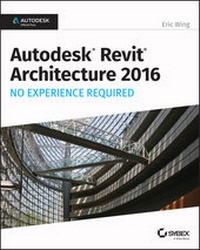
Autodesk Revit Architecture 2016 No Experience Required
Description

Autodesk Revit Architecture 2016 No Experience Required is your ultimate hands-on guide for mastering this essential BIM software. With step-by-step instruction and a continuous tutorial approach, this invaluable guide walks you through the design of a four-story office building. You'll be led through the entire design, documentation, and presentation process with expert instruction and helpful tips, so you can quickly become confident and productive. You'll follow a real-world workflow as you jump right into modeling, first placing doors and windows, then building floors layer-by-layer, adding roofs and ceilings, stairs, ramps, and railings. Coverage includes crucial information on detailing, view and match line information, and printing, plus advanced topics like curtain walls, sweeps, embedded families, and formulas. You'll delve into site considerations including grading and topsurface features, and integrate them into your design at the rendering stage. The companion website provides downloadable tutorial files so you can jump in at any point and compare your work to the pros.
Revit is the industry-leading Building Information Management software, hailed for its power and sophistication. This guide helps you get the most out of the software, with expert instruction and plenty of practice.
* Master the interface, tools, views, and editing capabilities
* Work with structural objects, text, dimensions, and multi-story buildings
* Generate construction documentation, schedules, and material takeoffs
* Explore phase management, work sharing, and working with various formats
BIM is the emerging paradigm for architects and others in the construction and engineering fields. Revit is the industry leader, and is quickly becoming a mandatory skillset. Autodesk Revit Architecture 2016 No Experience Required provides everything you need to get up to speed and down to work.
All prices
More details
Other editions
Additional editions
Person
Content
Introduction xxi
Chapter 1 The Autodesk Revit World 1
The Revit Interface 2
The Revit Workflow 4
Using the Ribbon 5
The View Window 13
Object Selection 16
Modifying and Mirroring 18
Building on Existing Geometry 21
View Control and Object Display 23
The Project Browser 30
Windows 33
File Types and Families 35
System and Hosted Families (.rfa) 37
Using Revit Template Files (.rte) 41
Using Revit Family Files (.rft) 42
Are You Experienced? 43
Chapter 2 Creating a Model 45
Placing Walls 45
Adding Exterior Walls 45
Using Reference Planes 46
Adding More Walls 49
Adding Interior Walls 58
Using Temporary Dimensions to Gain Control of Your Model 60
Editing Wall Joins 78
Displaying Wall Joins 81
Disallowing Wall Joins 83
Placing Doors and Windows 88
Adding Doors 88
Placing Openings in Your Walls 96
Adding Windows 98
Are You Experienced? 102
Chapter 3 Creating Views 103
Creating Levels 103
Adding Levels 106
Understanding the Composition of a Level 109
Making Other Level Adjustments 112
Creating and Modifying Building Sections 121
Adding a Building Section 121
Making Building Modifications in a Section 128
Adding Wall Sections 134
Creating Detail Sections 137
Using Crop Regions 139
Splitting a Section Segment 141
Creating Callouts 143
Creating and Modifying a Camera View 149
Adding a Camera View 149
Modifying the Camera 151
Creating an Elevation 152
Interior Elevations 156
Elevation Properties 159
Annotation Properties 161
Are You Experienced? 163
Chapter 4 Working with the Autodesk Revit Tools 165
The Basic Edit Commands 166
The Move Command 166
The Copy Command 169
The Rotate Command 171
The Array Command 175
Radial Array 175
Linear Array 180
The Mirror Command 185
The Align Tool 188
Locking an Alignment 193
The Split Element Command 194
The Trim Command 200
The Offset Command 203
Copy/Paste 205
Creating the Plans 208
Are You Experienced? 212
Chapter 5 Dimensioning and Annotating 213
Dimensioning 213
Aligned Dimensions 214
Linear Dimensions 225
Angular Dimensions 227
Radial Dimensions 228
Arc Length Dimensions 230
Using Dimensions as a Layout Tool 232
Constraining the Model 237
Using Dimensions to Move Objects 241
Using Dimension Text Overrides 244
Placing Text and Annotations 247
Adding Leader Text 250
Changing the Leader Type 251
Modifying the Text Placement 253
Changing Text Properties 253
Are You Experienced? 254
Chapter 6 Floors 255
Placing a Floor Slab 255
Creating the Slab 256
Sketching the Slab 262
Building a Floor by Layers 271
Adding Materials 272
Adding a Layer 273
Splitting the Floor Materials 283
Adding an Alternate Material 283
Splitting and Painting 286
Pitching a Floor to a Floor Drain 291
Creating Shaft Openings 296
Are You Experienced? 302
Chapter 7 Roofs 303
Placing Roofs by Footprint 303
Flat Roofs by Footprint 304
Pitched Roofs by Footprint 319
Creating a Sloping Roof 332
Creating Roofs by Extrusion 338
Adding a Roof Dormer 347
Are You Experienced? 352
Chapter 8 Structural Items 353
Adding Structural Grids 353
Placing a Grid 354
Adding Structural Columns 368
Using Structural Framing 376
Adding a Beam System 380
Adding Bracing 383
Understanding Foundation Systems 387
Adding Structural Footings 393
Structural Slabs 396
Piers and Spread Footings 400
Using Structural Views 403
Are You Experienced? 406
Chapter 9 Ceilings and Interiors 407
Creating Ceilings 407
Modifying Ceiling Grids 412
Setting Ceiling Element Properties 414
Creating a Plan Region 417
Creating a Custom Ceiling 419
Creating Ceiling Openings and Soffits 423
Creating a Ceiling Opening 423
Creating a Soffit 426
Adding Light Fixtures to Ceilings 431
Adding Interior Design 435
Adding Plumbing Fixtures and Furniture 435
Adding Parabolic Troffers 443
Adding Casework and Furniture 447
Adding Alternate Floor Materials 457
Separating the Floor 457
Creating a Tile Material 459
Are You Experienced? 462
Chapter 10 Stairs, Ramps, and Railings 463
Creating Stairs by Using the Rise/Run Function 463
Modifying Boundaries 467
Configuring Railings 470
Creating a Winding Staircase 486
Stair and Railing Families 501
Creating a Custom Railing System 502
Creating Custom Stairs 507
Adding a Custom Landing 512
Adding a Gooseneck 513
Adding Ramps 520
Are You Experienced? 526
Chapter 11 Detailing 529
Working with Line Weights 529
Drafting on Top of the Detail 532
Using Predefined Detail Components 532
Masking Regions 534
Repeating Details 536
Modifying a Detail Component 541
Modifying Filled Regions 542
Drawing Detail Lines 566
Specifying Drafting Line Weights 568
Adding Notes 570
Adding Textual Notations 570
Creating Blank Drafting Views 572
Creating a Detail Group 581
Adding a Section to Another View 587
Importing AutoCAD Files into a Drafting View 589
Adding 2D and 3D Lines to the Model 590
Are You Experienced? 593
Chapter 12 Creating Specific Views and Match Lines 595
Duplicating Views 595
Creating Dependent Views 597
Adjusting the Crop Regions 598
Adjusting the Annotation Crop Region 601
Adding Match Lines 604
Match-Line Appearance 605
Adding View References to a Match Line 606
Using View Templates 609
Are You Experienced? 610
Chapter 13 Creating Sheets and Printing 611
Creating and Populating Sheets 611
Sheet Organization 614
Modifying a Viewport 619
Viewport Properties 624
Adding Revisions to a Sheet 625
Addressing Project Parameters 629
Generating a Cover Sheet 631
Printing from Revit Architecture 637
Are You Experienced? 640
Chapter 14 Creating Rooms and Area Plans 641
Creating Rooms 641
Configuring Properties 646
Placing and Manipulating Room Tags 651
Adding a Room Schedule 652
Adding a Color-Fill Plan 655
Adding Room Separators 657
Creating an Area Plan 659
Are You Experienced? 663
Chapter 15 Advanced Wall Topics 665
Creating Compound Walls 665
Adding Layers to the Compound Wall 668
Adding Wall Sweeps 674
Modifying a Wall's Profile in Place 677
Manually Adding Host Sweeps 680
Creating Stacked Walls 684
Creating Curtain Walls 687
Adding a Predefined Curtain Wall 688
Adding a Blank Curtain Wall 690
Creating Curtain Grids 693
Adding a Wall to a Massing Object 699
Are You Experienced? 712
Chapter 16 Creating Families 713
Creating a Basic Family 713
Adding Reference Planes to a Family 714
Adding Dimensions and Parameters to a Family 717
The Type Properties Dialog Box 720
Using a Complex Family to Create an Arched Door 725
Creating a 3D Extrusion in a Family 728
Creating a 3D Sweep in a Family 733
Creating an In-Place Family 739
Are You Experienced? 743
Chapter 17 Site and Topography 745
Adding a Site in Revit 745
Modifying a Toposurface 749
Splitting the Surface 751
Creating Subregions 754
Adding Site Components 755
Adding Contour Properties and Labels 760
Adding Building Pads to Displace Earth 762
Adding a Property Line 764
Creating a Toposurface by Instance 765
Creating a Graded Region 774
Are You Experienced? 776
Chapter 18 Rendering and Presentation 777
Creating an Exterior Rendering 777
Creating Lighting Groups 788
Creating an Interior Rendering 791
Creating Walkthroughs 792
Exporting an Animation 795
Creating a Solar Study 797
Are You Experienced? 799
Index 801
Introduction
Why do you need a big, thick technical book? Well, it's true that the best way to learn is to just do it. But do you ever just do it and not fully get it? Books can serve either as the basis for learning or as supplements for your learning. No one book will teach you everything you need to know about a specific application, but you may never learn everything you need to know about an application without a book. When written appropriately, the book you purchase is there to start you off using good practices. If you have already begun, the book serves as a desktop reference. And last, a book can serve as confirmation that you're approaching an application in the correct manner.
The Autodesk® Revit® Architecture tool is no exception. Although this application has proven to be easy to learn and easy to get a feel for, it's still a deep, sometimes complicated application with many procedures that require step-by-step instructions to fully understand. And to be honest, some of these features just don't work in the real world.
This book has been written by an author who is "in the trenches" using Revit Architecture, Revit Structure, and Revit MEP simultaneously every day. So, yes, you could figure out all this information on your own, but sometimes it's nice to let someone else figure it out for you and pass that knowledge along to you in the form of a book.
Instead of lengthy paragraphs of text that ultimately lead to nontangible information, this book addresses each subject in a step-by-step approach with more than 1,000 pictures and screenshots to make sure you're on track.
Also, this book also uses an actual project and relates to real-world scenarios. As you're following the step-by-step procedures in the book, you'll be encouraged to try many techniques on your own and also to embellish the procedure to fit your own needs. If you would rather stick to the instructions, this book allows you to do so as well. The book's project uses a five-story office building with a link (corridor) to a three-story multiuse building. The book's website provides the model (plus additional families) you'll need for each chapter so that you can open the book, jump to your chapter of interest, and learn something! In addition, this book is flexible enough that you can substitute your own project if you don't want to follow the book's examples.
Although it has nearly 900 pages, this book doesn't waste time and space with examples of other people's triumphs but is designed for you to open it to any random page and learn something.
Who Should Read This Book
Revit Architecture 2016: No Experience Required. Does that mean that if you've used Revit, you won't find this book advanced enough? No. This book is designed for anyone who wishes to learn more about Revit Architecture. The book is also intended for architects, architectural designers, and anyone who is using a CAD-based platform to produce architectural-based drawings.
What You Need
BIM can be tough on hardware. This book recommends that you have 8 GB of RAM with a 4 GHz processor. You should also be running at least 1 GB for your graphics. If you're under these specifications (within reason), in some cases you'll be fine. Just realize, however, that when your model is loaded, your system may start slowing down and crashing.
All Revit applications are intended to run on a PC-based system. Windows 7 is recommended.
Free Autodesk Software for Students and Educators
The Autodesk Education Community is an online resource with more than five million members that enables educators and students to download-for free (see website for terms and conditions)-the same software used by professionals worldwide. You can also access additional tools and materials to help you design, visualize, and simulate ideas. Connect with other learners to stay current with the latest industry trends and get the most out of your designs. Get started today at www.autodesk.com/joinedu.
What Is Covered in This Book
Revit Architecture 2016: No Experience Required covers the full gamut of using the software and is organized as follows:
- Chapter 1: The Autodesk Revit World This chapter introduces you to the Revit Architecture 2016 interface and jumps right into modeling your first building.
- Chapter 2: Creating a Model This chapter begins with placing walls, doors, and windows. It's designed to point you in the right directions in terms of using reference planes and all-around best practices.
- Chapter 3: Creating Views This chapter shows you how to navigate the Revit Project Browser and create new views of the model. Also, you'll learn how to create specific views such as elevations, sections, callouts, plans, and, our favorite, 3D perspectives.
- Chapter 4: Working with the Autodesk Revit Tools In this chapter, you'll learn how to use the everyday drafting tools needed in any modeling application. You'll become familiar with such actions as trim, array, move, and copy. Although it seems remedial, this is one of the most important chapters of the book. It gets you on your way to the "Revit feel."
- Chapter 5: Dimensioning and Annotating In this chapter, you'll learn how to annotate your model. This includes adding and setting up dimensions, adding and setting up text, and using dimensions to physically adjust objects in your model.
- Chapter 6: Floors Yes! Just floors. In this chapter, you'll learn how to place a floor. You'll also learn how to add materials to a floor and how to pitch a floor to a drain.
- Chapter 7: Roofs In this chapter, we'll discuss the ins and outs of placing roofs. You'll learn how to model flat roofs, sloping roofs, pitched roofs, and roof dormers. In addition, you'll learn how to pitch roof insulation to roof drains.
- Chapter 8: Structural Items In this chapter, you'll delve into the structural module of Revit Architecture. The topics we'll cover include placing structural framing, placing structural foundations, and creating structural views.
- Chapter 9: Ceilings and Interiors This chapter focuses predominately on interior design. Placing and modifying ceilings will be covered as well as adding specific materials to portions of walls and floors. You'll also learn how to create soffits.
- Chapter 10: Stairs, Ramps, and Railings This chapter focuses on the creation of circulation items. You'll learn how to create a simple U-shaped multistory staircase to start; then you'll move on to creating a custom winding staircase. From there, you'll learn how to create a custom wood railing. You'll add ramps to the model in this chapter, as well.
- Chapter 11: Detailing In this chapter, you'll learn how to draft in Revit. The procedures allow you to draft over the top of a Revit-generated section or create your own drafting view independent of the model. You'll also learn how to import CAD to use as a detail.
- Chapter 12: Creating Specific Views and Match Lines In this chapter, you'll learn how to take advantage of the multitude of views you can create and how to control the visibility graphics of those views to create plans such as furniture and dimensional plans.
- Chapter 13: Creating Sheets and Printing This chapter explores how to produce construction documents using Revit. The procedures include creating a new drawing sheet, adding views to a sheet, creating a title block and a cover sheet, and plotting these documents.
- Chapter 14: Creating Rooms and Area Plans The focus of this chapter is creating rooms and areas. The procedures lead you through the placement of rooms, and you'll learn how to set the properties of those rooms. We'll also discuss how to create room separators and how to create gross area plans. This chapter also guides you through the creation of a color-fill floor plan.
- Chapter 15: Advanced Wall Topics This chapter focuses specifically on the creation of compound walls. By using the Edit Assembly dialog, you'll learn how to add materials, split walls, and add sweeps and reveals such as parapet caps, brick ledges, and brick reveals. Creating stacked walls is also addressed.
- Chapter 16: Creating Families This chapter focuses on the topic of creating families. The procedures start with a simple wall-sweep family and then move on to creating a door family with an arched header. You'll also learn how to create an in-place family.
- Chapter 17: Site and Topography In this chapter, you'll learn how to place a topographical surface into your model. We'll discuss how to control point-by-point elevations in your site. Splitting and then creating subregions to create swales and berms will be covered. You'll also learn how to utilize an imported CAD site plan and place a toposurface over the top of the CAD lines. And we'll explore rotating your project to true north.
- Chapter 18: Rendering and Presentation In this chapter, you'll learn how to use the Revit rendering tools built into the Revit GUI. This chapter also shows you how to create walkthroughs as well as solar studies.
- Bonus Chapter 1: Schedules and Tags In this chapter, you'll start bringing BIM into your model. This chapter focuses on adding schedules and adding annotation tags to specific objects and materials in your model. Most important, in this chapter you'll learn how your model is parameter driven and how these parameters influence the...
