

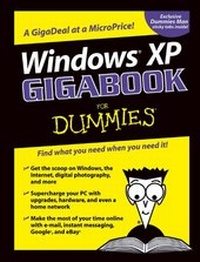
Windows XP Gigabook For Dummies
Published on 26. April 2004
910 pages
978-0-7645-7679-9 (ISBN)
Description

What's a Gigabook? A collection of just about everything youneed to know on a topic, all in one convenient place! Windows XP Gigabook For Dummies takes the best from fiveother For Dummies books and squeezes out everything but themost important stuff. This single super-sized reference --more than 800 pages' worth -- gives you a go-to guide oneverything connected with Windows XP, PCs and peripherals, theInternet, Office 2003, and Money 2004. You might think of it as a"greatest hits" collection.
Want to know how to set up, navigate, use, and maintain WindowsXP? It's all in Book I. Book II covers the care and feedingof PCs in general and takes you on a complete tour ofperipherals--those add-ons that make computing cool. Want toexplore the world via the World Wide Web? Check Book III. And ifyou finally have to do some work, check into Book IV, whereyou'll get the complete story on Office 2003 and Money 2004.You'll discover how to:
* Customize Windows XP, set up user accounts, and sharefiles
* Work with digital photos, Windows Media Player, and WindowsMovie Maker
* Choose a printer, scanner, game hardware, and additionalstorage
* Set up a wireless home network
* Get online safely, protect your kids, create your own Webpages, and cruise for bargains on eBay
* Use Word, Outlook, Excel, and PowerPoint
* Manage your finances with Microsoft Money
Windows XP Gigabook For Dummies is packed withinformation that's easy to find and even easier tounderstand. Keep it handy for reference--you'll begigapleased with how useful it is!
Reviews / Votes
"...without doubt the most comprehensive...absolutelysuperb...9 out of 10..." (Indie Magazine,August 2004) "...something of abargain...easy-to-follow..." (PC Utilities,July 2004)More details
Other editions
Additional editions
Peter Weverka | Mark L. Chambers | Greg Harvey
Windows XP Gigabook For Dummies
Book
04/2004
1st Edition
Hungry Minds Inc,U.S.
€32.90
Article exhausted; check different version
Persons
Content
- Intro
- Windows XP Gigabook For Dummies
- Acknowledgments
- Contents at a Glance
- Table of Contents
- Introduction
- What's in This Book, Anyway?
- What Makes This Book Special
- A Greatest Hits Collection
- Foolish Assumptions
- Conventions Used in This Book
- Icons Used in This Book
- Book I: Windows XP
- Chapter 1: Introducing Windows XP
- What Windows XP Does (And Doesn't)
- Where We've Been
- Chapter 2: Upgrading to Windows XP
- Upgrading - A Brain Transplant
- Product Activation
- What if the Wheels Fall Off?
- Chapter 3: Finding Your Way around Windows XP
- The Desktop
- Mousing
- Windows
- Dialog Boxes
- Files and Folders
- Starting with the Start Button
- Chapter 4: Personalizing Your Desktop
- Recognizing Desktop Levels
- Setting Colors in Windows XP
- Picking a Background
- Controlling Icons
- Changing Mouse Pointers
- Selecting Screen Savers
- Seeing Desktop Text
- Using Desktop Themes
- Customizing Folders
- Chapter 5: Organizing Your Windows XP Interface
- Customizing the Start Menu
- Creating Your Own Shortcuts
- Quick Launch Toolbar
- Customizing the Windows Taskbar
- Custom Startup
- Chapter 6: Setting Up Personal Accounts
- Controlling Who Gets On
- Logoff
- Chapter 7: Managing Files and Folders
- Using Windows Explorer
- Creating Files and Folders
- Selecting Files and Folders
- Modifying Files and Folders
- Different Ways of Viewing Folders and Files
- Sharing Folders
- Recycling Files and Folders
- Chapter 8: Locating Stuff with Windows XP
- Introducing the Search Companion
- Looking for Files and Folders
- Using Wildcards
- Digging Deeper with Advanced Searches
- Saving a Search
- Chapter 9: Adding and Removing Software
- Installing and Removing Programs
- Lessons from the School of Hard Knocks
- Installing and Removing Parts of Windows
- Chapter 10: Maintaining Your Windows XP System
- Keeping Up-to-Date
- Performing Periodic Maintenance
- Backing Up and Restoring
- Scheduling Task Scheduler
- Zipping and Compression
- Chapter 11: Jammin' with Windows Media Player
- Starting with the Media Guide
- Playing with Now Playing
- Copying from a CD
- Organizing Your Media Library
- Radio Tuner
- Copy to CD or Device
- Chapter 12: Lights! Action! Windows Movie Maker
- What You Need to Create Movies
- Introducing Windows Movie Maker
- Recording and Editing Video
- Using Sound Clips
- Organizing Your Clips
- Chapter 13: Working with Digital Pictures
- Choosing a Camera
- Moving Images to Your Computer
- Printing Pictures
- Troubleshooting
- Book II: PCs and Peripherals
- Chapter 1: Starting with the Basics
- Defining Basic Terms
- Peripherals
- The Common Components of a Desktop PC
- Desktop PCs versus Laptop PCs
- RAM and Processors: The Keys to Performance
- Your Friend, Your Operating System
- Chapter 2: Additional Toys Your PC Will Enjoy
- Printers
- Scanners
- Keyboards, Tablets, and Pointing Things
- Big-Time Game Controllers
- Video and Digital Cameras
- External Drives
- Surge Protectors and UPS Units
- Chapter 3: Connectors, Ports, and Sundry Openings
- Using USB Stuff
- Riding in the Fast Lane with FireWire
- Your Antique Serial Port
- The Once-Renowned Parallel Port
- Meet Your Video Port
- Audio Connectors You'll Likely Need
- Keyboard and Mouse Ports on Parade
- Chapter 4: Maintaining Your Hardware
- When Should I Move My PC?
- Avoiding Dust Bunnies
- Watching Your Cables
- Cleaning Monitors and Scanners
- Cleaning Your Mouse and Keyboard
- Cleaning and Maintaining Your Printer
- Chapter 5: Scanning with Gusto
- What Happens Inside a Scanner?
- Your Friend, the Flatbed
- Popular Scanner Features
- Basic Scanning with Paint Shop Pro
- Scanning Do's and Don'ts
- Those Irritating (Or Invaluable) Copyrights
- Adding a Copyright Line
- Chapter 6: Dude, MP3 Rocks!
- An MP3 Primer
- Ripping Your Own MP3 Files
- Listening to Your Stuff
- Downloading to an MP3 Player
- Using Other Sound Formats
- Burning Audio CDs from MP3 Files
- Chapter 7: Making Movies with Your PC
- Getting the Lowdown on ArcSoft's ShowBiz
- Rounding Up Clips and Images
- Building Your First Movie
- Adding Transitions without Breaking a Sweat
- Adding Special Effects without Paying George Lucas
- Adding Sound
- You've Just Gotta Have Titles!
- Previewing Your Oscar-Winning Work
- Saving and Burning before Traveling to Cannes
- Chapter 8: I Can Make My Own DVDs?
- Welcome to MyDVD
- Menus 'R Easy!
- Changing the Look of Your Menus
- Trimming Movies with Panache
- Time to Preview
- Burning Your DVD and Celebrating Afterwards
- Chapter 9: I'm Okay, You're a Digital Camera
- How Does a Digital Camera Work?
- The Pros and Cons of Digital Photography
- Digital Camera Extras to Covet
- The Lazybone's Guide to Composing Photographs
- Organizing Your Pictures
- Downloading Your Images
- Chapter 10: Determining What to Upgrade
- Making Performance Upgrades: CPU, Motherboard, and Memory
- Expansion Upgrades: USB 2.0 and FireWire
- Making Storage Upgrades: Internal and External Drives
- Making Sound and Video Upgrades: Sound and Video Cards
- Chapter 11: Adding RAM to Your Hot Rod
- Figuring Out What Type of Memory You Need
- Deciding How Much RAM Is Enough
- Installing Extra RAM
- Chapter 12: Scotty, I Need More Power!
- Hey, Do I Need to Do This?
- Selecting a New Motherboard
- Installing a Motherboard and CPU
- Chapter 13: Adding Hard Drive Territory to Your System
- The Tale of Virtual Memory
- Recognizing a Well-Dressed Hard Drive
- Internal versus External Storage
- Adding a Second Internal Hard Drive
- Chapter 14: Partying with USB, FireWire, and Hubs
- Comparing USB Ports
- I Vote for FireWire
- Or Do You Just Need a Hub?
- Installing a Port Card
- Chapter 15: Pumping Up Your Sound and Video
- Sound Card Features to Covet
- Shopping for a Monster Graphics Card
- Installing Sound and Video Cards
- Chapter 16: Do I Really Need a Network?
- Discovering the Advantages of a Network
- What Can I Connect To?
- What Hardware Do I Need?
- What Software Do I Need?
- To Network or Not to Network . . .
- Chapter 17: Ethernet to the Rescue
- A Quickie Ethernet Primer
- Hardware That You'll Need
- Doing the Cable Dance
- Configuring Windows XP for Your Network
- Printing across the Network
- Using a Standard Hub with a Cable or DSL Modem
- Troubleshooting Your Network
- Chapter 18: Going Wireless
- Understanding Wireless Networking
- Ensuring Security on Your Wireless Network
- Using Wireless Hardware in Windows XP
- Chapter 19: Sharing Your Internet Connection
- Why Share Your Internet Connection?
- Sharing through Software in Windows XP
- Sharing through Hardware
- Why You Need NAT
- The Magic of Virtual Private Networking
- Book III: The Internet
- Chapter 1: Hooking Up with the Right Service
- Selecting an Internet Service Provider (ISP)
- Broadband or Dial-Up?
- Choosing an ISP to Host Your Web Site
- Chapter 2: Managing Your Online Security
- Preventing Viruses from Infecting Your Computer
- Maintaining a Kid-Friendly PC
- Chapter 3: America Online
- Installing AOL
- Signing On to AOL
- A Short Geography Lesson
- Handling Incoming E-Mail
- Composing and Sending E-Mail
- Maintaining an Address Book
- Exploring the Internet in AOL
- Chapter 4: Browsers and What They Do
- ABCs of the Web
- Uniform Resource Locators (URLs)
- Finding Your Way around the Web
- Getting Started with Internet Explorer
- Searching the Web
- Displaying Previously Viewed Web Pages
- Keeping Track of Your Favorite Web Sites
- Viewing Pages from the History Folder
- Chapter 5: Customizing Your Browser Settings
- Changing Your Home Page
- Changing the Way Web Pages Look
- Customizing Toolbars
- Active Channels and Active Desktop Items
- Changing the History Settings
- Specifying Mail, News, and Internet Call Programs
- Speeding Up the Display of Web Pages
- Synchronizing Offline Web Pages
- Customizing Your AutoComplete Settings
- Chapter 6: Printing and Saving Web Information
- Printing a Web Page
- Saving a Web Page on Your Computer
- Saving a Web Graphic on Your Computer
- Copying Web Page Information
- Viewing the HTML Source of a Web Page
- Wallpapering Your Desktop with a Web Graphic
- Chapter 7: E-Mail Basics
- Choosing an E-Mail Program
- Abbreviations and Acronyms
- E-Mail Addresses
- Chapter 8: Sending and Receiving E-Mail with Outlook Express
- Checking for New Mail
- Composing E-Mail Messages
- Formatting Your Messages
- Sending an E-Mail Message
- Printing a Message
- Chapter 9: Organizing E-Mail Addresses and Messages
- Organizing Your Messages with Folders
- Adding Entries to Your Address Book
- Chapter 10: Mailing Lists
- Addresses Used with Mailing Lists
- Finding a Mailing List
- Subscribing and Unsubscribing
- Sending Messages to a Mailing List
- Special Requests to Mailing Lists
- Open and Closed Mailing Lists
- Receiving Digested Mailing Lists
- Using Filters
- Starting Your Own Mailing List
- Chapter 11: Chatting Online
- Chatting Online
- Internet Relay Chat (IRC)
- Chapter 12: Instant Messaging
- AOL Instant Messenger
- Yahoo! Messenger
- MSN Messenger
- Chapter 13: Keeping Up to Date with News
- Newsgroup Basics
- Reading Newsgroups with Google
- Reading Newsgroups with Outlook Express
- Chapter 14: Getting Started with Web Publishing
- Guidelines for Creating a Successful Web Site
- Basic Steps for Creating a Web Site
- What to Include on Every Web Site
- What to Include on Every Page
- Organizing the Content
- Finding Space for Your Web Site
- Chapter 15: Elements of Web Page Design
- HTML Basics
- Specifying Font Settings
- Entering Headings
- Formatting Text
- Creating Lists
- Inserting Horizontal Rules
- Specifying Page Settings
- Working with Backgrounds
- Adding Links
- Chapter 16: Working with Graphics, Sounds, and Videos
- File Formats for Image, Sound, and Video
- Working with Graphics
- Adding Sounds
- Working with Videos
- Chapter 17: Publishing on the Web
- Previewing Your Web Pages
- Using the Web Publishing Wizard
- Understanding FTP
- Promoting Your Web Site
- Chapter 18: Finding Your Way with Google
- Basic Search Techniques with Google
- Conducting a Good Search
- Advanced Searching Techniques
- Using the Google Toolbar
- Chapter 19: Getting Bargains on eBay
- Registering with eBay
- Signing In to Your My eBay Page
- Searching for Items of Interest
- A Few Rules to Live By
- Bidding on Items
- Closing the Sale
- Chapter 20: Planning Your Next Vacation Online
- Researching a Destination
- Online Travel Services
- Resources for Traveling Abroad
- Eccentric Sites for Eccentric Travelers
- Chapter 21: Researching Investments Online
- Getting Lessons on How to Invest
- Researching a Company Online
- Reading the Financial News
- Researching Mutual Funds and Stocks on the Internet
- Chapter 22: Listening to the Music
- Why Not Get Music for Free?
- Touring Online Music Stores
- Book IV: Office 2003 and Money 2004
- Chapter 1: Entering, Editing, and Formatting Text
- Getting Acquainted with Word
- Creating a New Document
- Speedy Ways to Open Documents
- All about Saving Documents
- Changing the Font and Size of Text
- Spell Checking a Document
- Chapter 2: Speed Techniques for Using Word
- Getting a Better Look at Your Documents
- Selecting Text in Speedy Ways
- Tricks for Editing Text
- Moving Around Quickly in Documents
- Inserting a Whole File in a Document
- Finding and Replacing
- Chapter 3: Laying Out Text and Pages
- Paragraphs and Formatting
- Inserting a Section Break for Formatting Purposes
- Breaking a Line
- Starting a New Page
- Setting Up and Changing the Margins
- Indenting Paragraphs and First Lines
- Putting Newspaper-Style Columns in a Document
- Numbering the Pages
- Putting Headers and Footers on Pages
- Adjusting the Space Between Lines
- Creating Numbered and Bulleted Lists
- Working with Tabs
- Hyphenating a Document
- Decorating a Page with a Border
- Dropping in a Drop Cap
- Chapter 4: Word Styles
- All about Styles
- Applying a Style to Text and Paragraphs
- Creating a New Style
- Modifying a Style
- Creating Templates
- Attaching a Different Template to a Document
- Chapter 5: Constructing the Perfect Table
- Talking Table Jargon
- Creating a Table
- Entering the Text and Numbers
- Aligning Text in Columns and Cells
- Merging and Splitting Cells and Tables
- Modifying the Table Layout
- Repeating Heading Rows on Subsequent Pages
- Sprucing Up Your Table
- Chapter 6: Getting Word's Help with Office Chores
- Finding the Right Word with the Thesaurus
- Highlighting Parts of a Document
- Commenting on a Document
- Showing Revisions to Documents
- Outlines for Organizing Your Work
- Printing an Address on an Envelope
- Printing a Single Address Label (Or a Page of the Same Label)
- Churning Out Letters, Labels, and Envelopes for Mass Mailings
- Chapter 7: Getting Acquainted with Outlook
- What Is Outlook, Anyway?
- Navigating the Outlook Windows
- Getting a Better View of a Folder
- Finding Items in Folders
- Deleting E-Mail Messages, Contacts, Tasks, and Other Items
- Maintaining the Contacts Folder
- Chapter 8: Handling Your E-Mail
- Addressing and Sending E-Mail Messages
- Distribution Lists for Sending Messages to Groups
- Sending a File along with a Message
- Including a Picture in an E-mail Message
- Postponing Sending a Message
- All about Message Formats
- Stationery for Decorating E-Mail Messages
- Receiving E-Mail Messages
- Handling Files That Were Sent to You
- Techniques for Organizing E-Mail Messages
- All about E-Mail Folders
- Chapter 9: Managing Your Time and Schedule
- Introducing the Calendar
- The Different Kinds of Activities
- Getting Around in the Calendar Window
- Scheduling an Activity
- Canceling, Rescheduling, and Altering Activities
- Getting a Better Look at Your Schedule
- Chapter 10: Getting Started in PowerPoint
- Getting Acquainted with PowerPoint
- Creating a New Presentation
- Advice for Building Persuasive Presentations
- Getting a Better View of Your Work
- Inserting Slides and Choosing Layouts
- Moving and Deleting Slides
- Chapter 11: Entering the Text
- Entering Text on Slides
- Making Text Fit in Frames
- Making Your Own Text Frames
- Changing the Look of Text
- All about Speaker Notes
- Making a Numbered or Bulleted List
- Chapter 12: Advanced Formatting Techniques
- Changing or Tweaking a Slide Design or Color Scheme
- Slide Masters for Consistent Formatting
- Handling Footers
- Action Buttons for Going from Slide to Slide
- Chapter 13: Giving the Presentation
- Rehearsing Your Presentation
- Printing Handout Copies of a Presentation
- Showing Your Presentation
- Giving a Self-Playing, Kiosk-Style Presentation
- Chapter 14: Up and Running with Excel
- Getting Acquainted with Excel
- Entering Data in a Worksheet
- Entering Lists and Serial Data with the AutoFill Command
- Formatting Numbers, Dates, and Time Values
- Formatting Text and Numbers
- Establishing Data-Validation Rules
- Chapter 15: Refining Your Worksheet
- Editing Worksheet Data
- Moving around in a Worksheet
- Getting a Better Look at the Worksheet
- Comments for Documenting Your Worksheet
- Selecting Cells in a Worksheet
- Deleting, Copying, and Moving Data
- Chapter 16: Formulas and Functions for Crunching Numbers
- How Formulas Work
- The Basics of Entering a Formula
- Speed Techniques for Entering Formulas
- Copying Formulas from Cell to Cell
- Working with Functions
- Chapter 17: Making a Worksheet Easier to Read and Understand
- Laying Out a Worksheet
- Decorating a Worksheet with Borders and Colors
- Printing a Worksheet
- Chapter 18: Seeing Data in Charts
- Building Charts from Your Data
- Editing a Chart
- Chapter 19: Introducing Money
- Finding Out How Money Tracks Your Finances
- Starting the Program
- A Fast Trip around the Money Windows
- Personalizing the Home Page
- Chapter 20: Setting Up Your Accounts
- Accounts and Registers for Recording Financial Transactions
- The Basics: Setting Up Checking and Savings Accounts
- Setting Up an Account to Track Credit Card and Line of Credit Transactions
- Chapter 21: Recording Your Financial Activity
- The Basics: Recording Transactions in Savings and Checking Registers
- Recording Transactions in Credit Card and Line of Credit Accounts
- Fixing Mistakes in Account Registers
- Chapter 22: Categorizing Your Spending and Income
- Looking at the Ways to Categorize Income and Spending
- Setting Up Your Own Categories and Subcategories
- Getting Ready for Tax Time with Tax-Related Categories
- Correcting Transactions Recorded in the Wrong Category
- Chapter 23: Reconciling, or Balancing, an Account
- How Reconciling Works
- Balancing an Account
- Help! The Darn Thing Won't Reconcile!
- Chapter 24: Money for Investors
- Your Own Electronic Portfolio
- Setting Up Investment, Retirement, and Employee Stock Option Accounts
- Describing the Securities in Investment and Retirement Accounts
- Editing an Investment or Retirement Account Transaction
- Updating the Price of a Security
- Recording Payments to and Disbursements from Brokers
- Handling Stocks and Bonds
- Handling Mutual Funds
- Analyzing and Comparing Investments
- Charting the Performance of an Investment
- Index
