

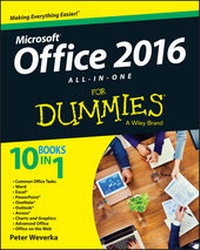
Office 2016 All-In-One For Dummies
Description

Perplexed by PowerPoint? Looking to excel at Excel? From Access to Word--and every application in between--this all-encompassing guide provides plain-English guidance on mastering the entire Microsoft Office suite. Through easy-to-follow instruction, you'll quickly get up and running with Excel, Word, PowerPoint, Outlook, Access, Publisher, Charts and Graphics, OneNote, and more--and make your work and home life easier, more productive, and more streamlined.
Microsoft Office is the leading productivity tool in the world. From word processing to business communication to data crunching, it requires a lot of knowledge to operate it--let alone master it. Luckily, Office 2016 All-in-One For Dummies is here to deliver the breadth of information you need to complete basic tasks and drill down into Office's advanced features.
* Create customized documents and add graphic elements, proofing, and citations in Word
* Build a worksheet, create formulas, and perform basic data analysis in Excel
* Create a notebook and organize your thoughts in Notes
* Manage messages, tasks, contacts, and calendars in Outlook
Clocking in at over 800 pages, Office 2016 All-in-One For Dummies will be the singular Microsoft Office resource you'll turn to again and again.
All prices
More details
Other editions
Additional editions
Person
Content
Introduction 1
About This Book 1
Foolish Assumptions 2
Icons Used in This Book 2
Beyond the Book 3
Where to Go from Here 4
Book I: Common Office Tasks 5
Chapter 1: Office Nuts and Bolts 7
Chapter 2: Wrestling with the Text 25
Chapter 3: Speed Techniques Worth Knowing About 43
Book II: Word 2016 51
Chapter 1: Speed Techniques for Using Word 53
Chapter 2: Laying Out Text and Pages 71
Chapter 3: Word Styles 95
Chapter 4: Constructing the Perfect Table 111
Chapter 5: Taking Advantage of the Proofing Tools 133
Chapter 6: Desktop Publishing with Word 153
Chapter 7: Getting Word's Help with Office Chores 171
Chapter 8: Tools for Reports and Scholarly Papers 191
Book III: Excel 2016 213
Chapter 1: Up and Running with Excel 215
Chapter 2: Refining Your Worksheet 233
Chapter 3: Formulas and Functions for Crunching Numbers 247
Chapter 4: Making a Worksheet Easier to Read and Understand 279
Chapter 5: Advanced Techniques for Analyzing Data 297
Book IV: PowerPoint 2016 313
Chapter 1: Getting Started in PowerPoint 315
Chapter 2: Fashioning a Look for Your Presentation 337
Chapter 3: Entering the Text 351
Chapter 4: Making Your Presentations Livelier 367
Chapter 5: Delivering a Presentation 383
Book V: OneNote 2016 405
Chapter 1: Up and Running with OneNote 407
Chapter 2: Taking Notes 419
Chapter 3: Finding and Organizing Your Notes 435
Book VI: Outlook 2016 443
Chapter 1: Outlook Basics 445
Chapter 2: Maintaining the Contacts Folder 459
Chapter 3: Handling Your Email 469
Chapter 4: Managing Your Time and Schedule 491
Chapter 5: Tasks, Reminders, and Notes 499
Book VII: Access 2016 507
Chapter 1: Introducing Access 509
Chapter 2: Building Your Database Tables 523
Chapter 3: Entering the Data 551
Chapter 4: Sorting, Querying, and Filtering for Data 561
Chapter 5: Presenting Data in a Report 581
Book VIII: Working with Charts and Graphics 587
Chapter 1: Creating a Chart 589
Chapter 2: Making a SmartArt Diagram 607
Chapter 3: Handling Graphics and Photos 625
Chapter 4: Drawing and Manipulating Lines, Shapes, and Other Objects 641
Book IX: Office 2016 - One Step Beyond 669
Chapter 1: Customizing an Office Program 671
Chapter 2: Ways of Distributing Your Work 685
Chapter 3: Working with Publisher 695
Book X: File Sharing and Collaborating 711
Chapter 1: Up and Running on OneDrive 713
Chapter 2: File Sharing and Collaborating 723
Index 731
Chapter 1
Office Nuts and Bolts
In This Chapter
Introducing the Office applications
Understanding Office 365
Exploring the Office interface
Saving and auto-recovering your files
Opening and closing an Office file
Recording a file's document properties
Clamping a password on a file
Chapter 1 is where you get your feet wet with Office 2016. Walk right to the shore and sink your toes in the water. Don't worry; I won't push you from behind.
In this chapter, you meet the Office applications and discover speed techniques for opening files. I show you around the Ribbon, Quick Access toolbar, and other Office landmarks. I also show you how to open files, save files, and clamp a password on a file.
A Survey of Office Applications
Office 2016, sometimes called the Microsoft Office Suite, is a collection of computer applications. Why is it called Office? I think because the people who invented it wanted to make software for completing tasks that need doing in a typical office. When you hear someone talk about "Office" or "Office software," they're talking about several different applications. Table 1-1 describes the Office applications.
Table 1-1 Office Applications
Application
Description
Word
A word processor for writing letters, reports, and so on. A Word file is called a document (see Book II).
Excel
A number cruncher for performing numerical analyses. An Excel file is called a workbook (see Book III).
PowerPoint
A means of creating slide presentations to give in front of audiences. A PowerPoint file is called a presentation, or sometimes a slide show (see Book IV).
OneNote
A way to take notes and organize your ideas (see Book V).
Outlook
A personal information manager, scheduler, and emailer (see Book VI).
Access
A database management application (see Book VII).
Publisher
A means of creating desktop-publishing files - pamphlets, notices, newsletters, and the like (see Book IX, Chapter 3).
Microsoft offers many different versions of Office 2016, some aimed at home users and some at business users. Not all versions of Office 2016 have Outlook, Access, and Publisher. Visit this web page to compare and contrast the different versions of Office:
Follow these steps to find out which Office 2016 applications are installed on your computer:
- Open any Office 2016 application.
-
Click the File tab.
This tab is located in the upper-left corner of the screen. The Backstage window opens after you click the File tab.
-
Select the Account category.
As shown in Figure 1-1, the Account window opens. Under "This Product Contains" is an icon for each Office application that is installed on your computer.
-
Click the Back button when you finish gazing at the Account window.
The Back button, a left-pointing arrow, is located in the upper-left corner of the Account window.
Figure 1-1: The Account window tells you which Office applications are installed.
If you're new to Office, don't be daunted by the prospect of having to study so many different applications. The applications have much in common, with the same commands showing up throughout. For example, the method of choosing fonts is the same in Word, Outlook, PowerPoint, Excel, Access, and Publisher. Master one Office program and you're well on your way to mastering the next.
All about Office 365
Office 365 is the name of Microsoft's online services division. To install Office 2016 software on your computer, you need an Office 365 account. In other words, you must be a paid subscriber to Office 365.
As of this writing, a subscription to the Home edition of Office 365 costs $99.99 per year or $9.99 per month (Microsoft also offers a Business edition and University edition). An Office 365 subscription entitles you to these goodies:
- The opportunity to install Office 2016 on five computers.
- The opportunity to install Word, Excel, and PowerPoint on five iPads and/or Windows tablets.
- Automatic updates to the Office software on your computer. As long as your subscription is paid up, Microsoft updates the Office software automatically.
- The opportunity to store files on OneDrive, Microsoft's cloud service. In computer jargon, the cloud is the name for servers on the Internet where individuals can store files. Rather than keep files on your computer, you can keep them on the Internet so that you can open them wherever your travels take you. Subscribers to Office 365 get an unlimited amount of storage space on OneDrive. (Book X explains how to store and share files with OneDrive.)
- The opportunity to use Office Online, the online versions of Word, Excel, PowerPoint, OneNote, and Outlook. To use an Office Online program, you open it in a browser and give commands through the browser window. Office Online software is useful for co-editing and sharing files.
To find out all there is to know about Office 365, visit this website:
http://office.microsoft.com/en-us/office365home
Automatic Office 2016 updates
From time to time, Microsoft updates Office 2016 software. The updates are performed automatically. Follow these steps to find out when your version of Office 2016 was last updated:
- In any Office application, click the File tab.
- In the Backstage window, click Account to open the Account window (refer to Figure 1-1).
- Click the Update Options button and choose View Updates on the drop-down menu that appears.
Click the Manage Account button in the Account window to go online and visit your Account page at Office 365. From there, you can see when you installed Office 365 on your computer, update your credit card information, and see when your subscription needs renewing, among other things.
Finding Your Way Around the Office Interface
Interface, also called the user interface, is a computer term that describes how a software program presents itself to the people who use it (and you probably thought interface meant two people kissing). Figure 1-2 shows the Word interface. You will be glad to know that the interface of all the Office programs is pretty much the same.
Figure 1-2: The File tab, Quick Access toolbar, and Ribbon.
These pages give you a quick tour of the Office interface and explain what the various parts of the interface are. Click along with me as I describe the interface and you'll know what's what by the time you finish reading these pages.
The File tab and Backstage
In the upper-left corner of the window is the File tab (see Figure 1-2). Clicking the File tab opens the Backstage (Microsoft's word, not mine). As shown in Figure 1-3, the Backstage offers commands for creating, saving, printing, and sharing files, as well as performing other file-management tasks. Notice the Options command on the Backstage. You can choose Options to open the Options dialog box and tell the application you are working in how you want it to work.
Figure 1-3: Go to the Backstage to manage, print, and share files.
To leave the Backstage and return to the application window, click the Back button. This button is located in the upper-left corner of the Backstage.
The Quick Access toolbar
No matter where you travel in an Office program, you see the Quick Access toolbar in the upper-left corner of the screen (refer to Figure 1-2). This toolbar offers the all-important Save button, the trusty Undo button, and the convenient Repeat button (as well as the Touch/Mouse Mode button if your screen is a touchscreen). You can place more buttons on the Quick Access toolbar as well as move the toolbar lower in the window. I explain how to customize the Quick Access toolbar in Book IX, Chapter 1.
The Ribbon and its tabs
Across the top of the screen is the Ribbon, an assortment of different tabs (see Figure 1-2); click a tab to view a different set of commands and undertake a task. For example, click the Home tab to format text; click the Insert tab to insert a table or chart. Each tab offers a different set of buttons, menus, and galleries.
Collapsing and showing the Ribbon
To...
