

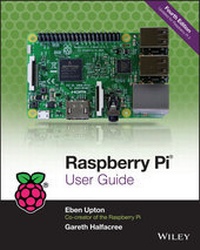
Raspberry Pi User Guide
4th Edition
Published on 8. August 2016
312 pages
978-1-119-26438-5 (ISBN)
Description

Learn the Raspberry Pi 3 from the experts!
Raspberry Pi User Guide, 4th Edition is the "unofficial official" guide to everything Raspberry Pi 3. Written by the Pi's creator and a leading Pi guru, this book goes straight to the source to bring you the ultimate Raspberry Pi 3 manual. This new fourth edition has been updated to cover the Raspberry Pi 3 board and software, with detailed discussion on its wide array of configurations, languages, and applications. You'll learn how to take full advantage of the mighty Pi's full capabilities, and then expand those capabilities even more with add-on technologies. You'll write productivity and multimedia programs, and learn flexible programming languages that allow you to shape your Raspberry Pi into whatever you want it to be. If you're ready to jump right in, this book gets you started with clear, step-by-step instruction from software installation to system customization.
The Raspberry Pi's tremendous popularity has spawned an entire industry of add-ons, parts, hacks, ideas, and inventions. The movement is growing, and pushing the boundaries of possibility along with it--are you ready to be a part of it? This book is your ideal companion for claiming your piece of the Pi.
* Get all set up with software, and connect to other devices
* Understand Linux System Admin nomenclature and conventions
* Write your own programs using Python and Scratch
* Extend the Pi's capabilities with add-ons like Wi-Fi dongles, a touch screen, and more
The credit-card sized Raspberry Pi has become a global phenomenon. Created by the Raspberry Pi Foundation to get kids interested in programming, this tiny computer kick-started a movement of tinkerers, thinkers, experimenters, and inventors. Where will your Raspberry Pi 3 take you? The Raspberry Pi User Guide, 3rd Edition is your ultimate roadmap to discovery.
More details
Other editions
Additional editions
Eben Upton | Gareth Halfacree
Raspberry Pi User Guide
Book
09/2016
4th Edition
Wiley
€28.50
Shipment within 15-20 days
Previous edition
Eben Upton | Gareth Halfacree
Raspberry Pi User Guide
E-Book
08/2014
3rd Edition
Wiley
€14.99
Available for download
Persons
Eben Upton is the co-creator of the Raspberry Pi board, and the co-founder of the UK nonprofit Raspberry Pi Foundation.
Gareth Halfacree is a veteran tech author and an expert on the Raspberry Pi.
Content
1 - Title Page [Seite 5]
2 - Copyright Page [Seite 6]
3 - Table of Contents [Seite 15]
4 - Introduction [Seite 21]
4.1 - Programming Is Fun! [Seite 21]
4.2 - A Bit of History [Seite 23]
4.3 - So What Can You Do with the Raspberry Pi? [Seite 28]
5 - Part 1 The Board [Seite 31]
5.1 - Chapter 1 Meet the Raspberry Pi [Seite 33]
5.1.1 - A Trip Around the Board [Seite 33]
5.1.2 - Model A/B [Seite 36]
5.1.3 - Model A+/B+ [Seite 36]
5.1.4 - Raspberry Pi 2 [Seite 37]
5.1.5 - Raspberry Pi 3 [Seite 38]
5.1.6 - Raspberry Pi Zero [Seite 39]
5.1.7 - A Bit of Background [Seite 40]
5.1.7.1 - ARM Versus x86 [Seite 40]
5.1.7.2 - Windows Versus Linux [Seite 41]
5.2 - Chapter 2 Getting Started with the Raspberry Pi [Seite 43]
5.2.1 - Connecting a Display [Seite 43]
5.2.1.1 - Composite Video [Seite 44]
5.2.1.2 - HDMI Video [Seite 45]
5.2.1.3 - DSI Video [Seite 46]
5.2.2 - Connecting Audio [Seite 46]
5.2.3 - Connecting a Keyboard and Mouse [Seite 47]
5.2.4 - Installing NOOBS on an SD Card [Seite 49]
5.2.5 - Connecting External Storage [Seite 50]
5.2.6 - Connecting the Network [Seite 51]
5.2.6.1 - Wired Networking [Seite 52]
5.2.6.2 - Wireless Networking [Seite 53]
5.2.7 - Connecting Power [Seite 54]
5.2.8 - Installing the Operating System [Seite 55]
5.2.8.1 - Installing Using NOOBS [Seite 55]
5.2.8.2 - Installing Manually [Seite 57]
5.2.9 - Connecting Bluetooth Devices [Seite 61]
5.3 - Chapter 3 Linux System Administration [Seite 63]
5.3.1 - Linux: An Overview [Seite 63]
5.3.2 - Linux Basics [Seite 66]
5.3.3 - Introducing Raspbian [Seite 66]
5.3.3.1 - About Raspbian's Parent, Debian [Seite 71]
5.3.3.2 - Alternatives to Raspbian [Seite 71]
5.3.4 - Using External Storage Devices [Seite 72]
5.3.5 - Creating a New User Account [Seite 74]
5.3.5.1 - File System Layout [Seite 74]
5.3.5.2 - Logical Layout [Seite 75]
5.3.5.3 - Physical Layout [Seite 77]
5.3.6 - Installing and Uninstalling Software [Seite 77]
5.3.6.1 - Managing Software Graphically [Seite 77]
5.3.6.2 - Managing Software at the Command Line [Seite 78]
5.3.6.3 - Finding the Software You Want [Seite 80]
5.3.6.4 - Installing Software [Seite 81]
5.3.6.5 - Uninstalling Software [Seite 82]
5.3.6.6 - Upgrading Software [Seite 82]
5.3.7 - Shutting the Pi Down Safely [Seite 83]
5.4 - Chapter 4 Troubleshooting [Seite 85]
5.4.1 - Keyboard and Mouse Diagnostics [Seite 85]
5.4.2 - Power Diagnostics [Seite 86]
5.4.3 - Display Diagnostics [Seite 88]
5.4.4 - Boot Diagnostics [Seite 89]
5.4.5 - Network Diagnostics [Seite 89]
5.5 - Chapter 5 Network Configuration [Seite 93]
5.5.1 - Wired Networking [Seite 93]
5.5.1.1 - Connecting to a Wired Network via the GUI [Seite 93]
5.5.1.2 - Connecting to a Wired Network via the Console [Seite 95]
5.5.1.3 - Testing Your Connectivity [Seite 96]
5.5.2 - Wireless Networking [Seite 96]
5.5.2.1 - Connecting to a Wireless Network via the GUI [Seite 97]
5.5.2.2 - Connecting to a Wireless Network via the Console [Seite 99]
5.6 - Chapter 6 The Raspberry Pi Configuration Tool [Seite 105]
5.6.1 - Running the Tool [Seite 105]
5.6.2 - The System Tab [Seite 106]
5.6.2.1 - Filesystem [Seite 106]
5.6.2.2 - Password [Seite 107]
5.6.2.3 - Hostname [Seite 108]
5.6.2.4 - Boot [Seite 108]
5.6.2.5 - Auto Login [Seite 108]
5.6.2.6 - Network at Boot [Seite 109]
5.6.2.7 - Overscan [Seite 109]
5.6.2.8 - Rastrack [Seite 109]
5.6.3 - The Interfaces Tab [Seite 110]
5.6.3.1 - Camera [Seite 111]
5.6.3.2 - SSH [Seite 111]
5.6.3.3 - SPI [Seite 111]
5.6.3.4 - I2C [Seite 111]
5.6.3.5 - Serial [Seite 111]
5.6.3.6 - 1-Wire [Seite 112]
5.6.4 - Performance [Seite 112]
5.6.4.1 - Overclock [Seite 112]
5.6.4.2 - GPU Memory [Seite 114]
5.6.5 - Localisation [Seite 114]
5.6.5.1 - Locale [Seite 114]
5.6.5.2 - Timezone [Seite 116]
5.6.5.3 - Keyboard [Seite 116]
5.7 - Chapter 7 Advanced Raspberry Pi Configuration [Seite 119]
5.7.1 - Editing Configuration Files via NOOBS [Seite 119]
5.7.2 - Hardware Settings: config.txt [Seite 121]
5.7.2.1 - Modifying the Display [Seite 122]
5.7.2.2 - Boot Options [Seite 125]
5.7.2.3 - Overclocking the Raspberry Pi [Seite 126]
5.7.3 - Disabling L2 Cache [Seite 130]
5.7.3.1 - Enabling Test Mode [Seite 130]
5.7.4 - Memory Partitioning [Seite 131]
5.7.5 - Software Settings: cmdline.txt [Seite 132]
6 - Part 2 Building a Media Centre or Productivity Machine [Seite 135]
6.1 - Chapter 8 The Pi as a Home Theatre PC [Seite 137]
6.1.1 - Playing Music at the Console [Seite 137]
6.1.2 - Dedicated HTPC with OSMC [Seite 139]
6.1.2.1 - Streaming Internet Media [Seite 142]
6.1.2.2 - Streaming Local Network Media [Seite 143]
6.1.2.3 - Configuring OSMC [Seite 144]
6.2 - Chapter 9 The Pi as a Productivity Machine [Seite 147]
6.2.1 - Using Cloud-Based Apps [Seite 147]
6.2.2 - Using LibreOffice [Seite 150]
6.2.3 - Image Editing with the Gimp [Seite 151]
7 - Part 3 Programming the Pi [Seite 155]
7.1 - Chapter 10 An Introduction to Scratch [Seite 157]
7.1.1 - Introducing Scratch [Seite 157]
7.1.2 - Example 1: Hello World [Seite 158]
7.1.3 - Example 2: Animation and Sound [Seite 161]
7.1.4 - Example 3: A Simple Game [Seite 164]
7.1.5 - Interfacing Scratch with Hardware [Seite 169]
7.1.6 - Further Reading [Seite 172]
7.2 - Chapter 11 An Introduction to Python [Seite 173]
7.2.1 - Introducing Python [Seite 173]
7.2.2 - Example 1: Hello World [Seite 174]
7.2.3 - Example 2: Comments, Inputs, Variables, and Loops [Seite 179]
7.2.4 - Example 3: Gaming with pygame [Seite 184]
7.2.5 - Example 4: Python and Networking [Seite 192]
7.2.6 - Further Reading [Seite 199]
7.3 - Chapter 12 Minecraft Pi Edition [Seite 201]
7.3.1 - Introducing Minecraft Pi Edition [Seite 201]
7.3.2 - Installing Minecraft [Seite 202]
7.3.3 - Running Minecraft [Seite 202]
7.3.4 - Exploration [Seite 204]
7.3.5 - Hacking Minecraft [Seite 205]
8 - Part 4 Hardware Hacking [Seite 211]
8.1 - Chapter 13 Learning to Hack Hardware [Seite 213]
8.1.1 - Electronic Equipment [Seite 213]
8.1.2 - Reading Resistor Colour Codes [Seite 215]
8.1.3 - Sourcing Components [Seite 217]
8.1.3.1 - Online Sources [Seite 217]
8.1.3.2 - Offline Sources [Seite 218]
8.1.3.3 - Hobby Specialists [Seite 219]
8.1.4 - Moving Up from the Breadboard [Seite 219]
8.1.5 - A Brief Guide to Soldering [Seite 222]
8.2 - Chapter 14 The GPIO Port [Seite 227]
8.2.1 - Identifying Your Board Revision [Seite 227]
8.2.2 - GPIO Pinout Diagrams [Seite 228]
8.2.3 - GPIO Features [Seite 230]
8.2.3.1 - UART Serial Bus [Seite 231]
8.2.3.2 - I2C Bus [Seite 231]
8.2.3.3 - SPI Bus [Seite 231]
8.2.4 - Using the GPIO Port in Python [Seite 232]
8.2.4.1 - GPIO Output: Flashing an LED [Seite 232]
8.2.4.2 - GPIO Input: Reading a Button [Seite 236]
8.2.5 - Soldering the Raspberry Pi Zero's GPIO Header [Seite 240]
8.3 - Chapter 15 The Raspberry Pi Camera Module [Seite 243]
8.3.1 - Why Use the Camera Module? [Seite 244]
8.3.2 - Choosing a Camera Module [Seite 244]
8.3.3 - Installing the Camera Module [Seite 245]
8.3.4 - Enabling Camera Mode [Seite 248]
8.3.5 - Capturing Stills [Seite 250]
8.3.6 - Recording Video [Seite 252]
8.3.7 - Command-Line Time-Lapse Photography [Seite 253]
8.4 - Chapter 16 Add-On Hardware [Seite 257]
8.4.1 - Official Raspberry Pi Case [Seite 258]
8.4.1.1 - Installation [Seite 259]
8.4.2 - Raspberry Pi 7" Touchscreen Display [Seite 260]
8.4.2.1 - Installation [Seite 261]
8.4.3 - Sense HAT [Seite 264]
8.4.3.1 - Installation [Seite 265]
8.4.3.2 - Programming the Sense HAT [Seite 267]
9 - Part 5 Appendixes [Seite 271]
9.1 - Appendix A Python Recipes [Seite 273]
9.1.1 - Raspberry Snake (Chapter 11, Example 3) [Seite 273]
9.1.2 - IRC User List (Chapter 11, Example 4) [Seite 275]
9.1.3 - GPIO Input and Output (Chapter 14) [Seite 277]
9.2 - Appendix B Raspberry Pi Camera Module Quick Reference [Seite 279]
9.2.1 - Shared Options [Seite 279]
9.2.2 - Raspistill Options [Seite 284]
9.2.3 - Raspivid Options [Seite 286]
9.3 - Appendix C HDMI Display Modes [Seite 289]
10 - Index [Seite 297]
11 - EULA [Seite 315]
2 - Copyright Page [Seite 6]
3 - Table of Contents [Seite 15]
4 - Introduction [Seite 21]
4.1 - Programming Is Fun! [Seite 21]
4.2 - A Bit of History [Seite 23]
4.3 - So What Can You Do with the Raspberry Pi? [Seite 28]
5 - Part 1 The Board [Seite 31]
5.1 - Chapter 1 Meet the Raspberry Pi [Seite 33]
5.1.1 - A Trip Around the Board [Seite 33]
5.1.2 - Model A/B [Seite 36]
5.1.3 - Model A+/B+ [Seite 36]
5.1.4 - Raspberry Pi 2 [Seite 37]
5.1.5 - Raspberry Pi 3 [Seite 38]
5.1.6 - Raspberry Pi Zero [Seite 39]
5.1.7 - A Bit of Background [Seite 40]
5.1.7.1 - ARM Versus x86 [Seite 40]
5.1.7.2 - Windows Versus Linux [Seite 41]
5.2 - Chapter 2 Getting Started with the Raspberry Pi [Seite 43]
5.2.1 - Connecting a Display [Seite 43]
5.2.1.1 - Composite Video [Seite 44]
5.2.1.2 - HDMI Video [Seite 45]
5.2.1.3 - DSI Video [Seite 46]
5.2.2 - Connecting Audio [Seite 46]
5.2.3 - Connecting a Keyboard and Mouse [Seite 47]
5.2.4 - Installing NOOBS on an SD Card [Seite 49]
5.2.5 - Connecting External Storage [Seite 50]
5.2.6 - Connecting the Network [Seite 51]
5.2.6.1 - Wired Networking [Seite 52]
5.2.6.2 - Wireless Networking [Seite 53]
5.2.7 - Connecting Power [Seite 54]
5.2.8 - Installing the Operating System [Seite 55]
5.2.8.1 - Installing Using NOOBS [Seite 55]
5.2.8.2 - Installing Manually [Seite 57]
5.2.9 - Connecting Bluetooth Devices [Seite 61]
5.3 - Chapter 3 Linux System Administration [Seite 63]
5.3.1 - Linux: An Overview [Seite 63]
5.3.2 - Linux Basics [Seite 66]
5.3.3 - Introducing Raspbian [Seite 66]
5.3.3.1 - About Raspbian's Parent, Debian [Seite 71]
5.3.3.2 - Alternatives to Raspbian [Seite 71]
5.3.4 - Using External Storage Devices [Seite 72]
5.3.5 - Creating a New User Account [Seite 74]
5.3.5.1 - File System Layout [Seite 74]
5.3.5.2 - Logical Layout [Seite 75]
5.3.5.3 - Physical Layout [Seite 77]
5.3.6 - Installing and Uninstalling Software [Seite 77]
5.3.6.1 - Managing Software Graphically [Seite 77]
5.3.6.2 - Managing Software at the Command Line [Seite 78]
5.3.6.3 - Finding the Software You Want [Seite 80]
5.3.6.4 - Installing Software [Seite 81]
5.3.6.5 - Uninstalling Software [Seite 82]
5.3.6.6 - Upgrading Software [Seite 82]
5.3.7 - Shutting the Pi Down Safely [Seite 83]
5.4 - Chapter 4 Troubleshooting [Seite 85]
5.4.1 - Keyboard and Mouse Diagnostics [Seite 85]
5.4.2 - Power Diagnostics [Seite 86]
5.4.3 - Display Diagnostics [Seite 88]
5.4.4 - Boot Diagnostics [Seite 89]
5.4.5 - Network Diagnostics [Seite 89]
5.5 - Chapter 5 Network Configuration [Seite 93]
5.5.1 - Wired Networking [Seite 93]
5.5.1.1 - Connecting to a Wired Network via the GUI [Seite 93]
5.5.1.2 - Connecting to a Wired Network via the Console [Seite 95]
5.5.1.3 - Testing Your Connectivity [Seite 96]
5.5.2 - Wireless Networking [Seite 96]
5.5.2.1 - Connecting to a Wireless Network via the GUI [Seite 97]
5.5.2.2 - Connecting to a Wireless Network via the Console [Seite 99]
5.6 - Chapter 6 The Raspberry Pi Configuration Tool [Seite 105]
5.6.1 - Running the Tool [Seite 105]
5.6.2 - The System Tab [Seite 106]
5.6.2.1 - Filesystem [Seite 106]
5.6.2.2 - Password [Seite 107]
5.6.2.3 - Hostname [Seite 108]
5.6.2.4 - Boot [Seite 108]
5.6.2.5 - Auto Login [Seite 108]
5.6.2.6 - Network at Boot [Seite 109]
5.6.2.7 - Overscan [Seite 109]
5.6.2.8 - Rastrack [Seite 109]
5.6.3 - The Interfaces Tab [Seite 110]
5.6.3.1 - Camera [Seite 111]
5.6.3.2 - SSH [Seite 111]
5.6.3.3 - SPI [Seite 111]
5.6.3.4 - I2C [Seite 111]
5.6.3.5 - Serial [Seite 111]
5.6.3.6 - 1-Wire [Seite 112]
5.6.4 - Performance [Seite 112]
5.6.4.1 - Overclock [Seite 112]
5.6.4.2 - GPU Memory [Seite 114]
5.6.5 - Localisation [Seite 114]
5.6.5.1 - Locale [Seite 114]
5.6.5.2 - Timezone [Seite 116]
5.6.5.3 - Keyboard [Seite 116]
5.7 - Chapter 7 Advanced Raspberry Pi Configuration [Seite 119]
5.7.1 - Editing Configuration Files via NOOBS [Seite 119]
5.7.2 - Hardware Settings: config.txt [Seite 121]
5.7.2.1 - Modifying the Display [Seite 122]
5.7.2.2 - Boot Options [Seite 125]
5.7.2.3 - Overclocking the Raspberry Pi [Seite 126]
5.7.3 - Disabling L2 Cache [Seite 130]
5.7.3.1 - Enabling Test Mode [Seite 130]
5.7.4 - Memory Partitioning [Seite 131]
5.7.5 - Software Settings: cmdline.txt [Seite 132]
6 - Part 2 Building a Media Centre or Productivity Machine [Seite 135]
6.1 - Chapter 8 The Pi as a Home Theatre PC [Seite 137]
6.1.1 - Playing Music at the Console [Seite 137]
6.1.2 - Dedicated HTPC with OSMC [Seite 139]
6.1.2.1 - Streaming Internet Media [Seite 142]
6.1.2.2 - Streaming Local Network Media [Seite 143]
6.1.2.3 - Configuring OSMC [Seite 144]
6.2 - Chapter 9 The Pi as a Productivity Machine [Seite 147]
6.2.1 - Using Cloud-Based Apps [Seite 147]
6.2.2 - Using LibreOffice [Seite 150]
6.2.3 - Image Editing with the Gimp [Seite 151]
7 - Part 3 Programming the Pi [Seite 155]
7.1 - Chapter 10 An Introduction to Scratch [Seite 157]
7.1.1 - Introducing Scratch [Seite 157]
7.1.2 - Example 1: Hello World [Seite 158]
7.1.3 - Example 2: Animation and Sound [Seite 161]
7.1.4 - Example 3: A Simple Game [Seite 164]
7.1.5 - Interfacing Scratch with Hardware [Seite 169]
7.1.6 - Further Reading [Seite 172]
7.2 - Chapter 11 An Introduction to Python [Seite 173]
7.2.1 - Introducing Python [Seite 173]
7.2.2 - Example 1: Hello World [Seite 174]
7.2.3 - Example 2: Comments, Inputs, Variables, and Loops [Seite 179]
7.2.4 - Example 3: Gaming with pygame [Seite 184]
7.2.5 - Example 4: Python and Networking [Seite 192]
7.2.6 - Further Reading [Seite 199]
7.3 - Chapter 12 Minecraft Pi Edition [Seite 201]
7.3.1 - Introducing Minecraft Pi Edition [Seite 201]
7.3.2 - Installing Minecraft [Seite 202]
7.3.3 - Running Minecraft [Seite 202]
7.3.4 - Exploration [Seite 204]
7.3.5 - Hacking Minecraft [Seite 205]
8 - Part 4 Hardware Hacking [Seite 211]
8.1 - Chapter 13 Learning to Hack Hardware [Seite 213]
8.1.1 - Electronic Equipment [Seite 213]
8.1.2 - Reading Resistor Colour Codes [Seite 215]
8.1.3 - Sourcing Components [Seite 217]
8.1.3.1 - Online Sources [Seite 217]
8.1.3.2 - Offline Sources [Seite 218]
8.1.3.3 - Hobby Specialists [Seite 219]
8.1.4 - Moving Up from the Breadboard [Seite 219]
8.1.5 - A Brief Guide to Soldering [Seite 222]
8.2 - Chapter 14 The GPIO Port [Seite 227]
8.2.1 - Identifying Your Board Revision [Seite 227]
8.2.2 - GPIO Pinout Diagrams [Seite 228]
8.2.3 - GPIO Features [Seite 230]
8.2.3.1 - UART Serial Bus [Seite 231]
8.2.3.2 - I2C Bus [Seite 231]
8.2.3.3 - SPI Bus [Seite 231]
8.2.4 - Using the GPIO Port in Python [Seite 232]
8.2.4.1 - GPIO Output: Flashing an LED [Seite 232]
8.2.4.2 - GPIO Input: Reading a Button [Seite 236]
8.2.5 - Soldering the Raspberry Pi Zero's GPIO Header [Seite 240]
8.3 - Chapter 15 The Raspberry Pi Camera Module [Seite 243]
8.3.1 - Why Use the Camera Module? [Seite 244]
8.3.2 - Choosing a Camera Module [Seite 244]
8.3.3 - Installing the Camera Module [Seite 245]
8.3.4 - Enabling Camera Mode [Seite 248]
8.3.5 - Capturing Stills [Seite 250]
8.3.6 - Recording Video [Seite 252]
8.3.7 - Command-Line Time-Lapse Photography [Seite 253]
8.4 - Chapter 16 Add-On Hardware [Seite 257]
8.4.1 - Official Raspberry Pi Case [Seite 258]
8.4.1.1 - Installation [Seite 259]
8.4.2 - Raspberry Pi 7" Touchscreen Display [Seite 260]
8.4.2.1 - Installation [Seite 261]
8.4.3 - Sense HAT [Seite 264]
8.4.3.1 - Installation [Seite 265]
8.4.3.2 - Programming the Sense HAT [Seite 267]
9 - Part 5 Appendixes [Seite 271]
9.1 - Appendix A Python Recipes [Seite 273]
9.1.1 - Raspberry Snake (Chapter 11, Example 3) [Seite 273]
9.1.2 - IRC User List (Chapter 11, Example 4) [Seite 275]
9.1.3 - GPIO Input and Output (Chapter 14) [Seite 277]
9.2 - Appendix B Raspberry Pi Camera Module Quick Reference [Seite 279]
9.2.1 - Shared Options [Seite 279]
9.2.2 - Raspistill Options [Seite 284]
9.2.3 - Raspivid Options [Seite 286]
9.3 - Appendix C HDMI Display Modes [Seite 289]
10 - Index [Seite 297]
11 - EULA [Seite 315]
