

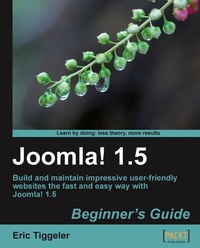
Joomla! 1.5: Beginner's Guide
Build and maintain impressive user-friendly web sites the fast and easy way with Joomla! 1.5
1st Edition
Published on 13. January 2025
380 pages
978-1-84719-991-1 (ISBN)
Description

Build and maintain impressive user-friendly web sites the fast and easy way with Joomla! 1.5Key Features - Create a web site that meets real-life requirements by following the creation of an example site with the help of easy-to-follow steps and ample screenshots
- Practice all the Joomla! skills from organizing your content to completely changing the site's looks and feel
- Go beyond a typical Joomla! site to make the site meet your specific needs
- Get to grips with inspiring examples and best practices and implement them to enhance your Joomla! site
Book DescriptionJoomla! is one of the most popular open-source Content Management Systems, actively developed and supported by a world-wide user community. Although it's a fun and feature-rich tool, it can be challenging to get beyond the basics and build a site that meets your needs perfectly. Using this book you can create dynamic, interactive web sites that perfectly fit your needs.This practical guide gives you a head start in using Joomla! 1.5, helping you to create professional and good-looking web sites, whether you want to create a full-featured company or club web site or build a personal blog site.The Joomla! 1.5 Beginner's Guide helps beginners to get started quickly and to get beyond the basics to take full advantage of Joomla!'s powerful features. Real-life examples and tutorials will spark your imagination and show you what kind of professional, contemporary, feature-rich web sites any developer can achieve with Joomla!. It gives you a head start and explains what's good and useful about Joomla! features and what's not. The focus is on clear instructions and easy-to-understand tutorials, with minimum of jargon. This book provides clear definitions, thoroughly covering the concepts behind the software and creating a coherent picture of how the software works. This book is not about what Joomla! can do'Äîit's about what you can do using Joomla!.What you will learn - Create a feature-rich site that s easy to expand, customize, and maintain without having to learn web languages such as HTML and Cascading Style Sheets (CSS)
- Design attractive home pages that provide a quick overview of the site s contents and direct people to the content they could be interested in
- Engage your web visitors and turn them into active users by enabling them to register, add content, and leave comments
- Design clear and easy navigation using menus, submenus, and text hyperlinks
- Make full use of templates to get your site to look just right, tweaking the CSS and customizing templates using your own logo, fonts, and colors
- Extend Joomla! s capabilities by finding and utilizing must-have extensions that perfectly meet your needs
- Increase your site s visibility for search engines by applying highly effective Search Engine Optimization (SEO) techniques
- Secure your site from hackers and potential threats using easy-to-follow techniques
- Chapter 1: Introduction: A New and Wasy Way to Build Your Web Site 'Äì In this chapter you ll learn why you d want to use Joomla!: to create a cool looking, feature-rich site that s easy to expand, customize, and maintain.Chapter 2: Installation: Getting Joomla! Up and Running 'Äì You ll learn how to install Joomla! on your own computer or on a web server, and how to install a sample site.Chapter 3: First Steps: Getting to Know Joomla! 'Äì In this chapter you ll get familiar with the basic concepts of Joomla!: the Joomla! interface and the principles of a web site constructed out of building blocks.Chapter 4: Web Building Basics: Creating a Site in an Hour 'Äì Face a Real-Life Challenge 'Äì In this chapter you ll use Joomla! to build a basic but expandable web site fast 'Äì customizing Joomla! s default sample site to fit your needs, adding content, menu links, and changing the site s look and feel.Chapter 5: Small Sites, Big Sites: Organizing Your Content Effectively 'Äì Making it easy to add and find information on your site: designing a clear, expandable, manageable structure for your content.Chapter 6: Creating Killer Content: Adding and Editing Articles 'Äì In this chapter, you ll learn to create content pages that are attractive and easy to read, and you ll learn about different ways to tweak the page layout.Chapter 7: Welcoming Your Visitors: Creating Attractive Home Pages and Overview Pages 'Äì When you ve got your content set up, you ll create a home page and overview pages to entice visitors to actually read all your valuable content.Chapter 8: Helping Your Visitors Find What They Want: Managing Menus 'Äì In this chapter, you ll practice designing clear and easy navigation through menus. How can you help the visitors to find what they want easily?Chapter 9: Opening Up the Site: Enabling Users to Contribute and Interact 'Äì You ll learn how to enable users to log in and allow them to create content and manage the web site. Enable visitors to register and give them exclusive access to premium content. Another powerful way to get visitors involved is to allow them to leave comments.Chapter 10: Getting the Most out of Your Site: Extending Joomla! 'Äì In this chapter, you ll learn how to extend Joomla! s capabilities using all sorts of extensions: using an image gallery to attractively display pictures, automatically showing article teasers on the home page, or enhancing your workspace by installing an easier content editor.Chapter 11: Creating an Attractive Design: Working with Templates 'Äì Templates will give your site a fresh look and feel 'Äì and make it easy to create an individual look, different from a "typical" Joomla! site. You ll learn how to install and customize templates.Chapter 12: Attracting Search Engine Traffic 'Äì This chapter shows you how to increase your site s visibility for search engines applying Search Engine Optimization (SEO) techniques, such as creating friendly URLs.Appendix - Keeping the Site Secure 'Äì In this chapter you ll learn simple, common sense steps you can take to keep your site safe from hackers.
Who this book is forIf you want to build and maintain your own web site, the Joomla! Beginner's Guide is perfect for you. It helps you build on the skills and knowledge you may already have on creating web sites'Äîbut even if you're new to this subject, you won't have any difficulty understanding the clear and friendly instructions and explanations. You learn how to build and maintain web sites without having to dive deep into HTML and CSS.
- Practice all the Joomla! skills from organizing your content to completely changing the site's looks and feel
- Go beyond a typical Joomla! site to make the site meet your specific needs
- Get to grips with inspiring examples and best practices and implement them to enhance your Joomla! site
Book DescriptionJoomla! is one of the most popular open-source Content Management Systems, actively developed and supported by a world-wide user community. Although it's a fun and feature-rich tool, it can be challenging to get beyond the basics and build a site that meets your needs perfectly. Using this book you can create dynamic, interactive web sites that perfectly fit your needs.This practical guide gives you a head start in using Joomla! 1.5, helping you to create professional and good-looking web sites, whether you want to create a full-featured company or club web site or build a personal blog site.The Joomla! 1.5 Beginner's Guide helps beginners to get started quickly and to get beyond the basics to take full advantage of Joomla!'s powerful features. Real-life examples and tutorials will spark your imagination and show you what kind of professional, contemporary, feature-rich web sites any developer can achieve with Joomla!. It gives you a head start and explains what's good and useful about Joomla! features and what's not. The focus is on clear instructions and easy-to-understand tutorials, with minimum of jargon. This book provides clear definitions, thoroughly covering the concepts behind the software and creating a coherent picture of how the software works. This book is not about what Joomla! can do'Äîit's about what you can do using Joomla!.What you will learn - Create a feature-rich site that s easy to expand, customize, and maintain without having to learn web languages such as HTML and Cascading Style Sheets (CSS)
- Design attractive home pages that provide a quick overview of the site s contents and direct people to the content they could be interested in
- Engage your web visitors and turn them into active users by enabling them to register, add content, and leave comments
- Design clear and easy navigation using menus, submenus, and text hyperlinks
- Make full use of templates to get your site to look just right, tweaking the CSS and customizing templates using your own logo, fonts, and colors
- Extend Joomla! s capabilities by finding and utilizing must-have extensions that perfectly meet your needs
- Increase your site s visibility for search engines by applying highly effective Search Engine Optimization (SEO) techniques
- Secure your site from hackers and potential threats using easy-to-follow techniques
- Chapter 1: Introduction: A New and Wasy Way to Build Your Web Site 'Äì In this chapter you ll learn why you d want to use Joomla!: to create a cool looking, feature-rich site that s easy to expand, customize, and maintain.Chapter 2: Installation: Getting Joomla! Up and Running 'Äì You ll learn how to install Joomla! on your own computer or on a web server, and how to install a sample site.Chapter 3: First Steps: Getting to Know Joomla! 'Äì In this chapter you ll get familiar with the basic concepts of Joomla!: the Joomla! interface and the principles of a web site constructed out of building blocks.Chapter 4: Web Building Basics: Creating a Site in an Hour 'Äì Face a Real-Life Challenge 'Äì In this chapter you ll use Joomla! to build a basic but expandable web site fast 'Äì customizing Joomla! s default sample site to fit your needs, adding content, menu links, and changing the site s look and feel.Chapter 5: Small Sites, Big Sites: Organizing Your Content Effectively 'Äì Making it easy to add and find information on your site: designing a clear, expandable, manageable structure for your content.Chapter 6: Creating Killer Content: Adding and Editing Articles 'Äì In this chapter, you ll learn to create content pages that are attractive and easy to read, and you ll learn about different ways to tweak the page layout.Chapter 7: Welcoming Your Visitors: Creating Attractive Home Pages and Overview Pages 'Äì When you ve got your content set up, you ll create a home page and overview pages to entice visitors to actually read all your valuable content.Chapter 8: Helping Your Visitors Find What They Want: Managing Menus 'Äì In this chapter, you ll practice designing clear and easy navigation through menus. How can you help the visitors to find what they want easily?Chapter 9: Opening Up the Site: Enabling Users to Contribute and Interact 'Äì You ll learn how to enable users to log in and allow them to create content and manage the web site. Enable visitors to register and give them exclusive access to premium content. Another powerful way to get visitors involved is to allow them to leave comments.Chapter 10: Getting the Most out of Your Site: Extending Joomla! 'Äì In this chapter, you ll learn how to extend Joomla! s capabilities using all sorts of extensions: using an image gallery to attractively display pictures, automatically showing article teasers on the home page, or enhancing your workspace by installing an easier content editor.Chapter 11: Creating an Attractive Design: Working with Templates 'Äì Templates will give your site a fresh look and feel 'Äì and make it easy to create an individual look, different from a "typical" Joomla! site. You ll learn how to install and customize templates.Chapter 12: Attracting Search Engine Traffic 'Äì This chapter shows you how to increase your site s visibility for search engines applying Search Engine Optimization (SEO) techniques, such as creating friendly URLs.Appendix - Keeping the Site Secure 'Äì In this chapter you ll learn simple, common sense steps you can take to keep your site safe from hackers.
Who this book is forIf you want to build and maintain your own web site, the Joomla! Beginner's Guide is perfect for you. It helps you build on the skills and knowledge you may already have on creating web sites'Äîbut even if you're new to this subject, you won't have any difficulty understanding the clear and friendly instructions and explanations. You learn how to build and maintain web sites without having to dive deep into HTML and CSS.
All prices
More details
Other editions
Additional editions
Book
02/2010
Packt Publishing
€56.70
Shipment within 3-4 weeks
Persons
Tiggeler Eric :
Eric Tiggeler has authored several books on Joomla!, such as the highly successful Joomla! 2.5 Beginner's Guide and Joomla! 3 Beginner's Guide, both by Packt Publishing. He has also written several Joomla! guides in Dutch. His books have received excellent reader reviews. He also writes tutorials for several computer magazines and Joomla! community websites. Over the last ten years, he has developed numerous websites, big and small, using Joomla!. He is fascinated by the Web as a powerful, creative, and ever-changing means of communication, as well as by the revolutionary software Joomla!, which enables anybody to create beautiful and user-friendly websites. On a daily basis, he works as a consultant and copywriter at a communication consultancy company affiliated to the Free University of Amsterdam. Over the last few years, he has written more than 20 books in Dutch on writing and communication. His passion lies in making complex things easy to understand. He is married, has two daughters, and lives and works in Hilversum, the Netherlands. On the Web, you'll find him at www.joomla.erictiggeler.nl(in Dutch) and www.joomm.net(in English).Davenport Chris :
Chris has almost 30-years experience in the Information Technology field and has extensive experience of software development on a diverse range of platforms and at all levels from assembler to 4th-generation languages. He has been involved in projects for major clients including Royal Life, Bristol & West and British Rail. He became interested in open source software in the mid-1990's and now hardly ever uses proprietary software. He was invited to join the Core Team for the Joomla!T project in November 2006. He is currently on the Joomla Leadership Team (which superseded the Core Team) and is a member of the Joomla Production Working Group with responsibility for documentation. He holds a BSc (Hons) degree in Mathematics.
Eric Tiggeler has authored several books on Joomla!, such as the highly successful Joomla! 2.5 Beginner's Guide and Joomla! 3 Beginner's Guide, both by Packt Publishing. He has also written several Joomla! guides in Dutch. His books have received excellent reader reviews. He also writes tutorials for several computer magazines and Joomla! community websites. Over the last ten years, he has developed numerous websites, big and small, using Joomla!. He is fascinated by the Web as a powerful, creative, and ever-changing means of communication, as well as by the revolutionary software Joomla!, which enables anybody to create beautiful and user-friendly websites. On a daily basis, he works as a consultant and copywriter at a communication consultancy company affiliated to the Free University of Amsterdam. Over the last few years, he has written more than 20 books in Dutch on writing and communication. His passion lies in making complex things easy to understand. He is married, has two daughters, and lives and works in Hilversum, the Netherlands. On the Web, you'll find him at www.joomla.erictiggeler.nl(in Dutch) and www.joomm.net(in English).Davenport Chris :
Chris has almost 30-years experience in the Information Technology field and has extensive experience of software development on a diverse range of platforms and at all levels from assembler to 4th-generation languages. He has been involved in projects for major clients including Royal Life, Bristol & West and British Rail. He became interested in open source software in the mid-1990's and now hardly ever uses proprietary software. He was invited to join the Core Team for the Joomla!T project in November 2006. He is currently on the Joomla Leadership Team (which superseded the Core Team) and is a member of the Joomla Production Working Group with responsibility for documentation. He holds a BSc (Hons) degree in Mathematics.
Content
- Intro
- Joomla! 1.5
- Table of Contents
- Joomla! 1.5
- Credits
- About the Author
- About the Reviewers
- Preface
- What this book covers
- What you need for this book
- Who this book is for
- Conventions
- Time for action-heading
- What just happened?
- Pop quiz - heading
- Have a go hero-heading
- Reader feedback
- Customer support
- Errata
- Piracy
- Questions
- 1. Introduction: A New and Easy Way to Build Websites
- Join the CMS revolution
- Why would you choose Joomla!?
- What kind of sites can you build with Joomla!?
- Learning to use Joomla!
- What you'll learn using this book
- About the example site
- Summary
- 2. Installation: Getting Joomla! Up and Running
- What do you need to start?
- 1. Hosting space
- 2. FTP software
- 3. A great browser (think Firefox)
- Installing Joomla! in four steps
- Time for action-step 1: Download the Joomla! files
- What just happened?
- Time for action-step 2: Place the files on the web server
- What just happened?
- Time for action-step 3: Create a database
- What just happened?
- Time for action-step 4: Run the Joomla! installation wizard
- What just happened?
- Got stuck? Get help!
- Pop quiz - test your knowledge of installing Joomla!
- Summary
- 3. First Steps: Getting to Know Joomla!
- Making the switch: Building websites the Joomla! way
- Sorry, web pages have ceased to exist
- Why is this a good thing?
- A website built of blocks
- Introducing frontend and backend: The Joomla! interface
- Your workspace: The backend
- And what's that frontend thing, then?
- The frontend: The website as the user sees it
- Time for action-tour the example site
- What just happened?
- Have a go hero-get familiar with the example site contents
- Taking control: Administering your site in the backend
- Time for action-log in to the backend
- What just happened?
- Taking a closer look at the Control Panel
- 1. Menu bar
- 2. Shortcut buttons
- 3. Preview and Info Bar
- 4. Information panels
- Understanding backend tools and controls
- Getting your feet wet: Start administering your site
- Three types of backend actions
- Content actions example: Let's create some content!
- Time for action-publish your first article
- What just happened?
- Extension actions example: Managing modules
- Time for action-rearranging page layout
- What just happened?
- Site actions example: Configuring basic site settings
- Time for action-set Joomla! preferences
- What just happened?
- Have a go hero-explore the configuration options
- Pop quiz - test your knowledge of the Joomla! way of web building
- Summary
- 4. Web Building Basics: Creating a Site in an Hour
- What you will be making
- SRUP's the word
- Cleaning up: Removing the sample data
- Step 1: Hide the unnecessary stuff
- Time for action-hiding modules
- What just happened?
- Step 2: Remove sample content
- Time for action-deleting articles, categories, and sections
- What just happened?
- Have a go hero-clean up those menus
- Building your site is a three step process
- Step 1: Customize the layout
- Customize the color scheme
- Time for action-choosing a color variation
- What just happened?
- Time for action-preparing a new header file
- What just happened?
- Time for action-display the new header image file
- What just happened?
- CSS ... stylesheets? Come again?
- One last thing: Clean up a little whatchamacallit
- Time for action-remove the whatsis
- What just happened?
- Have a go hero-explore layout settings
- Step 2: Add content
- Create a foundation first: Make sections and categories
- Time for action-create a section and some categories
- What just happened?
- Add articles to the categories
- Time for action-create an article
- What just happened?
- Have a go hero-add your own images to articles
- Making content visible: Create a menu link
- Time for action-add a menu link
- What just happened?
- Have a go hero-create more articles
- Now that's the all-important power of menus
- Add some individual content pages: Uncategorized articles
- Time for action-add uncategorized articles
- What just happened?
- Have a go hero-clean up the Main Menu
- Put some content on the home page-at last!
- Add items to the home page
- Time for action-adding items to the home page
- What just happened?
- The Front Page is not the home page (or is it?)
- Step 3: Add extras through components and extensions
- Components and extensions, what's the difference?
- Add a contact form
- Time for action-create a contact
- What just happened?
- Time for action-create a Contact Form menu link
- What just happened?
- Add a Poll
- Time for action-create a Poll
- Time for action-display the Poll
- What just happened?
- Wrapping up: Change site settings
- Time for action-change site configuration
- What just happened?
- Pop quiz - test your basic Joomla! knowledge
- Summary
- 5. Small Sites, Big Sites: Organizing your Content Effectively
- Building on the example site
- Grouping content: A crash course in site organization
- Designing a site map
- Time for action-create a future proof site map
- What just happened?
- Transferring your site map to Joomla!
- How do you turn a site map into a website?
- Creating content containers: Sections and categories
- Time for action-create a new section and a category
- What just happened?
- Have a go hero-add some articles
- Displaying sections and categories on your website
- Time for action-create a link to point to a section
- How are sections and categories displayed?
- Have a go hero-create some new sections and categories
- Add sections and categories
- Add links
- Remove an unneeded article
- Refining your site structure
- Time for action-move content from one category to another
- What just happened?
- Have a go hero-moving entire categories
- Renaming sections or categories
- Time for action-rename a section
- What just happened?
- Have a go hero-name and rename!
- Changing section and category settings
- Building a site without sections or categories
- What sites can you build with uncategorized content only?
- How do you go about building a small site?
- Have a go hero-organize a site!
- Pop quiz - test your site organization knowledge
- Summary
- 6. Creating Killer Content: Adding and Editing Articles
- Articles, content pages, what's the difference?
- Creating and editing articles: Beyond the basics
- Making it look good: Formatting article text
- Time for action-add styling to article text
- What just happened?
- Have a go hero-change the formatting
- Adding images to articles
- Time for action-upload images
- What just happened?
- Time for action-inserting and aligning images
- What just happened?
- Have a go hero-adjust the image settings
- Changing the way the article displays
- One lump or two? Split the article in an intro text and main text
- Time for action-creating an intro text
- What just happened?
- Creating multi-page articles
- Time for action-using page breaks to split up an article
- What just happened?
- Use it wisely
- Tweaking the details: Changing article settings
- Parameters (Article)
- Parameters (Advanced)
- Metadata Information
- Archiving articles
- Time for action-creating a news archive
- What just happened?
- Pop quiz - test your site article expertise
- Summary
- 7. Welcoming Your Visitors: Creating Attractive Home Pages and Overview Pages
- Why do you need overview pages, anyway?
- Creating the perfect home: Mastering home page layout
- Changing the way your home page is arranged
- Time for action-rearrange the layout of articles on the home page
- What just happened?
- Have a go hero-tweak the home page settings to your liking
- Adding items to the Front Page
- Controlling the order of Front Page items manually
- Setting criteria to automatically order Front Page items
- Time for action-show the most recent items first
- What just happened?
- Have a go hero-try out the Front Page settings
- Parameters (Basic)
- Parameters (Advanced)
- Parameters (Component)
- Parameters (System)
- The alternative way: Creating a single article home page
- Time for action-creating a different home page
- What just happened?
- Have a go hero-undo!
- Creating section and category overview pages
- Blog Layout or List Layout?
- The first type of overview page: Creating Blog Layouts
- Time for action-create a facebook using the Blog Layout
- What just happened?
- Have a go hero-add a category description
- Showing full articles on a category overview page
- Have a go hero-experiment with Blog Layout settings
- The second type of overview page: Lists
- Creating Section Lists
- Time for action-change a Blog Layout to a List Layout
- What just happened?
- Have a go hero-undo!
- Customizing lists: Exploring Section List Layout parameters
- Parameters (Basic)
- Parameters (Advanced)
- Parameters (Component)
- Parameters (System)
- Using Category Lists
- Parameters (Basic)
- Parameters (Advanced)
- Pop quiz - test your knowledge of home pages and overview pages
- Summary
- 8. Helping Your Visitors Find What They Want: Managing Menus
- How many menus can you have?
- Creating user-friendly navigation: Cleaning up the Main Menu
- Option 1: Change the order of menu items
- Time for action-change menu item order
- What just happened?
- Option 2: Add a separate new menu
- Time for action-step 1: Create a new, empty menu
- What just happened?
- Time for action-step 2: Move hyperlinks to the new menu
- What just happened?
- Time for action-step 3: Tell Joomla! where to display the menu
- What just happened?
- Tweaking the menu styling
- Time for action-tweak the menu position and orientation
- What just happened?
- Option 3: Creating submenu items
- Time for action-create a secondary menu item
- What just happened?
- Creating split submenus
- Have a go hero-arrange menus any way you like
- Exploring menu module settings
- Details
- Menu Assignment
- Module Parameters
- Advanced Parameters
- Other Parameters
- Have a go hero-try out available menu settings
- Creating menu links
- Have a go hero-try out some Menu Item Types
- Why do you have to create menu links manually, anyway?
- Creating plain text links
- Time for action-creating text links
- What just happened?
- Pop quiz - test your menu knowledge
- Summary
- 9. Opening Up the Site: Enabling Users to Contribute and Interact
- Creating user accounts for team members
- What different types of user accounts can you create?
- 1. Registered users
- 2. Frontend content contributors
- 3. Backend content contributors and administrators
- Time for action-giving a user frontend authoring permissions
- What just happened?
- Enabling team members to log in to the frontend
- Time for action-create a Login Form
- What just happened?
- Time for action-logging in as a frontend content contributor
- What just happened?
- Have a go hero-create a frontend User Menu
- Reviewing and publishing team content submissions
- Time for action-reviewing submitted content
- What just happened?
- Have a go hero-explore different User Group permissions
- Find out what editors and publishers can do
- Find out what backend users can do
- Allowing visitors to register
- How do you enable users to create an account?
- Displaying a link to a Login Form
- Time for action-register yourself and log in
- What just happened?
- Hiding content for non-registered users
- Time for action-hiding content for non-registered users
- What just happened?
- Have a go hero-change access level settings
- Getting your visitors to 'register to read more'
- Time for action-partially hiding content from non-registered users
- What just happened?
- Enabling users to rate articles or write comments
- Pop quiz - test your knowledge of Joomla! user management
- Summary
- 10. Getting the Most out of Your Site: Extending Joomla!
- Extensions in all shapes and sizes
- Where do you get them from?
- Enhancing your site using core extensions
- Time for action-adding a Newsflash to the home page
- What just happened?
- Have a go hero-change the Newsflash settings
- Creating a custom HTML block
- Time for action-add a short content block
- What just happened?
- What other extensions are part of the Joomla! core?
- Enhancing your site using third-party extensions
- Trying out an alternative News flash
- Time for action-downloading and installing an extension
- Time for action-putting the extension to work
- What just happened?
- Have a go hero-experiment with News Show settings
- Showing images in a gallery
- Time for action-create an image gallery
- What just happened?
- Do you want more from your photo gallery?
- Using extensions to enhance your work space
- Time for action-replace Joomla!'s default text editor
- What just happened?
- So much more to explore
- Pop quiz - test your knowledge of Joomla! extensions
- Summary
- 11. Creating an Attractive Design: Working with Templates
- This is what templates do
- This is why templates are so much fun
- Where can you find templates?
- Changing the default template
- Time for action-activating a different template
- What just happened?
- Have a go hero-adjust the template settings
- Downloading and installing a new template
- Time for action-step 1: Downloading and activating a new template
- What just happened?
- Time for action-step 2: Getting the Main Menu module to display
- What just happened?
- Have a go hero-fill those module positions!
- Find out which positions are available
- Assign content to empty positions
- Customizing a template: Tweaking CSS styles
- Understanding the very basics of CSS
- Tweaking template CSS, part one: Changing site colors
- Time for action-adjusting the template colors
- What just happened?
- Tweaking template CSS, part two: Adding a graphic logo file
- Creating an image file
- Time for action-replace the header text with an image
- What just happened?
- Have a go hero-tweak the layout to your taste
- Diving deeper into Joomla! CSS tweaking
- Time for action-editing CSS on the fly using Firebug
- What just happened?
- Expanding your CSS toolkit
- Expanding your CSS knowledge
- Editing the template HTML
- Time for action-removing the fixed footer text
- What just happened?
- Backing up and restoring a customized template
- Creating your own template
- Template building resources
- Pop quiz - test your knowledge of Joomla! templates
- Summary
- 12. Attracting Search Engine Traffic: Tips and Techniques
- Why do you need to accommodate for search engines?
- Optimize your articles
- 1. The article title: Make it meaningful
- 2. The article structure: Use clear formatting
- 3. The article body text: Use relevant keywords
- 4. The images: Explain what they're about
- Update articles regularly
- Add meaningful metadata
- Time for action-personalize the site metadata
- What just happened?
- Have a go hero-find metadata to fit your site
- Entering metadata for individual articles
- Time for action-add metadata information for an article
- What just happened?
- Have a go hero-explore the art and science of metadata
- Don't forget to choose the perfect site name
- Use search engine friendly URLS
- Time for action-enable search engine friendly URLs
- What just happened?
- Have a go hero-make your URLs even prettier
- Add extra links to your content
- Time for action-turn article titles into hyperlinks
- What just happened?
- Creating an automatically generated list of hyperlinks
- Time for action-add a list of links to popular articles
- What just happened?
- Have a go hero-add link lists
- Using a site map
- Time for action-adding a site map component
- What just happened?
- Have a go hero-tweak that site map
- Make it easier to discover new content: Using RSS
- Time for action-enable RSS feeds
- What just happened?
- Have a go hero-provide a newsletter service
- Getting to know more about your site traffic
- More SEO resources
- Pop quiz - test your knowledge of Joomla! search engine optimization
- Summary
- A. Keeping the Site Secure
- Tip 1: Upgrade regularly
- Tip 2: Change the default Administrator Username
- Tip 3: Choose a strong password
- Tip 4: Protect files and directories
- Choosing file permissions
- Tip 5: Use extensions to secure your site
- Tip 6: Have a backup ready
- Creating a Backup with JoomlaPack
- Restoring a backup
- Tip 7: Stay informed!
- B. Pop quiz - Answers
- Chapter 2
- Installation: Getting Joomla! Up and Running
- Chapter 3
- First Steps: Getting to Know Joomla!
- Chapter 4
- Web Building Basics: Creating a Site in an Hour
- Chapter 5
- Small Sites, Big Sites: Organizing your Content Effectively
- Chapter 6
- Creating Killer Content: Adding and Editing Articles
- Chapter 7
- Welcoming Your Visitors: Creating Attractive Home Pages and Overview Pages
- Chapter 8
- Helping Your Visitors Find What They Want: Managing Menus
- Chapter 9
- Opening Up the Site: Enabling Users to Contribute and Interact
- Chapter 10
- Getting the Most out of Your Site: Extending Joomla!
- Chapter 11
- Creating an Attractive Design: Working with Templates
- Chapter 12
- Attracting Search Engine Traffic: Tips and Techniques
- Index

