

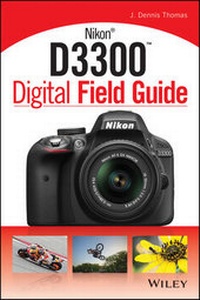
Nikon D3300 Digital Field Guide
Description

Portable and full color, this guide is packed with everythingyou want and need to know in order to take amazing photos usingyour new Nikon Camera N1. Veteran author J. Dennis Thomas walks youthrough the essential controls, features, and functions of the N1using step-by-step instructions and providing full-color images ofeach menu screen. You'll learn how to adjust white balance,autofocus, and exposure as well as choose lens and adjust settings.The handy trim size allows this guide to go where you go, allowingyou easy access to information quickly so you can get the exactshot you want when you want it.
* Helps you make the most of your Camera N1 and get the shots youwant
* Features valuable insight from a successful professionalphotographer for capturing unique and memorable portrait, candid,action, travel, sports, and other shots
* Provides step-by-step explanations on techniques and tips, allaimed at getting you comfortable and confident with yourcamera
Go beyond the basic manual and the standard settings and seewhat your Camera N1 can do with Camera N1 Digital FieldGuide!
All prices
More details
Other editions
Additional editions
Person
Content
About the Digital Field Guide xx
CHAPTER 1 Exploring the Nikon D3300 1
Key Components of the D3300 2
The top of the camera 2
The back of the camera 4
The front of the camera 8
The left side of the camera 9
The Viewfinder Display 12
The Information Display 15
CHAPTER 2 Nikon D3300 Essentials 21
Exposure Modes 22
Automatic modes 22
Programmed auto mode 23
Aperture-priority auto mode 24
Shutter-priority auto mode 25
Manual mode 26
Guide Mode 27
Shoot 28
View/delete 28
Retouch 29
Setup 29
Scene Modes 29
Special Effects Modes 32
Night vision 33
Super vivid 33
Pop 33
Photo illustration 34
Color sketch 35
Toy camera effect 35
Miniature effect 36
Selective color 37
Silhouette 39
High key 39
Low key 39
HDR painting 39
Easy panorama 40
Metering Modes 41
Matrix metering mode 41
Center-weighted metering mode 42
Spot metering mode 43
Autofocus 43
Phase detection 44
Contrast detection 44
Focus Modes 45
Auto servo AF mode 45
Continuous servo AF mode 45
Single servo AF mode 46
Manual focus mode 46
Autofocus Area Modes 47
Auto-area AF mode 47
Single-point AF mode 47
Dynamic-area AF mode 48
Release Modes 48
ISO Sensitivity 50
Auto ISO 51
Noise reduction 51
White Balance 53
The Kelvin scale 53
White balance settings 54
Picture Controls 56
File Formats, Size, and Compression 60
NEF (RAW) 61
JPEG 61
Image size 63
Image quality 64
CHAPTER 3 Setting up the Nikon D3300 67
The Playback Menu 68
Delete 68
Playback folder 69
Playback display options 69
Image review 70
Rotate tall 71
Slide show 71
DPOF print order 72
Rating 73
Select to send to smart device 73
The Shooting Menu 73
Reset shooting menu 74
Image quality 74
Image size 75
White balance 75
Set Picture Control 77
Auto distortion control 78
Color space 79
Active D-Lighting 80
Noise reduction 80
ISO sensitivity settings 80
AF-area mode 81
Built-in AF-assist illuminator 81
Metering 82
Flash cntrl for built-in flash 82
Movie settings 82
The Setup Menu 83
Reset setup options 84
Format memory card 84
Monitor brightness 84
Info display format 85
Auto info display 85
Clean image sensor 85
Lock mirror up for cleaning 86
Image Dust Offref photo 87
Flicker reduction 87
Time zone and date 88
Language 88
Auto image rotation 88
Image comment 88
Auto off timers 88
Self-timer 89
Remote on duration (ML-L3) 89
Beep 89
Rangefinder 89
File number sequence 90
Buttons 90
Slot empty release lock 91
Print date 91
Storage folder 91
Accessory terminal 92
Video mode 93
HDMI 93
Wireless mobile adapter 94
Firmware version 94
The Retouch Menu 94
D-Lighting 96
Red-eye correction 96
Trim 97
Monochrome 97
Filter effects 98
Color balance 99
Image overlay 100
NEF (RAW) processing 101
Resize 102
Quick retouch 102
Straighten 103
Distortion control 103
Fisheye 103
Color outline 103
Photo illustration 103
Color sketch 104
Perspective control 104
Miniature effect 104
Selective color 105
Edit movie 105
Recent Settings 106
CHAPTER 4 Selecting and Using Lenses with the Nikon D3300 107
Deciphering Nikon Lens Codes 108
Lens Compatibility 109
The DX Crop Factor 110
Third-Party Lenses 113
Types of Lenses 115
Wide-angle lenses 115
Standard zoom lenses 119
Telephoto lenses 121
Close-up/macro lenses 124
Fisheye lenses 126
CHAPTER 5 Controlling Exposure 129
Defining Exposure 130
ISO 131
Shutter speed 132
Aperture or f-stop 135
Fine-tuning Your Exposure 137
Exposure compensation 137
Using histograms 138
CHAPTER 6 Working with Light 145
Lighting Essentials 146
The quality of light 146
Lighting direction 149
Natural Light 152
Continuous Light 153
The D3300 Built-in Flash 155
Built-in flash exposure modes 155
Flash sync modes 157
Flash Compensation 159
Light Modifiers 160
CHAPTER 7 Working with the Live View and Video Modes 163
Live View Mode 164
Focus modes 165
AF-area modes 166
Using Live View mode 168
Shooting and Editing Video 172
Frame size and frame rate 175
In-camera video editing 176
CHAPTER 8 Real-World Applications 179
Abstract Photography 180
Equipment 180
Technique 182
Action and Sports Photography 183
Equipment 184
Technique 185
Concert and Live Music Photography 187
Equipment 188
Technique 190
Macro Photography 192
Equipment 193
Technique 197
Nature and Landscape Photography 198
Equipment 199
Technique 200
Night and Low-light Photography 201
Equipment 202
Technique 204
Portrait Photography 205
Equipment 206
Technique 208
Still-life, Product, and Food Photography 209
Equipment 210
Technique 211
Street Photography 214
Equipment 214
Technique 215
CHAPTER 9 After Capture 219
Viewing Your Images 220
Downloading Your Images 222
File Management and Workflow 223
Folder structure 224
Editing 224
Filenames and metadata 225
Tonal Adjustments and Color Corrections 226
APPENDIX A General Composition Tips 231
APPENDIX B Accessories 237
Glossary 243
Index 253
Chapter 1: Exploring the Nikon D3300
The 3000 series of cameras are the smallest dSLRs in the Nikon lineup. The D3300 body was redesigned using the monocoque structure, which first appeared in the D5300. The design allows the camera to be smaller and lighter than the D3200 while gaining a stronger structural integrity.
Because these cameras are much more compact than the Nikon professional series cameras, by necessity they have fewer buttons with which to change the myriad combinations of settings. That being said, the D3300 does have its fair share of buttons and dials, many of which have more than one function depending on the way the camera is programmed and which mode the camera is in. It’s important to become familiar with the camera and all of its buttons and dials first, so that you can quickly change the necessary settings to adapt to your shooting environment.
Knowing where the buttons are and what they do allows you to change your settings without taking your eye from the viewfinder so you don’t miss a shot.
Key Components of the D3300
As I mentioned previously, the D3300 doesn’t have the multitudes of buttons and dials that some of the other Nikon camera models do, so the few controls the camera does have are very important. Most of them perform numerous duties depending on the camera mode, so understanding how each control functions is key to controlling your camera quickly so that you don’t miss a shot.
The following sections break the camera features down into segments and describe each control.
The top of the camera
Most of the important buttons are on the top of the D3300. This makes it easier to find them, especially when you have your eye to the viewfinder. This is where you find the dial to change the shooting modes, as well as the all-important shutter-release button and the movie-record button.
The following list includes the controls and buttons on top of the camera:
- Movie-record button. When the camera is in Live View mode (), you press this button (which is labeled with a red dot) to start recording video. Press it a second time to stop recording.
- Shutter-release button. This is the most important button on the camera. It is a two-stage button: pressing it halfway activates the camera’s autofocus and light meter; fully depressing it releases the shutter, and a photograph is taken. When the camera has been idle, and has “gone to sleep,” lightly pressing the shutter-release button wakes it up. When the Auto Info display is set to On, half-pressing and holding it turns the Information display off, while releasing it turns the Information display on. When the image review is on, lightly pressing the shutter-release button turns off the LCD screen and prepares the camera for another shot.
NOTE The Auto Info display settings is in the Setup Menu ().
- On/Off switch. Located concentric to the shutter-release button, this switch turns the camera on and off. Pull the switch to the right to turn the camera on and push it to the left to turn the camera off.
Image courtesy of Nikon, Inc.
1.1 The controls on top of the camera.
- Exposure compensation ()/Aperture () button. Press this button while rotating the Command dial to modify the exposure set by the D3300 light meter when it is in the Programmed auto (), Shutter-priority auto (), or Aperture-priority auto () modes. Turning the Command dial to the right increases the exposure, while turning the dial to the left decreases the exposure. When the camera is set to Manual exposure mode (), you can press this button and rotate the Command dial to adjust the aperture settings.
- Info button (). Press this button to display information on the LCD screen. The information display shows all of the exposure and camera setting options.
- Speaker. This small speaker allows you to hear the sound of the video playback. The fidelity isn’t very good, but it gives you a close approximation of what you will hear during playback.
- Mode dial. This is an important dial. Rotating the Mode dial allows you to change your shooting mode quickly. You can choose one of the scene modes, the Special Effects mode, one of the semiautomatic modes, or Manual exposure mode, which lets you pick the exposure settings.
CROSS REF For a detailed description of all exposure modes, see Chapter 2.
- Hot shoe. This is where you attach an accessory flash to the camera body. The hot shoe has an electronic contact that tells the flash to fire when the shutter is released. A number of other electronic contacts allow the camera to communicate with the flash, enabling the automated features of a dedicated flash unit such as the SB-700.
- Focal plane indicator. This marks the plane where the front of the sensor lies. Nikon uses this as the mark of the closest focusing distance of a lens, and when measuring distances for manual flash calculations, this is where the measurement to the subject from the camera should start.
The back of the camera
The back of the camera is where you find the buttons that mainly control playback and menu options, although a few buttons control some of the shooting functions. Most of the buttons have more than one function. Additionally, you use many of the buttons in conjunction with the Command dial or multi-selector. On the back of the camera, you also find several key features, including the all-important LCD screen and viewfinder.
The following are the elements on the back of the camera:
- Rear infrared receiver. This receiver picks up the infrared signal from the optional ML-L3 wireless remote.
- Viewfinder. This is what you look through to compose your photographs. Light coming through the lens is reflected from a series of five mirrors (called a pentamirror), enabling you to see exactly what you’re shooting. The rubber eyepiece around the viewfinder gives you a soft place to rest your eye and blocks any extra light from entering the viewfinder as you compose and shoot your images.
Image courtesy of Nikon, Inc.
1.2 The controls on the back of the camera.
- Diopter adjustment control. Just to the right of the viewfinder (hidden behind the eyecup) is the diopter adjustment control. Use this control to adjust the viewfinder lens to suit your individual vision strength (not everyone’s eyesight is the same). The best way to do this is to look at the viewfinder display and rotate the dial until the information in the viewfinder display is sharp.
- AE-L/AF-L ()/Protect () button. The Auto Exposure/Autofocus Lock ()/Protect () button locks the Auto Exposure (AE) and Autofocus (AF). You can customize this button in the Setup menu () under the Buttons option. The button can be set to provide AE/AF Lock (default), AE Lock only, AE Lock (hold), AF Lock only, or AF-ON. AE Lock (hold) locks the exposure when you press the shutter-release button once; the exposure remains locked until you press the button again or the shutter releases. AF-ON engages the AF in the same way that half-pressing the shutter-release button does. When the camera displays an image in Playback mode, press this button to lock the image and protect it from being deleted.
- Live View button (). A quick press of the Live View button () puts the camera in Live View mode, so you can shoot stills or videos using the LCD monitor as a viewfinder.
- Command dial. You use this dial to change a variety of settings, depending on the button with which you are using it. By default, it changes the shutter speed when the camera is in Shutter-priority auto (), Programmed auto (), and Manual exposure () modes. When shooting in Aperture-priority auto mode (), it changes the aperture setting. It can also adjust exposure compensation and change the flash mode.
- Playback button (). Press this button to activate playback. By default, it displays the most recently taken photograph. You can also view other pictures by pressing the multi-selector left () and right ().
- Menu button (). Press this button to access the D3300 menu options, including Playback (), Shooting (), Custom Setting (), and Retouch (). Use the multi-selector to choose the menu you want to view, and then press the OK button () to enter the specific menu screen.
- Zoom in button (). When reviewing your images or using the Live View option (), you can press the Zoom in button () to get a closer look at the details of your image. This is a handy feature for checking the sharpness and focus of your shot. When the camera is zoomed in, use the multi-selector to navigate around within the image. To view your other images at the same zoom ratio, you can rotate the Command dial. To return to full-frame playback, press the Thumbnail/Zoom out button...

