

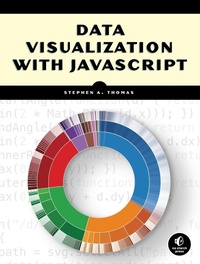
Data Visualization with JavaScript
Published on 15. March 2015
384 pages
978-1-59327-676-8 (ISBN)
Description

You've got data to communicate. But what kind of visualization do you choose, how do you build your visualizations, and how do you ensure that they're up to the demands of the Web?
In Data Visualization with JavaScript, you'll learn how to use JavaScript, HTML, and CSS to build practical visualizations for your data. Step-by-step examples walk you through creating, integrating, and debugging different types of visualizations and you'll be building basic visualizations (like bar, line, and scatter graphs) in no time.
You'll also learn how to:
-Create tree maps, heat maps, network graphs, word clouds, and timelines
-Map geographic data, and build sparklines and composite charts
-Add interactivity and retrieve data with AJAX
-Manage data in the browser and build data-driven web applications
-Harness the power of the Flotr2, Flot, Chronoline.js, D3.js, Underscore.js, and Backbone.js libraries
If you already know your way around building a web page but aren't quite sure how to build a good visualization, Data Visualization with JavaScript will help you get your feet wet without throwing you into the deep end. You'll soon be well on your way to creating simple, powerful data visualizations.
In Data Visualization with JavaScript, you'll learn how to use JavaScript, HTML, and CSS to build practical visualizations for your data. Step-by-step examples walk you through creating, integrating, and debugging different types of visualizations and you'll be building basic visualizations (like bar, line, and scatter graphs) in no time.
You'll also learn how to:
-Create tree maps, heat maps, network graphs, word clouds, and timelines
-Map geographic data, and build sparklines and composite charts
-Add interactivity and retrieve data with AJAX
-Manage data in the browser and build data-driven web applications
-Harness the power of the Flotr2, Flot, Chronoline.js, D3.js, Underscore.js, and Backbone.js libraries
If you already know your way around building a web page but aren't quite sure how to build a good visualization, Data Visualization with JavaScript will help you get your feet wet without throwing you into the deep end. You'll soon be well on your way to creating simple, powerful data visualizations.
More details
Other editions
Additional editions
Stephen A. Thomas
Data Visualization with JavaScript
Book
03/2015
1st Edition
No Starch Press
€64.40
Article exhausted; check different version
Person
Stephen A. Thomas specializes in frontend development at Georgia Tech's Department of Education Technology and has developed complex JavaScript visualizations for the health-care and security industries. He writes and speaks about data visualization in publications and at conferences around the world.
Content
- Intro
- Data Visualization with JavaScript
- About the Author
- About the Technical Reviewer
- Acknowledgments
- Introduction
- The Book's Philosophy
- The Book's Contents
- Source Code for Examples
- 1. Graphing Data
- Creating a Basic Bar Chart
- Step 1: Include the Required JavaScript
- Step 2: Set Aside a ÷& Element to Hold the Chart
- Step 3: Define the Data
- Step 4: Draw the Chart
- Step 5: Fix the Vertical Axis
- Step 6: Fix the Horizontal Axis
- Step 7: Adjust the Styling
- Step 8: Vary the Bar Color
- Step 9: Work Around Flotr2 "Bugs"
- Plotting Continuous Data with a Line Chart
- Step 1: Define the Data
- Step 2: Graph the CO2 Data
- Step 3: Add the Temperature Data
- Step 4: Improve the Chart's Readability
- Step 5: Clarify the Temperature Measurements
- Step 6: Label the Chart
- Step 7: Work Around Flotr2 "Bugs"
- Emphasizing Fractions Using a Pie Chart
- Step 1: Define the Data
- Step 2: Draw the Chart
- Step 3: Label the Values
- Step 4: Work Around Flotr2 "Bugs"
- Plotting X/Y Data with a Scatter Chart
- Step 1: Define the Data
- Step 2: Format the Data
- Step 3: Plot the Data
- Step 4: Adjust the Chart's Axes
- Step 5: Label the Data
- Step 6: Clarify the X-Axis
- Step 7: Answer Users' Questions
- Step 8: Work Around Flotr2 "Bugs"
- Adding Magnitudes to X/Y Data with a Bubble Chart
- Step 1: Define the Data
- Step 2: Create a Background for the Chart
- Step 3: Plot the Data
- Step 4: Add the Background
- Step 5: Color the Bubbles
- Step 6: Adjust the Legend Styles
- Step 7: Work Around Flotr2 "Bugs"
- Displaying Multidimensional Data with a Radar Chart
- Step 1: Define the Data
- Step 2: Create the Chart
- Step 3: Work Around Flotr2 "Bugs"
- Summing Up
- 2. Making Charts Interactive
- Selecting Chart Content
- Step 1: Include the Required JavaScript Libraries
- Step 2: Set Aside a ÷& Element to Hold the Chart
- Step 3: Prepare the Data
- Step 4: Draw the Chart
- Step 5: Add the Controls
- Step 6: Define the Data Structure for the Interaction
- Step 7: Determine Chart Data Based on the Interaction State
- Step 8: Add the Controls Using JavaScript
- Step 9: Respond to the Interaction Controls
- Zooming In on Charts
- Step 1: Prepare the Page
- Step 2: Draw the Chart
- Step 3: Prepare the Data to Support Interaction
- Step 4: Prepare to Accept Interaction Events
- Step 5: Enable the Interaction
- Tracking Data Values
- Step 1: Set Aside a ÷& Element to Hold the Charts
- Step 2: Prepare the Data
- Step 3: Draw the Charts
- Step 4: Implement the Interaction
- Retrieving Data Using AJAX
- Step 1: Understand the Source Data
- Step 2: Get the First Level of Data via AJAX
- Step 3: Process the First Level of Data
- Step 4: Get the Real Data
- Step 5: Process the Data
- Step 6: Create the Chart
- Summing Up
- 3. Integrating Charts on a Page
- Creating a Classic Sparkline
- Step 1: Include the Required JavaScript Libraries
- Step 2: Create the HTML Markup for the Sparkline
- Step 3: Draw the Sparkline
- Step 4: Adjust the Chart Style
- Charting Many Variables
- Step 1: Prepare the HTML Markup
- Step 2: Draw the Charts
- Step 3: Establish a Default Style for the Charts
- Step 4: Modify the Default Style for Special Classes
- Step 5: Create a Unique Style for a Specific Chart
- Annotating Sparklines
- Step 1: Prepare the Data
- Step 2: Prepare the HTML Markup
- Step 3: Add the Chart
- Step 4: Add the Primary Annotation
- Step 5: Provide Additional Information
- Drawing Composite Charts
- Step 1: Draw the Trading Volume Chart
- Step 2: Add the Closing Price Chart
- Step 3: Add the Annotations
- Step 4: Show Details as a Chart
- Responding to Click Events
- Step 1: Add the Chart
- Step 2: Handle Click Events
- Step 3: Improve the Transitions
- Step 4: Animate
- Updating Charts in Real Time
- Step 1: Retrieve the Data
- Step 2: Update the Visualization
- Summing Up
- 4. Creating Specialized Graphs
- Visualizing Hierarchies with Tree Maps
- Step 1: Include the Required Libraries
- Step 2: Prepare the Data
- Step 3: Draw the Tree Map
- Step 4: Vary the Shading to Show Additional Data
- Highlighting Regions with a Heat Map
- Step 1: Include the Required JavaScript
- Step 2: Define the Visualization Data
- Step 3: Create the Background Image
- Step 4: Set Aside an HTML Element to Contain the Visualization
- Step 5: Format the Data
- Step 6: Draw the Map
- Step 7: Adjust the Heat Map z-index
- Showing Relationships with Network Graphs
- Step 1: Include the Required Libraries
- Step 2: Prepare the Data
- Step 3: Define the Graph's Nodes
- Step 4: Connect the Nodes with Edges
- Step 5: Automate the Layout
- Step 6: Add Interactivity
- Revealing Language Patterns with Word Clouds
- Step 1: Include the Required Libraries
- Step 2: Prepare the Data
- Step 3: Add the Required Markup
- Step 4: Create a Simple Cloud
- Step 5: Add Interactivity
- Summing Up
- 5. Displaying Timelines
- Building Timelines with a Library
- Step 1: Include the Required Libraries
- Step 2: Prepare the Data
- Step 3: Draw the Timeline
- Step 4: Set Chronoline.js Options for the Data
- Building Timelines with JavaScript
- Step 1: Prepare the HTML Skeleton
- Step 2: Start JavaScript Execution
- Step 3: Create the Timeline in Semantic HTML
- Step 4: Include the Supporting Content
- Step 5: Optionally Take Advantage of jQuery
- Step 6: Fix Timeline Problems with CSS
- Step 7: Add Styles to Visually Structure the Timeline
- Step 8: Add Interactivity
- Using a Web Component
- Step 1: Preview the Standard Component
- Step 2: Include the Required Components
- Step 3: Prepare the Data
- Step 4: Create a Default Timeline
- Step 5: Adjust the Timeline Styles
- Summing Up
- 6. Visualizing Geographic Data
- Using Map Fonts
- Step 1: Include the Fonts in the Page
- Step 2: Display One Country
- Step 3: Combine Multiple Countries into a Single Map
- Step 4: Vary the Countries Based on the Data
- Step 5: Add a Legend
- Working with Scalable Vector Graphics
- Step 1: Create the SVG Map
- Step 2: Embed the Map in the Page
- Step 3: Collect the Data
- Step 4: Define the Color Scheme
- Step 5: Color the Map
- Step 6: Add a Legend
- Step 7: Add Interactions
- Including Maps for Context
- Step 1: Set Up the Web Page
- Step 2: Prepare the Data
- Step 3: Choose a Map Style
- Step 4: Draw the Map
- Step 5: Add the Sightings
- Integrating a Full-Featured Mapping Library
- Step 1: Prepare the Data
- Step 2: Set Up the Web Page and Libraries
- Step 3: Draw the Base Map
- Step 4: Add the Routes to the Map
- Step 5: Add an Animation Control
- Step 6: Prepare the Animation
- Step 7: Animate the Routes
- Step 8: Create Labels for the Stops
- Step 9: Build the Label Animation
- Step 10: Incorporate Label Animation in the Animation Step
- Step 11: Add a Title
- Summing Up
- 7. Custom Visualizations with D3.js
- Adapting a Traditional Chart Type
- Step 1: Prepare the Data
- Step 2: Set Up the Web Page
- Step 3: Create a Stage for the Visualization
- Step 4: Control the Chart's Dimensions
- Step 5: Draw the Chart Framework
- Step 6: Add the Data to the Chart
- Step 7: Answer Users' Questions
- Creating a Force-Directed Network Graph
- Step 1: Prepare the Data
- Step 2: Set Up the Page
- Step 3: Create a Stage for the Visualization
- Step 4: Draw the Graph's Nodes
- Step 5: Draw the Graph's Edges
- Step 6: Position the Elements
- Step 7: Add Force Direction to the Graph
- Step 8: Add Interactivity
- Step 9: Experiment with Other Enhancements
- Creating a Scalable Map
- Step 1: Prepare the Data
- Step 2: Set Up the Page
- Step 3: Create a Map Projection
- Step 4: Initialize the SVG Container
- Step 5: Retrieve the Map Data
- Step 6: Draw the Map
- Step 7: Retrieve the Weather Data
- Step 8: Plot the Data
- Step 9: Add Interactivity
- Creating a Unique Visualization
- Step 1: Prepare the Data
- Step 2: Set Up the Page
- Step 3: Create a Stage for the Visualization
- Step 4: Create Scales
- Step 5: Retrieve the Data
- Step 6: Draw the Visualization
- Step 7: Color the Areas
- Step 8: Make the Visualization Interactive
- Summing Up
- 8. Managing Data in the Browser
- Using Functional Programming
- Step 1: Start with an Imperative Version
- Step 2: Debug the Imperative Code
- Step 3: Understand the Problems Imperative Programming May Introduce
- Step 4: Rewrite Using Functional Programming Style
- Step 5: Evaluate Performance
- Step 6: Fix the Performance Problem
- Working with Arrays
- Extracting Elements by Position
- Combining Arrays
- Removing Invalid Data Values
- Finding Elements in an Array
- Generating Arrays
- Enhancing Objects
- Working with Keys and Values
- Cleaning Up Object Subsets
- Updating Attributes
- Manipulating Collections
- Working with Iteration Utilities
- Finding Elements in a Collection
- Testing a Collection
- Rearranging Collections
- Summing Up
- 9. Building Data-Driven Web Applications: Part 1
- Frameworks and Libraries
- Step 1: Select an Application Library
- Step 2: Install Development Tools
- Step 3: Define a New Project
- Step 4: Add Our Unique Dependencies
- Models and Views
- Step 1: Define the Application's Models
- Step 2: Implement the Model
- Step 3: Define the Application's Collections
- Step 4: Define the Application's Main View
- Step 5: Define the Main View Templates
- Step 6: Refine the Main View
- Views for Visualizations
- Step 1: Define the Additional Views
- Step 2: Implement the Details View
- Step 3: Implement the Properties View
- Step 4: Implement the Map View
- Step 5: Implement the Charts View
- Summing Up
- 10. Building Data-Driven Web Applications: Part 2
- Connecting with the Nike+ Service
- Step 1: Authorize Users
- Step 2: Accept the Nike+ Response
- Step 3: Page the Collection
- Step 4: Dynamically Update the View
- Step 5: Filter the Collection
- Step 6: Parse the Response
- Step 7: Retrieve Details
- Putting It All Together
- Step 1: Create a Backbone.js Router
- Step 2: Support Run Models Outside of Any Collection
- Step 3: Let Users Change Views
- Step 4: Fine-Tuning the Application
- Summing Up
- A. Updates
- Index
- Copyright
