

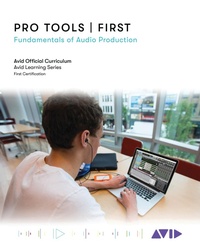
Pro Tools / First
Fundamentals of Audio Production
1st Edition
Published on 15. July 2021
524 pages
978-1-5381-4385-8 (ISBN)
Description

Pro Tools | First: Fundamentals of Audio Production introduces users to the power of Pro Tools software and marks the first steps toward developing core skills in audio production. The book covers the basic principles you'll need to complete a Pro Tools | First project, from initial setup to final output, and it is designed for those who are new to professional audio production and also for experienced users who are unfamiliar with Pro Tools software.
This book is laid-out to mirror the creative process of audio production-from set up, to the recording process, editing and mixing, and then creating the final files. Interspersed within each chapter are short hands-on tutorial exercises which give users a chance to explore the concepts and techniques being discussed and hear the results.
For those interested in gaining official Avid certification, this book is also a valuable introduction for further learning and through the Avid Learning Series curriculum.
This book is laid-out to mirror the creative process of audio production-from set up, to the recording process, editing and mixing, and then creating the final files. Interspersed within each chapter are short hands-on tutorial exercises which give users a chance to explore the concepts and techniques being discussed and hear the results.
For those interested in gaining official Avid certification, this book is also a valuable introduction for further learning and through the Avid Learning Series curriculum.
More details
Edition
1. Auflage
Language
English
Place of publication
New York
United States
Publishing group
Bloomsbury Publishing Plc
Illustrations
700 b/w illustrations; 92 b/w photos
ISBN-13
978-1-5381-4385-8 (9781538143858)
Copyright in bibliographic data and cover images is held by Nielsen Book Services Limited or by the publishers or by their respective licensors: all rights reserved.
Schweitzer Classification
Other editions
Additional editions
Book
07/2021
Rowman & Littlefield Publishers
€45.70
Shipment within 3-4 weeks
Person
By Avid Technology
Content
- Intro
- Acknowledgments
- About the Author
- INTRODUCTION Welcome to Pro Tools | First
- What Is Pro Tools, Exactly?
- About This Book
- Who This Book is Written For
- Book Structure
- Conventions and Symbols
- System Requirements and Download Media
- System Requirements
- Download Media
- Becoming Avid Certified
- The Avid Learning Partner Program
- Curriculum and Certification Levels
- User Certification
- Operator Certification
- Expert Certification
- Avid Certified. Real Skills. Proven.
- CHAPTER 1 Getting Started
- Audio Basics
- Waveform, Frequency and Amplitude
- Waveform
- Frequency
- Amplitude
- Audio in the Digital Domain
- Frequency and Sample Rates
- Bit Depth and Dynamic Range
- The Impact of Sample Rate and Bit Depth Choices on File Size
- DAWs and Pro Tools: An Introduction
- A Brief History of Audio Technology
- Before the Revolution
- Drum Machines and Samplers
- MIDI Steps In
- Digital Audio Recorders: The Hard Drive Replaces Tape
- Digital Audio Workstations: The Computer Stands on its Own
- Digital Audio Workstations: What Are They?
- Sessions and Projects
- Clips vs. Files
- Non-Linear,Non-destructive
- Real-timeProcessing
- Why Pro Tools?
- What Pro Tools Can Do
- Pro Tools Versions
- Pro Tools: The Industry Standard
- What Makes Up a Pro Tools System?
- The Heart of Your DAW: The Computer
- CPU
- RAM
- Hard Drives
- Not to be Overlooked: Mice, Trackballs, Keyboards
- Getting Audio In, Getting Audio Out: Audio Interfaces
- Computer Connections
- Analog Audio Connections
- Digital Audio Connections
- Hearing the Real Mix: Monitors
- What to Look for in Monitor Speakers
- Speakers Versus Headphones
- Great Resources
- Avid's Compatibility Documents
- Knowledge Base
- In-ApplicationHelp
- Installing Pro Tools | First
- Installing Pro Tools | First
- iLok Protection
- Avid Link
- Software Updates
- Finding Installation Information
- Opening and Playing a Pro Tools | First Project
- What is a Project?
- When a Project is Not a Project
- Opening a Project
- Signing In
- Choosing a Project
- Playback Engine and Hardware Setup
- The Playback Engine Dialog Box
- The Hardware Dialog Box
- Basic Pro Tools Operation
- Starting and Stopping Playback
- Setting a Playback Start Point
- Closing a Project and Quitting Pro Tools | First
- Hands-OnExercise 1.1: Basic Playback
- Signing In and Opening a Project
- Setting Up the Playback Engine and Hardware
- Playing a Project
- Quitting Pro Tools | First
- Review Questions
- CHAPTER 2 Creating Projects and Tracks
- Powering Up Your Hardware
- Creating a Project
- Creating a Blank Project
- Creating a Project from a Template
- Creating a Project from a Session
- Saving a Project
- Deleting a Project
- Hands-OnExercise 2.1: Creating a Project
- Creating Projects
- Deleting a Project
- The Main Pro Tools Windows
- The Edit Window
- Edit Window Toolbar
- Edit Mode Buttons
- Edit Tools
- Counter and Edit Selection
- MIDI Controls
- Transport Controls
- Output Meters
- Collaboration Controls
- Rulers
- Tracks List
- Changing Tracks List Width
- Tracks and Clips
- Edit Window Views
- The Mix Window
- Mix Controls
- Tracks List
- Mix Window Views
- The Transport Window
- Playback and Record Controls
- Collaboration Tools
- Counters
- MIDI Controls
- Meters
- The System Usage Window
- Window Management
- Menu Structure
- Hands-OnExercise 2.2: Customizing the Pro Tools GUI
- Change Main Counter
- Show or Hide Edit Window Views
- Change Main Windows
- Show and Hide Mix Window Views
- Introduction to Tracks
- Track Types
- Audio
- Auxiliary Input
- MIDI
- Instrument
- Master Fader
- Mono vs. Stereo
- Creating New Tracks
- Adding Multiple Tracks
- Adding New Tracks Like the Previous
- Selecting Inputs and Outputs
- Managing Your Tracks
- Selecting Tracks
- Showing and Hiding Tracks
- Changing Track Order
- Changing Track Height
- Changing Track Color
- Renaming Tracks
- Muting and Soloing Tracks
- Deleting Tracks
- Hands-OnExercise 2.3: Making Tracks
- Open an Existing Project
- Create New Tracks
- Set Inputs and Outputs
- Renaming Tracks
- Delete a Track
- Save a project
- Review Questions
- CHAPTER 3 Importing Audio
- Considerations Prior to Import
- Sample Rate and Bit Depth
- Audio File Formats
- Split Stereo versus Interleaved
- Importing Audio
- Importing Audio from the File Menu
- Importing from a File Browser
- Hands-OnExercise 3.1: Importing Audio
- Create a New Project
- Import Audio from the File Menu
- Drag Audio from the File Browser
- Project Clean-Up
- The Workspace/Soundbase Browser
- Opening the Soundbase Browser
- Understanding the Soundbase Window
- The Locations Pane
- The Tags Pane
- The Advanced Search Settings Pane
- The Browser Pane
- The Toolbar
- Soundbase Workflows
- Basic Search
- Advanced Search
- Searching by Tag
- Previewing
- Importing
- Hands-OnExercise 3.2: Importing from the Soundbase Browser
- Setting Up
- Importing a Guitar Part
- Importing Other Tracks
- Cleaning Up
- Customizing the Soundbase
- Changing the Soundbase Window
- Tags
- Setting Sound Libraries
- Hands-OnExercise 3.3: Tagging Files
- Setting Up
- Adding Tags
- A New Way to Search by Tags
- Review Questions
- CHAPTER 4 Editing Audio
- What is Editing?
- Careers in Editing: An Interview with Steven Saltzman
- Scrolling and Zooming in the Edit Window
- Scrolling
- Zooming
- Vertical Zooming
- The Big Three: Trim, Selector, and Grabber
- The Trim Tool
- The Selector Tool
- The Grabber Tool
- The Edit Modes
- Slip Mode
- Shuffle Mode
- Grid Mode
- Relative Grid Mode
- Spot Mode
- Accessing the Edit Modes with F Keys
- Hands-OnExercise #4.1: Assembling a Song Pt. 1
- Getting Started
- Building the First Section
- More Edit Tools
- The Zoomer Tool
- Single Zoom
- The Pencil Tool
- The Smart Tool
- Making Selections and Playing Audio
- Making Selections on Multiple Tracks
- Playing Selections
- Hands-OnExercise #4.2: Assembling a Song Pt. 2
- Getting Started
- Editing with the Smart Tool
- Sync Points and Spot Mode
- Review Questions
- CHAPTER 5 Recording Audio
- What is Recording?
- Careers in Recording: An Interview with Mario De Jesus
- Getting Audio into Your System
- Microphones
- Dynamic Microphones
- Condenser Microphones
- Ribbon Microphones
- Large Diaphragm vs. Small Diaphragm
- Polarity Patterns
- Line Level Inputs
- DI Inputs
- The Importance of the Recording Space
- Isolating the Microphone
- Sound Absorption
- The Proximity Effect and Your Recording Space
- Preparing to Record
- Meter and Tempo
- Meter
- Tempo
- Tempo and Meter Rulers
- Tap Tempo
- The Conductor Track
- Click Track
- Creating a Click Track
- Click and Countoff Options
- Setting Up I/O for Recording
- Using an Output Window
- Monitoring During Recording
- Basic Recording
- After Recording
- Hands-On Exercise 5.1: Basic Recording
- Setting Up
- Preparing to Record
- Record Voiceover
- Review Recording
- Punch-In Recording
- Recording Selections
- Pre-Roll and Post-Roll
- QuickPunch Recording
- Hands-On Exercise 5.2: Punching In
- Set Punch-in and Punch-out Points
- Set Pre-Roll and Post-Roll
- Punch-In
- QuickPunch
- Loop Recording
- Choosing Takes
- Review Questions
- CHAPTER 6 MIDI
- MIDI Basics
- Digital Music Paper
- How Sound is Created with MIDI
- Controllers and Sound Modules
- Virtual Instruments
- Careers in Music Creation
- Setting Up Your MIDI Studio
- MIDI Studio Setup on a Mac
- MIDI Studio Setup on a Windows Computer
- Creating MIDI Tracks and Instrument tracks
- MIDI/Aux Track Workflow
- Using Virtual Instruments on an Aux Track
- Instrument Tracks
- Changing Sounds
- Changing Sounds on an External Device
- Changing Sounds on a Virtual Instrument
- Hands-On Exercise 6.1: Creating MIDI and Instrument Tracks
- Setting Things Up
- Setting Up a MIDI/Aux Track Combination
- Setting Up an Instrument Track
- Time and MIDI
- What is a Tick?
- Timebases and Rulers
- Timebases and Tracks
- Editing MIDI
- Clips View
- Notes View
- Editing MIDI with the Pencil Tool
- Velocity View
- Volume, Pan, and Continuous Controllers
- More Ways to Work with MIDI
- Working with Tempo
- The Event&Event Operations Window
- The MIDI Editor
- Recording MIDI
- Basic MIDI Recording
- MIDI Loop Recording
- MIDI Merge Recording
- "Printing" MIDI
- Panic!
- Hands-On Exercise 6.2: Editing MIDI
- Setting Up
- Creating MIDI Data with the Pencil Tool
- Editing Pitch
- Editing Duration
- Changing Velocity
- Review Questions
- CHAPTER 7 Taking Your Editing to the Next Level
- Managing Multiple Tracks
- Selecting Tracks
- Changing Multiple Tracks
- Basic Clip Editing
- Cut, Copy, and Paste
- Clearing
- Duplicating
- Repeating
- Constraining Motion with the CONTROL/START Key
- Separating Clips
- Basic Separate
- Separate at Grid
- Separate at Transient
- Heal Separation
- Consolidating Clips
- Trimming Clips
- Trimming with Shortcuts
- Trimming from the Beginning of a Clip
- Trimming from the End of a Clip
- Trimming to Selection
- Trim Tool Variations
- TCE
- Clip Looping and the Loop Trim Tool
- Nudging
- Fades
- Creating a Fade-in or Fade-out
- Creating a Crossfade
- Creating Fades with Shortcuts
- Creating Fades with The Smart Tool
- Editing Fades
- Deleting Fades
- Batch Fades
- Controlling Playback
- Scrolling Options
- Insertion Follows Playback
- Using the Tab Key
- Basic Tabbing
- Tab to Transients
- Making Selections While Tabbing
- When You Make Mistakes . . .
- Undo and Redo from the Menu
- The Undo History Window
- Levels of Undo
- Things that Cannot be Undone
- Revert to Saved
- Restore Last Selection
- Collaboration
- Creating a Collaborative Project
- Adding Collaborators
- Collaboration Tools and Workflows
- Downloading Shared Tracks
- Uploading Changes
- Downloading Changes
- Hands-On Exercise 7.1: Mini-Gauntlet
- Setting Up
- Selecting Tracks
- TCE, Repeat, and Loop
- Trimming and Aligning
- Separating Clips
- Creating Fades
- Nudging
- Review Questions
- CHAPTER 8 Getting Started with Mixing
- What is Mixing?
- Careers in Mixing: An Interview with Scott Weber
- Mixing and Mastering
- Signal Flow, Signal Flow, Signal Flow
- The First Step: A "Static" Mix
- Setting Up a Static Mix
- Volume
- Pan
- Stereo Track Panning and Pan Linking
- Approaches on How to Create a Static Mix
- Watch Out for Levels!
- Pre-fader vs. Post-fader Metering
- Hands-On Exercise 8.1: A Static Mix
- Getting Started
- Show A Mixing Environment
- Create a Static Mix
- Controlling Your Mix: Subgroups and Master Faders
- Getting Organized: Subgroups
- Solo Safe
- Creating a Subgroup of Subgroups: the "Main SUB"
- Master Fader Tracks
- Master Fader Signal Flow
- Setting Up a Master Fader Track
- Using a Master Fader Track
- Master Faders and Dither
- Hands-On Exercise 8.2: Managing Your Mix
- take your static mix to the next level with subgroups and Master Faders!
- Organize Tracks into Subgroups
- Create a MAIN SUB
- Create a Master Fader
- Improve Your Static Mix
- Mix Automation
- Viewing Automation
- Automation Lanes
- Editing Automation
- Automation and the Pencil Tool
- Automation and the Trim Tool
- Automation and the Grabber Tool
- Automation Modes
- Choosing an Automation Mode
- Read and Off
- Touch and Latch
- Write
- Creating a Mixdown
- External Layback
- Bounce to Track
- Bounce to Disk
- Hands-On Exercise 8.3: Automation and Mixdown
- Getting Started
- Automating by Section
- Tweaking with Tools
- Tweaking with Live Automation
- Exporting Your Mix
- Review Questions
- CHAPTER 9 Getting Started with Plug-ins
- More Mixing = More Signal Flow
- What is an Insert ?
- Using Inserts in Pro Tools
- Instantiating a Plug-in on an Insert
- Inserts on Master Faders
- Plug-ins
- Plug-in Formats
- Plug-ins on Multichannel Tracks
- Using Multi-Mono Plug-ins
- Getting Around the Plug-in Window
- Automating Plug-in Parameters
- Enabling and Disabling Plug-in Parameters for Automation: Method One
- Enabling and Disabling Plug-in Parameters for Automation: Method Two
- Writing Plug-In Automation
- Another Way to Work: AudioSuite
- Getting Around the AudioSuite Plug-in Window
- Reverse Effects
- Handles
- Key Effect #1: EQ
- EQ Types
- Using EQ
- Tonal Control
- Mix Cohesion
- Additive EQ vs. Subtractive EQ
- The EQ Plug-in Window
- Input and Output Meters
- Bands
- High Pass and Low Pass Filters
- The 1-Band EQ
- Finding Frequencies
- Sweeping
- Soloing the Band
- Hands-On Exercise 9.1: EQ Practice
- Setting Up
- Taming the Bass
- Emphasizing Kick and Snare
- Sculpting the Guitars
- Finishing Up
- Key Effect #2: Compression
- What is a Compressor?
- Compression Parameters
- Understanding the Compressor Graph
- Threshold
- Ratio
- Attack Time and Release Time
- Knee
- Gain
- Levels
- Side-Chain Controls
- Compressors vs. Limiters
- Key Effect #3: Expansion
- Expander Parameters
- Threshold and Ratio
- Attack and Release
- Levels
- Hold
- Look Ahead
- The Expansion Process
- Expanders vs. Gates
- Hands-On Exercise 9.2: Dynamics Practice
- Setting Up
- Fixing the Kick
- Taming the Bass
- Adding Punch to the Drums
- Reducing Ambient Noise
- Experimentation
- Review Questions
- CHAPTER 10 Adding Ambience to your Mix
- More Signal Flow with Sends
- Sends and Returns
- But Why Do We Do This?
- Using Sends
- Viewing Sends
- Creating Sends and "Returns" in Pro Tools
- Adjusting Send Parameters
- Send Selector
- Follow Main Pan
- PRE
- Working with Sends
- Sends and Cue Mixes
- Pre-Fader vs. Post-Fader
- Key Effect #4: Reverb
- How Reverb Is Used in a Mix
- Types of Reverb
- Reverb Parameters
- Meters
- Reverb Algorithm
- Decay
- Pre-Delay
- Diffusion
- High Frequency Cut and Low Frequency Pass Filter
- Mix
- Mono/Stereo
- Presets
- Key Effect #5: Delay
- How Delay Is Used in a Mix
- Delay Parameters
- Meters
- Delay Time
- Feedback
- Low Pass Filter
- Musical Delay Parameters
- Modulation Parameters
- Mix
- Mono/Stereo
- Hands-On Exercise 10.1: Adding Ambience
- Setting Up
- Adding a Reverb
- Adding a Delay
- Well Done!
- Review Questions
