

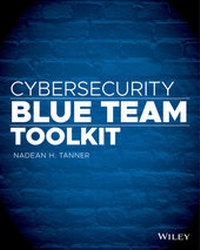
Cybersecurity Blue Team Toolkit
Description

As reports of major data breaches fill the headlines, it has become impossible for any business, large or small, to ignore the importance of cybersecurity. Most books on the subject, however, are either too specialized for the non-technical professional or too general for positions in the IT trenches. Thanks to author Nadean Tanner's wide array of experience from teaching at a University to working for the Department of Defense, the Cybersecurity Blue Team Toolkit strikes the perfect balance of substantive and accessible, making it equally useful to those in IT or management positions across a variety of industries. This handy guide takes a simple and strategic look at best practices and tools available to both cybersecurity management and hands-on professionals, whether they be new to the field or looking to expand their expertise.
Tanner gives comprehensive coverage to such crucial topics as security assessment and configuration, strategies for protection and defense, offensive measures, and remediation while aligning the concept with the right tool using the CIS Controls version 7 as a guide. Readers will learn why and how to use fundamental open source and free tools such as ping, tracert, PuTTY, pathping, sysinternals, NMAP, OpenVAS, Nexpose Community, OSSEC, Hamachi, InSSIDer, Nexpose Community, Wireshark, Solarwinds Kiwi Syslog Server, Metasploit, Burp, Clonezilla and many more.
Up-to-date and practical cybersecurity instruction, applicable to both management and technical positions
* Straightforward explanations of the theory behind cybersecurity best practices
* Designed to be an easily navigated tool for daily use
* Includes training appendix on Linux, how to build a virtual lab and glossary of key terms
The Cybersecurity Blue Team Toolkit is an excellent resource for anyone working in digital policy as well as IT security professionals, technical analysts, program managers, and Chief Information and Technology Officers. This is one handbook that won't gather dust on the shelf, but remain a valuable reference at any career level, from student to executive.
More details
Other editions
Additional editions
Content
CHAPTER 1
Fundamental Networking and Security Tools
WHAT YOU WILL LEARN IN THIS CHAPTER:
- Ping
- IPConfig
- Tracert
- NSLookup
- NetStat
- PuTTY
Before heading off to the cybersecurity conference Black Hat in Las Vegas, a friend of mine, Douglas Brush, posted on his LinkedIn page a warning for other InfoSec professionals. He said, "Don't go to these events to buy curtains for the house when you don't have the concrete for the foundation poured yet."
Too many times in the many years I've been in information technology (IT), I have seen people forget they need the basics in place before they try to use their shiny new tools. Before you can use any new tools, you must have a foundation to build upon. In IT, these tools are fundamental. They are a must for any computer/InfoSec/analyst to know how to use and when to use them. It's also rather impressive when a manager who you assumed was nontechnical asks you to ping that asset, run a tracert, and discover the physical and logical addresses of the web server that is down. Sometimes they do speak your language!
Ping
Ping will make you think one of two things. If it makes you think of irons and drivers and 18 holes of beautiful green fairway, then you are definitely CIO/CEO/CISO material. If it makes you think of submarines or bats, then you're probably geekier like me.
Packet InterNet Groper, or what we affectionately call ping, is a networking utility. It is used to test whether a host is "alive" on an Internet Protocol (IP) network. A host is a computer or other device that is connected to a network. It will measure the time it takes for a message sent from one host to reach another and echo back to the original host. Bats are able to use echo-location, or bio sonar, to locate and identify objects. We do the same in our networked environments.
Ping will send an Internet Control Message Protocol (ICMP) echo request to the target and wait for a reply. This will report problems, trip time, and packet loss if the asset has a heartbeat. If the asset is not alive, you will get back an ICMP error. The command-line option for ping is easy to use no matter what operating system you are using and comes with multiple options such as the size of the packet, how many requests, and time to live (TTL) in seconds. This field is decremented at each machine where data is processed. The value in this field will be at least as great as the number of gateways it has to hop. Once a connection is made between the two systems, this tool can test the latency or the delay between them.
Figure 1.1 shows a running ping on a Windows operating system sending four echo requests to www.google.com using both IPv4 and IPv6.
Figure 1.1: Running a ping against a URL and IP address
What this figure translates to is that my computer can reach through the network and touch a Google server. The www.google.com part of this request is called a uniform resource locator (URL). A URL is the address of a page on the World Wide Web (WWW). The numbers you see next to the URL is called an IP address. Every device on a network must have a unique IP network address. If you are attempting to echo-locate another host, you could substitute the URL www.google.com for an IP address. We will do a deeper dive on IPv4 and IPv6 in Chapter 9, Log Management.
There are more granular ping commands. If you type ping along with an option or switch, you can troubleshoot issues that might be occurring in your network. Sometimes these issues are naturally occurring problems. Sometimes they could signal some type of attack.
Table 1.1 shows different options you can add to the base command ping.
Table 1.1: ping command syntax
/? Lists command syntax options. -t Pings the specified host until stopped with Ctrl+C. ping-t is also known as the ping of death. It can be used as a denial-of-service (DoS) attack to cause a target machine to crash. -a Resolves address to hostname if possible. -n count How many echo requests to send from 1 to 4.2 billion. (In Windows operating systems, 4 is the default.) -r count Records route for count hops (IPv4 only). The maximum is 9, so if you need more than 9, tracert might work better (covered later in the chapter). -s count Timestamp for count hops (IPv4 only). -i TTL Time to live; maximum is 255. Did you know that you could ping yourself? Figure 1.2 shows that 127.0.0.1 is a special reserved IP address. It is traditionally called a loopback address. When you ping this IP address, you are testing your own system to make sure it is working properly. If this IP doesn't return an appropriate response, you know the problem is with your system, not the network, the Internet service provider (ISP), or your target URL.
Figure 1.2: Pinging a lookback address
If you are experiencing network difficulties, this is the first tool to pull out of your toolkit. Go ping yourself and make sure everything is working as it should (see Lab 1.1).
LAB 1.1: PING
- Open a command prompt or a terminal window.
- Type
ping -t www.example.comand then press Enter. (You can use another URL or hostname of your choice.) - After a few seconds, hold the Ctrl button and press C (abbreviated as Ctrl+C in subsequent instructions in this book).
- When the command prompt returns, type
ping -a 127.0.0.1and press Enter.
What is the name of your host? As you can see in Figure 1.2, mine is DESKTOP-OU8N7VK. A hostname is comprised of alphanumeric characters and possibly a hyphen. There may be times in the future you know an IP address but not the hostname or you know a hostname but not the IP address. For certain troubleshooting steps, you will need to be able to resolve the two on a single machine.
IPConfig
The command ipconfig is usually the next tool you will pull out of your toolbox when you're networking a system. A lot of valuable knowledge can be gleaned from this tool.
Internet Protocol is a set of rules that govern how data is sent over the Internet or another network. This routing function essentially creates the Internet we know and love.
IP has the function of taking packets from the source host and delivering them to the proper destination host based solely on the IP addresses in a packet. The datagram that is being sent has two parts: a header and a payload. The header has the information needed to get the information where it should go. The payload is the stuff you want the other host to have.
In Lab 1.2, you'll use the ipconfig command.
LAB 1.2: IPCONFIG
- Open a command prompt or a terminal window.
- Type
ipconfigand press Enter if you are on a Windows system. If you are on Linux, tryifconfig. - Scroll through your adapters and note the ones that are for Ethernet or Wi-Fi or Bluetooth.
- With the preceding steps, you can answer the following questions: Which adapters are connected with an IP address? Which ones are disconnected?
- At the command prompt, type
ipconfig /alland press Enter.
Now you have a wealth of information to begin your troubleshooting hypothesis. In Figure 1.3, you see the IP addresses and default gateways for each network adapter on the machine.
Figure 1.3: Using ipconfig /all
To find your router's private IP address, look for the default gateway. Think of this machine as a literal gateway that you will use to access the Internet or another network. What tool would you use to make sure that the router is alive? Why, ping of course!
THE INTERNET IS DOWN-NOW WHAT?
The Internet is down.
You ping yourself at 127.0.0.1, and everything is fine on your machine. You ping www.google.com, and it times out. You do an ipconfig /all on your host machine. What can you assume if your ipconfig /all command listed the default gateway as being 0.0.0.0? The router!
As an experienced IT person will tell you, the best thing to do is turn any device off and on again-first your host and then the router. Still not working? Expand your hypothesis to another host on your network-can it reach the Internet or the router? Does it pull an IP address from the router? When you are troubleshooting, it is all about the scientific method. Form a hypothesis, test, modify, and form a new hypothesis.
Here are...
