

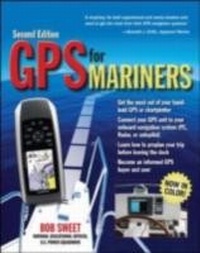
GPS for Mariners, 2nd Edition
A Guide for the Recreational Boater
1st Edition
Published on 17. June 2011
308 pages
978-0-07-174462-1 (ISBN)
Description

The operator's manual that should come with every boater's GPS receiver or chart plotter.
More details
Other editions
Additional editions
Book
07/2011
2nd Edition
International Marine Publishing Co
€20.00
Shipment within 15-20 days
Content
- Cover Page
- GPS for Mariners
- Copyright Page
- Contents
- ACKNOWLEDGMENTS
- PREFACE TO THE SECOND EDITION
- CHAPTER 1 GPS NAVIGATION BASICS
- Historical Perspective
- How GPS Provides Position
- How GPS Works
- The Accuracy of GPS
- The Grid System: The Language of Navigation
- Electronic vs. Traditional Navigation
- Waypoint Navigation
- The Language of GPS Waypoint Navigation
- Terms Used with GPS
- Navigation Primer: 24-Hour Time/Universal Time/Daylight Saving Time
- Navigation Primer: Magnetic vs. True
- Navigation Primer: Charts and Nautical Units
- Navigation Primer: Charts
- CHAPTER 2 YOUR GPS UNIT
- Let's Take a Test Run
- What's in Your GPS Unit?
- GPS Configurations: Which Is for Me?
- Handheld GPS: Primary or Backup?
- Tablet Computers and Cell Phones as Navigators
- Fixed-Mount GPS/Chartplotters
- Chartplotter Configurations
- Compact Chartplotters
- Chartplotter/Sounder Combos
- Networkable Systems
- Tips on Selecting Your GPS
- GPS Performance
- Display
- Processor
- Buttons
- Using Your GPS: Buttons, Screens, and Menus
- Buttons/Functions
- Buttons
- Screens
- Screens
- Menus
- Menus
- The GPS Unit: What's Included
- CHAPTER 3 GPS WAYPOINT NAVIGATION
- How GPS Determines Key Information
- Direction and Speed
- Bearing and Distance
- Navigation Primer: Bearings
- Navigating Routes with GPS
- Planning-Prequalifying Safe Paths
- With Printed Charts
- With Electronic Charts
- Navigating Safe Paths
- Using a Prequalified Leg or Route
- Using a Preselected Waypoint
- Manually Entering/Editing Waypoints
- Point and Shoot
- Where Are You? Working with Waypoints and Routes in Your GPS
- Reading Coordinates of a Waypoint from a Chart
- Entering Waypoints into Your GPS
- Direct Entry
- Using MARK to Store a Waypoint
- Plotting Coordinates Provided by Your GPS onto a Paper Chart
- Where Are You Going? Selecting a Waypoint for Navigation
- Selecting a Waypoint from the Menu
- Finding Waypoints Alphabetically
- Nearest Waypoints
- Scrolling to Select a Waypoint
- Modifying Waypoint Information
- Other Types of Waypoints
- Avoidance Waypoints
- Virtual Navigation Aids
- Landmarks
- Marks/Annotations
- Creating Routes on Your GPS Unit
- Activating a Route
- Inverting a Route
- Double-Checking Your Position: Underway and Monitoring Progress
- Approaching the Waypoint
- Going Off Course
- Data Fields to Monitor
- GPS Features for Staying on the Safe Path
- Crosstrack Error
- Highway Screen
- Chart Screen
- Helmsmanship: Techniques for Staying On Course
- Alarms and Monitoring
- Tides and Currents on GPS
- GPS Alarms
- Navigation Primer: Tides
- Tides
- Currents
- Annual Tide Tables and Software
- Navigation Primer: Impact of Currents
- CHAPTER 4 CHARTPLOTTING
- How Chartplotting Works
- Using the Cursor: Looking Around
- Storing a Mark or a Waypoint
- Navigating to a Point
- Building a Route on a Chartplotter
- Modifying a Route
- Activating a Route
- Inverting a Route
- Typical Chartplotter Setup Options
- Basic Setup
- Horizontal Datum
- Coordinate System
- Distance
- Depth
- Heading
- Time
- Navigation-Aid Symbols
- Chart Display Orientation
- North Up
- Course Up
- Heading Up
- Display Features
- Display Color or Palette
- Display Backlight and Contrast
- Display Mode
- Chart Display Information
- Data Fields
- Cursor and Cursor Position
- Course over Ground Extender Line
- Grounding Alarm
- Dynamic Navigation Aids
- Presenting Charted Information from Other Devices
- Plotting DSC Information
- Plotting AIS Information
- Other Chartplotter Features
- 3-D Chart Presentation
- Land-Based Features
- Marinas/Port Facilities
- Other Chartplotter Display Screens
- GPS Status
- Highway Screen
- Navigation or Compass Screen
- Celestial/Tide Screen
- 3-D Navigation, Photos, and Overlays
- Perspective Screens
- Bathymetric Screens
- Photo Charts
- Radar Overlay
- Weather Screen
- Sounder
- Engine
- Multiple Screens
- Video Camera
- Planning a Route in a Chartplotter
- CHAPTER 5 NAVIGATION SOFTWARE SYSTEMS
- Typical Navigation Software Systems
- Using a Notebook Computer
- Charts for Navigation Software
- Navigation Software Overview
- Fixed Computer/Display Installations
- Planning with Navigation Software
- Route Planning
- Working with Routes and Waypoints on Navigation Software
- Other Planning Support
- Navigating with Software
- Integrated Systems Using Navigation Software
- AIS
- DSC
- Radar
- Depth Sounders
- Autopilot
- Navigation Panels
- Weather Instruments
- Comparison of Navigation Software
- Accessory Software Modules
- Sailing Module
- Bathymetric Recorder
- Weather Overlay
- CHAPTER 6 INSTALLING AND NETWORKING YOUR GPS SYSTEM
- Installing a Handheld GPS
- Mount
- Power
- External Antenna
- Installing a Fixed-Mount GPS, Chartplotter, or Network Display-Based Navigation System
- Bracket Mount
- NavPod Mount
- Flush Mounting
- Wiring
- GPS/Antenna Installation
- Networking GPS with Other Systems
- Connecting Your GPS to a Computer
- Connecting Your GPS to Other Instruments
- VHF
- Common Interconnects and What They Do
- AIS
- Radar
- Electronic Compass
- Autopilot
- Interconnection Protocol Strategies
- NMEA 0183
- How Do You Make the Connections?
- NMEA 2000
- Proprietary Networks
- INDEX
