

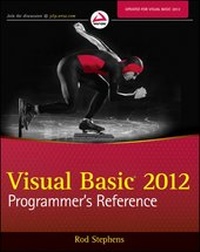
Visual Basic 2012 Programmer's Reference
Description

More details
Other editions
Additional editions
Person
Content
PART I: IDE
CHAPTER 1: INTRODUCTION TO THE IDE 3
Introducing the IDE 3
Different IDE Appearances 4
IDE Configurations 5
Projects and Solutions 6
Starting the IDE 6
Creating a Project 8
Saving a Project 11
Summary 13
CHAPTER 2: MENUS, TOOLBARS, AND WINDOWS 15
IDE Tools 15
Menus 16
File 16
Edit 18
View 19
Project 20
Build 24
Debug 24
Data 24
Format 25
Tools 25
Test 28
Window 28
Help 29
Toolbars 30
Secondary Windows 30
Toolbox 32
Properties Window 33
Summary 33
CHAPTER 3: WINDOWS FORMS DESIGNER 35
Introducing Windows Forms Designer 35
Setting Designer Options 35
Adding Controls 37
Selecting Controls 38
Copying Controls 39
Moving and Sizing Controls 40
Arranging Controls 40
Setting Properties 40
Setting Group Properties 41
Using Smart Tags 41
Adding Code to Controls 42
Summary 43
CHAPTER 4: WPF DESIGNER 45
Introducing WPF Designer 45
Editor Weaknesses 46
Recognizing Designer Windows 47
Adding Controls 48
Selecting Controls 49
Moving and Sizing Controls 50
Setting Properties 51
Setting Group Properties 51
Adding Code to Controls 52
Summary 53
CHAPTER 5: VISUAL BASIC CODE EDITOR 55
Editing Code 55
Margin Icons 56
Outlining 58
Tooltips 59
IntelliSense 60
Code Coloring and Highlighting 61
Code Snippets 63
Architectural Tools 64
Rename 64
Go To Definition 64
Go To Type Definition 64
Highlight References 65
Find All References 65
Generate From Usage 65
The Code Editor at Run Time 66
Summary 68
CHAPTER 6: DEBUGGING 69
Debugging and Testing 69
The Debug Menu 70
The Debug ¿ Windows Submenu 72
The Breakpoints Window 74
The Command and Immediate Windows 75
Summary 77
PART II: GETTING STARTED
CHAPTER 7: SELECTING WINDOWS FORMS CONTROLS 81
Controls 81
Controls Overview 82
Choosing Controls 86
Containing and Arranging Controls 87
Making Selections 89
Entering Data 90
Displaying Data 90
Providing Feedback 91
Initiating Action 92
Displaying Graphics 94
Displaying Dialog Boxes 94
Third-Party Controls 95
Summary 96
CHAPTER 8: USING WINDOWS FORMS CONTROLS 97
Using Controls and Components 97
Controls and Components 98
Creating Controls 99
Properties 101
Properties at Design Time 101
Properties at Run Time 104
Useful Control Properties 106
Position and Size Properties 109
Methods 110
Events 110
Creating Event Handlers at Design Time 111
Validation Events 112
Summary 114
CHAPTER 9: WINDOWS FORMS 115
Using Forms 115
Transparency 116
About, Splash, and Login Forms 117
Mouse Cursors 118
Icons 120
Application Icons 121
Notification Icons 121
Properties Adopted by Child Controls 122
Property Reset Methods 123
Overriding WndProc 123
MRU Lists 125
Dialog Boxes 126
Wizards 128
Summary 129
CHAPTER 10: SELECTING WPF CONTROLS 131
WPF Controls and Code 131
Controls Overview 132
Containing and Arranging Controls 133
Making Selections 136
Entering Data 137
Displaying Data 137
Providing Feedback 138
Initiating Action 138
Presenting Graphics and Media 139
Providing Navigation 140
Managing Documents 140
Digital Ink 141
Summary 142
CHAPTER 11: USING WPF CONTROLS 143
WPF Controls 143
WPF Concepts 144
Separation of User Interface and Code 144
WPF Control Hierarchies 145
WPF in the IDE 145
Editing XAML 146
Editing Visual Basic Code 147
XAML Features 148
Objects 148
Resources 151
Styles 152
Templates 153
Transformations 156
Animations 156
Drawing Objects 159
Procedural WPF 162
Documents 166
Flow Documents 166
Fixed Documents 168
XPS Documents 169
Summary 169
CHAPTER 12: WPF WINDOWS 171
Using WPF Windows 171
Window Applications 172
Page Applications 174
Browser Applications 174
Frame Applications 176
Summary 177
CHAPTER 13: PROGRAM AND MODULE STRUCTURE 179
Solutions and Projects 179
Hidden Files 180
Code File Structure 184
Code Regions 185
Conditional Compilation 186
Namespaces 193
Typographic Code Elements 195
Comments 195
XML Comments 195
Line Continuation 198
Implicit Line Continuation 199
Line Joining 200
Summary 200
CHAPTER 14: DATA TYPES, VARIABLES, AND CONSTANTS 203
Variables 203
Data Types 204
Type Characters 207
Data Type Conversion 210
Narrowing Conversions 210
Data Type Parsing Methods 212
Widening Conversions 213
The Convert Class 213
ToString 213
Variable Declarations 214
Attribute_List 214
Accessibility 215
Shared 216
Shadows 216
ReadOnly 219
Dim 219
WithEvents 220
Name 221
Bounds_List 222
New 223
As Type and Inferred Types 224
Initialization_Expression 225
Initializing Collections 228
Multiple Variable Declarations 229
Option Explicit and Option Strict 230
Scope 233
Block Scope 233
Procedure Scope 234
Module Scope 234
Namespace Scope 235
Restricting Scope 235
Parameter Declarations 236
Property Procedures 238
Enumerated Data Types 240
Anonymous Types 243
Nullable Types 244
Constants 244
Accessibility 245
As Type 245
Initialization_Expression 246
Delegates 246
Naming Conventions 248
Summary 249
CHAPTER 15: OPERATORS 251
Understanding Operators 251
Arithmetic Operators 252
Concatenation Operators 253
Comparison Operators 253
Logical Operators 255
Bitwise Operators 257
Operator Precedence 257
Assignment Operators 259
The StringBuilder Class 260
Date and TimeSpan Operations 261
Operator Overloading 262
Summary 266
CHAPTER 16: SUBROUTINES AND FUNCTIONS 267
Managing Code 267
Subroutines 268
Attribute_List 268
Inheritance_Mode 272
Accessibility 273
Subroutine_Name 274
Parameters 274
Implements interface.subroutine 279
Statements 281
Functions 281
Property Procedures 283
Extension Methods 284
Lambda Functions 285
Relaxed Delegates 287
Asynchronous Methods 290
Calling EndInvoke Directly 291
Handling a Callback 293
Using Async and Await 295
Summary 297
CHAPTER 17: PROGRAM CONTROL STATEMENTS 299
Controlling Programs 299
Decision Statements 299
Single-Line If Then 300
Multiline If Then 300
Select Case 301
Enumerated Values 304
IIf 304
If 306
Choose 306
Looping Statements 308
For Next 308
Non-Integer For Next Loops 311
For Each 311
Enumerators 314
Iterators 316
Do Loop Statements 316
While End 318
Summary 318
CHAPTER 18: ERROR HANDLING 321
The Struggle for Perfection 321
Bugs versus Unplanned Conditions 322
Catching Bugs 323
Catching Unplanned Conditions 324
Global Exception Handling 326
Structured Error Handling 328
Exception Objects 330
Throwing Exceptions 331
Re-throwing Exceptions 333
Custom Exceptions 334
Debugging 335
Summary 336
CHAPTER 19: DATABASE CONTROLS AND OBJECTS 337
Data Sources 337
Automatically Connecting to Data 338
Connecting to the Data Source 338
Adding Data Controls to the Form 341
Automatically Created Objects 344
Other Data Objects 345
Data Overview 346
Connection Objects 347
Transaction Objects 350
Data Adapters 352
Command Objects 356
DataSet 358
DataTable 360
DataRow 363
DataColumn 365
DataRelation 366
Constraints 368
DataView 370
DataRowView 373
Simple Data Binding 373
CurrencyManager 374
Complex Data Binding 377
Summary 379
CHAPTER 20: LINQ 381
The Many Faces of LINQ 381
Introduction to LINQ 383
Basic LINQ Query Syntax 384
From 385
Where 386
Order By 386
Select 387
Using LINQ Results 389
Advanced LINQ Query Syntax 390
Join 390
Group By 391
Aggregate Functions 393
Set Operations 394
Limiting Results 394
LINQ Functions 395
LINQ Extension Methods 397
Method-Based Queries 397
Method-Based Queries with Lambda Functions 399
Extending LINQ 401
LINQ to Objects 403
LINQ to XML 404
XML Literals 404
LINQ into XML 405
LINQ out of XML 406
LINQ to ADO.NET 409
LINQ to SQL and LINQ to Entities 409
LINQ to DataSet 410
PLINQ 413
Summary 414
CHAPTER 21: METRO-STYLE APPLICATIONS 417
Building Metro-Style Applications 417
Starting a New Project 418
Special Image Files 419
Building MetroBones 420
Control Layout 421
XAML Code 421
Zooming in on the Controls 424
Visual Basic Code 424
Testing 428
Summary 429
PART III: OBJECT-ORIENTED PROGRAMMING
CHAPTER 22: OOP CONCEPTS 433
Introducing OOP 433
Classes 434
Encapsulation 436
Inheritance 437
Inheritance Hierarchies 438
Refi nement and Abstraction 438
"Has-a" and "Is-a" Relationships 441
Adding and Modifying Class Features 441
Interface Inheritance 443
Polymorphism 444
Method Overloading 445
Extension Methods 446
Summary 447
CHAPTER 23: CLASSES AND STRUCTURES 449
Packaging Data 449
Classes 450
Attribute_list 450
Partial 451
Accessibility 452
Shadows 453
Inheritance 454
Implements interface 456
Structures 456
Structures Cannot Inherit 457
Structures Are Value Types 457
Memory Required 457
Heap and Stack Performance 459
Object Assignment 459
Parameter Passing 460
Boxing and Unboxing 461
Class Instantiation Details 461
Structure Instantiation Details 464
Garbage Collection 466
Finalize 467
Dispose 469
Constants, Properties, and Methods 471
Events 473
Declaring Events 473
Raising Events 474
Catching Events 475
Shared Variables 477
Shared Methods 477
Summary 479
CHAPTER 24: NAMESPACES 481
Handling Name Confl icts 481
The Imports Statement 482
Automatic Imports 484
Namespace Aliases 486
Namespace Elements 486
The Root Namespace 487
Making Namespaces 487
Classes, Structures, and Modules 488
Resolving Namespaces 489
Summary 492
CHAPTER 25: COLLECTION CLASSES 493
Grouping Data 493
What Is a Collection? 494
Arrays 494
Array Dimensions 496
Lower Bounds 497
Resizing 497
Speed 498
Other Array Class Features 498
Collections 499
ArrayList 499
StringCollection 501
NameValueCollection 501
Dictionaries 503
ListDictionary 503
Hashtable 504
HybridDictionary 505
StringDictionary 505
SortedList 505
CollectionsUtil 505
Stacks and Queues 506
Stack 506
Queue 508
Generics 509
Collection Initializers 511
Iterators 512
Summary 513
CHAPTER 26: GENERICS 515
Class Creators 515
Advantages of Generics 516
Defining Generics 516
Generic Constructors 517
Multiple Types 518
Constrained Types 520
Instantiating Generic Classes 521
Imports Aliases 522
Derived Classes 523
Generic Collection Classes 523
Generic Methods 524
Generics and Extension Methods 524
Summary 526
PART IV: INTERACTING WITH THE ENVIRONMENT
CHAPTER 27: PRINTING 529
Printing Concepts 529
Basic Printing 530
Drawing Basics 534
Graphics Objects 534
Pens 536
Brushes 538
A Booklet Example 540
Summary 545
CHAPTER 28: CONFIGURATION AND RESOURCES 547
The Need for Configuration 547
My 548
Me and My 549
My Sections 549
Environment 550
Setting Environment Variables 550
Using Environ 551
Using System.Environment 551
Registry 553
Native Visual Basic Registry Methods 554
My.Computer.Registry 556
Configuration Files 559
Resource Files 562
Application Resources 562
Using Application Resources 563
Embedded Resources 564
Localization Resources 564
Application 566
Application Properties 566
Application Methods 567
Application Events 568
Summary 569
CHAPTER 29: STREAMS 571
Stream Concepts 571
Stream 572
FileStream 574
MemoryStream 575
BinaryReader and BinaryWriter 576
TextReader and TextWriter 578
StringReader and StringWriter 579
StreamReader and StreamWriter 580
OpenText, CreateText, and AppendText 581
Custom Stream Classes 582
Summary 583
CHAPTER 30: FILESYSTEM OBJECTS 585
Programming Approaches 585
Permissions 586
Visual Basic Methods 586
File Methods 586
File System Methods 588
Sequential-File Access 589
Random-File Access 589
Binary-File Access 592
.NET Framework Classes 592
Directory 592
File 594
DriveInfo 595
DirectoryInfo 596
FileInfo 598
FileSystemWatcher 600
Path 602
My.Computer.FileSystem 604
My.Computer.FileSystem.SpecialDirectories 606
Summary 606
PART V: APPENDICES
APPENDIX A: USEFUL CONTROL PROPERTIES, METHODS, AND EVENTS 611
APPENDIX B: VARIABLE DECLARATIONS AND DATA TYPES 619
APPENDIX C: OPERATORS 629
APPENDIX D: SUBROUTINE AND FUNCTION DECLARATIONS 637
APPENDIX E: CONTROL STATEMENTS 641
APPENDIX F: ERROR HANDLING 647
APPENDIX G: WINDOWS FORMS CONTROLS AND COMPONENTS 649
APPENDIX H: WPF CONTROLS 657
APPENDIX I: VISUAL BASIC POWER PACKS 665
APPENDIX J: FORM OBJECTS 669
APPENDIX K: CLASSES AND STRUCTURES 681
APPENDIX L: LINQ 685
APPENDIX M: GENERICS 695
APPENDIX N: GRAPHICS 699
APPENDIX O: USEFUL EXCEPTION CLASSES 711
APPENDIX P: DATE AND TIME FORMAT SPECIFIERS 715
APPENDIX Q: OTHER FORMAT SPECIFIERS 719
APPENDIX R: THE APPLICATION CLASS 725
APPENDIX S: THE MY NAMESPACE 729
APPENDIX T: STREAMS 747
APPENDIX U: FILESYSTEM CLASSES 755
APPENDIX V: VISUAL STUDIO VERSIONS 771
INDEX 773
Chapter 1
Introduction to the IDE
WHAT’S IN THIS CHAPTER
- Configuring the Visual Studio IDE for Visual Basic development
- Understanding projects and solutions
- Creating a simple project
- Copying solutions
WROX.COM CODE DOWNLOADS FOR THIS CHAPTER
There are no code downloads for this chapter.
INTRODUCING THE IDE
The chapters in the first part of this book describe the Visual Studio integrated development environment (IDE). They explain the most important windows, menus, and toolbars that make up the environment, and show how to customize them to suit your needs. They explain some of the tools that provide help while you are writing Visual Basic applications and how to use the IDE to debug programs.
Even if you are an experienced Visual Basic programmer, you should at least skim this material. The IDE is extremely complex and provides hundreds (if not thousands) of commands, menus, toolbars, windows, context menus, and other tools for editing, running, and debugging Visual Basic projects.
Even after you’ve read these chapters, you should periodically spend some time wandering through the IDE to see what you’ve missed. Every month or so, spend a few minutes exploring little-used menus and right-clicking things to see what their context menus contain. As you become a more proficient Visual Basic programmer, you will find uses for tools that you may have dismissed or not understood before.
This chapter explains how to get started using the IDE. It tells how to configure the IDE for different kinds of development. It explains Visual Basic projects and solutions, and shows how to create, run, and save new projects. This chapter is mostly an introduction to the chapters that follow. The other chapters in this part of the book provide much more detail about particular tasks, such as using the IDE’s menus, customizing menus and toolbars, and using the Windows Forms Designer to build forms.
DIFFERENT IDE APPEARANCES
Before you start reading about the IDE and viewing screen shots, it’s important to understand that the Visual Studio IDE is extremely customizable. You can move, hide, or modify the menus, toolbars, and windows; create your own toolbars; dock, undock, or rearrange the toolbars and windows; and change the behavior of the built-in text editors (change their indentation, colors for different kinds of text, and so forth).
NOTE These chapters describe the basic Visual Studio development environment as it is initially installed. After you’ve moved things around to suit your needs, your IDE may look nothing like the pictures in this book. If a figure doesn’t look exactly like what you see on your computer, don’t worry too much about it.To avoid confusion, you should probably not customize the IDE’s basic menus and toolbars too much. Removing the help commands from the Help menu and adding them to the Edit menu will only cause confusion later. Moving or removing commands will also make it more difficult to follow the examples in this and other books, and will make it more difficult to follow instructions given by others who might be able to help you when you have problems.
Instead of making drastic changes to the default menus and toolbars, hide the menus and toolbars that you don’t want and create new customized toolbars to suit your needs. Then you can find the original standard toolbars if you decide you need them later.
The screens shown in this book may not look exactly like the ones on your system for several other reasons as well. Visual Studio looks different on different operating systems. The figures in this book were taken on a computer running Windows 8 so they display the Windows 8 look and feel. Additionally, some commands may not behave exactly the same way on different operating systems.
Visual Studio will also look different depending on which version you have installed. The free Visual Basic 2012 Express Edition product has fewer tools than other editions such as the high-end Team Suite. The figures in this book were captured while using Team Suite, so if you have another version, you may not see all of the tools shown here. Menu items, toolbars, and other details may also be slightly different for different versions. Usually you can find moved items with a little digging through the menus and customizations.
FOR MORE INFORMATION You can learn about Visual Studio’s free Express editions at http://www.microsoft.com/express. Learn about Visual Basic in general at the Visual Basic homepage: http://msdn.microsoft.com/vbasic.Finally, you may be using different configuration settings from the ones used while writing this book. You can configure Visual Studio to use settings customized for developing projects using Visual Basic, C#, web tools, and other technologies. This book assumes your installation is configured for Visual Basic development, and the screen shots may look different if you have selected a different configuration. The following section says more about different IDE configurations and tells how you can select a particular configuration.
IDE CONFIGURATIONS
When you install it, Visual Studio asks you what kinds of development settings you want to use. The most obvious choice for a Visual Basic developer is Visual Basic Development Settings. This choice customizes Visual Studio to work more easily with Visual Basic, and is a good selection if you will focus on Visual Basic development.
Another reasonable choice is General Development Settings. This option makes Visual Studio behave more like Visual Studio 2003. It’s a good choice if you’re used to Visual Studio 2003, or if you expect to use other Visual Studio languages, such as C#, somewhat regularly because these settings are fairly effective for C# development and Visual Basic development.
This book assumes that you have configured Visual Studio for Visual Basic development. If you have chosen a different configuration, some of the figures in this book may look different from what you see on your screen. Some of the menu items available may be slightly different, or may appear in a different order. Usually, the items are available somewhere, but you may have to search a bit to find them.
If you later decide that you want to switch configurations, open the Tools menu and select Import and Export Settings to display the Import and Export Settings Wizard. Select the Reset All Settings option button and click Next. On the second page, tell the wizard whether to save your current settings and click Next. On the wizard’s final page (shown in Figure 1-1), select the type of configuration you want and click Finish. When the wizard is done, click Close.
FIGURE 1-1: Use the Tools menu’s Import and Export Settings command to change the Visual Studio configuration.
PROJECTS AND SOLUTIONS
Visual Studio groups files into projects and solutions. A project is a group of files that produces some specific output. This output may take many forms such as a compiled executable program, a dynamic-link library (DLL) of classes for use by other projects, or a control library for use on other Windows forms.
A solution is a group of one or more projects that should be managed together. For example, suppose that you are building a server application that provides access to your customer order database. You are also building a client program that each of your sales representatives will use to query the server application. Because these two projects are closely related, it might make sense to manage them in a single solution. When you open the solution, you get instant access to all the files in both projects.
Both projects and solutions can include associated files that are useful for building the application but that do not become part of a final compiled product. For example, a project might include the application’s proposal and architecture documents. These are not included in the compiled code, but it can be useful to associate them with the project so they are easy to find, open, and edit while you are working on the project.
When you open the project, Visual Studio lists those documents along with the program files. If you double-click one of these documents, Visual Studio opens the file using an appropriate application. For example, if you double-click a file with a .doc, .docm, or .docx extension, Visual Studio normally opens it with Microsoft Word.
To associate one of these files with a project or solution, right-click the project file at the top of the Solution Explorer (more on the Solution Explorer shortly). In the context menu that appears, select the Add command’s New Item entry, and use the resulting dialog box to select the file you want to add.
CUT OUT CLUTTER You can add any file to a project or solution, but it’s not a good idea to cram dozens of unrelated files into the same project. Although you may sometimes want to refer to an unrelated file while working on a project, the extra clutter brings additional chances for confusion. It will be less confusing to shrink the Visual Basic IDE to an icon and open the file using an external editor such as Word or WordPad. If you won’t use a file very often with the project, don’t add it.