

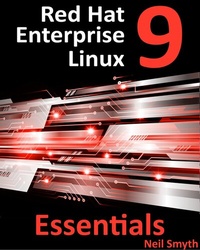
Red Hat Enterprise Linux 9 Essentials
Description

Arguably one of the most highly regarded and widely used enterprise-level operating systems available today is the Red Hat Enterprise Linux (typically shortened to RHEL and pronounced rell) distribution. Not only is it considered to be among the most stable and reliable operating systems, but it is also backed by the considerable resources and technical skills of Red Hat, Inc. Red Hat Enterprise Linux 9 Essentials is designed to provide detailed information on the installation, use, and administration of the Red Hat Enterprise Linux 9 distribution. For beginners, the book covers topics such as operating system installation, the basics of the GNOME desktop environment, configuring email and web servers, and installing packages and system updates using App Streams. Additional installation topics, such as dual booting with Microsoft Windows, are also covered, together with all important security topics, such as configuring a firewall and user and group administration.
For the experienced user, topics such as remote desktop access, the Cockpit web interface, logical volume management (LVM), disk partitioning, swap management, KVM virtualization, Secure Shell (SSH), Linux Containers, and file sharing using both Samba and NFS are covered in detail to provide a thorough overview of this enterprise class operating system.
More details
Other editions
Additional editions
Content
- Intro
- 1. Introduction
- 1.1 Superuser Conventions
- 1.2 Opening a Terminal Window
- 1.3 Editing Files
- 1.4 Feedback
- 1.5 Errata
- 2. A Brief History of Red Hat Linux
- 2.1 What exactly is Linux?
- 2.2 UNIX Origins
- 2.3 Who Created Linux?
- 2.4 The Early Days of Red Hat
- 2.5 Red Hat Support
- 2.6 Open Source
- 2.7 The Fedora Project
- 2.8 CentOS Stream - The Free Alternative
- 2.9 Summary
- 3. Installing RHEL 9 on a Clean Disk Drive
- 3.1 Obtaining the RHEL 9 Installation Media
- 3.2 Writing the ISO Installation Image to a USB Drive
- 3.2.1 Linux
- 3.2.2 macOS
- 3.2.3 Windows/macOS
- 3.3 Installing Red Hat Enterprise Linux 9
- 3.4 Partitioning a Disk for RHEL 9
- 3.5 Disk Encryption
- 3.6 User Settings
- 3.7 Registering the System
- 3.8 The Physical Installation
- 3.9 Final Configuration Steps
- 3.10 Installing Updates
- 3.11 Displaying Boot Messages
- 3.12 Summary
- 4. Dual Booting RHEL 9 with Windows
- 4.1 Partition Resizing
- 4.2 Changing the Default Boot Option
- 4.3 Accessing the Windows Partition from RHEL 9
- 4.4 Summary
- 5. Allocating Windows Disk Partitions to RHEL 9
- 5.1 Unmounting the Windows Partition
- 5.2 Deleting the Windows Partitions from the Disk
- 5.3 Formatting the Unallocated Disk Partition
- 5.4 Mounting the New Partition
- 5.5 Summary
- 6. A Guided Tour of the GNOME 40 Desktop
- 6.1 Installing the GNOME Desktop
- 6.2 An Overview of the GNOME 40 Desktop
- 6.3 Activity Overview
- 6.4 Managing Windows
- 6.5 Using Workspaces
- 6.6 Calendar and Notifications
- 6.7 GNOME Desktop Settings
- 6.8 Beyond Basic Customization
- 6.9 Summary
- 7. An Overview of the Cockpit Web Interface
- 7.1 An Overview of Cockpit
- 7.2 Installing and Enabling Cockpit
- 7.3 Accessing Cockpit
- 7.4 Overview
- 7.5 Logs
- 7.6 Storage
- 7.7 Networking
- 7.8 Accounts
- 7.9 Services
- 7.10 Applications
- 7.11 Virtual Machines
- 7.12 Software Updates
- 7.13 Terminal
- 7.14 Connecting to Multiple Servers
- 7.15 Enabling Stored Metrics
- 7.16 Summary
- 8. Using the Bash Shell on RHEL 9
- 8.1 What is a Shell?
- 8.2 Gaining Access to the Shell
- 8.3 Entering Commands at the Prompt
- 8.4 Getting Information about a Command
- 8.5 Bash Command-line Editing
- 8.6 Working with the Shell History
- 8.7 Filename Shorthand
- 8.8 Filename and Path Completion
- 8.9 Input and Output Redirection
- 8.10 Working with Pipes in the Bash Shell
- 8.11 Configuring Aliases
- 8.12 Environment Variables
- 8.13 Writing Shell Scripts
- 8.14 Summary
- 9. Managing RHEL 9 Users and Groups
- 9.1 User Management from the Command-line
- 9.2 User Management with Cockpit
- 9.3 User Management using the Settings App
- 9.4 Summary
- 10. Understanding RHEL 9 Software Installation and Management
- 10.1 Repositories
- 10.2 The BaseOS Repository
- 10.3 The AppStream Repository
- 10.4 Summary
- 11. Managing RHEL 9 systemd Units
- 11.1 Understanding RHEL 9 systemd Targets
- 11.2 Understanding RHEL 9 systemd Services
- 11.3 RHEL 9 systemd Target Descriptions
- 11.4 Identifying and Configuring the Default Target
- 11.5 Understanding systemd Units and Unit Types
- 11.6 Dynamically Changing the Current Target
- 11.7 Enabling, Disabling, and Masking systemd Units
- 11.8 Working with systemd Units in Cockpit
- 11.9 Summary
- 12. RHEL 9 Network Management
- 12.1 An Introduction to NetworkManager
- 12.2 Installing and Enabling NetworkManager
- 12.3 Basic nmcli Commands
- 12.4 Working with Connection Profiles
- 12.5 Interactive Editing
- 12.6 Configuring NetworkManager Permissions
- 12.7 Summary
- 13. RHEL 9 Firewall Basics
- 13.1 Understanding Ports and Services
- 13.2 Securing Ports and Services
- 13.3 RHEL 9 Services and iptables Rules
- 13.4 Well-Known Ports and Services
- 13.5 Summary
- 14. RHEL 9 Firewall Configuration with firewalld
- 14.1 An Introduction to firewalld
- 14.1.1 Zones
- 14.1.2 Interfaces
- 14.1.3 Services
- 14.1.4 Ports
- 14.2 Checking firewalld Status
- 14.3 Configuring Firewall Rules with firewall-cmd
- 14.3.1 Identifying and Changing the Default Zone
- 14.3.2 Displaying Zone Information
- 14.3.3 Adding and Removing Zone Services
- 14.3.4 Working with Port-based Rules
- 14.3.5 Creating a New Zone
- 14.3.6 Changing Zone/Interface Assignments
- 14.3.7 Masquerading
- 14.3.8 Adding ICMP Rules
- 14.3.9 Implementing Port Forwarding
- 14.4 Managing firewalld from the Cockpit Interface
- 14.5 Managing firewalld using firewall-config
- 14.6 Summary
- 15. Configuring SSH Key-based Authentication on RHEL 9
- 15.1 An Overview of Secure Shell (SSH)
- 15.2 SSH Key-based Authentication
- 15.3 Setting Up Key-based Authentication
- 15.4 Installing and Starting the SSH Service
- 15.5 SSH Key-based Authentication from Linux and macOS Clients
- 15.6 Managing Multiple Keys
- 15.7 SSH Key-based Authentication from Windows Clients
- 15.8 SSH Key-based Authentication using PuTTY
- 15.9 Generating a Private Key with PuTTYgen
- 15.10 Summary
- 16. RHEL 9 Remote Desktop Access with VNC
- 16.1 Secure and Insecure Remote Desktop Access
- 16.2 Installing the GNOME Desktop Environment
- 16.3 Installing VNC on RHEL 9
- 16.4 Configuring the VNC Server
- 16.5 Connecting to a VNC Server
- 16.6 Establishing a Secure Remote Desktop Session
- 16.7 Establishing a Secure Tunnel on Windows using PuTTY
- 16.8 Shutting Down a Desktop Session
- 16.9 Troubleshooting a VNC Connection
- 16.10 Summary
- 17. Displaying RHEL 9 Applications Remotely (X11 Forwarding)
- 17.1 Requirements for Remotely Displaying RHEL 9 Applications
- 17.2 Displaying a RHEL 9 Application Remotely
- 17.3 Trusted X11 Forwarding
- 17.4 Compressed X11 Forwarding
- 17.5 Displaying Remote RHEL 9 Apps on Windows
- 17.6 Summary
- 18. Using NFS on RHEL 9 to Share Files with Remote Systems
- 18.1 Ensuring NFS Services are running on RHEL 9
- 18.2 Configuring the RHEL 9 Firewall to Allow NFS Traffic
- 18.3 Specifying the Folders to be Shared
- 18.4 Accessing Shared Folders
- 18.5 Mounting an NFS Filesystem on System Startup
- 18.6 Unmounting an NFS Mount Point
- 18.7 Accessing NFS Filesystems in Cockpit
- 18.8 Summary
- 19. Sharing Files between RHEL 9 and Windows Systems with Samba
- 19.1 Accessing Windows Resources from the GNOME Desktop
- 19.2 Samba and Samba Client
- 19.3 Installing Samba on RHEL 9
- 19.4 Configuring the RHEL 9 Firewall to Enable Samba
- 19.5 Configuring the smb.conf File
- 19.5.1 Configuring the [global] Section
- 19.5.2 Configuring a Shared Resource
- 19.5.3 Removing Unnecessary Shares
- 19.6 Configuring SELinux for Samba
- 19.7 Creating a Samba User
- 19.8 Testing the smb.conf File
- 19.9 Starting the Samba and NetBIOS Name Services
- 19.10 Accessing Samba Shares
- 19.11 Accessing Windows Shares from RHEL 9
- 19.12 Summary
- 20. An Overview of Virtualization Techniques
- 20.1 Guest Operating System Virtualization
- 20.2 Hypervisor Virtualization
- 20.2.1 Paravirtualization
- 20.2.2 Full Virtualization
- 20.2.3 Hardware Virtualization
- 20.3 Virtual Machine Networking
- 20.4 Summary
- 21. Installing KVM Virtualization on RHEL 9
- 21.1 An Overview of KVM
- 21.2 KVM Hardware Requirements
- 21.3 Preparing RHEL 9 for KVM Virtualization
- 21.4 Verifying the KVM Installation
- 21.5 Summary
- 22. Creating KVM Virtual Machines on RHEL 9 using Cockpit
- 22.1 Installing the Cockpit Virtual Machines Module
- 22.2 Creating a Virtual Machine in Cockpit
- 22.3 Starting the Installation
- 22.4 Working with Storage Volumes and Storage Pools
- 22.5 Summary
- 23. Creating KVM Virtual Machines on RHEL 9 using virt-manager
- 23.1 Starting the Virtual Machine Manager
- 23.2 Configuring the KVM Virtual System
- 23.3 Starting the KVM Virtual Machine
- 23.4 Summary
- 24. Creating KVM Virtual Machines with virt-install and virsh
- 24.1 Running virt-install to build a KVM Guest System
- 24.2 An Example RHEL 9 virt-install Command
- 24.3 Starting and Stopping a Virtual Machine from the Command-Line
- 24.4 Creating a Virtual Machine from a Configuration File
- 24.5 Summary
- 25. Creating a RHEL 9 KVM Networked Bridge Interface
- 25.1 Getting the Current Network Manager Settings
- 25.2 Creating a Network Manager Bridge from the Command-Line
- 25.3 Declaring the KVM Bridged Network
- 25.4 Using a Bridge Network in a Virtual Machine
- 25.5 Creating a Bridge Network using nm-connection-editor
- 25.6 Summary
- 26. Managing KVM using the virsh Command-Line Tool
- 26.1 The virsh Shell and Command-Line
- 26.2 Listing Guest System Status
- 26.3 Starting a Guest System
- 26.4 Shutting Down a Guest System
- 26.5 Suspending and Resuming a Guest System
- 26.6 Saving and Restoring Guest Systems
- 26.7 Rebooting a Guest System
- 26.8 Configuring the Memory Assigned to a Guest OS
- 26.9 Summary
- 27. An Introduction to Linux Containers
- 27.1 Linux Containers and Kernel Sharing
- 27.2 Container Uses and Advantages
- 27.3 RHEL 9 Container Tools
- 27.4 Container Catalogs, Repositories, and Registries
- 27.5 Container Networking
- 27.6 Summary
- 28. Working with Containers on RHEL 9
- 28.1 Installing the Container Tools
- 28.2 Logging in to the Red Hat Container Registry
- 28.3 Pulling a Container Image
- 28.4 Running the Image in a Container
- 28.5 Managing a Container
- 28.6 Saving a Container to an Image
- 28.7 Removing an Image from Local Storage
- 28.8 Removing Containers
- 28.9 Building a Container with Buildah
- 28.10 Building a Container from Scratch
- 28.11 Container Bridge Networking
- 28.12 Managing Containers in Cockpit
- 28.13 Summary
- 29. Setting Up a RHEL 9 Web Server
- 29.1 Requirements for Configuring a RHEL 9 Web Server
- 29.2 Installing the Apache Web Server Packages
- 29.3 Configuring the Firewall
- 29.4 Port Forwarding
- 29.5 Starting the Apache Web Server
- 29.6 Testing the Web Server
- 29.7 Configuring the Apache Web Server for Your Domain
- 29.8 The Basics of a Secure Website
- 29.9 Configuring Apache for HTTPS
- 29.10 Obtaining an SSL Certificate
- 29.11 Summary
- 30. Configuring a RHEL 9 Postfix Email Server
- 30.1 The Structure of the Email System
- 30.1.1 Mail User Agent
- 30.1.2 Mail Transfer Agent
- 30.1.3 Mail Delivery Agent
- 30.1.4 SMTP
- 30.1.5 SMTP Relay
- 30.2 Configuring a RHEL 9 Email Server
- 30.3 Postfix Pre-Installation Steps
- 30.4 Firewall/Router Configuration
- 30.5 Installing Postfix on RHEL 9
- 30.6 Configuring Postfix
- 30.7 Configuring DNS MX Records
- 30.8 Starting Postfix on a RHEL 9 System
- 30.9 Testing Postfix
- 30.10 Sending Mail via an SMTP Relay Server
- 30.11 Summary
- 31. Adding a New Disk Drive to a RHEL 9 System
- 31.1 Mounted File Systems or Logical Volumes
- 31.2 Finding the New Hard Drive
- 31.3 Creating Linux Partitions
- 31.4 Creating a File System on a RHEL 9 Disk Partition
- 31.5 An Overview of Journaled File Systems
- 31.6 Mounting a File System
- 31.7 Configuring RHEL 9 to Mount a File System Automatically
- 31.8 Adding a Disk Using Cockpit
- 31.9 Summary
- 32. Adding a New Disk to a RHEL 9 Volume Group and Logical Volume
- 32.1 An Overview of Logical Volume Management (LVM)
- 32.1.1 Volume Group (VG)
- 32.1.2 Physical Volume (PV)
- 32.1.3 Logical Volume (LV)
- 32.1.4 Physical Extent (PE)
- 32.1.5 Logical Extent (LE)
- 32.2 Getting Information about Logical Volumes
- 32.3 Adding Additional Space to a Volume Group from the Command-Line
- 32.4 Adding Additional Space to a Volume Group Using Cockpit
- 32.5 Summary
- 33. Adding and Managing RHEL 9 Swap Space
- 33.1 What is Swap Space?
- 33.2 Recommended Swap Space for RHEL 9
- 33.3 Identifying Current Swap Space Usage
- 33.4 Adding a Swap File to a RHEL 9 System
- 33.5 Adding Swap as a Partition
- 33.6 Adding Space to a RHEL 9 LVM Swap Volume
- 33.7 Adding Swap Space to the Volume Group
- 33.8 Summary
- 34. RHEL 9 System and Process Monitoring
- 34.1 Managing Processes
- 34.2 Real-time System Monitoring with top
- 34.3 Command-Line Disk and Swap Space Monitoring
- 34.4 Summary
- Index
