

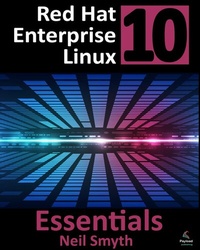
Red Hat Enterprise Linux 10 Essentials
Description

Red Hat Enterprise Linux 10 Essentials provides detailed information on installing, using, and administering the Red Hat Enterprise Linux 10 distribution. For beginners, the book covers topics such as installation, the basics of the GNOME desktop environment, configuring email and web servers, and installing packages and system updates. Additional topics, including running RHEL on Windows with Windows Subsystem for Linux, are also covered, along with important security topics such as configuring a firewall and user and group administration. We will also learn about the Red Hat Lightspeed AI capabilities built into RHEL.
For the experienced user, topics such as remote desktop access, the Cockpit web interface, logical volume management (LVM), disk partitioning, swap management, KVM virtualization, Secure Shell (SSH), Linux Containers, Image Mode deployment, and file sharing using both Samba and NFS are covered in detail to provide a thorough overview of this enterprise class operating system.
All prices
More details
Other editions
Additional editions
Content
3. Installing RHEL 10 on a Clean Disk Drive
There are several ways in which a RHEL 10 system can be deployed. One method is to either purchase new hardware or re-purpose an existing computer system on which to install and run the operating system. Another option is to create a cloud-based operating system instance using services such as Amazon AWS, Google Cloud, or Microsoft Azure (to name but a few). Since cloud-based instances are typically created by selecting a pre-configured, ready-to-run operating system image already optimized for the cloud platform and using that as the basis for the RHEL system, there is no need to perform a manual operating system installation in this situation.
If, on the other hand, you plan to install RHEL 10 on your own hardware, the first step on the path to learning about Red Hat Enterprise Linux 10 involves installing the operating system.
3.1 RHEL Installation Options
RHEL 10 can be installed either in a clean-disk or bare-metal environment (where an entire disk is cleared of any existing partitions and dedicated entirely to RHEL) or in a dual-boot environment (where RHEL 10 co-exists with another operating system on the disk, typically a member of the Microsoft Windows family). Alternatively, RHEL can be installed as a guest on Windows systems using Windows Subsystem for Linux, and within virtualization and container environments, each of which will be covered in later chapters.
This chapter will cover the bare metal approach to installation from local or remote media.
3.2 Obtaining the RHEL 10 Installation Media
Although RHEL is an open-source operating system, the binary installation images can only be activated as part of a paid Red Hat Enterprise Linux subscription. In addition to access to the installation images for RHEL, subscription levels are available that provide technical support for the operating system. If you already have a paid subscription, log into your Red Hat account to download the operating system. If you want to try RHEL before purchasing, Red Hat provides a 30-day trial. To register for a trial, visit the Red Hat website at the following address:
https://www.redhat.com/en/technologies/linux-platforms/enterprise-linux/try-it
Red Hat Developer program members are also provided access to RHEL 10. Details on joining this program can be found on the Red Hat Developers website at https://developers.redhat.com.
RHEL 10 is available for Intel 64-bit (x86_64) and ARM64 (AArch64) CPU architecture families. The installation media can be downloaded as a DVD or boot ISO image for each architecture. The DVD ISO image is self-contained, including all of the packages necessary to install a RHEL system, and is named using the following convention:
rhel-baseos-<version>-<architecture>-dvd.iso
For example, the RHEL 10.0 DVD image for 64-bit Intel systems is named as follows:
rhel-baseos-10.0-x86_64-dvd.iso
On the other hand, the boot ISO image only contains the files necessary to begin the installation and requires access to the full installation media located on a remote server. The boot image can also perform rescue operations on an existing RHEL system. The boot ISO is named using the following convention:
rhel-baseos-<version>-<architecture>-boot.iso
The RHEL 10.0 boot image for AArch64, for example, is named as follows:
rhel-baseos-10.0-aarch64-boot.iso
Having downloaded an image, either burn it to disk, or use the steps in the next section to write the media to a USB drive, configure your virtualization environment to treat it as a DVD drive or use the steps outlined later in this chapter to access the installation image over a network connection.
3.3 Writing the ISO Installation Image to a USB Drive
These days it is more likely that an operating system installation will be performed from a USB drive than from a DVD. Having downloaded the ISO installation image for RHEL 10, the steps to write that image to a USB drive will differ depending on whether the drive is attached to a Linux, macOS, or Windows system. The steps outlined in the remainder of this section assume that the USB drive is new or has been reformatted to remove any existing data or partitions:
3.3.1 Linux
The first step in writing an ISO image to a USB drive on Linux is identifying the device name. Before inserting the USB drive, identify the storage devices already detected on the system by listing the devices in /dev as follows:
# ls /dev/sd*
/dev/sda /dev/sda1 /dev/sda2
Attach the USB drive to the Linux system and run the dmesg command to get a list of recent system messages, one of which will be a report that the USB drive was detected and will be similar to the following:
[ 406.241717] sd 6:0:0:0: [sdb] Attached SCSI removable disk
This output tells us that we should expect the device name to include "sdb" which we can confirm by listing device names in /dev again:
# ls /dev/sd*
/dev/sda /dev/sda1 /dev/sda2 /dev/sdb
This output shows that the USB drive has been assigned to /dev/sdb. The next step before writing the ISO image to the device is to run the findmnt command to make sure it has not been auto-mounted:
# findmnt /dev/sdb
TARGET SOURCE FSTYPE OPTIONS
/run/media/neil/d6bf9574-7e31-4f54-88b1 /dev/sdb ext3 rw,nosuid,no
If the findmnt command indicates that the USB drive has been mounted, unmount it before continuing:
# umount /run/media/neil/d6bf9574-7e31-4f54-88b1
Once the filesystem has been unmounted, use the dd command as follows to write the ISO image to the drive:
# dd if=/path/to/iso/<image name>.iso of=/dev/sdb bs=512k
The writing process can take some time (as long as 10 - 15 minutes) depending on the image size and speed of the system on which it is running. Once the image has been written, output similar to the following will appear, and the USB drive will be ready to be used to install RHEL 10:
5956+0 records in
5956+0 records out
3122659328 bytes (3.1 GB, 2.9 GiB) copied, 426.234 s, 7.3 MB/s
3.3.2 macOS
The first step in writing an ISO image to a USB drive attached to a macOS system is to identify the device using the diskutil tool. Before attaching the USB device, open a Terminal window and run the following command:
$ diskutil list
/dev/disk0 (internal, physical):
#: TYPE NAME SIZE IDENTIFIER
0: GUID_partition_scheme *1.0 TB disk0
1: EFI EFI 209.7 MB disk0s1
2: Apple_APFS Container disk2 1000.0 GB disk0s2
/dev/disk1 (internal):
#: TYPE NAME SIZE IDENTIFIER
0: GUID_partition_scheme 28.0 GB disk1
1: EFI EFI 314.6 MB disk1s1
2: Apple_APFS Container disk2 27.7 GB disk1s2
/dev/disk2 (synthesized):
#: TYPE NAME SIZE IDENTIFIER
0: APFS Container Scheme - +1.0 TB disk2
Physical Stores disk1s2, disk0s2
1: APFS Volume Macintosh HD 473.6 GB disk2s1
2: APFS Volume Preboot 42.1 MB disk2s2
3: APFS Volume Recovery 517.0 MB disk2s3
4: APFS Volume VM 1.1 GB disk2s4
Having established a baseline of detected devices, insert the USB drive into a port on the macOS system and rerun the command. The same results should appear with one additional entry for the USB drive resembling the following:
/dev/disk3 (external, physical):
#: TYPE NAME SIZE IDENTIFIER
0: *16.0 GB disk3
In the above example, the USB drive has been assigned to /dev/disk3. Before proceeding, unmount the disk as follows:
$ diskutil unmountDisk /dev/disk3
Unmount of all volumes on disk3 was successful
Finally, use the dd command to write the ISO image to the device, taking care to reference the raw disk device (/dev/rdisk3) and entering your user password when prompted:
$ sudo dd if=/path/to/iso/image.iso of=/dev/rdisk3 bs=1m
Once the image has been written, the USB drive is ready.
3.3.3 Windows/macOS
Several free tools are...
