

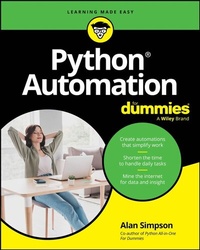
Python Automation For Dummies
Description

Streamline Your Workflow and Boost Productivity with Python Automation
In today's workplaces, there's a high demand for know-how on the Python programming language, especially for writing time-saving scripts that can simplify routine work tasks. Python Automation For Dummies delivers, with simple explanations of how you can use Python to automatically wrangle data files, manage media files, create shortcuts, find and organize web data, and even analyze social media for trends. With this easy-to-follow Dummies guide, you can upskill, expand your productivity, and speed up the process of generating data-driven insights. You'll even learn to enhance your Python automations with AI, for workflows that are faster and smarter.
- Review the basics of Python coding and follow steps for automating all sorts of tasks
- Manage large file sets, organize and analyze data, and speed up research processes
- Automate scheduling and other time-consuming tasks-and optimize work with AI
- Free up time and resources by automating routine work, so you can foucs on more important issues
This is a great Dummies resource for Python developers interested in applying the popular coding language to make workflows more efficient.
More details
Other editions
Additional editions
Person
Alan Simpson is a veteran technology writer and educator with extensive experience covering topics from programming languages to the Windows operating system. He's the author of Windows 11 For Dummies, 2nd Edition, and a co-author of Python All-in-One For Dummies.
Content
Introduction 1
About This Book 1
Foolish Assumptions 2
Icons Used in This Book 2
Beyond the Book 2
Where to Go from Here 3
Part 1: Getting Started with Python Automation 5
Chapter 1: Automating with Python 7
Choosing a Programming Language 8
Understanding Python Syntax 10
Getting Python 11
Identifying the hardware requirements 11
Installing Python 12
Chapter 2: Choosing a Code Editor 15
Installing VS Code 16
Installing Python Extensions 18
Creating a Folder for a New Project 19
Opening a project's folder in VS Code 20
Selecting your Python version 21
Opening the Terminal in VS Code 22
Checking your Python version 23
Using Virtual Environments 24
Creating a virtual environment 25
Activating a virtual environment 26
Installing Modules 28
Writing and Running Python Scripts 30
Writing a Python script 30
Running a Python script 32
Chapter 3: Python Basics for Automation 35
Understanding Python Comments 35
Mastering Variables and Data Types 36
Working with numbers 37
Working with text (strings) 38
Deciding true or false with Booleans 39
Using lists 39
Making immutable lists with tuples 40
Defining key-value pairs in dictionaries 40
Leaving things hanging with None 41
Formatting Output 42
Dealing with Dates and Times 45
Manipulating Data with Operators 47
Using arithmetic and string operators 47
Using assignment operators 48
Recognizing other operators 49
Getting Loopy with Loops 51
Looping with for 51
Looping for a while 52
Bailing out of loops 53
Making Decisions 55
Deciding with if else 55
Compacting decisions with a ternary operator 56
Deciding with match 57
Defining Python Functions 58
Defining default values for parameters 60
Using type hints in Python functions 60
Creating Classes and Objects 61
Handling Exceptions 63
Part 2: Automating Common Computer Tasks 67
Chapter 4: Automating Files and Folders 69
Demystifying the Buzzwords 70
Drives, directories, folders, and files 71
Absolute versus relative paths 72
Backslashes in Windows paths 73
Playing It Safe 74
Navigating Folders and Files 74
Organizing Files by Type 81
Using mkdir for subfolders 86
Moving files with shutil 86
Making the script your own 87
Renaming Files in Bulk 87
Renaming files with Python 90
Using the bulk renaming script 91
Chapter 5: Automating File Management 93
Deleting Old and Temporary Files 93
Identifying old files 96
Matching the file pattern 96
Sending files to the trash 97
Using the deletion script safely 97
Backing Up Files 98
Creating folders from Python 101
Copying files with Python 101
Personalizing the backup script 102
Finding and Removing Duplicate Files 103
Calculating a file hash 106
Finding duplicate files 107
Deleting duplicate files 108
Tweaking the find duplicates script 108
Compressing Files 109
Compressing files with Python 112
Setting your compression parameters 113
Decompressing Files 114
Unzipping files with Python 116
Using the decompression script 117
Chapter 6: Automating Image and Video Files 119
Resizing, Rotating, Flipping, and Cropping Images 120
Resizing images 125
Rotating images 126
Flipping images 126
Cropping images 127
Customizing the image processor 128
Converting Image File Types 129
Converting files with Python 131
Personalizing the conversion script 132
Extracting Frames from Video Files 133
Importing modules for video extraction 135
Looping through a video 136
Tweaking the video conversion script 138
Chapter 7: Automating Mouse and Keyboard 139
Granting Permissions on a Mac 140
Moving the Mouse, Clicking, Dragging, and Scrolling 141
Understanding screen coordinates 141
Controlling the mouse speed 141
Stopping a wild mouse 142
Finding the screen locations of things 142
Using mouse control with a specific app 144
Trying out mouse control 144
Typing Text with Python 146
Controlling the typing speed 147
Typing long passages of text 147
Pressing special keys 148
Pressing hotkeys 148
Detecting the operating system 149
Detecting Keystrokes 150
Creating Your Own Keyboard Shortcuts 151
Automating Screenshots 155
Taking screenshots with Python 157
Personalizing the auto screenshot script 158
Chapter 8: Automating the Office 159
Automating Microsoft Word 159
Naming your Word document 162
Defining your Word content 163
Automating Microsoft Excel 164
Specifying your workbook 167
Defining content for your workbook 167
Creating and Opening PDFs 168
Defining content for your PDF 172
Identifying your PDF 172
Watermarking PDFs 173
Creating your watermark image 176
Adapting the script to your needs 177
Part 3: Automating the Internet 179
Chapter 9: Interacting with APIs 181
Obtaining API Keys 181
Safely Storing API Keys 182
Creating a .gitignore file 184
Using an API key in your script 185
Handling JSON Data 185
Parsing and serializing JSON data 187
Reading and writing JSON files 188
Understanding REST APIs 190
Making API requests 191
Parsing API responses 193
Reviewing a Complete REST API Script 194
Chapter 10: Automating the Web 197
Automating Web Browsers 197
Loading drivers for your browser 198
Finding text boxes to fill 200
Automating Filling Forms Online 201
Finding a control 203
Submitting a form with Enter 204
Filling Multiple Text Boxes 204
Clicking a form's Submit button 207
Adapting the script to your needs 207
Filling Text Boxes from a File 208
Chapter 11: Scraping Web Pages 213
Picking the Right Tools for Web Scraping 213
Scraping Links from a Web Page 214
Sending a browser header 215
Parsing a web page 216
Extracting Data from a Web Page 217
Finding elements to scrape 218
Scraping data from the page 221
Automating Data Extraction 222
Determining whether a business is open 225
Scraping stock market data 227
Chapter 12: Automating Email and Text Messages 229
Sending Bulk Email Automatically 229
Collecting account information 230
Creating a .env file 230
Creating your email-sending script 231
Sending HTML mail 234
Putting email recipient addresses in a file 235
Automatically Sending Text Messages 236
Storing SMS account information 237
Defining your recipient list and message 239
Storing recipient numbers 239
Chapter 13: Automating Social Media 243
Acquiring API Keys and Modules 243
Automating Posting 244
Setting up your project 245
Making the script your own 249
Creating Content for Your Posts 249
Tracking Performance Metrics 251
Getting Instagram API access 251
Setting up your script 251
Defining your metrics and timeframe 254
Analyzing Trends 255
Viewing the trends 257
Setting your own keywords and timeframe 257
Part 4: Automating More Advanced Stuff 259
Chapter 14: Scheduling Tasks. 261
Using the Schedule Module 261
Understanding how the schedule module works 263
Scheduling tasks for intervals 264
Using the APScheduler Module 265
Using APScheduler with intervals 267
Using APScheduler with dates and times 268
Automating Python Scripts 271
Running scripts as subprocesses 271
Running scripts as imports 274
Chapter 15: Integrating with Artificial Intelligence 277
Accessing Free AI through an API 277
Warming Up to a Local Chatbot 282
Installing and running Ollama 283
Downloading AI models with Ollama 283
Building a simple local chatbot 284
Creating a Conversational Chatbot 287
Developing an AI Image Generator 290
Showing the generated image onscreen 295
Hitting up Hugging Face 301
Part 5: the Part of Tens 309
Chapter 16: Top Ten Zen of Python Guidelines 311
Beautiful Is Better than Ugly 311
Explicit Is Better than Implicit 314
Using type hints 315
Using comments 316
Handling errors 316
Simple Is Better than Complex 317
Complex Is Better than Complicated 320
Flat Is Better than Nested 321
Flattening nested conditionals 321
Using list comprehension 322
Sparse Is Better than Dense 324
Readability Counts 325
Special Cases Aren't Special Enough to Break the Rule 326
Practicality Beats Purity 328
Errors Should Never Pass Silently 329
Chapter 17: Top Ten Python Error Messages 331
Command Not Found 331
No Module Named 333
SyntaxError 334
NameError 335
TypeError 336
IndexError 337
KeyError 339
AttributeError 340
ModuleNotFoundError 342
FileNotFoundError 343
IndentationError 345
Index 347
Chapter 1
Automating with Python
IN THIS CHAPTER
Deciding on a programming language
Mastering Python language basics
Getting up and running with Python
Welcome to Python automation! In this chapter, you explore why Python is the ideal language for automating mundane, time-consuming computer tasks. If you've ever found yourself stuck doing the same boring computer chores over and over - like renaming a bazillion files, sorting through spreadsheets, or downloading stuff from the web - Python may just become your new best friend. It's a programming language that's easy to pick up, even if you're not a tech wizard, and it's perfect for automating those mind-numbing tasks that eat up your time. Think of Python as a trusty robot assistant: You tell it what to do in plain, simple words (well, code), and it does your work in no time at all.
What makes Python so great for automation is the fact that it has a little something for everyone. Python has built-in tools to handle all sorts of everyday tasks - like managing files, crunching data, bossing around your computer - and a huge pile of free add-ons (called libraries) can do even fancier things, like scraping websites or sending emails. You don't need to be a coding genius to get started - just a few lines of Python can save you hours of clicking and typing. So, whether you're organizing your music collection or taming a messy inbox, Python's got your back, making life a whole lot easier with a few friendly commands.
THINKING LIKE A SOFTWARE ENGINEER: PUTTING ARTIFICIAL INTELLIGENCE TO WORK FOR YOU
Writing Python automation requires writing computer code. This book isn't a replacement for a beginner's tutorial on the entire Python language. Instead, it's a collection of Python automation scripts, designed to automate and simplify mundane, time-consuming computer tasks.
These days, most software engineers (people who write computer code for a living) use artificial intelligence (AI) to help with writing code. Sure, you'll hear many software engineers complain that AI can't write code as well as they can, but that sentiment may be rooted in feeling threatened.
In addition to writing code, AI can easily answer any questions that come up along the way as you're using this book. If I throw some terminology at you that leaves you scratching your head, ask AI to explain things. If some code leaves you stymied, show the code to AI and ask it to explain the code to you.
You can even tell AI to write an entire script for you, doing exactly what a script in this book does. But don't be surprised if the code you get from AI looks different from what's in this book. Python offers many tools and techniques for accomplishing any task. There's no telling exactly how AI will generate code to perform some feat. If AI gives you a script that looks nothing like the script in this book, that doesn't mean one is right and the other is wrong - you probably just have two scripts that do the same thing in different ways. That's not unusual. They say there's more than one way to bake a cake. Likewise, there's more than one way to write a script to accomplish some task.
Choosing a Programming Language
There are many programming languages in the world. They have names like C#, Go, Java, JavaScript, Python, and TypeScript, to name a few. The TIOBE Index (www.tiobe.com/tiobe-index) consistently ranks Python as the most popular language of our time.
JavaScript is great for creating web apps, but it's rarely used for anything else. Python excels at AI and automation. In fact, Python has so many ready-to-use modules designed for automation that it would probably be crazy to use any language other than Python for the kinds of automation scripts you'll see throughout this book.
There's a lot to like about Python - and many reasons to learn Python beyond automation. For one, many people regard Python as the easiest language for many beginners to learn. Python's syntax is clean and simple - it reads almost like English.
You're never stuck without information with Python. There are endless tutorials, forums, and free libraries (premade code you can borrow) to help you out. Virtually every modern AI chatbot is perfectly capable of writing Python code for you and answering any questions about Python that pop into your head.
Python lets you write short, powerful code. What may take 20 lines in another language often takes just a few lines in Python. That means less typing and fewer mistakes to try to ferret out. Plus, modern AI can debug your existing code as easily as it can write code for you.
Let's zoom in on automation - the topic of this book. When it comes to automation, Python is a superstar. Whether you're on Linux, macOS, or Windows, Python works like a charm. Write your automation script once, and it'll run anywhere. No need to reinvent the wheel for different systems.
With Python, you can write a quick script to handle many tasks in minutes. Although the following code below may not mean much to you right now, it illustrates how you can take a daunting task, like renaming hundreds of files in a folder, with just a few lines of code:
import os
 for filename in os.listdir("."):
 os.rename(filename, filename.replace("old", "new"))
Tiny bits of code like that can handle big automation tasks.
Beyond file tasks, Python plays nice with application programming interface (APIs; define here), databases, Microsoft Excel files, and AI. If you're automating something like "Check my email, grab attachments, and update a spreadsheet," Python can tie it all together smoothly.
APIs allow Python to interact with AI and other powerful online capabilities, without your having to reinvent the wheel or host huge files on your own computer. APIs are a hallmark of modern computing, and you definitely want to use a programming language that makes API access easy.
Learning Python is like giving yourself a superpower. Python is easy to start, endlessly useful, and when it comes to automation, unbeatable. You'll save time, impress your friends (or boss), and maybe even have some fun along the way. Perhaps best of all, Python is completely free.
Have I convinced you to choose Python yet?
Understanding Python Syntax
Every language has certain rules of syntax that outline how you must arrange words in order for them to make sense. Like, "Teddy, jump three times!" If you say it all jumbled up, or leave out words, like "Jump Teddy three," Teddy may get confused and not know what to do. In programming, syntax is the same thing - you need to order the words so the computer understands what you want. Syntax is just the rules for putting words and symbols in the right order.
Some programming languages require lots of punctuation, in addition to words, as part of their syntax. That gets tiresome and makes learning more difficult. I'll give you a simple example - a piece of code that checks whether a number is even or odd and prints a message - in both JavaScript and Python.
JavaScript seems very "busy" with parentheses, curly brackets, and semicolons:
function checkEvenOrOdd(number) {
 if (number % 2 === 0) {
 console.log("The number " + number + " is even!");
 } else {
 console.log("The number " + number + " is odd!");
 }
 }

 checkEvenOrOdd(7);
That code looks like something written by aliens. But that's what a JavaScript requires. You've got:
- Curly brackets
{}to wrap the function and theif.elseblocks. - Parentheses
()for the function definition and theifcondition. - A semicolon (
;) at the end of each line (JavaScript loves semicolons).
Now here's the same thing in Python:
def check_even_or_odd(number):
 if number % 2 == 0:
 print(f"The number {number} is even!")
 else:
 print(f"The number {number} is odd!")

 check_even_or_odd(7)
Granted, it's still not plain English. But it's much, much cleaner and simpler. Here's what's special about Python:
- No curly brackets! Python uses indentation (those spaces at the start of lines) to know what's inside the function or
if.else. It's like the code is breathing - it looks airy and neat. - Fewer parentheses - only needed for the function definition, not the
ifcondition. - No semicolons - Python doesn't need them, so the code is less cluttered.
As an experienced instructor who has taught thousands of software developers, I can assure that all the curly brackets and semicolons are the toughest things for beginners to get used to - they're among the main things that drive people away from learning to code. Learning Python first lets you dodge that...
