

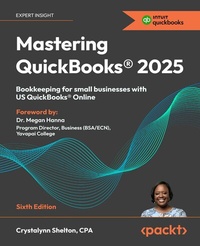
Mastering QuickBooks® 2025
Bookkeeping for small businesses with US QuickBooks® Online
6th Edition
Published on 5. March 2025
402 pages
978-1-83664-996-0 (ISBN)
Description

This new edition of the bestselling guide to the QuickBooks Online accounting software comes with a free PDF eBook, plus bonus chapters and video tutorials from the author on reconciling transactions, the Report Center, and more.Key Features - Ensure accurate payroll processing and 1099 contractor tracking with latest features for compliance and smooth payments
- Learn advanced reporting techniques and inventory management tools to streamline tracking, decision-making, and business insights
- Access exclusive video tutorials and bonus chapters on bookkeeping, financial reporting, and QuickBooks Online Advanced
Book DescriptionMastering QuickBooks® 2025 is the definitive guide for small-business owners, bookkeepers, and accounting students. This new edition covers both the fundamentals, like setting up the US version of QuickBooks Online, as well as advanced features, like integrating with e-commerce platforms. You'll grasp core business transactions such as sales, expenses, and payroll while ensuring compliance with tax regulations. You'll gain complete mastery of the US-based QuickBooks Online features-from setting up the platform to fi ling taxes like a professional. Updated for the latest QuickBooks 2025, this book introduces advanced topics like time tracking for hourly billing, inventory management techniques, and real-time financial reporting. Detailed guidance on payroll processing and 1099 contractor tracking is also included to help manage your financial operations. With the purchase of the book, you'll gain access to bonus chapters and video tutorials by the author, off erring deeper insights on how to navigate key reports, reconcile bank transactions, sharpen bookkeeping fundamentals, and generate detailed sales and expense reports. By the end of this book, you'll know how to effectively leverage QuickBooks Online for the fi nancial management of your business.What you will learn - Set up and customize QuickBooks Online before managing vendor, product and services list
- Automate tasks using workflow automation and advanced custom fields
- Manage payroll and 1099 contractors for compliance and efficiency
- Optimize inventory management and advanced reporting techniques
- Solve common QuickBooks issues with expert troubleshooting tips
- Integrate QuickBooks Online with e-commerce and other financial tools
Who this book is forThe book is for small business owners, bookkeepers, and accounting students who want to learn QuickBooks Online and understand how to implement it effectively. Whether you're a bookkeeping beginner or have some experience already, this book will help you learn to use Intuit QuickBooks Online confidently.
- Learn advanced reporting techniques and inventory management tools to streamline tracking, decision-making, and business insights
- Access exclusive video tutorials and bonus chapters on bookkeeping, financial reporting, and QuickBooks Online Advanced
Book DescriptionMastering QuickBooks® 2025 is the definitive guide for small-business owners, bookkeepers, and accounting students. This new edition covers both the fundamentals, like setting up the US version of QuickBooks Online, as well as advanced features, like integrating with e-commerce platforms. You'll grasp core business transactions such as sales, expenses, and payroll while ensuring compliance with tax regulations. You'll gain complete mastery of the US-based QuickBooks Online features-from setting up the platform to fi ling taxes like a professional. Updated for the latest QuickBooks 2025, this book introduces advanced topics like time tracking for hourly billing, inventory management techniques, and real-time financial reporting. Detailed guidance on payroll processing and 1099 contractor tracking is also included to help manage your financial operations. With the purchase of the book, you'll gain access to bonus chapters and video tutorials by the author, off erring deeper insights on how to navigate key reports, reconcile bank transactions, sharpen bookkeeping fundamentals, and generate detailed sales and expense reports. By the end of this book, you'll know how to effectively leverage QuickBooks Online for the fi nancial management of your business.What you will learn - Set up and customize QuickBooks Online before managing vendor, product and services list
- Automate tasks using workflow automation and advanced custom fields
- Manage payroll and 1099 contractors for compliance and efficiency
- Optimize inventory management and advanced reporting techniques
- Solve common QuickBooks issues with expert troubleshooting tips
- Integrate QuickBooks Online with e-commerce and other financial tools
Who this book is forThe book is for small business owners, bookkeepers, and accounting students who want to learn QuickBooks Online and understand how to implement it effectively. Whether you're a bookkeeping beginner or have some experience already, this book will help you learn to use Intuit QuickBooks Online confidently.
All prices
More details
Other editions
Additional editions
Crystalynn Shelton
Mastering QuickBooks (R) 2025
Bookkeeping for small businesses with US QuickBooks (R) Online
Book
12/2024
6th Edition
Packt Publishing
€36.30
Shipment within 3-4 weeks
Persons
Shelton Crystalynn :
Crystalynn Shelton is a licensed CPA and small business advisor specializing in financial accounting software training, coaching, and consulting. She is the author of Amazon bestseller series Mastering QuickBooks, now in its sixth edition. In addition to having experience as a small business owner, she has more than 20 years of experience in providing accountancy consultancy in the entertainment, oil and gas, education, and computer technology fields. Crystalynn is an Advanced Certified QuickBooks ProAdvisor and has taught accounting, bookkeeping, and QuickBooks courses for the last 12 years at the University of California at Los Angeles Extension. When she is not in the classroom, she enjoys trying new restaurants and curling up with a good book!
Crystalynn Shelton is a licensed CPA and small business advisor specializing in financial accounting software training, coaching, and consulting. She is the author of Amazon bestseller series Mastering QuickBooks, now in its sixth edition. In addition to having experience as a small business owner, she has more than 20 years of experience in providing accountancy consultancy in the entertainment, oil and gas, education, and computer technology fields. Crystalynn is an Advanced Certified QuickBooks ProAdvisor and has taught accounting, bookkeeping, and QuickBooks courses for the last 12 years at the University of California at Los Angeles Extension. When she is not in the classroom, she enjoys trying new restaurants and curling up with a good book!
Content
- Cover
- Copyright
- Foreword
- Contributors
- Table of Contents
- Preface
- Part 1: Setting Up Your Company File
- Chapter 1: Getting Started with QuickBooks Online
- What is QuickBooks?
- Exploring QBO editions
- Choosing the right QBO edition
- QBO Simple Start
- QBO Essentials
- QBO Plus
- QBO Advanced
- Creating a QBO account
- Navigating in QBO
- QBO dashboards and the left navigation menu
- QuickBooks Online icons
- QuickBooks Online menus
- Summary
- Chapter 2: Company File Setup
- Key information and documents
- Setting up company preferences in QBO
- Company settings
- Usage settings
- Payments settings
- QuickBooks Checking settings
- Sales settings
- Expenses settings
- Time settings
- Advanced settings
- Summary
- Chapter 3: Customizing QuickBooks for Your Business
- Customizing the chart of accounts list
- Adding a new account to the chart of accounts list
- Importing a chart of accounts list
- Editing accounts on the chart of accounts list
- Inactivating an account on the chart of accounts list
- Reactivating an account on the chart of accounts list
- Merging accounts in QBO
- Connecting bank accounts to QBO
- Importing banking transactions automatically
- Uploading banking transactions from an Excel or CSV file
- Connecting credit card accounts to QBO
- Importing credit card transactions automatically
- Uploading credit card transactions from an Excel or CSV file
- Giving other users access to your QuickBooks data
- Standard all access user
- Standard no access user
- Accounts receivable manager
- Accounts payable manager
- Standard limited customers and vendors
- In house accountant
- Company administrator
- Primary administrator
- Reports-only user
- Time tracking user
- Accountant user
- Editing user privileges
- Using apps in QBO
- Overview of the QuickBooks App Center
- Finding apps for your business
- Summary
- Chapter 4: Managing Customer, Vendor, and Products and Services Lists
- Managing customer lists in QBO
- Manually adding customers in QBO
- Importing customers into QBO
- Making changes to existing customers in QBO
- Inactivating customers in QBO
- Merging customers in QBO
- Managing vendor lists in QBO
- Manually adding vendors in QBO
- Importing vendors into QBO
- Making changes to existing vendors in QBO
- Inactivating vendors in QBO
- Merging vendors in QBO
- Managing products and services lists in QBO
- Manually adding products and services in QBO
- Importing products and services in QBO
- Making changes to existing products and services in QBO
- Inactivating products and services in QBO
- Merging products and services in QBO
- Summary
- Part 2: Recording Transactions in QuickBooks Online
- Chapter 5: Managing Sales Tax
- Do you need to charge sales tax?
- Setting up sales tax in QBO
- Creating an invoice that includes sales tax
- Sales tax reports
- Summary
- Chapter 6: Recording Sales Transactions in QuickBooks Online
- Entering sales forms
- Recording income using a sales receipt
- Recording income using a deposit
- Recording income using a sales invoice
- Customizing sales templates
- Recording customer payments
- Managing credit card payments
- Recording payments to the payments to deposit account
- Issuing credit memos and refunds to customers
- Applying a credit memo to an open invoice
- Summary
- Chapter 7: Recording Expenses in QuickBooks Online
- Adding and paying bills
- Entering bills into QuickBooks Online
- Uploading bills to QuickBooks
- Paying bills in QuickBooks Online
- Entering vendor credits into QuickBooks Online
- Managing recurring expenses
- Writing checks
- Printing checks
- Editing, voiding, and deleting expenses
- Capturing and categorizing receipts and bills
- Summary
- Part 3: Managing Employees and Contractors
- Chapter 8: Managing Employees and 1099 Contractors in QuickBooks Online
- Setting up payroll
- Payroll setup checklist and key documents
- Signing up for an Intuit payroll subscription
- Generating payroll reports
- Filing payroll tax forms and payments
- Managing 1099 contractors in QBO
- Setting up 1099 contractors
- Tracking and paying 1099 contractors
- 1099 year-end reporting
- Introducing QuickBooks Time
- Summary
- Part 4: Closing the Books and Handling Special Transactions
- Chapter 9: Closing the Books in QuickBooks Online
- Recording journal entries
- Reviewing a checklist for closing your books
- 1. Reconciling all bank and credit card accounts
- 2. Making year-end accrual adjustments
- 3. Reviewing new fixed asset purchases and adding them to the chart of accounts
- 4. Making depreciation journal entries
- 5. Taking a physical inventory and recording inventory adjustments
- 6. Adjusting retained earnings for owner/partner distributions
- 7. Setting a closing date and password
- 8. Preparing key financial reports
- Giving your accountant access to your data
- Summary
- Chapter 10: Handling Special Transactions in QuickBooks Online
- Setting up business loans and lines of credit
- Adding a business loan or line of credit to the chart of accounts
- Making payments on a loan or line of credit
- Recording bad debt expenses
- Creating a bad debt item
- Creating a credit memo
- Applying a credit memo to an outstanding customer invoice
- Issuing a customer refund
- Tracking delayed charges and credits
- Summary
- Part 5: Integrating e-commerce platforms & Advanced Inventory Management
- Chapter 11: Integrating E-Commerce Platforms with QuickBooks Online
- Reviewing apps before connecting them to QBO
- Pros of connecting a sales channel to QuickBooks
- Cons of connecting a sales channel to QuickBooks
- How to connect a sales channel to QuickBooks
- Summary
- Chapter 12: Advanced Inventory Management
- Turning on inventory tracking in QuickBooks
- Adding products in QuickBooks Online
- Recording product sales in QuickBooks Online
- Ordering products from vendor suppliers in QuickBooks
- Receiving products into inventory
- Generating inventory reports
- Open Purchase Order List report
- Purchases by Product/Service Detail report
- Inventory Valuation Detail report
- Sales by Product/Service Detail report
- Purchases by Vendor Detail report
- Physical Inventory Worksheet summary
- Summary
- Part 6: Online BONUS Content
- Other Books You May Enjoy
- Index
