

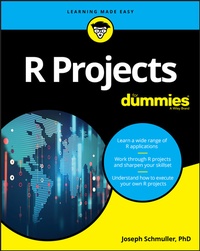
R Projects For Dummies
Description

R Projects For Dummies offers a unique learn-by-doing approach. You will increase the depth and breadth of your R skillset by completing a wide variety of projects. By using R's graphics, interactive, and machine learning tools, you'll learn to apply R's extensive capabilities in an array of scenarios. The depth of the project experience is unmatched by any other content online or in print. And you just might increase your statistics knowledge along the way, too!
R is a free tool, and it's the basis of a huge amount of work in data science. It's taking the place of costly statistical software that sometimes takes a long time to learn. One reason is that you can use just a few R commands to create sophisticated analyses. Another is that easy-to-learn R graphics enable you make the results of those analyses available to a wide audience.
This book will help you sharpen your skills by applying them in the context of projects with R, including dashboards, image processing, data reduction, mapping, and more.
* Appropriate for R users at all levels
* Helps R programmers plan and complete their own projects
* Focuses on R functions and packages
* Shows how to carry out complex analyses by just entering a few commands
If you're brand new to R or just want to brush up on your skills, R Projects For Dummies will help you complete your projects with ease.
More details
Other editions
Additional editions
Content
- Intro
- Title Page
- Table of Contents
- Introduction
- About This Book
- What You Can Safely Skip
- Foolish Assumptions
- Icons Used in This Book
- Beyond the Book
- Where to Go from Here
- Part 1: The Tools of the Trade
- Chapter 1: R: What It Does and How It Does It
- Getting R
- Getting RStudio
- A Session with R
- R Functions
- User-Defined Functions
- Comments
- R Structures
- Of for Loops and if Statements
- Chapter 2: Working with Packages
- Installing Packages
- Examining Data
- R Formulas
- More Packages
- Exploring the tidyverse
- Chapter 3: Getting Graphic
- Touching Base
- Graduating to ggplot2
- Part 2: Interacting with a User
- Chapter 4: Working with a Browser
- Getting Your Shine On
- Creating Your First shiny Project
- Working with ggplot
- Another shiny Project
- Suggested Project
- Chapter 5: Dashboards - How Dashing!
- The shinydashboard Package
- Exploring Dashboard Layouts
- Working with the Sidebar
- Interacting with Graphics
- Part 3: Machine Learning
- Chapter 6: Tools and Data for Machine Learning Projects
- The UCI (University of California-Irvine) ML Repository
- Introducing the Rattle package
- Using Rattle with iris
- Chapter 7: Decisions, Decisions, Decisions
- Decision Tree Components
- Decision Trees in R
- Decision Trees in Rattle
- Project: A More Complex Decision Tree
- Suggested Project: Titanic
- Chapter 8: Into the Forest, Randomly
- Growing a Random Forest
- Random Forests in R
- Project: Identifying Glass
- Suggested Project: Identifying Mushrooms
- Chapter 9: Support Your Local Vector
- Some Data to Work With
- Separability: It's Usually Nonlinear
- Support Vector Machines in R
- Project: House Parties
- Suggested Project: Titanic Again
- Chapter 10: K-Means Clustering
- How It Works
- K-Means Clustering in R
- Project: Glass Clusters
- Suggested Project: A Few Quick Ones
- Chapter 11: Neural Networks
- Networks in the Nervous System
- Artificial Neural Networks
- Neural Networks in R
- Project: Banknotes
- Suggested Projects: Rattling Around
- Part 4: Large(ish) Data Sets
- Chapter 12: Exploring Marketing
- Project: Analyzing Retail Data
- Enter Machine Learning
- Suggested Project: Another Data Set
- Chapter 13: From the City That Never Sleeps
- Examining the Data Set
- Warming Up
- Project: Departure Delays
- Suggested Project: Delay and Weather
- Part 5: Maps and Images
- Chapter 14: All Over the Map
- Project: The Airports of Wisconsin
- Suggested Project 1: Map Your State
- Suggested Project 2: Map the Country
- Chapter 15: Fun with Pictures
- Polishing a Picture: It's magick!
- Project: Two Legends in Search of a Legend
- Suggested Project: Combine an Animation with a Plot
- Part 6: The Part of Tens
- Chapter 16: More Than Ten Packages for Your R Projects
- Machine Learning
- Databases
- Maps
- Image Processing
- Text Analysis
- Chapter 17: More than Ten Useful Resources
- Interacting with Users
- Machine Learning
- Databases
- Maps and Images
- About the Author
- Connect with Dummies
- End User License Agreement
Chapter 1
R: What It Does and How It Does It
IN THIS CHAPTER
Getting R and RStudio on your computer
Plunging into a session with R
Working with R functions
Working with R structures
So you're ready to journey into the wonderful world of R! Designed by and for statisticians and data scientists, R has a short but illustrious history.
In the 1990s, Ross Ihaka and Robert Gentleman developed R at the University of Auckland, New Zealand. The Foundation for Statistical Computing supports R, which is growing more popular by the day.
Getting R
If you don't already have R on your computer, the first thing to do is to download R and install it.
You'll find the appropriate software on the website of the Comprehensive R Archive Network (CRAN). In your browser, type this web address if you work in Windows:
cran.r-project.org/bin/windows/base
Type this one if you work on the Mac:
cran.r-project.org/bin/macosx
Click the link to download R. This puts a win.exe file in your Windows computer or a pkg file in your Mac. In either case, follow the usual installation procedures. When installation is complete, Windows users see two R icons on their desktop, one for 32-bit processors and one for 64-bit processors (pick the one that's right for you). Mac users see an R icon in their Application folder.
Both addresses provide helpful links to FAQs. The windows-related one also has the link Installation and Other Instructions.
Getting RStudio
Working with R is a lot easier if you do it through an application called RStudio. Computer honchos refer to RStudio as an IDE (Integrated Development Environment). Think of it as a tool that helps you write, edit, run, and keep track of your R code, and as an environment that connects you to a world of helpful hints about R.
Here's the web address for this terrific tool:
www.rstudio.com/products/rstudio/download
Click the link for the installer for your computer's operating system - Windows, Mac, or a flavor of Linux - and again follow the usual installation procedures.
In this book, I work with R version 3.4.0 and RStudio version 1.0.143. By the time you read this, later versions of both might be available.
After you finish installing R and RStudio, click on your brand-new RStudio icon to open the window shown in Figure 1-1.
FIGURE 1-1: RStudio, immediately after you install it and click on its icon.
The large Console pane on the left runs R code. One way to run R code is to type it directly into the Console pane. I show you another in a moment.
The other two panes provide helpful information as you work with R. The Environment/History pane is in the upper right. The Environment tab keeps track of the things you create (which R calls objects) as you work with R. The History tab tracks R code that you enter.
Get used to the word object. Everything in R is an object.The Files/Plots/Packages/Help pane is in the lower right. The Files tab shows files you create. The Plots tab holds graphs you create from your data. The Packages tab shows add-ons (called packages) that have downloaded with R. Bear in mind that downloaded doesn't mean "ready to use." To use a package's capabilities, one more step is necessary, and trust me - you'll want to use packages.
Figure 1-2 shows the Packages tab. I discuss packages later in this chapter.
FIGURE 1-2: The RStudio Packages tab.
The Help tab, shown in Figure 1-3, links you to a wealth of information about R and RStudio.
FIGURE 1-3: The RStudio Help tab.
To tap into the full power of RStudio as an IDE, click the icon in the upper right corner of the Console pane. That changes the appearance of RStudio so that it looks like Figure 1-4.
FIGURE 1-4: RStudio after you click the icon in the upper right corner of the Console pane.
The Console pane relocates to the lower left. The new pane in the upper left is the Scripts pane. You type and edit code in the Scripts pane by pressing Ctrl+R (Command+Enter on the Mac), and then the code executes in the Console pane.
Ctrl+Enter works just like Ctrl+R. You can also highlight lines of code in the Scripts pane and select Code?????Run Selected Line(s) from RStudio's main menu.
A Session with R
Before you start working, select File?????Save As from the main menu and then save your work file as My First R Session. This relabels the tab in the Scripts pane with the name of the file and adds the .R extension. This also causes the filename (along with the .R extension) to appear on the Files tab.
The working directory
What exactly does R save, and where does R save it? What R saves is called the workspace, which is the environment you're working in. R saves the workspace in the working directory. In Windows, the default working directory is
C:\Users\<User Name>\Documents
On a Mac, it's
/Users/<User Name>
If you ever forget the path to your working directory, type
> getwd()
in the Console pane, and R returns the path onscreen.
In the Console pane, you don't type the right-pointing arrowhead at the beginning of the line. That's a prompt.
My working directory looks like this:
> getwd()
[1] "C:/Users/Joseph Schmuller/Documents
Note the direction the slashes are slanted. They're opposite to what you typically see in Windows file paths. This is because R uses \ as an escape character - whatever follows the \ means something different from what it usually means. For example, \t in R means Tab key.
You can also write a Windows file path in R as
C:\\Users\\<User Name>\\Documents
If you like, you can change the working directory:
> setwd(<file path>)
Another way to change the working directory is to select Session?????Set Working Directory?????Choose Directory from the main menu.
Getting started
Let's get down to business and start writing R code. In the Scripts pane, type
x <- c(5,10,15,20,25,30,35,40)
and then press Ctrl+R.
That puts this line into the Console pane:
> x <- c(5,10,15,20,25,30,35,40)
As I say in an earlier Tip paragraph, the right-pointing arrowhead (the greater-than sign) is a prompt that R puts in the Console pane. You don't see it in the Scripts pane.
Here's what R just did: The arrow-sign says that x gets assigned whatever is to the right of the arrow-sign. Think of the arrow-sign as R's assignment operator. So the set of numbers 5, 10, 15, 20 . 40 is now assigned to x.
In R-speak, a set of numbers like this is a vector. I tell you more about this concept in the later section "R Structures."
You can read that line of code as "x gets the vector 5, 10, 15, 20."
Type x into the Scripts pane and press Ctrl+R, and here's what you see in the Console pane:
> x
[1] 5 10 15 20 25 30 35 40
The 1 in square brackets is the label for the first line of output. So this signifies that 5 is the first value.
Here you have only one line, of course. What happens when R outputs many values over many lines? Each line gets a bracketed numeric label, and the number corresponds to the first value in the line. For example, if the output consists of 23 values and the eighteenth value is the first one on the second line, the second line begins with [18].
Creating the vector x causes the Environment tab to look like Figure 1-5.
FIGURE 1-5: The RStudio Environment tab after creating the vector x.
Another way to see the objects in the environment is to type ls() into the Scripts pane and then press Ctrl+R. Or you can type > ls() directly into the Console pane and press Enter. Either way, the result in the Console pane is
[1] "x"
Now you can work with x. First, add all numbers in the vector. Typing sum(x) in the Scripts pane (be sure to follow with Ctrl+R) executes the following line in the Console pane:...
