

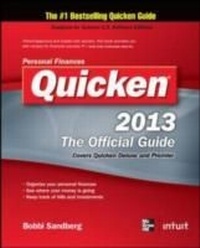
Quicken 2013 The Official Guide
1st Edition
Published on 1. November 2012
723 pages
978-0-07-180444-8 (ISBN)
Description

The Only Official Guide to the #1 Personal Finance Software Filled with insider tips and expert techniques, Quicken 2013: The Official Guide shows you how to manage your finances and assets with confidence. Discover the most efficient and effective methods for tracking your income, expenses, savings, transactions, investments, and so much more. Fully endorsed by Intuit, makers of Quicken, this official guide saves you time and money by revealing how to maximize all of the software's powerful capabilitiesincluding new features and hidden gems. Youll get professional advice along with information about online resources to assist you in reducing debt, making sound financial decisions, and planning for a secure future. Customize Quicken for your preferences Track income, expenses, and cash flow Set up Online Account Services Automate transactions and tasks Analyze banking activity with snapshots, reports, and graphs Reconcile checking, savings, and credit card accounts Take advantage of the budgeting and debt reduction tools Track investments and optimize your portfolio Monitor assets and loans Manage household records Save money and plan for retirement Simplify tax preparation and maximize deductions
More details
Other editions
Additional editions
Bobbi Sandberg
Quicken 2013 The Official Guide
Book
12/2012
McGraw-Hill Professional
€19.80
Article exhausted; check different version
Content
- Cover Page
- Quicken® 2013 THE OFFICIAL GUIDE
- Copyright Page
- Dedication
- Contents
- Acknowledgments
- Introduction
- Part One Learning Quicken Basics
- 1 Getting to Know Quicken
- What Is Quicken?
- Exploring Quicken's Uses
- Getting Started
- Installing Quicken from a CD
- Starting Quicken
- Preparing a Data File
- Registering Quicken
- The Quicken Interface
- Exploring the Main View
- Understanding Other Windows
- Learning Quicken's Features
- Finding Help in Quicken
- Learning Quicken's Online Benefits
- Getting Connected
- Financial Institution Services
- Understanding Online Financial Services
- Applying for Online Financial Services
- Exiting Quicken
- 2 Working with Accounts, Categories, and Tags
- Before You Begin
- Understanding Data Files and Accounts
- Accounts
- Reviewing Account Types
- Setting Up Quicken
- Creating Your First Account
- Setting Up Other Banking Accounts
- Working with the Account List Window
- Categories
- Establishing Categories and Subcategories
- Working with the Category List Window
- Tags
- Displaying the Tag List Window
- Creating a New Tag
- Working with the Tag List Window
- Other Setup Options
- Getting Started with Monthly Bills
- Budget Your Spending
- 3 Get Up and Running with Quicken Mobile
- Understand Mobile Applications
- Appreciating the "Cloud"
- Meet Quicken's Mobile App
- About Your New Mobile Companion
- Begin with Quicken's Mobile App
- Understanding Your Quicken Cloud ID
- Getting Started from Your Desktop
- Use Your Mobile Device
- Getting Started on Your Mobile Device
- Working with the Quicken Mobile App Home Page
- Part Two Banking
- 4 Recording Bank and Credit Card Transactions
- Getting Started
- Reviewing Account and Transaction Types
- Working with Bank Accounts
- Quicken's Registers
- Using Account Registers
- Understanding Splits
- Tracking Credit Cards with Quicken
- Writing Checks
- Printing Checks
- Printing Quicken Checks
- Transferring Money
- Working with Existing Transactions
- Searching for Transactions
- Sorting Transactions
- Quicken's Other Account Features
- Adding Notes, Flags, and Alerts
- Attaching Checks, Receipts, or Other Images
- 5 Using Online Banking Features
- Online Account Services
- Understanding Transaction Download
- Introducing Online Payment and Quicken Bill Pay
- Reviewing Security
- Setting Up Online Account Services
- The Online Center
- Using the Online Center Window
- Downloading Transactions
- Making Online Payments
- Transferring Money Between Accounts
- Exchanging E-mail with Your Financial Institution
- 6 Automating Transactions and Tasks
- Bills and Income Reminders
- Being Reminded
- Making the Most of Bill and Income Reminders
- Creating Reminders from Downloaded Transactions
- Setting Up Reminders in the Bills Tab
- Working with the Bills Tab
- Managing Reminders
- QuickFill and Memorized Payees
- Understanding QuickFill
- Utilizing the Memorized Payee List
- Creating Scheduled Transaction Groups
- Using the Financial Calendar
- Useful Quicken Features
- Minding Your Bills
- Using the Paycheck Setup Wizard
- Creating the Address Book
- One Step Update and the Password Vault
- Using One Step Update
- Entering the Password Vault
- Scheduling Updates
- About Alerts
- Viewing Available Alerts Groups
- Setting Up Alerts
- Working with Alerts
- 7 Reconciling Your Accounts
- Reconciling Bank Accounts
- Starting a Reconciliation
- Comparing Transactions to a Paper Statement
- Identifying Reconciled Items
- Finishing Up
- Reconciling for the First Time
- Other Reconciliation Tasks and Features
- Reconciling Credit Card Accounts
- Printing a Reconciliation Report
- Undoing Reconciled Transactions
- 8 Examining Your Banking Activity
- A Closer Look at the Spending Tab
- Exploring the Spending Graph
- Using the Spending Register
- Quicken Reports Overview
- Reviewing Report and Graph Types
- Creating Reports and Graphs
- Working with Reports and Graphs
- Working with a Report Window
- Customizing Reports and Graphs
- Working with Subreports
- Saving Reports and Graphs
- Exporting Your Reports
- Printing Reports and Graphs
- Part Three Managing Your Investment Accounts
- 9 Entering Your Investment Transactions
- Quicken Investment Basics
- Understanding Your Portfolio
- Managing Your Portfolio
- Creating Investing Accounts
- Working with Placeholder Entries
- Working with Investment Accounts
- Understanding the Investment Transaction List
- Using the Investment Transaction Dialog
- Entering Common Transactions
- Entering Transactions in the Transaction List
- Editing Transactions
- Adjusting Balances
- Working with Securities
- Viewing the Security List
- 10 Using Transaction Download and Research Tools
- Transaction Download
- Reviewing Your Investing Accounts
- Setting Up Transaction Downloads
- Using the Online Center Window
- Exploring the Account Overview Window
- Downloading Quotes and Investment Information
- Setting Up the Download
- Creating a Watch List
- Viewing Downloaded Quotes
- Use Investing.Quicken.com for Updates
- Exporting Your Portfolio
- Utilizing Quote Lookup
- Using Online Research
- 11 Evaluating Your Position
- Using the Investing Tab
- Understanding the Portfolio View
- Studying Your Performance
- Exploring Asset Allocation
- Updating Your Investments
- Working with Reports
- Utilizing Investing Tab Tools
- Using Investment Analysis Tools
- Using Asset Allocation
- Analyzing Your Portfolio
- Previewing Your Buy/Sell Decisions
- Estimating Capital Gains
- Setting Investment Alerts
- Part Four Tracking Your Financial Position
- 12 Monitoring Assets and Loans
- The Basics
- Understanding Assets and Debts
- Reviewing Loans
- Create Property and Debt Accounts
- Creating Asset and Debt Accounts
- Loan Accounts in Quicken
- Creating a Loan
- Viewing Loan Information
- Modifying Loan Information
- Using the Loan Setup Dialog
- Other Asset Transactions
- Adding and Disposing of Assets
- Updating Asset Values
- 13 Keeping Tabs on Your Net Worth
- The Property & Debt Tab
- Exploring the Net Worth View
- Using the Property View
- Opening the Debt View
- Accessing Property and Debt Account Registers
- Creating Alerts for Property and Debt Accounts
- Part Five Forecasting Your Financial Future
- 14 Using Financial Calculators
- A Look at Quicken's Financial Calculators
- Learning about Financial Calculators
- Accessing the Financial Calculators
- Using the Financial Calculators
- Working with the Retirement Calculator
- Running the College Calculator
- Evaluating the Refinance Calculator
- Planning with the Savings Calculator
- Using the Loan Calculator
- 15 Planning for the Future
- Planning for Retirement
- Planning Your Steps
- Getting Started with the Quicken Lifetime Planner
- Setting Plan Assumptions
- Viewing Plan Results
- The "What If" Alternatives
- Setting "What If" Options
- Using "What If" Results
- Finding More Planning Tools
- 16 Reducing Debt and Saving Money
- Reducing Your Debt
- Taking Control
- Using the Debt Reduction Planner
- Budgeting with Quicken
- Quicken's Automatic Budget
- Understanding Quicken's Automatic Budget
- Working with Your Automatic Budget
- Organizing Categories into Groups
- Where Does Your Money Go?
- Forecasting for Your Future
- Understanding Why We Save
- Saving Strategically
- Using Savings Goals
- 17 Planning for Tax Time
- Tax Information in Accounts and Categories
- Including Tax Information in Accounts
- Connecting Tax Information with Categories
- Tax Reports
- Online Tax Tools
- About TurboTax
- Using TurboTax
- Planning to Avoid Surprises
- Working with the Tax Planner
- Creating Scenarios
- Meet the Estimators
- Minimizing Taxes by Maximizing Deductions
- Utilizing the Itemized Deduction Estimator
- Exploring the Tax Withholding Estimator
- Understanding the Tax Center
- Part Six Appendixes
- A Managing Quicken Files
- Working with Multiple Data Files
- Creating a Data File
- Opening, Saving, and Copying Quicken Data Files
- Backing Up Your Quicken Data File
- Setting Backup Preferences
- Backing Up Your Data
- Restoring Data Files
- Password-Protecting Quicken Data
- Protecting a Data File
- Protecting Existing Transactions
- Working with Passwords
- Additional File Procedures
- Importing Files into Quicken
- Exporting Quicken Files
- Working with Additional File Operations
- Using Keyboard Shortcuts
- B Customizing Quicken
- Customizing Quicken's Interface
- Creating Custom Home Tab Views
- Re-creating the Summary View
- Crafting an Analysis & Reports View
- Customizing the Toolbar
- Setting Preferences
- Telling Quicken Your Preferences
- Useful Tips
- Converting Your Older Quicken Files to a New Computer
- Changing Multiple Transactions
- Quicken Emergency Records Organizer
- Using the Emergency Records Organizer
- Index
