


Apple Vision Pro For Dummies
Description

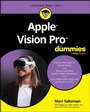
A computer you wear like goggles? Yes, it's true-learn all about the new Apple Vision Pro
Apple Vision Pro For Dummies is a practical guide to Apple's first new product in eight years. Considered a "spatial computer," Vision Pro lets you see your apps right in front of your eyes and interact with the interface using eye movement, hand gestures, and your voice. It fuses virtual reality, where you're completely immersed in a 360-degree digital space, with augmented reality, which lets you see the real world around you, but augmented (or enhanced) with digital information superimposed on top.
Futuristic, right?
This book helps you understand visionOS and get started with spatial computing. You'll find step-by-step instructions on using the device, navigating its interface, discovering its deep feature set, and using all the integrated applications. The Dummies series is your trusted tech mentor, and we're here to get you up to speed with the all-new Vision Pro.
- Learn about "mixed reality" and "spatial computing"
- Explore the hardware, user interface, and apps
- Use your new spatial computer to make calls, send messages, interact with media, and get work done
- Get easy-to-understand tips on how to make the most of this innovative device
Anyone interested in trying out the latest and greatest in wearable technology can get a jump start, thanks to Apple Vision Pro For Dummies.
More details
Other editions
Additional editions
Person
Marc Saltzman is is a prolific tech expert and freelance journalist for more than 25 publications. He is a 17-time author, host of the Tech It Out podcast, and public speaker who is also active on social media. Marc specializes in consumer electronics, interactive entertainment, and future trends. He is the author of Apple Watch For Dummies.
Content
- Intro
- Title Page
- Copyright Page
- Table of Contents
- Introduction
- About This Book
- Foolish Assumptions
- Icons Used in This Book
- Beyond This Book
- Where to Go from Here
- Part 1 Getting Started with Apple Vision Pro
- Chapter 1 Getting to Know Apple Vision Pro
- Virtual Reality and Augmented Reality: It All Comes Together in Apple Vision Pro
- The Apple Vision Pro User Interface: Using Your Eyes, Hands, and Voice
- Finding Out What's in the Box
- Covering the Apple Vision Pro Specs
- Chapter 2 Setting Up Apple Vision Pro
- Charging and Connecting the Battery
- Putting on the Headset
- Using Apple Vision Pro for the First Time
- Step 1: Aligning your view
- Step 2: Signing in to your Apple ID
- Step 3: Scanning your hands
- Step 4: Calibrating eye tracking
- Step 5: Setting up your Persona for FaceTime calls
- Step 6: Setting up Optic ID
- Step 7: Activating Apple Vision Pro
- Maximizing Your Experience with Apple Vision Pro
- Handling Apple Vision Pro
- Chapter 3 Controlling Apple Vision Pro
- Waking Up Apple Vision Pro
- Navigating Apple Vision Pro
- Using hand gestures and eye movements
- Using your voice
- Setting up Voice Control
- Turning Voice Control on or off
- Finding out about Voice Control commands
- Considering a screen overlay
- Switching between modes
- Using Siri
- Using the Digital Crown and top button
- Understanding EyeSight on Apple Vision Pro
- Understanding Apple Vision Pro's Control Center
- Opening Control Center
- Setting Control Center access
- Changing Control Center options
- Typing on a Virtual Keyboard in Apple Vision Pro
- Searching on Apple Vision Pro
- Adding a Keyboard, Trackpad, or Game Controller to Apple Vision Pro
- Identifying the Accessibility Features of Apple Vision Pro
- Enabling Travel Mode on Apple Vision Pro
- Setting Up a Guest Session on Your Apple Vision Pro
- Chapter 4 Using the Home View
- Getting to Know Home View
- Accessing Apps on Apple Vision Pro
- Identifying the apps that come with Apple Vision Pro
- Navigating the App Store
- Navigating the tab bar in the App Store
- Identifying the various sections of the App Store
- Knowing what info you'll see about each app
- Buying apps
- Contacting Friends, Family, or Whoever You Want
- Viewing and Changing Environments
- Choosing an Environment
- Change the appearance and volume in Environments
- Using Siri with Environments
- Perusing a list of the Environments that are available (so far)
- Chapter 5 Accessing and Changing Your Apple Vision Pro Settings
- Opening the Settings App
- Using the Settings App
- Viewing and Changing Settings Options
- Part 2 Using Apple Vision Pro to Communicate
- Chapter 6 Making FaceTime Calls
- Starting a FaceTime Call
- During a FaceTime Call: Moving People, Using Apps, Sharing Views, and More
- FaceTiming with SharePlay on Apple Vision Pro
- Trying Out Spatial Personas on Apple Vision Pro
- Chapter 7 Sending and Receiving Messages
- Turning on iMessage
- Sending and Responding to Messages
- Sharing Your Name and Photo with the People You Message
- Tweaking Notifications for Messages
- Chapter 8 Reading, Writing, and Managing Email
- Setting Up Your Email Accounts in the Mail App
- Reading Your Email
- Getting notified of new email messages
- Setting email reminders in the Mail app
- Previewing an email message
- Writing and Sending an Email Message
- Organizing Your Messages
- Managing an individual email
- Managing your mailboxes
- Changing Your Mail Settings
- Searching for an Email in the Mail App
- Part 3 Having Fun with Apple Vision Pro
- Chapter 9 Watching TV and Movies
- Getting to Know the Apple TV App
- Accessing Content in the Apple TV App
- Navigating the Apple TV+ content in Apple Vision Pro
- Buy, rent, or preorder media in Apple Vision Pro
- Playing rented content in the Apple TV app
- Watching Apple Immersive Video and 3D Movies
- Experiencing Encounter Dinosaurs in Apple Vision Pro
- Watch 3D Movies in Apple Vision Pro
- Watching Movies in an Apple Video Pro Environment
- Using Third-Party Streaming Services
- Chapter 10 Listening to Music and Podcasts
- Exploring the Apple Music App
- Understanding how the Music app is organized
- Playing music
- Subscribing to Apple Music
- Finding and playing Apple Music content
- Searching for music
- Adding music to Apple Vision Pro
- Playing Podcasts on Apple Vision Pro
- Chapter 11 Downloading and Reading E-Books
- Downloading Books onto Apple Vision Pro
- Creating a Collection and Adding Books to It
- Buying Books and Audiobooks in the Books App
- Reading Books on Apple Vision Pro
- Listening to Audiobooks on Apple Vision Pro
- Setting Reading Goals in the Books App
- Reading PDFs
- Chapter 12 Playing Games
- Finding and Downloading Games onto Apple Vision Pro
- Playing Games in Apple Vision Pro
- Using a Bluetooth Game Controller
- SharePlaying Games Using Spatial Personas
- Playing with Friends in Game Center
- Chapter 13 Capturing Photos and Videos
- Checking Out the Photos App
- Viewing Photos and Playing Videos
- Taking a Screenshot or Video with Apple Vision Pro
- Taking a screenshot
- Recording a video
- Sharing your screenshot or video
- Capturing, Viewing, and Sharing Spatial Photos and Videos
- Looking at Memories
- Casting Content from Apple Vision Pro to Another Screen
- Part 4 Being Productive with Apple Vision Pro
- Chapter 14 Searching the Web with Safari
- Browsing and Searching the Web in Apple Vision Pro
- Previewing Websites in Safari
- Viewing, Saving, and Sharing Websites in Safari
- Using Safari's Reader Feature
- Downloading Files from Safari
- Chapter 15 Taking Notes and Making Voice Recordings
- Using the Notes App
- Creating and formatting a new note
- Adding info to a note from another app
- Locking a note
- Sharing notes or collaborating with others
- Changing settings for the Notes app
- Using the Voice Memos App
- Making a voice recording
- Playing and editing a voice recording
- Finding, organizing, and sharing voice recordings
- Chapter 16 Getting Stuff Done with Freeform and Keynote
- Launching and Using the Freeform App in Apple Vision Pro
- Creating a new Freeform board
- Opening an existing Freeform board
- Duplicating a Freeform board
- Deleting a Freeform board
- Positioning items on a Freeform board
- Collaborating on a Freeform board
- Exporting a Freeform board
- Seeing Your Mac Screen while Using Apple Vision Pro
- Using Keynote on Apple Vision Pro
- Rehearsing your Keynote presentation
- Sending or collaborating on a Keynote speech
- Using Focus with Apple Vision Pro
- Part 5 The Part of Tens
- Chapter 17 Ten Awesome Things to Try in Apple Vision Pro
- Capturing Spatial Photos and Videos
- Viewing Immersive Content and 3D Videos
- Using Personas to FaceTime
- Playing Mixed-Reality Games
- Sharing Your Apple Vision Pro View to Another Display
- Practicing Mindfulness
- Reading Books
- Enabling Environments
- Playing Steam Games
- Collaborating in Style
- Chapter 18 The Ten Best Apps for Apple Vision Pro
- AmazeVR Concerts: Immersive 3D
- CARROT Weather: Alerts & Radar
- CellWalk
- djay - DJ App & AI Mixer
- JigSpace: 3D Presentations
- MLB
- Puzzling Places
- Sky Guide
- What If. . .? An Immersive Story
- Zoom Workplace
- Glossary
- Index
- EULA
