

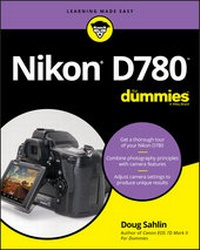
Nikon D780 For Dummies
Description

Nikon D780 For Dummies provides Nikon D780 users and owners with in-depth knowledge and practical advice about how to get great shots with their powerful camera. Written by professional photographer Doug Sahlin, this book gives quick and convenient answers to Nikon D780 users' most frequent and pressing questions.
Nikon D780 For Dummies covers the topics you'll need to get started with your new D780 camera. The book includes clear guidance on topics like:
· Exploring the Nikon D780 body
· Getting to know the settings options
· Seeing results from auto modes
· Taking control of exposure
· Looking into lens options
· Using the flash effectively
Written in the straightforward and pragmatic style known and loved by For Dummies readers around the world, Nikon D780 For Dummies is perfect for people just starting out with digital SLR photography as well as those who know their way around a camera.
More details
Other editions
Additional editions
Person
Content
- Intro
- Title Page
- Copyright Page
- Table of Contents
- Introduction
- About This Book
- Foolish Assumptions
- Icons Used in This Book
- Beyond This Book
- Where to Go from Here
- Part 1 Getting Started with the Nikon D780
- Chapter 1 Exploring the Nikon D780's Controls
- Exploring the Top of Your Camera
- Exploring the Back of Your Camera
- Exploring the Front of Your Camera
- Exploring the Bottom of Your Camera
- Chapter 2 Setting Up the Nikon D780
- Customizing the Default Settings
- Setting the date and time
- Setting the monitor off delay
- Working with the Tilting Monitor
- Using the Control Panel
- Using the Viewfinder
- Decoding what you see in the viewfinder
- Adjusting viewfinder clarity
- Introducing the i Menu
- Pressing the Info Button
- Chapter 3 Working with Nikon D780 Peripherals
- Working with Lenses
- Attaching a lens
- Removing a lens
- Using a vibration reduction lens
- Using a zoom lens
- Using a lens hood
- Working with Memory Cards
- Formatting a memory card
- Removing a memory card
- Taking Care of Your Camera Battery
- Cleaning the Sensor
- Cleaning your sensor on command
- Cleaning your sensor manually
- Modifying sensor cleaning
- Keeping your sensor clean
- Accessorizing Your Nikon D780
- Nikon accessories
- Third-party accessories
- Video accessories
- Keeping the Camera Body Clean
- Chapter 4 Automatically Capturing Great Photographs
- Ordering from Your Camera Menu
- Using the multi selector
- Using the keyboard
- Using the menu
- Taking Your First Picture
- Choosing a Picture Control
- Creating images with a Picture Control
- Modifying a Picture Control
- Creating a custom Picture Control
- Saving and sharing custom Picture Controls
- Understanding Exposure and Focal Length
- Focusing on Your Subject
- Focusing on an off-center subject
- Focusing manually
- Using the Self-Timer
- Chapter 5 Specifying Image Size and Quality
- Understanding Image Size and Quality
- Specifying Image Format, Size, and Quality
- Choosing an Image Area
- Specifying a Bit Depth
- Comparing Image Formats and File Sizes
- Managing Image Files
- Creating folders
- Setting file numbering
- Naming images
- Chapter 6 Using the Tilting Monitor
- Using the Playback i Menu
- Reviewing Images and Movies
- Enabling image review
- Reviewing an image
- Reviewing a movie
- Choosing image display options
- Using the histogram
- Rotating vertical images
- Setting image review options
- Rating images and movies
- Reviewing Images with Touch Controls
- Setting up touch controls
- Flicking through images
- Changing the Brightness of the Tilting Monitor
- Deleting Images
- Protecting Images
- Viewing Images as a Slide Show
- Viewing Images on a TV Monitor
- Introducing Live View
- Part 2 Taking Control of Your Nikon D780
- Chapter 7 Creating Images with Live View
- Using Live View to Create Images
- Choosing a Live View AF-Area Mode
- Using the Live View Framing Grid
- Using the Live View i Menu
- Creating Pictures with Touch Controls
- Making Live View Work for You
- Displaying shooting information
- Using zoom preview
- Exploring other useful live view options
- Chapter 8 Recording Movies with Live View
- Making Movies with Your Camera
- Recording movies
- Displaying video shooting information
- Using the movie i menu
- Changing video dimensions and frame rate
- Choosing the movie quality
- Choosing the movie file format
- Changing audio recording options
- Choosing a Picture Control
- Reducing flicker
- Using Active D-Lighting
- Making the Best Movies You Can
- Chapter 9 Getting the Most from Your Camera
- Shooting with Two Cards
- Understanding Metering
- Understanding how exposure works in the camera
- Choosing a metering mode
- Using the Still Photography i Menu
- Choosing an Exposure Mode
- Using programmed auto (P) mode
- Using aperture-priority auto (A) mode
- Using shutter-priority auto (S) mode
- Using manual (M) mode
- Introducing EFCT mode
- Creating Long Exposures Using Manual Mode
- Shooting long exposures
- Enabling long-exposure noise reduction
- Modifying Camera Exposure
- Using exposure compensation
- Bracketing exposure
- Locking focus and exposure
- Choosing a Shutter-Release Mode
- Chapter 10 Using Advanced Camera Features
- Leveling Your Images with the Viewfinder Virtual Horizon
- Enabling the virtual horizon in the viewfinder
- Using the virtual horizon when shooting in live view
- Using the Fn Button
- Tailoring Autofocus to Your Shooting Style
- Choosing an autofocus mode
- Choosing an AF-area mode
- Using the AF-ON button for back-button focus
- Shooting with a single autofocus point
- Setting the ISO Sensitivity
- Enabling auto ISO sensitivity control
- Extending the ISO range
- Enabling high ISO noise reduction
- Using Auto Distortion Control
- Using Wi-Fi
- Enabling Wi-Fi
- Uploading images via Wi-Fi
- Using airplane mode
- Using Bluetooth
- Pairing with a remote device
- Controlling your camera remotely with SnapBridge
- Chapter 11 Shooting Like a Pro
- Specifying the Color Space
- Setting White Balance
- Specifying color temperature
- Creating a custom white balance
- Bracketing white balance
- Enabling Flicker Reduction
- Creating a Multiple-Exposure Image
- Shifting Focus
- Retouching Images
- Controlling Light with Flash
- Using a flash unit
- Choosing the flash mode
- Using flash compensation
- Bracketing flash
- Part 3 Applying Your Skills
- Chapter 12 Creating Special Effects and Other Delights
- Creating Images Using EFCT Mode
- Using the EFCT modes
- Creating an EFCT image and a RAW negative
- Creating special effects movies
- Creating a Sequence of Images
- Creating Slow-Motion Movies
- Creating Dynamic Images with Active D-Lighting
- Creating High Dynamic Range (HDR) Images
- Creating an HDR image
- Saving bracketed HDR images as RAW files
- Creating a Time-Lapse Movie
- Interval Shooting
- Chapter 13 Honing Your Skills
- Shooting Special Events: Birthdays, Weddings, and More
- Setting the camera
- Photographing the event
- Photographing the Landscape
- Setting the camera
- Turning your lens on the landscape
- Creating Portraits
- Setting the camera
- Creating a portrait
- Capturing Sporting Events
- Setting the camera
- Capturing the event
- Photographing Nature and Wildlife
- Setting the camera
- Capturing compelling images of nature and wildlife
- Shooting Macro Photography
- Setting the camera
- Taking the picture
- Part 4 The Part of Tens
- Chapter 14 Ten Tips and Tricks
- Creating Custom User Settings
- Resetting Default User Settings
- Creating a Custom Menu
- Customizing Your Camera
- Creating a Makeshift Tripod
- Working with Adobe Lightroom Classic
- Compiling Focus Shift Images in Adobe Photoshop
- Adding Copyright Information and Author Name to the Camera
- Using the Nikon Download Center
- Getting Help
- Chapter 15 Ten Ways to Create Pixel- Perfect Images
- Enhancing Your Creativity
- Composing Your Images
- Being in the Moment
- Practicing 'til Your Images Are Pixel-Perfect
- Becoming a Student of Photography
- Never Leaving Home without a Camera
- Waiting for the Light
- Defining Your Goals
- Finding Your Center of Interest
- Locating the Best Vantage Point
- Thinking about What Else Is in the Picture
- Index
- EULA
Chapter 1
Exploring the Nikon D780's Controls
IN THIS CHAPTER
Getting familiar with camera controls
Looking at your camera from the top, bottom, front, and back
The Nikon D780, which evolved from the Nikon D750 that was introduced in late 2014, is a full-frame camera that captures stunning 24.5-megapixel images. It has all the latest bells and whistles Nikon has to offer on a full-frame digital single-lens reflex (DSLR) camera. It's a technological marvel that enables you to take great pictures and capture high-definition (HD) video. The camera has a new processor and an advanced, highly customizable 51-point autofocus system that gives you the ability to capture great images in low light and at a blindingly fast speed of up to 12 frames per second, which is ideal for action photography. You can also create high dynamic range (HDR) images and use the interval timer to create time-lapse movies. This camera features a viewfinder that shows you 100 percent of what the lens captures at a magnification of 0.70x - what you see is what you get. The camera also features a virtual horizon, which enables you to capture images that are perfectly level.
The learning curve with all these bells and whistles may seem a little steep, but don't worry - I'm an experienced professional photographer, and I take pride in understanding how a camera works and how to get the most from any camera. In this chapter, I introduce you to the Nikon D780's controls and help you get the lay of the land, so to speak.
Exploring the Top of Your Camera
The top of the camera is where you find the controls you use most when taking pictures. This is where you change settings like ISO (how sensitive the sensor is to light) and shutter speed, choose a shooting mode, and press the shutter button to take a picture.
ISO stands for International Organization for Standardization, but all you really need to know is that, on your camera, it controls how sensitive the camera's sensor is to light.
You can do lots of other things from the top of the camera, which, in my humble opinion, is the most important real estate on the camera, with the possible exception of the lens. I suggest you get to know the controls on the top of your camera intimately, like the back of your hand. Many photographers, including me, make it a point to memorize where the controls are and access them without taking an eye off the viewfinder.
Here's what you find on the top of the camera (see Figure 1-1):
- Release mode dial lock release: Press the button to unlock the release mode dial.
- Release mode dial: Rotate this dial to choose whether pressing the shutter button captures a single image or a sequence or images. (Turn to Chapter 9 for more on the shutter release modes.)
- Mode dial lock release: Pushing this button enables you to change from one shooting mode to another. When in the upright and locked position, it's not possible to accidentally change shooting modes in the heat of battle.
- Mode dial: You use this dial to specify which shooting mode the camera uses to take the picture. (For more on how to use this dial to choose specific shooting modes, turn to Chapter 9; for more on how to choose optimal settings for specific picture-taking situations, turn to Chapter 13.)
- Accessory shoe: Slide a flash unit that's compatible with the Nikon D780 into this slot (also sometimes known as a hot shoe). The contacts in the accessory shoe communicate between the camera and the flash unit. (For more on flash photography, turn to Chapter 11.)
- Sub-command dial: This dial is used in conjunction with menu commands and other buttons to specify settings.
- Power switch: Turn this switch one notch to power the camera on, and turn it a second notch to turn on the LCD illuminator.
FIGURE 1-1: The top of the Nikon D780.
- Shutter-release button: This button pre-focuses the camera and takes a picture. (Turn to Chapter 2 for more information.)
- Movie-record button: Press this button to start recording video. (For more on how to use this button with other features to capture videos, turn to Chapter 8.)
- ISO button: Use this button in conjunction with the main command dial to choose the ISO sensitivity of the camera's sensor. (For more on setting the ISO, turn to Chapter 10.)
- Exposure compensation button: Use the button in conjunction with the main command dial to increase or decrease the exposure. (See Chapter 9 for more information on using this feature.)
- Control panel: This panel shows you all the current settings. (Turn to Chapter 2 for more on how to read the information on the control panel.)
- Focal plane mark: Used when you need to measure exact distance from the subject to the focal plane for manual focus or macro photography.
- Main command dial: Use this dial in conjunction with another button or menu command to change a setting. For example, you hold the AF-mode button and use the main command dial to specify the AF mode used to capture images.
Exploring the Back of Your Camera
The back of the camera is where you find controls to capture images or movies using live view, access the camera menu, and much more.
Here's what you find on the back of your Nikon D780 (see Figure 1-2):
- Viewfinder eyepiece: Look through the viewfinder to compose your pictures. Shooting information, battery status, and the amount of shots that can be stored on the memory card are displayed in the viewfinder. The eyepiece cushions your eye when you press it against the viewfinder and creates a seal that prevents ambient light from having an adverse effect on the exposure.
- Diopter adjustment control: This control fine-tunes the viewfinder to your eyesight. (Turn to Chapter 2 for more on how to use this control.)
- Live view selector: This control is a switch that enables you to capture images in live view mode or to shoot movies. (I explain how to use this switch in detail in Chapters 7 and 8.)
- Live view button: Press this button to lock the mirror; the view through the lens is displayed on the tilting monitor. Push this button to shoot images or movies in live view mode (see Chapter 6).
- AF-ON button: This button can be used for focus in autofocus mode. You can also choose the role assigned to this button by creating a custom setting (see Chapter 14).
- AE-L/AF-L button: This button enables you to lock exposure and focus to a specific part of the frame (see Chapter 9).
- Multi selector: You use the multi selector for a myriad of tasks, such as changing the autofocus point, selecting an option when using the i menu instead of the camera menu, switching from one camera menu to the next, or selecting a menu item. The multi selector has four arrows (up, down, right, and left) that you use to navigate to and select options, menu commands, and settings. In the middle of the dial is an OK button, which you use to commit a setting or option. (I show you how to use this dial throughout this book as it relates to a specific task.)
- OK button: Use this button to select a highlighted option. This button can also be assigned to perform a specific task in viewfinder or live view photography (see Chapter 14).
- Focus selector lock: Use this button to lock focus to a specific autofocus point. This feature comes in handy when you're focusing on an off-center subject or locking focus to a specific point in the frame.
- i button: Press this button to access the i menu. (I show you how to use the i menu throughout this book in conjunction with various tasks.)
- Speaker: This is where camera sounds and movie sounds are played.
- Memory card access lamp: Flashes when the camera is accessing the memory card.
- Tilting monitor: This is where you view menu items, review images, and create images and movies in live view mode. (Turn to Chapter 2 for more on the tilting monitor.)
- Info button: Use this button to review shooting information.
- Zoom out/metering button: Use this button to change metering modes (see Chapter 9). This button is also used to zoom out while reviewing images.
- Zoom in/QUAL button: Use this button to specify image quality (see Chapter 5). This button is also used to zoom in while reviewing images.
- Help/protect/WB button: This button is multifunctional. You can use it to view help information on the currently selected item (when available), protect images when reviewing them, or set the white balance.
- MENU button: Press this button to display the last-used camera menu on the tilting monitor. (Turn to Chapter 4 for more on the camera menu.)
- Charge lamp: Illuminates when you connect an external charger to the camera.
- Play button: Press this button to review images and play movies (see Chapter 6).
- Delete button: This button deletes an image (see Chapter 4).
FIGURE 1-2: The back of the Nikon D780.
