

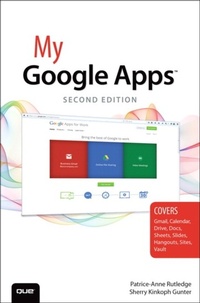
My Google Apps
2nd Edition
Published on 23. May 2015
384 pages
978-0-13-416516-5 (ISBN)
Description

My Google Apps Full-color, step-by-step tasks walk you through doing exactly what you want with Google Apps. Learn how to: Use Google Apps to reduce technology expenses and grow your business Choose the best Google Apps version for your needs Quickly activate and customize your account Give your users customized email that uses your domain, not gmail.com Connect Gmail to your smartphone so your email and schedule always go with you Create, format, edit, print, and collaborate on documents with Docs Track and analyze your data with Sheets Create presentations with Slides and present anywhere via the Internet Cut travel costs: run video meetings online with Google Hangouts Improve project collaboration with a shared Sites workspace Efficiently manage and share your schedule with Calendar Store and share your files for secure anytime/anywhere access Sync your files between your PC or Mac and Google Drive in the cloud Use Vault to archive content and activity for compliance or other legal reasons COVERS: Gmail, Calendar, Drive, Docs, Sheets, Slides, Hangouts, Sites, Vault Step-by-step instructions with callouts to new Google Apps screenshots that show you exactly what to do. Help when you run into Google Apps problems or limitations. Tips and Notes to help you get the most from Google Apps.
More details
Series
Edition
2nd edition
Language
English
Place of publication
Boston
United States
Publishing group
Pearson Education (US)
Target group
Professional and scholarly
ISBN-13
978-0-13-416516-5 (9780134165165)
Copyright in bibliographic data and cover images is held by Nielsen Book Services Limited or by the publishers or by their respective licensors: all rights reserved.
Schweitzer Classification
Other editions
Additional editions
Patrice-Anne Rutledge | Sherry Kinkoph Gunter
My Google Apps
Book
06/2015
2nd Edition
Que Corporation,U.S.
€42.89
Article exhausted; check for reprint
Content
- Intro
- About This eBook
- Title Page
- Copyright Page
- Contents at a Glance
- Table of Contents
- About the Authors
- Dedications
- Acknowledgments
- We Want to Hear from You!
- Reader Services
- Prologue. What Is Google Apps?
- Understanding Productivity Suites and Cloud Computing
- What Do I Get with Google Apps?
- Exploring the Benefits of Google Apps
- 1. Getting Started with Google Apps
- All About Google Apps
- Gmail
- Calendar
- Drive
- Docs
- Sheets
- Slides
- Hangouts
- Sites
- Vault
- More Apps
- What Do I Need to Get Started with Google Apps?
- Do You Have a Domain Name?
- What's Your Email Address?
- What's Your Favorite Browser?
- Signing Up for Google Apps
- Sign Up for Google Apps for Work
- Exploring the Admin Console
- Set Up Google Apps
- Add a User
- Add a User Photo
- Manage User Roles
- Upload Your Company Logo
- Signing In and Out
- Sign In
- Sign Out
- 2. Managing Email and Contacts with Gmail
- Exploring Gmail
- Sign In to Gmail
- Sign Out from Gmail
- Switch Between Gmail Features
- Expand and Collapse the Navigation Sidebar
- Working with Messages
- Compose a Message
- Reply to a Message
- Forward a Message
- Attach a File to a Message
- Download a File Attachment
- Insert a Photo
- Managing Messages
- Customize Inbox Tabs
- Create a New Label
- Apply a Label
- Move Messages
- Delete a Message
- Archive a Message
- Mark Messages
- Remove Spam
- Managing Contacts
- Add a Contact
- Edit Contacts
- Create a Group
- Working with Tasks
- Create a Task
- Make a New List
- Email a Task List
- Customizing Gmail
- Add a Signature
- Set Up an Automatic Reply
- Switching to Gmail from Other Services
- Move Mail from Another Account
- Import Contacts
- 3. Organizing Your Schedule with Calendar
- Exploring Calendar
- Change Your Calendar View
- Navigate Between Days, Weeks, and Months
- Work with the Calendar List
- Add a New Calendar
- Scheduling Events and Appointments
- Schedule an All-Day Event
- Add an Event
- Add an Event with Details
- Add an Event with Quick Add
- Schedule Time Slot Appointments
- Edit Calendar Items
- Working with Notifications
- Set Up a Notification
- Creating Tasks
- Add a Task
- Turn Tasks On or Off
- Manage Tasks
- Sharing Calendars
- Share Your Calendar
- Import a Calendar
- Export Calendars
- Enabling Mobile Notifications
- Register Your Mobile Phone
- 4. Storing and Sharing Files on Drive
- Exploring Drive
- Navigate Around Drive
- Change the View
- Uploading Files and Folders
- Upload a File
- Drag and Drop a File
- Upload a Folder
- Creating New Files
- Create a New File
- Managing Folders and Files
- Create a New Folder
- Move Files Between Folders
- Preview a File
- Open a File
- Delete Files
- Search Files
- Sort Files
- Download a File
- Sharing Files and Folders
- Share a File
- Edit User Access
- Specify Link Sharing Options
- Syncing Files
- Install Google Drive on Your Computer
- View Google Drive Folder Preferences
- 5. Creating Documents with Docs
- Opening Google Docs
- Creating a Document
- Create a Document from Google Drive
- Create a Document from Google Docs
- Create a Document from a Template
- Formatting Documents
- Select Text
- Apply a New Font and Font Size
- Apply a Style
- Customize and Save a Style
- Create Numbered and Bulleted Lists
- Use the Paint Format Tool
- Inserting Content in a Document
- Insert an Image
- Insert a Link
- Insert a Drawing
- Insert a Footnote
- Insert a Special Character
- Insert a Bookmark
- Insert a Table of Contents
- Insert a Table
- Managing Your Documents
- Open a Document
- View Revisions History
- Download a Document
- Find Text in a Document
- Replace Text in a Document
- Viewing Documents
- Collaborating on Documents
- Suggest Edits
- Manage Edits
- Add a Comment
- Work with Comments
- Using Google Docs Tools
- Perform a Spell Check
- Printing and Publishing Documents
- Specify Page Setup Parameters
- Print a Document
- Publish a Document to the Web
- Working with Add-ons
- Install an Add-on
- 6. Tracking and Analyzing Data with Sheets
- Getting Started with Google Sheets
- Creating a Spreadsheet
- Create a Spreadsheet from Google Drive
- Create a Spreadsheet from a Template
- Entering Spreadsheet Data
- Enter Sequential Data
- Formatting Spreadsheets
- Format Spreadsheet Content
- Wrap Text
- Apply Conditional Formatting
- Working with Sheets, Rows, and Columns
- Insert a New Sheet
- Work with Sheets
- Work with Rows and Columns
- Working with Formulas and Functions
- Enter a Formula Manually
- Copy a Formula
- Use the SUM Function
- Inserting Content in a Spreadsheet
- Insert a Chart
- Insert an Image
- Insert a Link
- Insert a Note
- Managing Your Spreadsheets
- Open a Spreadsheet
- Download a Spreadsheet
- Edit a Spreadsheet
- Specify View Options
- Delete a Spreadsheet
- Working with Spreadsheet Data
- Sort Data by Column
- Perform an Advanced Sort
- Apply a Filter
- Collaborating on Spreadsheets
- Add a Comment
- Work with Comments
- Printing and Publishing Spreadsheets
- Print a Spreadsheet
- Publish a Spreadsheet to the Web
- 7. Creating Presentations with Slides
- Getting Started with Google Slides
- Creating a Presentation
- Create a Presentation from Google Drive
- Create a Presentation from a Template
- Working with Slides
- Apply a Slide Layout
- Apply a Slide Background
- Apply a New Theme
- Add a Slide to Your Presentation
- Import Slides from Another Presentation
- Organize Slides
- Duplicate Slides
- Delete Slides
- Inserting Content in a Presentation
- Insert a Text Box
- Insert an Image
- Insert a Link
- Insert a Video
- Insert a Line
- Insert a Shape
- Insert a Table
- Formatting Presentations
- Apply a New Font and Font Size
- Create a Numbered List
- Create a Bulleted List
- Use the Paint Format Tool
- Working with Transitions and Animations
- Set Slide Transitions
- Animate Slide Objects
- Managing Your Presentations
- Open a Presentation
- Download a Presentation
- Delete a Presentation
- Edit Presentations
- Specify View Options
- Collaborating on Presentations
- Add a Comment
- Work with Comments
- Using Google Slides Tools
- Perform a Spell Check
- Printing and Publishing Presentations
- Specify Print Settings and Preview Your Presentation
- Publish a Presentation to the Web
- Delivering Your Presentation
- Create Speaker Notes
- Deliver Your Presentation
- 8. Communicating with Hangouts
- Exploring Hangouts
- Get Started with Hangouts
- Adding the Hangouts App
- Install the Hangouts App as a Plug-in
- Install the Desktop Hangouts App
- Enable the Hangouts App in Gmail
- Enable Google+ Premium Features
- Working with Chat Hangouts
- Start a Chat in Gmail
- Start a Chat in Hangouts
- Invite a New Contact
- Insert a Picture into Your Chat
- Archive Your Chat
- Video Conferencing with Hangouts
- Start a Video Call
- Answer a Video Call Invite
- Invite Someone to Your Video Chat
- Share Your Screen
- Open a Chat Pane
- Share a Google Drive File
- Play with Google Effects
- Take a Photo
- Phone Calling with Hangouts
- Place a Phone Call
- 9. Creating Websites with Sites
- Exploring Sites
- Benefits to Using Sites
- Touring Sites
- Building Sites
- Build a Basic Website
- Customizing Your Page
- Add Your Text
- Format Text
- Change the Layout
- Insert an Image
- Add a Link to Another Website
- Add a Gadget
- Adding Pages
- Page Types
- Add a Page
- Add Links to Subpages
- Reorganize Pages
- Sharing Your Site
- Share Your Site
- 10. Archiving with Vault
- Exploring Vault
- Adding the Vault App
- Add the Vault App
- Assign Licenses
- Open the Vault App
- Setting Retention Rules
- Set a Custom Retention Rule
- Set a Default Retention Rule
- Working with Matters
- Create a New Matter
- Add a Collaborator
- Creating Holds
- Create a Hold
- Searching Message Data
- Search for Data
- Exporting and Auditing Data
- Export Search Results
- Run an Audit Report
- 11. Exploring Other Google Tools
- Browsing the Web with Google Chrome
- Surf the Web
- Add a Bookmark
- Pin a Tab
- Working with Google Groups
- Enable Google Groups for Business
- Create a Group
- Invite People to a Group
- Start a Topic or Post
- Find Basic Permissions Settings
- Understanding Google My Business
- Enable Google+
- Build a Google My Business Page and Profile
- Index
