

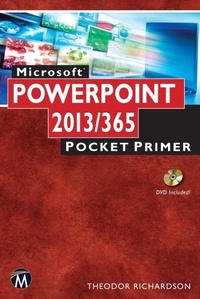
Microsoft PowerPoint 2013/365
Pocket Primer
1st Edition
Published on 25. May 2015
200 pages
978-1-942270-11-9 (ISBN)
Description

As part of the new Pocket Primer series, this book provides an overview of the major and tutorial videos to use PowerPoint. The book serves as a starting point for deeper exploration of PowerPoint. The focus of the book is on using the software package and creating dynamic and engaging presentations. Also included are instructions for Word 365, which includes both Word 2013 for Windows and Word 2011 for Macintosh.Features: Includes tutorial videos on the companion DVD Provides an overview of the most important PowerPoint techniques Contains PowerPoint graphics and animation effects
More details
Series
Language
English
Place of publication
Berlin
United States
Target group
Professional and scholarly
US School Grade: College Graduate Student
File size
6,92 MB
ISBN-13
978-1-942270-11-9 (9781942270119)
Copyright in bibliographic data and cover images is held by Nielsen Book Services Limited or by the publishers or by their respective licensors: all rights reserved.
Schweitzer Classification
Other editions
Additional editions
Book
11/2014
1st Edition
Mercury Learning & Information
€34.95
Article not available at the moment
Content
- Intro
- Title Page
- Copyright
- Dedication
- Contents
- Introduction
- Acknowledgments
- Chapter 1: Review of Basic Computing
- 1.1 Navigating the Desktop
- 1.2 Introduction to the Windows Operating System
- 1.2.1 Windows 7
- 1.2.2 Windows 8
- 1.2.3 The Windows Desktop
- 1.2.3.1 The Control Panel
- 1.2.3.2 Jump Lists
- 1.2.3.3 Task Manager
- 1.2.3.4 Libraries Feature
- 1.3 Introduction to Mac OS X
- 1.3.1 The Macintosh OS X Desktop
- 1.3.1.1 The Finder
- 1.3.1.2 The Dock
- 1.3.1.3 The Dashboard, Exposé, and Spaces
- 1.3.1.4 Force Quit
- 1.4 Organizing Files and Folders
- 1.4.1 Files and Folders in Windows
- 1.4.2 Files and Folders on a Mac
- 1.5 Working with Files on Your Computer
- 1.5.1 WordPad on Windows
- 1.5.2 TextEdit for Macintosh
- Chapter Summary
- Chapter Knowledge Check
- Practice Exercises
- Chapter 2: Microsoft OneDrive and Cloud Computing
- 2.1 Cloud Computing
- 2.2 Microsoft OneDrive
- 2.2.1 Creating a Microsoft Account
- 2.2.2 Uploading and Downloading Files
- 2.3 Integrating OneDrive with the Desktop
- 2.3.1 OneDrive on Windows 7
- 2.3.2 OneDrive on Windows 8
- 2.3.3 OneDrive on Mac OS X
- 2.4 Integrating OneDrive with Microsoft Office
- 2.5 Accessing OneDrive on a Remote Device
- 2.6 Alternate Cloud Computing Platforms
- 2.6.1 Google Drive
- 2.6.2 iCloud
- Chapter Summary
- Chapter Knowledge Check
- Practice Exercises
- Chapter 3: Introduction to PowerPoint and Presentation Software
- 3.1 Introduction to Presentation Software
- 3.1.1 The File Menu
- 3.1.2 Presentation File Management
- 3.1.3 Help Files
- 3.1.4 Productivity Shortcuts
- 3.1.5 The System Clipboard
- 3.2 Anatomy of Microsoft PowerPoint
- 3.2.1 Microsoft PowerPoint 2013
- 3.2.2 Microsoft PowerPoint 2011
- 3.2.3 Microsoft PowerPoint Web App
- 3.3 Diving into Presentations
- 3.3.1 Formatting Text
- 3.3.1.1 The Font Panel
- 3.3.1.2 The Paragraph Panel
- 3.3.1.3 Format Painter
- 3.3.2 Bullets and Numbering
- 3.3.3 Document Review
- 3.3.4 Find and Replace
- 3.3.5 Using Document Templates
- Chapter Summary
- Chapter Knowledge Check
- Practice Exercises
- Chapter 4: Developing Media Enhanced Presentations
- 4.1 Creating a Media Rich Presentation
- 4.1.1 Text Effects
- 4.1.2 Inserting and Formatting Shapes
- 4.1.3 Inserting, Manipulating, and Cropping Images
- 4.1.4 Arranging, Linking, and Grouping Elements
- 4.1.5 Adding Text and Hyperlinks
- 4.1.6 Adding Actions
- 4.1.7 Inserting Screenshots
- 4.2 Clip Art
- 4.2.1 Clip Art in Office 2013
- 4.2.2 Clip Art in Office 2011
- 4.2.3 Getting Clip Art from Office.com
- 4.2.4 Handling Clip Art
- 4.3 Sorting Slides
- 4.4 Transitions
- Chapter Summary
- Chapter Knowledge Check
- Practice Exercises
- Chapter 5: Creating Effective Presentations
- 5.1 Writing Your Value Proposition
- 5.2 Establishing a Visual Style
- 5.2.1 Modifying the Slide Master
- 5.2.2 Planning Your Design
- 5.2.3 Assigning a Theme
- 5.2.4 Colors, Fonts, and Effects
- 5.2.5 Bullets and Numbering in the Slide Master
- 5.2.6 Adding and Formatting Slide Footers
- 5.2.7 Formatting Text on the Slide Master
- 5.2.8 Branding Your Slides
- 5.3 Constructing an Effective Presentation
- 5.3.1 Outlining
- 5.3.1.1 Adding Slide Notes
- 5.3.1.2 Best Practices for Outlining
- 5.3.2 Grabbing Attention in Your First Slide
- 5.3.3 Build the Need for Your Presentation
- 5.3.4 Present Your Main Contribution
- 5.3.4.1 Effective Visualization
- 5.3.4.2 Modifying Layouts
- 5.3.4.3 Tips for Success
- 5.3.5 Summarize and Conclude
- 5.4 Presenting Your Masterpiece
- 5.4.1 Live Presentations
- 5.4.2 Recording Narration
- 5.4.3 Sharing Your Presentation
- Chapter Summary
- Chapter Knowledge Check
- Practice Exercises
- Chapter 6: Adding Complex Media in Presentation Software
- 6.1 Adding Advanced Media
- 6.1.1 Sound and Video
- 6.1.2 Tables
- 6.1.3 SmartArt
- 6.2 Charts
- 6.2.1 Adding Charts in PowerPoint
- 6.2.2 Chart Types
- 6.2.3 Column Charts
- 6.2.4 Line Charts
- 6.2.5 Pie Charts
- 6.2.6 Bar
- 6.2.7 Area
- 6.2.8 Scatter
- 6.3 Animations
- Chapter Summary
- Chapter Knowledge Check
- Practice Exercises
- Chapter 7: Advanced Features of Presentation Software
- 7.1 Creating Handouts
- 7.1.1 Modifying the Handout Master
- 7.1.2 Modifying the Notes Master
- 7.2 Editing Presentations
- 7.2.1 Opening and Editing Existing Presentations
- 7.2.2 Slide Setup and Slide Orientation
- 7.2.3 Creating a Custom Layout
- 7.2.4 Hiding and Showing Slides
- 7.3 Optimizing and Exporting Images from Slides
- 7.3.1 Compressing Images
- 7.3.2 Exporting Slides as Images
- 7.3.3 Common Image Formats
- Chapter Summary
- Chapter Knowledge Check
- Practice Exercises
- Index
