


Getting Started with BeagleBone
Linux-Powered Electronic Projects With Python and JavaScript
1st Edition
Published on 4. October 2013
142 pages
978-1-4493-4533-4 (ISBN)
Description

Many people think of Linux as a computer operating system, running on users' desktops and powering servers. But Linux can also be found inside many consumer electronics devices. Whether they're the brains of a cell phone, cable box, or exercise bike, embedded Linux systems blur the distinction between computer and device. Many makers love microcontroller platforms such as Arduino, but as the complexity increases in their projects, they need more power for applications, such as computer vision. The BeagleBone is an embedded Linux board for makers. It's got built-in networking, many inputs and outputs, and a fast processor to handle demanding tasks. This book introduces you to both the original BeagleBone and the new BeagleBone Black and gets you started with projects that take advantage of the board's processing power and its ability to interface with the outside world.
More details
Other editions
Additional editions
Matt Richardson
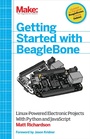
Getting Started with BeagleBone
Linux-Powered Electronic Projects With Python and JavaScript
Book
11/2013
1st Edition
Make Community, LLC
€14.50
Shipment within 10-20 days
Content
- Intro
- Copyright
- Table of Contents
- Foreword
- Preface
- Conventions Used in This Book
- Using Code Examples
- Safari® Books Online
- How to Contact Us
- Content Updates
- August, 2014
- Acknowledgements
- Chapter 1. Embedded Linux for Makers
- Why Use BeagleBone?
- Intended Audience
- Feedback
- Chapter 2. The Basics and Getting Set Up
- Tour of the Board
- What You Need
- The Operating System
- Connecting to Your BeagleBone
- Connecting via USB and Installing Drivers
- Connecting via SSH over USB
- Connecting via SSH over Ethernet
- Using a Keyboard, Monitor, and Mouse
- Connecting via Serial over USB
- Chapter 3. Getting Around with Linux
- The Command Line
- Filesystem
- Changing Directories
- Listing the Contents of Directories
- Creating Files and Directories
- Copying, Moving, and Renaming Files
- Deleting Files and Directories
- Setup
- Date and Time
- Software Installation, Updates
- Changing the Hostname
- Setting a Password
- Shutting Down
- Chapter 4. First Steps with Digital Electronics
- Connect an LED
- Output
- Input
- Project: Networked Outlet Timer
- Parts
- Wire up the Circuit
- Test the Circuit
- Create the Shell Scripts
- Scheduling the Scripts
- A Crash Course in Cron
- Chapter 5. Python Pin Control
- Installing Adafruit's BeagleBone IO Python Library
- Blinking an LED with Python
- Connect the LED
- Write the Code
- Executable Scripts
- Reading a Button with Python
- Connect the Button
- Write the Code
- Reading an Analog Input
- Connecting a Potentiometer
- Writing the Code
- Analog Output (PWM)
- Connect the LED
- Write the Code
- Taking it Further
- Chapter 6. Putting Python Projects Online
- Sending an Email Alert
- Functions in Python
- The Email Function
- The Door Sensor
- The Code
- Web Interface
- First Steps with Flask
- Templates with Flask
- Combining Flask and GPIO
- Going Further with Flask
- Data Logging with Xively
- Connecting the Temperature Sensor
- Connecting to Xively
- Taking it Further
- Chapter 7. Bonescript
- The Cloud9 IDE
- Beginning BoneScript
- Blinking an LED
- Reading a Digital Input
- Analog Input
- PWM
- Running JavaScript Files from the Command Line
- Setting Scripts as Executable
- Setting JavaScript Files to Run Automatically
- BoneScript Reference
- Chapter 8. Using the Desktop Environment
- Accessing the Desktop
- Getting to the Terminal
- Using the Terminal Application
- Switching Terminals
- Navigating the Filesystem
- Editing Text
- Executing Scripts
- Switching Workspaces
- Connecting to the Desktop Remotely with VNC
- Chapter 9. Taking It Further
- Getting Help
- Getting Inspired
- Sharing Projects
- Having Fun
- Appendix A. Installing a Fresh Operating System Image
- On OS X
- On Windows
- On Linux
- Flashing the eMMC
- Appendix B. Setting up System Services
- Creating a Service File
- Enabling and Starting the Service
- Disabling and Stopping the Service
- Checking the Status of a Service
- Appendix C. Quick Reference: GPIO
- GPIO with the Filesystem
- GPIO with Python
- GPIO with Node.js
- GPIO Pins
- About the Author
