

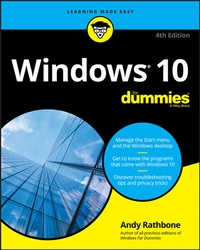
Windows 10 For Dummies
4th Edition
Published on 24. July 2020
464 pages
978-1-119-67938-7 (ISBN)
Description

Time-tested advice on Windows 10
Windows 10 For Dummies remains the #1 source for readers looking for advice on Windows 10. Expert author Andy Rathbone provides an easy-to-follow guidebook to understanding Windows 10 and getting things done based on his decades of experience as a Windows guru.
Look inside to get a feel for the basics of the Windows interface, the Windows apps that help you get things done, ways to connect to the Internet at home or on the go, and steps for customizing your Windows 10 experience from the desktop wallpaper to how tightly you secure your computer.
* Manage user accounts
* Customize the start menu
* Find and manage your files
* Connect to a printer wirelessly
Revised to cover the latest round of Windows 10 updates, this trusted source for unleashing everything the operating system has to offer is your first and last stop for learning the basics of Windows!
Windows 10 For Dummies remains the #1 source for readers looking for advice on Windows 10. Expert author Andy Rathbone provides an easy-to-follow guidebook to understanding Windows 10 and getting things done based on his decades of experience as a Windows guru.
Look inside to get a feel for the basics of the Windows interface, the Windows apps that help you get things done, ways to connect to the Internet at home or on the go, and steps for customizing your Windows 10 experience from the desktop wallpaper to how tightly you secure your computer.
* Manage user accounts
* Customize the start menu
* Find and manage your files
* Connect to a printer wirelessly
Revised to cover the latest round of Windows 10 updates, this trusted source for unleashing everything the operating system has to offer is your first and last stop for learning the basics of Windows!
More details
Other editions
Additional editions
Person
Andy Rathbone is a respected Windows guru whose expertise has been helping Windows users for more than 25 years. He is the author of all editions of Windows For Dummies, which has sold millions of copies and is the bestselling computer how-to book of all time. Andy answers Windows questions and shares insight at www.andyrathbone.com.
Content
1 - Title Page [Seite 3]
2 - Copyright Page [Seite 4]
3 - Table of Contents [Seite 7]
4 - Introduction [Seite 15]
4.1 - About This Book [Seite 16]
4.2 - How to Use This Book [Seite 17]
4.3 - Touchscreen Owners Aren't Left Out [Seite 18]
4.4 - And What about You? [Seite 19]
4.5 - Icons Used in This Book [Seite 19]
4.6 - Beyond the Book [Seite 20]
4.7 - Where to Go from Here [Seite 20]
5 - Part 1 Windows 10 Stuff Everybody Thinks You Already Know [Seite 21]
5.1 - Chapter 1 What Is Windows 10? [Seite 23]
5.1.1 - What Is Windows, and Why Are You Using It? [Seite 23]
5.1.2 - What's New in Windows 10? [Seite 26]
5.1.3 - What's So Different about Windows 10? [Seite 29]
5.1.4 - Why Does Windows 10 Keep Changing? [Seite 30]
5.1.5 - Can My Current PC Still Run Windows 10? [Seite 31]
5.1.6 - The Different Flavors of Windows 10 [Seite 32]
5.2 - Chapter 2 Starting with the Start Menu [Seite 33]
5.2.1 - Being Welcomed to the World of Windows [Seite 34]
5.2.1.1 - Understanding user accounts [Seite 36]
5.2.1.2 - Keeping your account private and secure [Seite 37]
5.2.1.3 - Signing up for a Microsoft account [Seite 40]
5.2.2 - Figuring Out the Windows 10 Start Menu [Seite 41]
5.2.2.1 - Toggling between Tablet and Desktop mode [Seite 44]
5.2.2.2 - Launching a Start menu program or app [Seite 45]
5.2.2.3 - Finding something on the Start menu [Seite 47]
5.2.2.4 - Viewing, closing, or returning to apps [Seite 48]
5.2.2.5 - Getting to know your free apps [Seite 49]
5.2.2.6 - Adding or removing Start menu items [Seite 52]
5.2.2.7 - Customizing the Start menu [Seite 53]
5.2.3 - Exiting from Windows [Seite 58]
5.2.3.1 - Temporarily leaving your computer [Seite 58]
5.2.3.2 - Leaving your computer for the day [Seite 60]
5.3 - Chapter 3 The Traditional Desktop [Seite 63]
5.3.1 - Finding the Desktop and the Start Menu [Seite 64]
5.3.2 - Working with the Desktop [Seite 65]
5.3.2.1 - Launching apps with the Start menu [Seite 67]
5.3.2.2 - Jazzing up the desktop's background [Seite 68]
5.3.2.3 - Toggling between Tablet mode and the desktop [Seite 70]
5.3.2.4 - Dumpster diving in the Recycle Bin [Seite 72]
5.3.3 - Bellying Up to the Taskbar [Seite 73]
5.3.3.1 - Shrinking windows to the taskbar and retrieving them [Seite 75]
5.3.3.2 - Switching to different tasks from the taskbar's Jump Lists [Seite 76]
5.3.3.3 - Clicking the taskbar's sensitive areas [Seite 76]
5.3.3.4 - Opening the Action Center [Seite 80]
5.3.3.5 - Customizing the taskbar [Seite 81]
5.3.4 - Setting Up Virtual Desktops [Seite 83]
5.3.5 - Making Programs Easier to Find [Seite 86]
5.4 - Chapter 4 Basic Desktop Window Mechanics [Seite 89]
5.4.1 - Dissecting a Typical Desktop Window [Seite 90]
5.4.1.1 - Tugging on a window's title bar [Seite 91]
5.4.1.2 - Navigating folders with a window's Address bar [Seite 93]
5.4.1.3 - Finding commands on the Ribbon [Seite 94]
5.4.1.4 - Quick shortcuts with the Navigation Pane [Seite 96]
5.4.1.5 - Moving inside a window with its scroll bar [Seite 98]
5.4.1.6 - Boring borders [Seite 99]
5.4.2 - Maneuvering Windows around the Desktop [Seite 100]
5.4.2.1 - Moving a window to the top of the pile [Seite 100]
5.4.2.2 - Moving a window from here to there [Seite 101]
5.4.2.3 - Making a window fill the whole desktop [Seite 101]
5.4.2.4 - Closing a window [Seite 102]
5.4.2.5 - Making a window bigger or smaller [Seite 102]
5.4.2.6 - Placing two windows side by side [Seite 103]
5.4.2.7 - Making windows open to the same darn size [Seite 104]
5.5 - Chapter 5 Storage: Internal, External, and in the Cloud [Seite 105]
5.5.1 - Browsing the File Explorer File Cabinets [Seite 106]
5.5.2 - Getting the Lowdown on Folders [Seite 110]
5.5.3 - Peering into Your Drives, Folders, and Other Media [Seite 111]
5.5.3.1 - Seeing the files on a drive [Seite 111]
5.5.3.2 - Seeing what's inside a folder [Seite 114]
5.5.4 - Creating a New Folder [Seite 115]
5.5.5 - Renaming a File or Folder [Seite 117]
5.5.6 - Selecting Bunches of Files or Folders [Seite 118]
5.5.7 - Getting Rid of a File or Folder [Seite 119]
5.5.8 - Copying or Moving Files and Folders [Seite 120]
5.5.9 - Seeing More Information about Files and Folders [Seite 122]
5.5.10 - Writing to CDs and DVDs [Seite 125]
5.5.10.1 - Buying the right kind of blank CDs and DVDs for burning [Seite 125]
5.5.10.2 - Copying files to or from a CD or DVD [Seite 126]
5.5.11 - Working with Flash Drives and Memory Cards [Seite 129]
5.5.12 - OneDrive: Your Cubbyhole in the Clouds [Seite 130]
5.5.12.1 - Setting up OneDrive [Seite 131]
5.5.12.2 - Changing your OneDrive settings [Seite 134]
5.5.12.3 - Opening and saving files from OneDrive [Seite 136]
5.5.12.4 - Customizing OneDrive for different devices with OneDrive Files On Demand [Seite 137]
5.5.12.5 - Accessing OneDrive from the Internet [Seite 140]
6 - Part 2 Working with Programs, Apps, and Files [Seite 143]
6.1 - Chapter 6 Playing with Programs, Apps, and Documents [Seite 145]
6.1.1 - Starting a Program or an App [Seite 146]
6.1.2 - Opening a Document [Seite 148]
6.1.3 - Saving a Document [Seite 150]
6.1.4 - Choosing Which Program Should Open Which File [Seite 152]
6.1.5 - Navigating the Microsoft Store [Seite 155]
6.1.5.1 - Adding new apps from the Store app [Seite 156]
6.1.5.2 - Uninstalling apps [Seite 159]
6.1.6 - Taking the Lazy Way with a Desktop Shortcut [Seite 160]
6.1.7 - Absolutely Essential Guide to Cutting, Copying, and Pasting [Seite 161]
6.1.7.1 - The quick 'n' dirty guide to cut 'n' paste [Seite 162]
6.1.7.2 - Selecting things to cut or copy [Seite 162]
6.1.7.3 - Cutting or copying your selected goods [Seite 163]
6.1.7.4 - Pasting information to another place [Seite 165]
6.2 - Chapter 7 Finding the Lost [Seite 167]
6.2.1 - Finding Currently Running Apps and Programs [Seite 167]
6.2.2 - Finding Lost Windows on the Desktop [Seite 169]
6.2.3 - Locating a Missing App, Program, Setting, or File [Seite 170]
6.2.4 - Searching with Cortana [Seite 173]
6.2.4.1 - Asking Cortana questions [Seite 174]
6.2.5 - Finding a Missing File inside a Folder [Seite 175]
6.2.6 - Finding Lost Photos [Seite 178]
6.2.7 - Finding Other Computers on a Network [Seite 178]
6.3 - Chapter 8 Printing and Scanning Your Work [Seite 181]
6.3.1 - Printing from a Start Menu App [Seite 182]
6.3.2 - Printing Your Masterpiece from the Desktop [Seite 184]
6.3.2.1 - Adjusting how your work fits on the page [Seite 185]
6.3.2.2 - Adjusting your printer's settings [Seite 187]
6.3.2.3 - Canceling a print job [Seite 189]
6.3.2.4 - Printing a web page [Seite 190]
6.3.2.5 - Troubleshooting your printer [Seite 192]
6.3.3 - Scanning from the Start Menu [Seite 194]
7 - Part 3 Getting Things Done on the Internet [Seite 197]
7.1 - Chapter 9 Cruising the Web [Seite 199]
7.1.1 - What's an ISP, and Why Do I Need One? [Seite 200]
7.1.2 - Connecting Wirelessly to the Internet [Seite 201]
7.1.3 - Browsing the Web with Microsoft Edge [Seite 204]
7.1.3.1 - Moving from one web page to another [Seite 206]
7.1.3.2 - Making Microsoft Edge open to your favorite site [Seite 207]
7.1.3.3 - Revisiting favorite places [Seite 209]
7.1.3.4 - Finding things on the Internet [Seite 210]
7.1.4 - Finding More Information on a Website [Seite 211]
7.1.5 - Saving Information from the Internet [Seite 212]
7.1.5.1 - Saving a web page [Seite 212]
7.1.5.2 - Saving text [Seite 213]
7.1.5.3 - Saving a picture [Seite 213]
7.1.5.4 - Downloading a program, song, or other type of file [Seite 214]
7.2 - Chapter 10 Being Social: Mail, People, and Calendar [Seite 215]
7.2.1 - Adding Your Accounts to Windows [Seite 216]
7.2.2 - Understanding the Mail App [Seite 218]
7.2.2.1 - Switching among the Mail app's views, menus, and accounts [Seite 218]
7.2.2.2 - Composing and sending an email [Seite 221]
7.2.2.3 - Reading a received email [Seite 223]
7.2.2.4 - Sending and receiving files through email [Seite 225]
7.2.3 - Managing Your Contacts in the People App [Seite 227]
7.2.3.1 - Adding contacts [Seite 229]
7.2.3.2 - Deleting or editing contacts [Seite 230]
7.2.4 - Managing Appointments in Calendar [Seite 231]
7.3 - Chapter 11 Safe Computing [Seite 235]
7.3.1 - Understanding Those Annoying Permission Messages [Seite 235]
7.3.2 - Staying Safe with the New Windows Security Center [Seite 236]
7.3.2.1 - Avoiding and removing viruses [Seite 238]
7.3.2.2 - Avoiding phishing scams [Seite 240]
7.3.2.3 - Setting up controls for children [Seite 242]
8 - Part 4 Customizing and Upgrading Windows 10 [Seite 247]
8.1 - Chapter 12 Customizing Settings in Windows [Seite 249]
8.1.1 - Finding the Right Switch [Seite 250]
8.1.2 - Flipping Switches with the Windows Settings App [Seite 251]
8.1.2.1 - System [Seite 252]
8.1.2.2 - Devices (adjusting mice, keyboards, scanners, and other gadgets) [Seite 258]
8.1.2.3 - Phone [Seite 262]
8.1.2.4 - Network & Internet [Seite 264]
8.1.2.5 - Personalization (changing your PC's look and feel) [Seite 264]
8.1.2.6 - Apps [Seite 269]
8.1.2.7 - Accounts [Seite 270]
8.1.2.8 - Time & Language [Seite 271]
8.1.2.9 - Gaming [Seite 272]
8.1.2.10 - Ease of Access [Seite 272]
8.1.2.11 - Search [Seite 274]
8.1.2.12 - Privacy [Seite 274]
8.1.2.13 - Update & Security [Seite 275]
8.2 - Chapter 13 Keeping Windows from Breaking [Seite 277]
8.2.1 - Backing Up Your Computer with File History [Seite 278]
8.2.2 - Finding Technical Information about Your Computer [Seite 282]
8.2.3 - Freeing Up Space on Your Hard Drive [Seite 284]
8.2.4 - Setting Up Devices That Don't Work (Fiddling with Drivers) [Seite 286]
8.3 - Chapter 14 Sharing One Computer with Several People [Seite 289]
8.3.1 - Understanding User Accounts [Seite 290]
8.3.2 - Changing or Adding User Accounts [Seite 291]
8.3.2.1 - Adding an account for a family member or friend [Seite 292]
8.3.2.2 - Changing existing accounts [Seite 296]
8.3.3 - Switching Quickly between Users [Seite 297]
8.3.4 - Changing a User Account's Picture [Seite 299]
8.3.5 - Setting Up Passwords and Security [Seite 301]
8.3.6 - Signing in with Windows Hello [Seite 303]
8.4 - Chapter 15 Connecting Computers with a Network [Seite 307]
8.4.1 - Understanding a Network's Parts [Seite 308]
8.4.2 - Setting Up a Small Network [Seite 310]
8.4.2.1 - Buying parts for a network [Seite 310]
8.4.2.2 - Setting up a wireless router [Seite 311]
8.4.2.3 - Setting up Windows computers to connect to a network [Seite 312]
8.4.3 - Sharing Files with Your Networked Computers [Seite 314]
8.4.3.1 - Setting your home network to private [Seite 314]
8.4.3.2 - Sharing files and folders on your private network [Seite 317]
8.4.3.3 - Accessing what others have shared [Seite 319]
8.4.3.4 - Sharing a printer on the network [Seite 321]
8.4.4 - Sharing with Nearby Sharing [Seite 321]
8.4.4.1 - Turning on Nearby Sharing [Seite 322]
8.4.4.2 - Sharing files with Nearby Sharing [Seite 323]
9 - Part 5 Music, Photos, and Videos [Seite 325]
9.1 - Chapter 16 Playing and Copying Music [Seite 327]
9.1.1 - Playing Music with the Groove Music app [Seite 328]
9.1.2 - Handing Music-Playing Chores Back to Windows Media Player [Seite 331]
9.1.3 - Stocking the Windows Media Player Library [Seite 334]
9.1.4 - Browsing Windows Media Player's Libraries [Seite 337]
9.1.5 - Playing Music Files in a Playlist [Seite 340]
9.1.6 - Controlling Your Now Playing Items [Seite 341]
9.1.7 - Playing CDs [Seite 343]
9.1.8 - Playing DVDs [Seite 344]
9.1.9 - Playing Videos and TV Shows [Seite 344]
9.1.10 - Creating, Saving, and Editing Playlists [Seite 346]
9.1.11 - Ripping (Copying) CDs to Your PC [Seite 347]
9.1.12 - Burning (Creating) Music CDs [Seite 349]
9.2 - Chapter 17 Fiddling with Photos (and Videos) [Seite 351]
9.2.1 - Dumping Photos from a Phone or Camera to Your Computer [Seite 352]
9.2.2 - Taking Photos with the Camera App [Seite 355]
9.2.3 - Linking Your Phone with Your PC through the Your Phone App [Seite 357]
9.2.4 - Viewing Photos with the Photos App [Seite 359]
9.2.4.1 - Viewing your photo collection [Seite 360]
9.2.4.2 - Viewing photo albums [Seite 363]
9.2.4.3 - Viewing a slideshow [Seite 365]
9.2.4.4 - Copying digital photos to a CD or DVD [Seite 366]
10 - Part 6 Help! [Seite 369]
10.1 - Chapter 18 The Case of the Broken Window [Seite 371]
10.1.1 - Toggling between Tablet and Desktop Mode [Seite 372]
10.1.2 - The Magic Fixes in Windows [Seite 373]
10.1.2.1 - Resetting your computer [Seite 373]
10.1.2.2 - Restoring backups with File History [Seite 377]
10.1.3 - Windows Keeps Asking Me for Permission [Seite 381]
10.1.4 - I Need to Retrieve Deleted Files [Seite 383]
10.1.5 - I Need to Fix Broken Apps [Seite 383]
10.1.6 - My Settings Are Messed Up [Seite 384]
10.1.7 - I Forgot My Password [Seite 386]
10.1.8 - My Computer Is Frozen Solid [Seite 387]
10.2 - Chapter 19 Strange Messages: What You Did Does Not Compute [Seite 389]
10.2.1 - Add Your Microsoft Account [Seite 390]
10.2.2 - Choose What Happens with This Device [Seite 390]
10.2.3 - Did You Mean to Switch Apps? [Seite 391]
10.2.4 - Do You Want to Allow This App to Make Changes to Your Device? [Seite 392]
10.2.5 - Do You Want to Save Changes? [Seite 393]
10.2.6 - How Do You Want to Open This? [Seite 393]
10.2.7 - Threats Found [Seite 394]
10.2.8 - How Do You Want to Open This File? [Seite 395]
10.2.9 - We're Not Allowed to Find You [Seite 396]
10.2.10 - Reconnect Your Drive [Seite 396]
10.2.11 - You Don't Currently Have Permission to Access This Folder [Seite 397]
10.3 - Chapter 20 Moving from an Old PC to a New Windows 10 PC [Seite 399]
10.3.1 - Hiring a Third Party to Make the Move [Seite 400]
10.3.1.1 - Buying Laplink's PCmover program [Seite 400]
10.3.1.2 - Visiting a repair shop [Seite 402]
10.3.2 - Transferring Files Yourself [Seite 403]
10.4 - Chapter 21 Help on the Windows Help System [Seite 407]
10.4.1 - Getting Started with Windows 10 [Seite 408]
10.4.2 - Contacting Support [Seite 409]
10.4.2.1 - Microsoft's paid support options [Seite 410]
10.4.2.2 - Microsoft's free support options [Seite 410]
11 - Part 7 The Part of Tens [Seite 415]
11.1 - Chapter 22 Ten Things You'll Hate about Windows 10 (and How to Fix Them) [Seite 417]
11.1.1 - Windows 10 Keeps Changing! [Seite 417]
11.1.2 - I Want to Avoid the Apps! [Seite 418]
11.1.2.1 - Pruning apps from the Start menu and your PC [Seite 418]
11.1.2.2 - Telling desktop programs, not apps, to open your files [Seite 420]
11.1.3 - I Want to Avoid the Desktop! [Seite 421]
11.1.4 - I Don't Want a Microsoft Account [Seite 422]
11.1.5 - Windows Makes Me Sign in All the Time [Seite 422]
11.1.6 - The Taskbar Keeps Disappearing [Seite 423]
11.1.7 - I Can't Line Up Two Windows on the Screen [Seite 424]
11.1.8 - It Won't Let Me Do Something Unless I'm an Administrator! [Seite 425]
11.1.9 - I Don't Know What Version of Windows I Have [Seite 426]
11.1.10 - My Print Screen Key Doesn't Work [Seite 426]
11.2 - Chapter 23 Ten or So Tips for Tablet and Laptop Owners [Seite 429]
11.2.1 - Turning on Tablet Mode [Seite 430]
11.2.2 - Switching to Airplane Mode [Seite 431]
11.2.3 - Connecting to a New Wireless Internet Network [Seite 432]
11.2.4 - Toggling Your Tablet's Screen Rotation [Seite 433]
11.2.5 - Adjusting to Different Locations [Seite 434]
11.2.6 - Backing Up Your Laptop before Traveling [Seite 435]
11.2.7 - Accessing the Mobility Center [Seite 436]
11.2.8 - Turning Calculator into a Road Warrior Tool [Seite 436]
12 - Index [Seite 439]
13 - EULA [Seite 467]
2 - Copyright Page [Seite 4]
3 - Table of Contents [Seite 7]
4 - Introduction [Seite 15]
4.1 - About This Book [Seite 16]
4.2 - How to Use This Book [Seite 17]
4.3 - Touchscreen Owners Aren't Left Out [Seite 18]
4.4 - And What about You? [Seite 19]
4.5 - Icons Used in This Book [Seite 19]
4.6 - Beyond the Book [Seite 20]
4.7 - Where to Go from Here [Seite 20]
5 - Part 1 Windows 10 Stuff Everybody Thinks You Already Know [Seite 21]
5.1 - Chapter 1 What Is Windows 10? [Seite 23]
5.1.1 - What Is Windows, and Why Are You Using It? [Seite 23]
5.1.2 - What's New in Windows 10? [Seite 26]
5.1.3 - What's So Different about Windows 10? [Seite 29]
5.1.4 - Why Does Windows 10 Keep Changing? [Seite 30]
5.1.5 - Can My Current PC Still Run Windows 10? [Seite 31]
5.1.6 - The Different Flavors of Windows 10 [Seite 32]
5.2 - Chapter 2 Starting with the Start Menu [Seite 33]
5.2.1 - Being Welcomed to the World of Windows [Seite 34]
5.2.1.1 - Understanding user accounts [Seite 36]
5.2.1.2 - Keeping your account private and secure [Seite 37]
5.2.1.3 - Signing up for a Microsoft account [Seite 40]
5.2.2 - Figuring Out the Windows 10 Start Menu [Seite 41]
5.2.2.1 - Toggling between Tablet and Desktop mode [Seite 44]
5.2.2.2 - Launching a Start menu program or app [Seite 45]
5.2.2.3 - Finding something on the Start menu [Seite 47]
5.2.2.4 - Viewing, closing, or returning to apps [Seite 48]
5.2.2.5 - Getting to know your free apps [Seite 49]
5.2.2.6 - Adding or removing Start menu items [Seite 52]
5.2.2.7 - Customizing the Start menu [Seite 53]
5.2.3 - Exiting from Windows [Seite 58]
5.2.3.1 - Temporarily leaving your computer [Seite 58]
5.2.3.2 - Leaving your computer for the day [Seite 60]
5.3 - Chapter 3 The Traditional Desktop [Seite 63]
5.3.1 - Finding the Desktop and the Start Menu [Seite 64]
5.3.2 - Working with the Desktop [Seite 65]
5.3.2.1 - Launching apps with the Start menu [Seite 67]
5.3.2.2 - Jazzing up the desktop's background [Seite 68]
5.3.2.3 - Toggling between Tablet mode and the desktop [Seite 70]
5.3.2.4 - Dumpster diving in the Recycle Bin [Seite 72]
5.3.3 - Bellying Up to the Taskbar [Seite 73]
5.3.3.1 - Shrinking windows to the taskbar and retrieving them [Seite 75]
5.3.3.2 - Switching to different tasks from the taskbar's Jump Lists [Seite 76]
5.3.3.3 - Clicking the taskbar's sensitive areas [Seite 76]
5.3.3.4 - Opening the Action Center [Seite 80]
5.3.3.5 - Customizing the taskbar [Seite 81]
5.3.4 - Setting Up Virtual Desktops [Seite 83]
5.3.5 - Making Programs Easier to Find [Seite 86]
5.4 - Chapter 4 Basic Desktop Window Mechanics [Seite 89]
5.4.1 - Dissecting a Typical Desktop Window [Seite 90]
5.4.1.1 - Tugging on a window's title bar [Seite 91]
5.4.1.2 - Navigating folders with a window's Address bar [Seite 93]
5.4.1.3 - Finding commands on the Ribbon [Seite 94]
5.4.1.4 - Quick shortcuts with the Navigation Pane [Seite 96]
5.4.1.5 - Moving inside a window with its scroll bar [Seite 98]
5.4.1.6 - Boring borders [Seite 99]
5.4.2 - Maneuvering Windows around the Desktop [Seite 100]
5.4.2.1 - Moving a window to the top of the pile [Seite 100]
5.4.2.2 - Moving a window from here to there [Seite 101]
5.4.2.3 - Making a window fill the whole desktop [Seite 101]
5.4.2.4 - Closing a window [Seite 102]
5.4.2.5 - Making a window bigger or smaller [Seite 102]
5.4.2.6 - Placing two windows side by side [Seite 103]
5.4.2.7 - Making windows open to the same darn size [Seite 104]
5.5 - Chapter 5 Storage: Internal, External, and in the Cloud [Seite 105]
5.5.1 - Browsing the File Explorer File Cabinets [Seite 106]
5.5.2 - Getting the Lowdown on Folders [Seite 110]
5.5.3 - Peering into Your Drives, Folders, and Other Media [Seite 111]
5.5.3.1 - Seeing the files on a drive [Seite 111]
5.5.3.2 - Seeing what's inside a folder [Seite 114]
5.5.4 - Creating a New Folder [Seite 115]
5.5.5 - Renaming a File or Folder [Seite 117]
5.5.6 - Selecting Bunches of Files or Folders [Seite 118]
5.5.7 - Getting Rid of a File or Folder [Seite 119]
5.5.8 - Copying or Moving Files and Folders [Seite 120]
5.5.9 - Seeing More Information about Files and Folders [Seite 122]
5.5.10 - Writing to CDs and DVDs [Seite 125]
5.5.10.1 - Buying the right kind of blank CDs and DVDs for burning [Seite 125]
5.5.10.2 - Copying files to or from a CD or DVD [Seite 126]
5.5.11 - Working with Flash Drives and Memory Cards [Seite 129]
5.5.12 - OneDrive: Your Cubbyhole in the Clouds [Seite 130]
5.5.12.1 - Setting up OneDrive [Seite 131]
5.5.12.2 - Changing your OneDrive settings [Seite 134]
5.5.12.3 - Opening and saving files from OneDrive [Seite 136]
5.5.12.4 - Customizing OneDrive for different devices with OneDrive Files On Demand [Seite 137]
5.5.12.5 - Accessing OneDrive from the Internet [Seite 140]
6 - Part 2 Working with Programs, Apps, and Files [Seite 143]
6.1 - Chapter 6 Playing with Programs, Apps, and Documents [Seite 145]
6.1.1 - Starting a Program or an App [Seite 146]
6.1.2 - Opening a Document [Seite 148]
6.1.3 - Saving a Document [Seite 150]
6.1.4 - Choosing Which Program Should Open Which File [Seite 152]
6.1.5 - Navigating the Microsoft Store [Seite 155]
6.1.5.1 - Adding new apps from the Store app [Seite 156]
6.1.5.2 - Uninstalling apps [Seite 159]
6.1.6 - Taking the Lazy Way with a Desktop Shortcut [Seite 160]
6.1.7 - Absolutely Essential Guide to Cutting, Copying, and Pasting [Seite 161]
6.1.7.1 - The quick 'n' dirty guide to cut 'n' paste [Seite 162]
6.1.7.2 - Selecting things to cut or copy [Seite 162]
6.1.7.3 - Cutting or copying your selected goods [Seite 163]
6.1.7.4 - Pasting information to another place [Seite 165]
6.2 - Chapter 7 Finding the Lost [Seite 167]
6.2.1 - Finding Currently Running Apps and Programs [Seite 167]
6.2.2 - Finding Lost Windows on the Desktop [Seite 169]
6.2.3 - Locating a Missing App, Program, Setting, or File [Seite 170]
6.2.4 - Searching with Cortana [Seite 173]
6.2.4.1 - Asking Cortana questions [Seite 174]
6.2.5 - Finding a Missing File inside a Folder [Seite 175]
6.2.6 - Finding Lost Photos [Seite 178]
6.2.7 - Finding Other Computers on a Network [Seite 178]
6.3 - Chapter 8 Printing and Scanning Your Work [Seite 181]
6.3.1 - Printing from a Start Menu App [Seite 182]
6.3.2 - Printing Your Masterpiece from the Desktop [Seite 184]
6.3.2.1 - Adjusting how your work fits on the page [Seite 185]
6.3.2.2 - Adjusting your printer's settings [Seite 187]
6.3.2.3 - Canceling a print job [Seite 189]
6.3.2.4 - Printing a web page [Seite 190]
6.3.2.5 - Troubleshooting your printer [Seite 192]
6.3.3 - Scanning from the Start Menu [Seite 194]
7 - Part 3 Getting Things Done on the Internet [Seite 197]
7.1 - Chapter 9 Cruising the Web [Seite 199]
7.1.1 - What's an ISP, and Why Do I Need One? [Seite 200]
7.1.2 - Connecting Wirelessly to the Internet [Seite 201]
7.1.3 - Browsing the Web with Microsoft Edge [Seite 204]
7.1.3.1 - Moving from one web page to another [Seite 206]
7.1.3.2 - Making Microsoft Edge open to your favorite site [Seite 207]
7.1.3.3 - Revisiting favorite places [Seite 209]
7.1.3.4 - Finding things on the Internet [Seite 210]
7.1.4 - Finding More Information on a Website [Seite 211]
7.1.5 - Saving Information from the Internet [Seite 212]
7.1.5.1 - Saving a web page [Seite 212]
7.1.5.2 - Saving text [Seite 213]
7.1.5.3 - Saving a picture [Seite 213]
7.1.5.4 - Downloading a program, song, or other type of file [Seite 214]
7.2 - Chapter 10 Being Social: Mail, People, and Calendar [Seite 215]
7.2.1 - Adding Your Accounts to Windows [Seite 216]
7.2.2 - Understanding the Mail App [Seite 218]
7.2.2.1 - Switching among the Mail app's views, menus, and accounts [Seite 218]
7.2.2.2 - Composing and sending an email [Seite 221]
7.2.2.3 - Reading a received email [Seite 223]
7.2.2.4 - Sending and receiving files through email [Seite 225]
7.2.3 - Managing Your Contacts in the People App [Seite 227]
7.2.3.1 - Adding contacts [Seite 229]
7.2.3.2 - Deleting or editing contacts [Seite 230]
7.2.4 - Managing Appointments in Calendar [Seite 231]
7.3 - Chapter 11 Safe Computing [Seite 235]
7.3.1 - Understanding Those Annoying Permission Messages [Seite 235]
7.3.2 - Staying Safe with the New Windows Security Center [Seite 236]
7.3.2.1 - Avoiding and removing viruses [Seite 238]
7.3.2.2 - Avoiding phishing scams [Seite 240]
7.3.2.3 - Setting up controls for children [Seite 242]
8 - Part 4 Customizing and Upgrading Windows 10 [Seite 247]
8.1 - Chapter 12 Customizing Settings in Windows [Seite 249]
8.1.1 - Finding the Right Switch [Seite 250]
8.1.2 - Flipping Switches with the Windows Settings App [Seite 251]
8.1.2.1 - System [Seite 252]
8.1.2.2 - Devices (adjusting mice, keyboards, scanners, and other gadgets) [Seite 258]
8.1.2.3 - Phone [Seite 262]
8.1.2.4 - Network & Internet [Seite 264]
8.1.2.5 - Personalization (changing your PC's look and feel) [Seite 264]
8.1.2.6 - Apps [Seite 269]
8.1.2.7 - Accounts [Seite 270]
8.1.2.8 - Time & Language [Seite 271]
8.1.2.9 - Gaming [Seite 272]
8.1.2.10 - Ease of Access [Seite 272]
8.1.2.11 - Search [Seite 274]
8.1.2.12 - Privacy [Seite 274]
8.1.2.13 - Update & Security [Seite 275]
8.2 - Chapter 13 Keeping Windows from Breaking [Seite 277]
8.2.1 - Backing Up Your Computer with File History [Seite 278]
8.2.2 - Finding Technical Information about Your Computer [Seite 282]
8.2.3 - Freeing Up Space on Your Hard Drive [Seite 284]
8.2.4 - Setting Up Devices That Don't Work (Fiddling with Drivers) [Seite 286]
8.3 - Chapter 14 Sharing One Computer with Several People [Seite 289]
8.3.1 - Understanding User Accounts [Seite 290]
8.3.2 - Changing or Adding User Accounts [Seite 291]
8.3.2.1 - Adding an account for a family member or friend [Seite 292]
8.3.2.2 - Changing existing accounts [Seite 296]
8.3.3 - Switching Quickly between Users [Seite 297]
8.3.4 - Changing a User Account's Picture [Seite 299]
8.3.5 - Setting Up Passwords and Security [Seite 301]
8.3.6 - Signing in with Windows Hello [Seite 303]
8.4 - Chapter 15 Connecting Computers with a Network [Seite 307]
8.4.1 - Understanding a Network's Parts [Seite 308]
8.4.2 - Setting Up a Small Network [Seite 310]
8.4.2.1 - Buying parts for a network [Seite 310]
8.4.2.2 - Setting up a wireless router [Seite 311]
8.4.2.3 - Setting up Windows computers to connect to a network [Seite 312]
8.4.3 - Sharing Files with Your Networked Computers [Seite 314]
8.4.3.1 - Setting your home network to private [Seite 314]
8.4.3.2 - Sharing files and folders on your private network [Seite 317]
8.4.3.3 - Accessing what others have shared [Seite 319]
8.4.3.4 - Sharing a printer on the network [Seite 321]
8.4.4 - Sharing with Nearby Sharing [Seite 321]
8.4.4.1 - Turning on Nearby Sharing [Seite 322]
8.4.4.2 - Sharing files with Nearby Sharing [Seite 323]
9 - Part 5 Music, Photos, and Videos [Seite 325]
9.1 - Chapter 16 Playing and Copying Music [Seite 327]
9.1.1 - Playing Music with the Groove Music app [Seite 328]
9.1.2 - Handing Music-Playing Chores Back to Windows Media Player [Seite 331]
9.1.3 - Stocking the Windows Media Player Library [Seite 334]
9.1.4 - Browsing Windows Media Player's Libraries [Seite 337]
9.1.5 - Playing Music Files in a Playlist [Seite 340]
9.1.6 - Controlling Your Now Playing Items [Seite 341]
9.1.7 - Playing CDs [Seite 343]
9.1.8 - Playing DVDs [Seite 344]
9.1.9 - Playing Videos and TV Shows [Seite 344]
9.1.10 - Creating, Saving, and Editing Playlists [Seite 346]
9.1.11 - Ripping (Copying) CDs to Your PC [Seite 347]
9.1.12 - Burning (Creating) Music CDs [Seite 349]
9.2 - Chapter 17 Fiddling with Photos (and Videos) [Seite 351]
9.2.1 - Dumping Photos from a Phone or Camera to Your Computer [Seite 352]
9.2.2 - Taking Photos with the Camera App [Seite 355]
9.2.3 - Linking Your Phone with Your PC through the Your Phone App [Seite 357]
9.2.4 - Viewing Photos with the Photos App [Seite 359]
9.2.4.1 - Viewing your photo collection [Seite 360]
9.2.4.2 - Viewing photo albums [Seite 363]
9.2.4.3 - Viewing a slideshow [Seite 365]
9.2.4.4 - Copying digital photos to a CD or DVD [Seite 366]
10 - Part 6 Help! [Seite 369]
10.1 - Chapter 18 The Case of the Broken Window [Seite 371]
10.1.1 - Toggling between Tablet and Desktop Mode [Seite 372]
10.1.2 - The Magic Fixes in Windows [Seite 373]
10.1.2.1 - Resetting your computer [Seite 373]
10.1.2.2 - Restoring backups with File History [Seite 377]
10.1.3 - Windows Keeps Asking Me for Permission [Seite 381]
10.1.4 - I Need to Retrieve Deleted Files [Seite 383]
10.1.5 - I Need to Fix Broken Apps [Seite 383]
10.1.6 - My Settings Are Messed Up [Seite 384]
10.1.7 - I Forgot My Password [Seite 386]
10.1.8 - My Computer Is Frozen Solid [Seite 387]
10.2 - Chapter 19 Strange Messages: What You Did Does Not Compute [Seite 389]
10.2.1 - Add Your Microsoft Account [Seite 390]
10.2.2 - Choose What Happens with This Device [Seite 390]
10.2.3 - Did You Mean to Switch Apps? [Seite 391]
10.2.4 - Do You Want to Allow This App to Make Changes to Your Device? [Seite 392]
10.2.5 - Do You Want to Save Changes? [Seite 393]
10.2.6 - How Do You Want to Open This? [Seite 393]
10.2.7 - Threats Found [Seite 394]
10.2.8 - How Do You Want to Open This File? [Seite 395]
10.2.9 - We're Not Allowed to Find You [Seite 396]
10.2.10 - Reconnect Your Drive [Seite 396]
10.2.11 - You Don't Currently Have Permission to Access This Folder [Seite 397]
10.3 - Chapter 20 Moving from an Old PC to a New Windows 10 PC [Seite 399]
10.3.1 - Hiring a Third Party to Make the Move [Seite 400]
10.3.1.1 - Buying Laplink's PCmover program [Seite 400]
10.3.1.2 - Visiting a repair shop [Seite 402]
10.3.2 - Transferring Files Yourself [Seite 403]
10.4 - Chapter 21 Help on the Windows Help System [Seite 407]
10.4.1 - Getting Started with Windows 10 [Seite 408]
10.4.2 - Contacting Support [Seite 409]
10.4.2.1 - Microsoft's paid support options [Seite 410]
10.4.2.2 - Microsoft's free support options [Seite 410]
11 - Part 7 The Part of Tens [Seite 415]
11.1 - Chapter 22 Ten Things You'll Hate about Windows 10 (and How to Fix Them) [Seite 417]
11.1.1 - Windows 10 Keeps Changing! [Seite 417]
11.1.2 - I Want to Avoid the Apps! [Seite 418]
11.1.2.1 - Pruning apps from the Start menu and your PC [Seite 418]
11.1.2.2 - Telling desktop programs, not apps, to open your files [Seite 420]
11.1.3 - I Want to Avoid the Desktop! [Seite 421]
11.1.4 - I Don't Want a Microsoft Account [Seite 422]
11.1.5 - Windows Makes Me Sign in All the Time [Seite 422]
11.1.6 - The Taskbar Keeps Disappearing [Seite 423]
11.1.7 - I Can't Line Up Two Windows on the Screen [Seite 424]
11.1.8 - It Won't Let Me Do Something Unless I'm an Administrator! [Seite 425]
11.1.9 - I Don't Know What Version of Windows I Have [Seite 426]
11.1.10 - My Print Screen Key Doesn't Work [Seite 426]
11.2 - Chapter 23 Ten or So Tips for Tablet and Laptop Owners [Seite 429]
11.2.1 - Turning on Tablet Mode [Seite 430]
11.2.2 - Switching to Airplane Mode [Seite 431]
11.2.3 - Connecting to a New Wireless Internet Network [Seite 432]
11.2.4 - Toggling Your Tablet's Screen Rotation [Seite 433]
11.2.5 - Adjusting to Different Locations [Seite 434]
11.2.6 - Backing Up Your Laptop before Traveling [Seite 435]
11.2.7 - Accessing the Mobility Center [Seite 436]
11.2.8 - Turning Calculator into a Road Warrior Tool [Seite 436]
12 - Index [Seite 439]
13 - EULA [Seite 467]
