

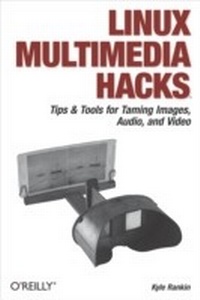
Linux Multimedia Hacks
Tips & Tools for Taming Images, Audio, and Video
1st Edition
Published on 17. November 2005
330 pages
978-0-596-52352-7 (ISBN)
Description

The fact that Linux has more multimedia application choices than Mac OS X and Windows combined may come as a surprise to many, but not to those who know Linux well. In Linux Multimedia Hacks, author Kyle Rankin showcases the best available multimedia tools so you can maximize the entertainment capabilities of your favorite OS. Included are tips and tricks for connecting to iPods, creating MP3s and Oggs, watching and making DVDs, turning your Linux box into a Tivo ala MythTV, and much more.You don't have to be a Linux server guru to make use of this book. Linux Multimedia Hacks takes the best of Linux's multimedia tools and with step-by-step instructions shows even novice users how to do cool and useful things with images, audio, and video. It includes entry level hacks that nearly all Linux users will want, such as installing codecs for audio and video playback and managing thousands of photographs. Later, you'll find hacks that cover a variety of advanced projects, from ripping and organizing media files with metatags, to editing video and audio tracks, to creating your own DVDs. Basic or advanced, each hack stands on its own, so you can feel free to jump around to only the sections that interest you.The book is divided into five easy-to-understand chapters:Images: tips range from basic image edits to automated image manipulationAudio: hacks include audio format conversion and tweaking metadata within audio filesVideo: learn how to covert between video formats, plus how to create your own VCDs and DVDsBroadcast Media: tips include how to access and create you own web broadcasts as well as watch and record TVWeb: learn how to make your multimedia creations available to the worldAs one of the most powerful multimedia platforms around, Linux has far more capabilities and features than meets the eye. This latest Hacks book gives you the technical chops to enjoy them all.
More details
Other editions
Additional editions
Book
12/2005
1st Edition
O'Reilly
€28.50
Shipment within 10-20 days
Content
- Intro
- Contents
- Credits
- About the Author
- Contributors
- Acknowledgments
- Preface
- Why Linux Multimedia Hacks?
- How to Use This Book
- How This Book Is Organized
- Conventions Used in This Book
- Using Code Examples
- How to Contact Us
- Safari Enabled
- Got a Hack?
- Images
- Take a Screenshot
- From the Command Line
- From Within GNOME
- From Within KDE
- Convert from One Image Format to Another
- Tile Images
- Add a Border to an Image
- Flip and Flop Images
- Make Image Thumbnails
- Animate Images
- Leave a Watermark
- Pull Images from a Digital Camera
- USB Storage Devices
- Non-USB Storage Devices
- Manage Photos with f-spot
- Install f-spot
- Import Your Pictures to f-spot
- View Your Pictures
- Edit Your Pictures
- Organize Your Pictures with Tags
- Export Photographs
- See Also
- Edit Images
- Remove Red Eye from Photos
- Select the Red Eye
- Take the Red Out
- Create a Slideshow
- Automatically Synchronize Your Camera and Computer
- Configure Hotplug
- Use autofs Instead of Mounting Manually
- Make a Synchronization Script
- Make a Screen-Capture Movie
- The Tools
- How to Use the Tools
- Enhancing a Screencapture
- Screen Capture Tips
- Conclusion
- Audio
- Mix Your Audio for Perfect Sound
- Command-Line Mixer Applications
- Surround Yourself with Sound
- Configuring Your Mixer
- Testing Surround Sound
- Movie Watching
- Play Multiple Sounds at the Same Time
- Configure aRts
- Configure EsounD
- Legacy Compatibility
- Get MP3 Libraries for Red Hat-Based Distributions
- Use Yum
- Use up2date
- Configure Network Sound
- Manage Your Audio with XMMS
- Plug-ins
- XMMS Command-Line Control
- Shuffle Your Music the Smart Way
- Get IMMS
- More IMMS Magic
- Try Rhythmbox
- Let amaroK Rock Your Music Collection
- Get amaroK
- amaroK Window Sections
- Configure amaroK
- The Sidebar
- The Context Pane
- The Collections Pane
- The Playlist Pane
- The Media Device Pane
- The Files Pane
- Store amaroK Data in MySQL
- Transfer SQLite Data to MySQL
- Enable Your Multimedia Keyboard
- Rip CDs from the Command Line
- Rip the CD
- Encode the WAVs to MP3s
- Encode the WAVs to Ogg Vorbis
- Rip CDs Straight from Konqueror
- Get a Grip on CD Ripping
- Configure Grip
- Rip a CD
- Edit ID3v2 Tags from the Command Line
- Add Album Art to ID3 Tags
- Automate Music File Tagging
- Three Ways to Tag and Rename Files
- Manually
- Automatically with the Fill Tag scanner
- Automatically with CDDB
- Correct Tag Fields with the Process Fields Scanner
- Correct Music Metadata with MusicBrainz
- MusicBrainz's Database
- Open Source and Open Data
- Tools that Use MusicBrainz
- How to Participate
- Clean Music Metadata at the Command Line
- Configure pimpmytunes
- Run pimpmytunes
- Clean Music Metadata with a GUI
- Pass the Mic and Record Audio
- Edit Audio with Audacity
- Record Sound
- Edit and Crop Sound
- Save Changes
- Convert from One Audio Format to Another
- MP3
- MP3 to WAV
- WAV to MP3
- Ogg Vorbis
- Ogg Vorbis to WAV
- WAV to Ogg Vorbis
- FLAC
- FLAC to WAV
- WAV to FLAC
- Other Audio Formats
- Anything to WAV
- WAV
- Change the Number of Audio Channels
- Change the Sample Rate
- Normalize the Volume of Your Audio Files
- Normal Mode
- Mix Mode
- Batch Mode
- Normalize MP3 and Ogg Files
- Make Your Computer Talk to You
- Search Audio for Hidden Messages
- Burn Audio CDs from the Command Line
- Automate Audio CD Burning with K3b
- Turn Your Computer into a Turntable
- The Turntables
- Scratching
- The Control Panel
- Effects
- Store Data and Audio
- The Sequencer
- Control terminatorX via MIDI
- Extend terminatorX
- Use an iPod with Linux
- Setting Up Your Linux Desktop
- Normal Usage
- Downloaded MP3 Files and ID3 Tags
- Sync Your iRiver with Linux
- Transfer the Songs to the iRiver
- Rebuild the Database
- Use Other Portable Audio Players
- Automatically Synchronize Your Media Device
- Use a Bluetooth Headset with Linux
- Find All Your Media Files
- The Fast Way
- The Slow Way
- Video
- Master Video Output Options
- xv
- X11
- Simple Directmedia Layer
- Direct Graphics Access
- SVGAlib
- Framebuffer
- VESA
- Use MPlayer
- DVD Playback
- (S)VCD Playback
- Streaming Playback
- Troubleshooting
- More MPlayer Uses
- Advanced MPlayer Tweaks
- MPlayer Config File
- Go Full Screen and Set Monitor Aspect
- Increase the Cache for Streaming Video
- Rotate the Video Before Playback
- Create Family-Friendly Edits of Movies
- Crop Video During Playback
- Add Custom Subtitles to Video
- A Sample .sub File
- Play Restricted Media Formats
- Playing non-DVD Media Formats
- Playing DVDs
- Watch Videos in ASCII Art
- In Living Color
- Try xine-Based Video Players
- Other xine Frontends
- View VLC, the Cross-Platform Video Player
- Probe Video Settings
- Rip a VCD
- Rip a DVD
- Back Up an Entire DVD
- Back Up Specific Titles
- Encode a DVD to MPEG4 from the Command Line
- Full Quality Encoding with MP3 Audio
- Encode with Specified Bitrates
- Rip and Encode DVDs with a mencoder Frontend
- Rip and Encode DVDs with K3b
- Convert from One Video Format to Another
- Simple Example: Encode a Video to XviD
- Other Multipart Video Formats
- Final Notes
- Create Archos-Compatible Video
- Convert Dual-Layer DVD to Single-Layer DVD
- Shrink a Single Title
- Shrink Multiple Titles
- Start Copy Process
- Use a Digital Video Camcorder with Linux
- Edit Video
- Resize a Video
- Create a VCD
- Choose VCD or SVCD
- Create (S)VCD-Compatible Video
- Create the (S)VCD XML File
- Create the BIN and CUE Files
- Burn to a CD
- Create a DVD
- Customize a DVD Menu
- Add Video Titles
- Design the Main Menu
- Add Buttons
- Create the DVD
- Create Self-Booting Movies
- The Tools
- The Moviemaking Routine
- Ripping the DVD Using MPlayer
- Breaking Up the AVI
- Creating the ISO
- Using the CDs
- One More Trick
- Broadcast Media
- Install a TV Tuner
- Watch TV on Your Computer
- Zapping
- Output to a TV with NVIDIA Cards
- nvtv
- NVIDIA X Drivers
- Cut Commercials
- Create a DVR with MythTV
- The Hardware
- The Basic Steps
- Install Fedora Linux
- Configure Fedora
- Update Fedora
- Configure a Third-Party MythTV Repository
- Install MythTV
- Configure System Modules
- Setting up your NVIDIA card
- Setting up your capture card
- Setting up your remote control
- Create the MythTV Database
- Configure Zap2it Data Direct
- Configure MythTV
- Running MythTV for the First Time
- Automatically Log In and Start MythTV
- Connect to TV
- Final MythTV Tweaks
- Schedule Recordings
- Conclusion
- MythTV as a Digital Hub
- MythVideo
- MythDVD
- MythMusic
- MythGallery
- MythGame
- MythWeather
- MythPhone
- MythNews
- MythBrowser
- MythWeb
- Take (Remote) Control
- Browse Streaming Radio Stations
- Rip Streaming Audio
- Schedule Recordings
- Listen to Streams as They Are Ripped
- Track Detection
- Rip Streaming Video
- Command-Line Streaming MP3 Player
- Build a Linux Jukebox with Jinzora
- Stream Video with VLC
- Grab Podcasts from the Command Line
- Get Podcasts with a GUI
- Install
- Run Monopod
- Listening to Podcasts
- Synchronizing with an iPod
- Broadcast Sound to AM with a Monitor
- Web
- Install the Macromedia Plug-in in a Flash
- Use the Real RealPlayer
- Watch Videos Within Firefox
- Kaffeinate Konqueror
- Install the Acrobat Reader Plug-in
- Control Your Media Player with Firefox
- Grab Color Profiles from Other Web Sites
- Browse Graphical Sites from an xterm
- Star in Your Own Reality TV Show
- Install the Webcam
- Use Your Webcam
- Make Internet Phone Calls with Skype
- Turn Your Linux Box into a PBX
- Start and Stop the Asterisk Server
- Linux-Specific Start and Stop Scripts
- Host a Photo Gallery
- Index
