

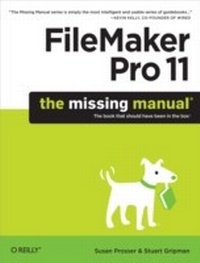
FileMaker Pro 11: The Missing Manual
1st Edition
Published on 26. May 2010
920 pages
978-1-4493-9370-0 (ISBN)
Description

This hands-on, friendly guide shows you how to harness FileMaker's power to make your information work for you. With a few mouse clicks, the FileMaker Pro 11 database helps you create and print corporate reports, manage a mailing list, or run your entire business. FileMaker Pro 11: The Missing Manual helps you get started, build your database, and produce results, whether you're running a business, pursuing a hobby, or planning your retirement. It's a thorough, accessible guide for new, non-technical users, as well as those with more experience.Start up: Get your first database up and running in minutesCatalog your data: Organize contacts, to-do items, and product information with speedy data-entry and sorting toolsCreate professional documents: Publish reports, invoices, and more, with easeAdd visual power and clarity: Create colorful charts to illustrate and summarize your dataHarness processing power: Crunch numbers and search text with dozens of built-in formulasLearn advanced topics: Explore the high-level features of FileMaker Pro Advanced and FileMaker Server
More details
Other editions
Additional editions
Susan Prosser | Stuart Gripman
FileMaker Pro 11: The Missing Manual
The Book That Should Have Been in the Box
Book
06/2010
1st Edition
O'Reilly
€37.50
Shipment within 10-20 days
Content
- Intro
- The Missing Credits
- Introduction
- Part One: Getting Started with FileMaker
- Working with a Database
- A Very Quick Database Tour
- Content Area
- Scroll Bars
- Zoom Controls
- Understanding Modes
- Opening and Closing Database Files
- Opening a Database
- Closing a Database
- Adding Data to Your Database
- Creating a Record
- Entering Data
- Fields for Lots of Text
- Deleting Records
- Understanding Browse Mode Error Messages
- Navigating Your Database
- Navigating Record by Record
- Keyboard Shortcuts
- Finding Records
- Performing a Find
- Understanding Find Mode Error Messages
- Sorting Records
- Understanding Sorting
- Beyond the Simple Sort
- Multiple Sort Fields
- Same Database, Different Views
- Viewing a List
- Viewing a Table
- Creating a New Window
- Hiding Windows
- Automatically Arranging Windows
- Saving Your Database
- Saving a Copy of Your Database
- Saving a Clone of Your Database
- Using FileMaker's Help Menu
- Organizing and Editing Records
- Views
- Form View
- List View
- Table View
- Advanced Find Techniques
- Modify Last Find
- Multiple Requests
- Finding by Omitting
- Constraining and Extending the Found Set
- Refining Searches with Find Operators
- Using the Find Pop-up Menu
- Editing What's in Your Fields
- Drag-and-drop Editing
- Using the Replace Command
- Find and Replace
- Changing Text Appearance
- Text Formatting
- Paragraph Formatting
- The Text Ruler
- Formatting Tabs
- Checking Spelling
- Spell Checking with Menu Commands
- Spell Checking As You Type
- Managing Spelling Dictionaries
- Preview Mode and Printing
- Part Two: Building Your First Database
- Creating a Custom Database
- Creating a New Database
- Creating and Managing Fields in Table View
- Creating Fields
- Managing Field Types
- Creating Records in Table View
- Inserting a File into a Container Field
- Exporting Field Contents
- Inserting a File Using QuickTime
- Understanding Layouts
- The Layout Bar
- The Layout Status Toolbar and Layout Mode
- Layout Objects
- Customizing a Layout
- Editing Text Objects and Fields
- Using the Inspector
- Inserting a Picture on a Layout
- Adding Lines and Shapes
- Formatting Fields
- Customizing a Layout's Body Part
- Creating a New Layout
- The Format Painter
- Making Two Layouts Match
- Arrange and Align Tools
- Adding Power to Your Database
- Creating a Simple Calculation
- Creating Fields with Manage?Database
- Adding New Fields to a Layout
- Creating a Related Table
- Understanding the Elements of a Relationship
- Creating a Key Field with an Auto-Enter Serial Number
- Creating a New Table
- Creating a Relationship Between Two Table Occurrences
- Creating and Using Portals
- Adding a Portal to a Layout
- Resizing and Moving a Portal
- Context
- Creating Records Through a Portal
- Editing Records Through a Portal
- Performing Finds with Related Data
- Using Tab Controls
- Creating a Tab Control
- Editing Tab Controls
- Deleting a Tab Control
- Adding Merge Fields
- Using Symbols to Show Important Info
- Writing a Basic Script
- Creating a Sort Script
- Creating a Button
- Applying a Script Trigger
- Creating a Dynamic Report with the Assistant
- Creating a Trailing Group Report
- Changing the Default Account
- Summing Up
- Part Three: Thinking Like a Developer
- Creating and Managing a Relational Database
- Understanding Relational Databases
- Modeling Your Database
- Choosing Entities
- Finding Relationships
- The Entity-Relationship Diagram
- Keys
- Join Tables
- Creating a Relational Database
- Creating Relationships
- Sorting a Relationship
- Managing the Relationships Graph
- Using Relational Database Power
- One Table Occurrence, One Found Set
- Viewing Related Fields on a Layout
- Creating a Value List Based on a Related Field
- Lookups
- Creating Lookups
- Using a Relookup
- Navigating Between Related Records
- Reviewing Relationship Concepts
- Bidirectionality
- Implicit Relationships in Action
- Field Options
- Understanding Field Types
- Text
- Number
- Date
- Time
- Timestamp
- Container
- Calculation
- Summary
- Auto-Enter Field Options
- Creation Values
- Modification Values
- Serial Number
- Value from Last Visited Record
- Data
- Calculated Value
- Looked-up Value
- Validation Options
- Making Validation Stricter
- Validation Requirements
- Storage Options
- Global Storage
- Repeating Fields
- Indexing
- Printing Field Definitions
- Beyond Text: Container Fields
- Pictures
- QuickTime
- Sound
- File
- Layout Tools
- Layout Parts
- Parts in Form View
- Parts in List View
- Parts in Preview Mode
- Part Setup Dialog Box
- When to Use Each Type
- Arranging Parts
- Layout Types
- Standard Form
- Table View
- List View
- Report
- Blank Layout
- Labels or Vertical Labels
- Envelope
- Renaming a Layout
- Setting Layout View
- Found Sets and Layouts
- Layout Setup
- Manage Layouts
- The Inspector's Data Tab
- Field Control
- Advanced Field Controls
- Edit Box
- Drop-Down List
- Pop-Up Menu
- Checkbox Set
- Radio Button Set
- Drop-Down Calendar
- Auto-Complete
- Repetitions
- Display Data From
- Field Behavior
- Data Formatting
- Number Formatting
- Date Formatting
- Time Formatting
- Timestamp Formatting
- Graphic Formatting
- Buttons
- Creating Buttons with the Button Tool
- Turning an Existing Layout Object into a Button
- Making a Button Not a Button
- Button Actions
- Tab Order
- Customizing the Tab Order
- Fixing the Tab Order in the People Database
- Preserving the Automatic Order
- Merge Fields
- Merge Variables
- Tooltips
- Autoresizing
- Autoresizing in List Layouts
- Creating Layouts for Printing
- Visualize the Result in Preview Mode
- Print Margins
- Columns
- Sliding Layout Objects
- Understanding Calculations
- Understanding Calculations
- Creating a Calculation
- The Structure of a Calculation
- Using Fields in Calculations
- Using Constants in Calculations
- Using Operators in Calculations
- Functions
- Expressions
- Using a Related Field in a Calculation
- Understanding the Specify Calculation Dialog Box
- Table occurrence context
- Field list
- Operators
- Function list
- Result Type
- Calculation Box
- Repetitions
- Changing the Standard Evaluation Behavior
- Auto-Enter Calculations
- Validate Data Entry with a Calculation
- Replacing Data Using a Calculation
- Comments
- More Calculations and Data Types
- Number Crunching Calculations
- Number Function Types
- Using Number Functions
- Going Beyond Basic Calculations
- Reviewing the Data and New Business Rules
- Planning the Calculations
- Constructing the Calculation
- Text Calculations
- Text Functions
- Text Formatting Functions
- Date and Time Calculations
- Math with Dates and Times
- Parsing Dates and Times
- Calculations that Create Dates and Times
- Containers in Calculations
- Calculations with Pictures, Sounds, Movies, and Files
- Calculations with References
- Understanding Scripts
- Understanding Scripts
- Your First Script
- Preparing the Database
- Planning Your Script
- Creating Your Script
- Improving Your Script
- Shortcuts to the Edit Script Window
- The Importance of the Layout
- When to Switch
- Running Scripts
- The Scripts Menu
- Buttons
- Script Triggers
- Performing Scripts When a File Is Opened and Closed
- Timer Scripts
- Organizing Your Scripts
- Creating Script Folders
- Creating Menu Separators
- Branching and Looping in Scripts
- Branching with If, Else If, Else, and End If
- Testing Multiple Conditions
- Looping
- Script Triggers
- Creating a Simple Script Trigger
- Layout Triggers
- Object Triggers
- Exploring Script Steps
- Go to Layout
- Go to Object
- Scripting for Fields
- Navigating Fields
- Editing Commands
- Selecting Text
- Editing Field Data
- A Field Script in Action
- Other Steps That Work with Fields
- Working with Records
- Creating, Duplicating, and Deleting Records
- Navigating Among Records
- Opening, Reverting, and Committing Records
- Copying Records
- Working with Portals
- Finding Records
- Performing People's Find Requests
- Static Find Requests
- Using a Variable to Create Dynamic Find Requests
- Constraining and Extending the Found Set
- Omitting Records
- Modify Last Find
- Sorting Records
- Sorting Records with an OnRecordLoad Trigger
- Working with Windows
- Creating Windows
- Bringing a Window to the Front
- Closing a Window
- Moving and Resizing Existing Windows
- Other Window-Related Script Steps
- Working with Files
- Opening and Closing Files
- Save a Copy As
- Other File-Related Script Steps
- Printing
- Other Script Steps
- Open URL
- Dial Phone
- Set Web Viewer
- Execute SQL
- Flush Cache to Disk
- Exit Application
- Part Four: Becoming a Power Developer
- Applying Developer Utilities
- Copying and Pasting Database Structure
- Importing Tables and Fields
- Copying and Pasting Tables
- Copying and Pasting Fields
- Copying Scripts and Script Steps
- Script Debugger
- Controlling Script Execution
- Breakpoints
- Examining Errors
- Pause on Error
- The Call Stack
- Working with the Debugger Window
- The Data Viewer
- The Current Tab
- The Watch Tab
- Disable Script Steps
- The Database Design Report
- Generating the DDR
- Using the DDR
- Finding Broken Elements with the DDR
- Custom Functions
- Defining a Custom Function
- Editing Custom Functions
- Sharing Custom Functions
- Custom Menus
- Editing a Menu
- Creating a New Menu
- Using Existing Commands
- Submenus
- Removing a Menu
- Installing Custom Menu Sets
- Developer Utilities
- Using the Developer Utilities
- Delivering a Runtime Solution
- File Maintenance
- Advanced Relationship Techniques
- Advanced Relationships
- Self-Join Relationships
- Multiple Criteria Relationships
- Relationship Operators
- Portal Filtering
- Understanding Table Occurrences
- Table Occurrence Groups
- Listing the New Elements You'll Need
- Understanding Table Occurrence Groups
- Creating a New Table Occurrence Group
- Building the Assign Expenses Layout
- Understanding Graph Arrangements
- Connecting Database Files
- Adding a Table Occurrence from Another File
- Defining Data Sources Using a Path
- Using Multiple Relationship Techniques
- Creating the Invoice Finder Layout
- Reporting and Analysis
- Summary Fields and Sub-summary Parts
- Summary Fields
- Other Summary Field Types
- Advanced Sub-summary Parts
- Leading and Trailing Grand Summaries
- Sub-summary Parts and Printing
- Web Viewer Objects
- Putting a Web Viewer on a Layout
- Web Viewer Options
- Conditional Formatting
- Conditional Formatting of Fields
- Conditional Formatting of Text Objects
- Advanced Conditional Formatting
- Removing Conditional Formatting
- Basic Charting (Found Set Charts)
- Chart Formatting
- Charting and Reports
- Picking the Right Fields
- Choosing an Appropriate Layout Part
- Using the Correct Sort Order
- Advanced Charting
- Delimited Data
- Related Records
- Advanced Calculations
- Understanding Boolean Functions
- Using the Self Function
- Using Storage Options
- Understanding Stored and Unstored Calculation Fields
- Global Calculation Fields
- Logical Functions
- Conditional Functions
- Constructing a Conditional Calculation
- The Let() Function and Variables
- Defining Calculation Variables
- The Life of a Variable
- Nesting Let Functions
- Recursion
- Step 1: Solve the First Case
- Step 2: Assume Your Function Already Works, and Use It
- Step 3: Find a Stopping Point
- Plug-Ins
- Installing Plug-ins
- Old and New Plug-ins
- Finding Plug-ins
- Creating Your Own Plug-ins
- Advanced Scripting
- Commenting Scripts
- Importing Scripts
- Communicating with Database Users
- Showing a Simple Message
- Asking a Simple Question
- Organizing Complex Scripts
- The Perform Script Script Step
- Halt Script and Exit Script
- Script Parameters
- Script Variables
- Handling Errors
- The Set Error Capture Script Step
- The Get ( LastError ) Function
- The Allow User Abort Script Step
- Advanced Script Triggers
- Install OnTimer Script
- Keystroke Triggers
- Putting a Complex Script Together
- Planning the Script
- Considering Exceptions
- Creating Subscripts
- Finishing the Subscripts
- Testing Scripts
- Part Five: Integration and Security
- Sharing Your Database
- FileMaker Network Sharing
- Setting Up a Host Computer
- Opening a Shared File
- The Open Remote File Dialog Box
- Sharing over the Internet
- Turning on Web Sharing
- Connecting from a Web Browser
- Custom Home Page
- FileMaker Server
- File Compatibility
- Installing FileMaker Server
- Administering FileMaker Server
- Testing Your Server
- Server Hardware
- Adding Security
- How Security Works
- Who Gets Access
- What They Can Do
- Privilege Sets
- Understanding Privilege Sets
- Understanding Individual Privileges
- Managing Accounts
- Adding a New Account
- External Authentication
- Extended Privileges
- Creating an Extended Privilege
- Checking for an Extended Privilege
- Assigning Extended Privileges
- Managing External File Access
- Scripts and Security
- Detecting Privileges in a Script
- Handling Security Errors
- Running Scripts with Full Access Privileges
- Managing Security with Scripts
- Sharing Data with Other Systems
- Sharing Your Data with Others
- Save/Send Records As
- Snapshot Link
- External SQL Sources
- Setting Up ODBC
- Connecting FileMaker to a SQL Data Source
- Adding SQL Tables to a FileMaker Database
- Using SQL Tables
- Exporting Data
- Grouped Exports
- Importing Data
- Recurring Import
- Importing over Existing Data
- Creating Tables on Import
- Creating a New Database from an Import File
- Converting Older FileMaker Files
- Import Data Sources
- File
- Folder
- Digital Camera
- XML Data Source
- Bento Data Source
- ODBC Data Sources
- Importing and Exporting in a Script
- Save Records Script Steps
- The Import Records Script Step
- The Export Records Script Step
- Part Six: Appendixes
- Getting Help
- FileMaker Error Codes
- Index
