

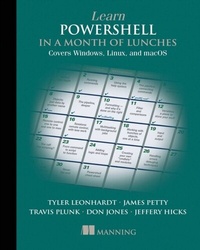
Learn PowerShell in a Month of Lunches, Fourth Edition
Covers Windows, Linux, and macOS
1st Edition
Published on 31. May 2022
360 pages
978-1-63835-061-3 (ISBN)
Description

Designed for busy IT professionals, this innovative guide will take you from the basics to PowerShell proficiency through 25 tutorials you can do in your lunch break.
In Learn PowerShell in a Month of Lunches, Fourth Edition you will learn:
Discoverability with the Help system
Background jobs and automation techniques
Simple scripting to automate repetitive tasks
Managing cloud services from major cloud providers
Extending PowerShell with commands
Common syntax and commands cheat sheet
Learn PowerShell in a Month of Lunches, Fourth Edition is a task-focused guide for administering your systems using PowerShell. It covers core language features and admin tasks, with each chapter a mini-tutorial you can easily complete in under an hour. Discover how PowerShell works on different operating systems, and start automating tasks so they take just a few seconds to complete. No previous scripting experience required.
The book is based on the bestselling Learn Windows PowerShell in a Month of Lunches by community legends Don Jones and Jeffery Hicks. PowerShell team members Travis Plunk and Tyler Leonhardt and Microsoft MVP James Petty have updated this edition to the latest version of PowerShell, including its multi-platform expansion into Linux and macOS.
About the technology
PowerShell gives you complete command line control over admin tasks like adding users, exporting data, and file management. Whether you're writing one-liners or building complex scripts to manage cloud resources and CI/CD pipelines, PowerShell can handle the task. And now that PowerShell is truly cross-platform, you don't have to switch scripting languages when you move between Windows, Linux, and macOS.
About the book
Learn PowerShell in a Month of Lunches, Fourth Edition is a new edition of the bestseller that introduced PowerShell to over 100,000 readers. With bite-sized lessons and hands-on exercises, this amazing book guides you from your first command to writing and debugging reusable scripts for Windows, Linux, and macOS. Set aside just an hour a day and you'll soon be tackling increasingly complex automation tasks with PowerShell.
What's inside
Discoverability with the Help system
PowerShell on macOS and Linux
Background jobs and automation techniques
Managing cloud services from major cloud providers
Common syntax and commands cheat sheet
About the reader
No previous experience with PowerShell or Bash required.
About the author
James Petty is CEO of PowerShell.org and The DevOps Collective, and a Microsoft MVP. Travis Plunk is an engineer on the PowerShell team. Tyler Leonhardt is an engineer on Visual Studio Code. Don Jones and Jeffery Hicks are the original authors of Learn Windows PowerShell in a Month of Lunches.
In Learn PowerShell in a Month of Lunches, Fourth Edition you will learn:
Discoverability with the Help system
Background jobs and automation techniques
Simple scripting to automate repetitive tasks
Managing cloud services from major cloud providers
Extending PowerShell with commands
Common syntax and commands cheat sheet
Learn PowerShell in a Month of Lunches, Fourth Edition is a task-focused guide for administering your systems using PowerShell. It covers core language features and admin tasks, with each chapter a mini-tutorial you can easily complete in under an hour. Discover how PowerShell works on different operating systems, and start automating tasks so they take just a few seconds to complete. No previous scripting experience required.
The book is based on the bestselling Learn Windows PowerShell in a Month of Lunches by community legends Don Jones and Jeffery Hicks. PowerShell team members Travis Plunk and Tyler Leonhardt and Microsoft MVP James Petty have updated this edition to the latest version of PowerShell, including its multi-platform expansion into Linux and macOS.
About the technology
PowerShell gives you complete command line control over admin tasks like adding users, exporting data, and file management. Whether you're writing one-liners or building complex scripts to manage cloud resources and CI/CD pipelines, PowerShell can handle the task. And now that PowerShell is truly cross-platform, you don't have to switch scripting languages when you move between Windows, Linux, and macOS.
About the book
Learn PowerShell in a Month of Lunches, Fourth Edition is a new edition of the bestseller that introduced PowerShell to over 100,000 readers. With bite-sized lessons and hands-on exercises, this amazing book guides you from your first command to writing and debugging reusable scripts for Windows, Linux, and macOS. Set aside just an hour a day and you'll soon be tackling increasingly complex automation tasks with PowerShell.
What's inside
Discoverability with the Help system
PowerShell on macOS and Linux
Background jobs and automation techniques
Managing cloud services from major cloud providers
Common syntax and commands cheat sheet
About the reader
No previous experience with PowerShell or Bash required.
About the author
James Petty is CEO of PowerShell.org and The DevOps Collective, and a Microsoft MVP. Travis Plunk is an engineer on the PowerShell team. Tyler Leonhardt is an engineer on Visual Studio Code. Don Jones and Jeffery Hicks are the original authors of Learn Windows PowerShell in a Month of Lunches.
More details
Other editions
Additional editions
Travis Plunk | James Petty | Tyler Leonhardt
Learn PowerShell in a Month of Lunches: Covers Windows, Linux, and macOS
Book
06/2022
Manning Publications
€48.50
Shipment within 10-20 days
Persons
James Petty is a Microsoft MVP, and the CEO and Executive Director for the DevOps Collective and PowerShell.org.
Tyler Leonhardt has been a Software Engineer on the PowerShell team since 2017, and at Microsoft since 2016. He is a core maintainer of the PowerShell extension for Visual Studio Code.
Tyler Leonhardt has been a Software Engineer on the PowerShell team since 2017, and at Microsoft since 2016. He is a core maintainer of the PowerShell extension for Visual Studio Code.
Content
- Intro
- Learn PowerShell in a Month of Lunches
- Copyright
- brief contents
- contents
- Front matter
- foreword
- preface
- acknowledgments
- about this book
- Who should read this book
- About the code
- liveBook discussion forum
- about the authors
- 1 Before you begin
- 1.1 Why you can no longer afford to ignore PowerShell
- 1.1.1 Life without PowerShell
- 1.1.2 Life with PowerShell
- 1.2 Windows, Linux, and macOS, oh my
- 1.3 Is this book for you?
- 1.4 How to use this book
- 1.4.1 The chapters
- 1.4.2 Hands-on labs
- 1.4.3 Supplementary materials
- 1.4.4 Further exploration
- 1.4.5 Above and beyond
- 1.5 Setting up your lab environment
- 1.6 Installing PowerShell
- 1.7 Contacting us
- 1.8 Being immediately effective with PowerShell
- 2 Meet PowerShell
- 2.1 PowerShell on Windows
- 2.2 PowerShell on macOS
- 2.2.1 Installation on macOS
- 2.3 PowerShell on Linux (Ubuntu 18.04)
- 2.3.1 Installation on Ubuntu 18.04
- 2.4 Visual Studio Code and the PowerShell extension
- 2.4.1 Installing Visual Studio Code and the PowerShell extension
- 2.4.2 Getting familiar with Visual Studio Code
- 2.4.3 Customizing Visual Studio Code and the PowerShell extension
- 2.5 It's typing class all over again
- 2.6 What version is this?
- 2.7 Lab
- 3 Using the help system
- 3.1 The help system: How you discover commands
- 3.2 Updatable help
- 3.3 Asking for help
- 3.4 Using help to find commands
- 3.5 Interpreting the help
- 3.5.1 Parameter sets and common parameters
- 3.5.2 Optional and mandatory parameters
- 3.5.3 Positional parameters
- 3.5.4 Parameter values
- 3.5.5 Finding command examples
- 3.6 Accessing "about" topics
- 3.7 Accessing online help
- 3.8 Lab
- 3.9 Lab answers
- 4 Running commands
- 4.1 Let's talk security
- 4.1.1 Execution policy
- 4.2 Not scripting, but running commands
- 4.3 The anatomy of a command
- 4.4 The cmdlet naming convention
- 4.5 Aliases: Nicknames for commands
- 4.6 Taking shortcuts
- 4.6.1 Truncating parameter names
- 4.6.2 Using parameter name aliases
- 4.6.3 Using positional parameters
- 4.7 Support for external commands
- 4.8 Dealing with errors
- 4.9 Common points of confusion
- 4.9.1 Typing cmdlet names
- 4.9.2 Typing parameters
- 4.10 Lab
- 4.11 Lab answers
- 5 Working with providers
- 5.1 What are providers?
- 5.2 Understanding how the filesystem is organized
- 5.3 Navigating the filesystem
- 5.4 Using wildcards and literal paths
- 5.5 Working with other providers
- 5.5.1 Windows Registry
- 5.6 Lab
- 5.7 Lab answers
- 6 The pipeline: Connecting commands
- 6.1 Connecting one command to another: Less work for you
- 6.2 Exporting to a file
- 6.2.1 Exporting to CSV
- 6.2.2 Exporting to JSON
- 6.2.3 Exporting to XML
- 6.2.4 Out-File
- 6.2.5 Comparing files
- 6.3 Piping to a file
- 6.4 Converting to HTML
- 6.5 Using cmdlets that modify the system: Killing processes
- 6.6 Common points of confusion
- 6.7 Lab
- 6.8 Lab answers
- 7 Adding commands
- 7.1 How one shell can do everything
- 7.2 Extensions: Finding and installing modules
- 7.3 Extensions: Finding and adding modules
- 7.4 Command conflicts and removing extensions
- 7.5 Playing with a new module
- 7.6 Common points of confusion
- 7.7 Lab
- 7.7 Lab answers
- 8 Objects: Data by another name
- 8.1 What are objects?
- 8.2 Understanding why PowerShell uses objects
- 8.3 Discovering objects: Get-Member
- 8.4 Using object attributes, or properties
- 8.5 Using object actions, or methods
- 8.6 Sorting objects
- 8.7 Selecting the properties you want
- 8.8 Objects until the end
- 8.9 Common points of confusion
- 8.10 Lab
- 8.11 Lab answers
- 9 A practical interlude
- 9.1 Defining the task
- 9.2 Finding the commands
- 9.3 Learning to use the commands
- 9.4 Tips for teaching yourself
- 9.5 Lab
- 9.6 Lab answer
- 10 The pipeline, deeper
- 10.1 The pipeline: Enabling power with less typing
- 10.2 How PowerShell passes data down the pipeline
- 10.3 Plan A: Pipeline input ByValue
- 10.4 Plan B: Pipeline input ByPropertyName
- 10.5 When things don't line up: Custom properties
- 10.6 Working with Azure PowerShell
- 10.7 Parenthetical commands
- 10.8 Extracting the value from a single property
- 10.9 Lab
- 10.10 Lab answers
- 10.11 Further exploration
- 11 Formatting: And why it's done on the right
- 11.1 Formatting: Making what you see prettier
- 11.2 Working with the default formatting
- 11.3 Formatting tables
- 11.4 Formatting lists
- 11.5 Formatting wide lists
- 11.6 Creating custom columns and list entries
- 11.7 Going out: To a file or to the host
- 11.8 Another out: GridViews
- 11.9 Common points of confusion
- 11.9.1 Always format right
- 11.9.2 One type of object at a time, please
- 11.10 Lab
- 11.11 Lab answers
- 11.12 Further exploration
- 12 Filtering and comparisons
- 12.1 Making the shell give you just what you need
- 12.2 Filtering left
- 12.3 Using comparison operators
- 12.4 Filtering objects out of the pipeline
- 12.5 Using the iterative command-line model
- 12.6 Common points of confusion
- 12.6.1 Filter left, please
- 12.6.2 When $_ is allowed
- 12.7 Lab
- 12.8 Lab answers
- 12.9 Further exploration
- 13 Remote control: One-to-one and one-to-many
- 13.1 The idea behind remote PowerShell
- 13.1.1 Remoting on Windows devices
- 13.1.2 Remoting on macOS and Linux devices
- 13.1.3 Cross-platform remoting
- 13.2 Setting up PSRP over SSH
- 13.2.1 macOS and Linux
- 13.2.2 Setting up SSH on Windows
- 13.3 PSRP over SSH overview
- 13.4 WinRM overview
- 13.5 Using Enter-PSSession and Exit-PSSession for one-to-one remoting
- 13.6 Using Invoke-ScriptBlock for one-to-many remoting
- 13.7 Differences between remote and local commands
- 13.7.1 Deserialized objects
- 13.7.2 Local vs. remote processing
- 13.8 But wait, there's more
- 13.9 Common points of confusion
- 13.10 Lab
- 13.11 Lab answers
- 13.12 Further exploration
- 14 Multitasking with background jobs
- 14.1 Making PowerShell do multiple things at the same time
- 14.2 Synchronous vs. asynchronous
- 14.3 Creating a process job
- 14.4 Creating a thread job
- 14.5 Remoting, as a job
- 14.6 Jobs in the wild
- 14.7 Getting job results
- 14.8 Working with child jobs
- 14.9 Commands for managing jobs
- 14.10 Common points of confusion
- 14.11 Lab
- 14.12 Lab answers
- 15 Working with many objects, one at a time
- 15.1 The preferred way: "Batch" cmdlets
- 15.2 The CIM way: Invoking methods
- 15.3 The backup plan: Enumerating objects
- 15.3.1 Making the cmdlets work for you
- 15.4 Let's speed things up
- 15.5 Common points of confusion
- 15.5.1 Which way is the right way?
- 15.5.2 Diminishing returns of Parallel ForEach
- 15.5.3 Method documentation
- 15.5.4 ForEach-Object confusion
- 15.6 Lab
- 15.7 Lab answers
- 16 Variables: A place to store your stuff
- 16.1 Introduction to variables
- 16.2 Storing values in variables
- 16.3 Using variables: Fun tricks with quotes
- 16.4 Storing many objects in a variable
- 16.4.1 Working with single objects in a variable
- 16.4.2 Working with multiple objects in a variable
- 16.4.3 Other ways to work with multiple objects
- 16.4.4 Unrolling properties and methods in PowerShell
- 16.5 More tricks with double quotes
- 16.6 Declaring a variable's type
- 16.7 Commands for working with variables
- 16.8 Variable best practices
- 16.9 Common points of confusion
- 16.10 Lab
- 16.11 Lab answers
- 16.12 Further exploration
- 17 Input and output
- 17.1 Prompting for, and displaying, information
- 17.2 Read-Host
- 17.3 Write-Host
- 17.4 Write-Output
- 17.5 Other ways to write
- 17.6 Lab
- 17.7 Lab answers
- 17.8 Further exploration
- 18 Sessions: Remote control with less work
- 18.1 Creating and using reusable sessions
- 18.2 Enter-PSSession with session objects
- 18.3 Invoke-Command with session objects
- 18.4 Implicit remoting: Importing a session
- 18.5 Using disconnected sessions
- 18.6 Lab
- 18.7 Lab answers
- 18.8 Further exploration
- 19 You call this scripting?
- 19.1 Not programming, more like batch files
- 19.2 Making commands repeatable
- 19.3 Parameterizing commands
- 19.4 Creating a parameterized script
- 19.5 Documenting your script
- 19.6 One script, one pipeline
- 19.7 A quick look at scope
- 19.8 Lab
- 19.9 Lab answer
- 20 Improving your parameterized script
- 20.1 Starting point
- 20.2 Getting PowerShell to do the hard work
- 20.3 Making parameters mandatory
- 20.4 Adding parameter aliases
- 20.5 Validating parameter input
- 20.6 Adding the warm and fuzzies with verbose output
- 20.7 Lab
- 20.8 Lab answer
- 21 Using regular expressions to parse text files
- 21.1 The purpose of regular expressions
- 21.2 A regex syntax primer
- 21.3 Using regex with -Match
- 21.4 Using regex with Select-String
- 21.5 Lab
- 21.6 Lab answers
- 21.7 Further exploration
- 22 Using someone else's script
- 22.1 The script
- 22.1.1 Parameter block
- 22.1.2 Process block
- 22.2 It's a line-by-line examination
- 22.3 Lab
- 22.4 Lab answer
- 23 Adding logic and loops
- 23.1 Foreach and Foreach-Object
- 23.1.1 Foreach
- 23.1.2 Foreach-Object
- 23.1.3 Foreach-Object -Parallel
- 23.3 While
- 23.3 Do While
- 23.4 Lab
- 23.5 Lab answers
- 24 Handling errors
- 24.1 Understanding errors and exceptions
- 24.2 Bad handling
- 24.3 Two reasons for exception handling
- 24.4 Handling exceptions
- 24.5 Handling exceptions for noncommands
- 24.6 Going further with exception handling
- 24.7 Lab
- 24.8 Lab answer
- 25 Debugging techniques
- 25.1 Output everything
- 25.2 One line at a time
- 25.3 Hey, script, stop right there . . . with breakpoints
- 25.4 Lab
- 26 Tips, tricks, and techniques
- 26.1 Profiles, prompts, and colors: Customizing the shell
- 26.1.1 PowerShell profiles
- 26.1.2 Customizing the prompt
- 26.1.3 Tweaking colors
- 26.2 Operators: -as, -is, -replace, -join, -split, -contains, -in
- 26.2.1 -as and -is
- 26.2.2 -replace
- 26.2.3 -join and -split
- 26.2.4 -contains and -in
- 26.3 String manipulation
- 26.4 Date manipulation
- 26.5 Dealing with WMI dates
- 26.6 Setting default parameter values
- 26.7 Playing with script blocks
- 26.8 More tips, tricks, and techniques
- 27 Never the end
- 27.1 Ideas for further exploration
- 27.2 "Now that I've read the book, where do I start?"
- 27.3 Other resources you'll grow to love
- Appendix. PowerShell cheat sheet
- A.1 Punctuation
- A.2 Help file
- A.3 Operators
- A.4 Custom property and column syntax
- A.5 Pipeline parameter input
- A.6 When to use $_
- index
