

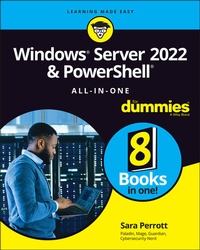
Windows Server 2022 & Powershell All-in-One For Dummies
1st Edition
Published on 18. February 2022
784 pages
978-1-119-86784-5 (ISBN)
Description

All the essentials for administering Windows Server 2022 in one book
Looking for a little help installing, configuring, securing, or running a network running Windows Server 2022? Windows Server 2022 & PowerShell All-in-One For Dummies delivers a thorough guide to network administration in a single, convenient book. Whether you need to start from scratch and install a new server or want to jump right into a more advanced topiclike managing security or working in Windows PowerShellyou'll find what you need right here.
In this 8-books-in-1 compilation, you'll:
- Learn what you need to install and set up a brand-new Windows server installation
- Configure your Windows Server and customize its settings based on your needs and preferences
- Discover how to install, configure, and work with Containers
The perfect book for server and system admins looking for a quick reference on Windows Server operation, this book is also a great resource for networking newcomers learning their way around the server software they'll encounter daily.
More details
Other editions
Additional editions
Book
05/2022
1st Edition
Wiley
€50.00
Available immediately
Content
- Intro
- Title Page
- Copyright Page
- Table of Contents
- Introduction
- About This Book
- Foolish Assumptions
- Icons Used in This Book
- Beyond the Book
- Where to Go from Here
- Book 1 Installing and Setting Up Windows Server 2022
- Chapter 1 An Overview of Windows Server 2022
- Extra! Extra! Read All About It! Seeing What's New in Windows Server 2022
- Deciding Which Windows Server 2022 Edition Is Right for You
- Essentials
- Standard
- Datacenter
- Walking the Walk: Windows Server 2022 User Experiences
- Desktop Experience
- Server Core
- Nano
- Seeing What Server Manager Has to Offer
- Windows Admin Center: Your New Best Friend
- Extending and Improving Your Datacenter
- Azure Arc
- Azure Automanage: Hotpatch
- Chapter 2 Using Boot Diagnostics
- Accessing Boot Diagnostics
- From the DVD
- Using Advanced Boot Options
- Safe Mode
- Enable Boot Logging
- Enable Low-Resolution Video
- Last Known Good Configuration
- Directory Services Restore Mode
- Debugging Mode
- Disable Automatic Restart on System Failure
- Disable Driver Signature Enforcement
- Disable Early Launch Anti-Malware Driver
- Performing a Memory Test
- Using the Command Prompt
- Working with Third-Party Boot Utilities
- Chapter 3 Performing the Basic Installation
- Making Sure You Have What It Takes
- Central processing unit
- Random access memory
- Storage
- Network adapter
- DVD drive
- UEFI-based firmware
- Trusted Platform Module
- Monitor
- Keyboard and mouse
- Performing a Clean Install
- Upgrading Windows
- Performing a Network Install with Windows Deployment Services
- Chapter 4 Performing Initial Configuration Tasks
- Understanding Default Settings
- Getting an Overview of the Configuration Process
- Providing Computer Information
- Windows Server 2022 with Desktop Experience
- Windows Server 2022 Core
- Updating Windows Server 2022
- Windows Server 2022 with Desktop Experience
- Windows Server 2022 Core
- Customizing Windows Server 2022
- Windows Server 2022 with Desktop Experience
- Windows Server 2022 Core
- Configuring Startup Options with BCDEdit
- Book 2 Configuring Windows Server 2022
- Chapter 1 Configuring Server Roles and Features
- Using Server Manager
- Roles and features
- Diagnostics
- Configuration tasks
- Configure and Manage Storage
- Understanding Server Roles
- Active Directory Certificate Services
- Active Directory Domain Services
- Active Directory Federation Services
- Active Directory Lightweight Directory Services
- Active Directory Rights Management Services
- Device Health Attestation
- Dynamic Host Configuration Protocol
- Domain Name System
- Fax Server
- File and Storage Services
- Host Guardian Service
- Hyper-V
- Network Controller
- Network Policy and Access Services
- Print and Document Services
- Remote Access
- Remote Desktop Services
- Volume Activation Services
- Web Services
- Windows Deployment Services
- Windows Server Update Services
- Understanding Server Features
- .NET 3.5
- .NET 4.8
- Background Intelligent Transfer Service
- BitLocker Drive Encryption
- BitLocker Network Unlock
- BranchCache
- Client for NFS
- Containers
- Data Center Bridging
- Direct Play
- Enhanced Storage
- Failover Clustering
- Group Policy Management
- Host Guardian Hyper-V Support
- I/O Quality of Service
- IIS Hostable Web Core
- Internet Printing Client
- IP Address Management Server
- LPR Port Monitor
- Management OData IIS Extension
- Media Foundation
- Message Queueing
- Microsoft Defender Antivirus
- Multipath I/O
- Multipoint Connector
- Network Load Balancing
- Network Virtualization
- Peer Name Resolution Protocol
- Quality Windows Audio Video Experience
- RAS Connection Manager Administration Kit
- Remote Assistance
- Remote Differential Compression
- Remote Server Administration Tools
- RPC over HTTP Proxy
- Setup and Boot Event Collection
- Simple TCP/IP Services
- SMB 1.0/CIFS File Sharing Support
- SMB Bandwidth Limit
- SMTP Server
- Simple Network Management Protocol Service
- Software Load Balancer
- Storage Migration Service
- Storage Migration Service Proxy
- Storage Replica
- System Data Archiver
- System Insights
- Telnet Client
- TFTP Client
- VM Shielding Tools for Fabric Management
- WebDAV Redirector
- Windows Biometric Framework
- Windows Identity Foundation 3.5
- Windows Internal Database
- Windows PowerShell
- Windows Process Activation Service
- Windows Search Service
- Windows Server Backup
- Windows Server Migration Tools
- Windows Standards-Based Storage Management
- Windows Subsystem for Linux
- Windows TIFF IFilter
- WinRM IIS Extension
- WINS Server
- Wireless LAN Service
- WoW64 Support
- XPS Viewer
- Chapter 2 Configuring Server Hardware
- Working with Device Manager
- Opening Device Manager
- Configuring how Device Manager displays
- Viewing devices that are not working properly
- Understanding resources
- Viewing hidden devices
- Scanning for new devices
- Working with older devices
- Viewing individual device settings
- Updating drivers
- Configuring power management
- Using the Add Hardware Wizard
- Performing Hard-Drive-Related Tasks
- Choosing basic or dynamic disks
- Using multipath I/O
- Working with storage area networks
- Understanding Storage Spaces Direct
- Working with Storage Replica
- Using Storage Quality of Service
- Encrypting with BitLocker
- Performing Printer-Related Tasks
- Using the Printer Install Wizard
- Configuring print options
- Configuring the Print Server role
- Connecting to a Printer on a Print Server
- Performing Other Configuration Tasks
- Keyboard
- Mouse
- Power management
- Sound
- Language
- Fonts
- Chapter 3 Using the Settings Menu
- Accessing the Settings Menu
- Understanding Settings Menu Items
- System
- Devices
- Network & Internet
- Personalization
- Apps
- Accounts
- Time & Language
- Ease of Access
- Search
- Privacy
- Update & Security
- Chapter 4 Working with Workgroups
- Knowing What a Workgroup Is
- Knowing If a Workgroup Is Right for You
- Comparing Centralized and Group Sharing
- Configuring a Server for a Workgroup
- Changing the name of your workgroup
- Adding groups
- Creating users and adding users to the group
- Adding shared resources
- Managing Workgroups
- The Computer Management console
- The Account window
- PowerShell
- Examining the Peer Name Resolution Protocol
- Chapter 5 Promoting Your Server to Domain Controller
- Understanding Domains
- What is a domain?
- Forests and domains and OUs, oh my!
- Understanding privileged domain groups
- Examining Flexible Single Master Operation roles on domain controllers
- Preparing to Create a Domain
- Functional levels
- Forest functional level
- Domain functional level
- Performing Domain Configuration Prerequisites
- Checking for unsupported roles and features
- Installing and configuring Domain Name System
- Installing and configuring Dynamic Host Configuration Protocol
- Configuring the Server as a Domain Controller
- Installing Active Directory Domain Services
- Configuring Active Directory Domain Services
- Converting your DNS Zone to an Active Directory Integrated Zone
- Authorizing your DHCP Server for your Active Directory environment
- Configuring the user accounts
- Sharing resources on a domain
- Joining clients to the domain
- Wrapping Things Up
- Chapter 6 Managing DNS and DHCP with IP Address Management
- Installing IP Address Management
- Configuring IP Address Management
- Using IP Address Management
- Overview
- Server Inventory
- IP Address Space
- Monitor and Manage
- Event Catalog
- Access Control
- Book 3 Administering Windows Server 2022
- Chapter 1 An Overview of the Tools Menu in Server Manager
- Accessing the Server Manager Tools Menu
- Working with Common Administrative Tools
- Computer Management
- Defragment and Optimize Drives
- Disk Cleanup
- Event Viewer
- Local Security Policy
- Registry Editor
- Services
- System Configuration
- Task Scheduler
- Installing and Using Remote Server Administration Tools
- Installing Remote Server Administration Tools
- Using Remote Server Administration Tools
- Chapter 2 Setting Group Policy
- Understanding How Group Policy Works
- Starting the Group Policy Editor
- Performing Computer Management
- Modifying computer software settings
- Modifying computer settings
- Using Administrative Templates
- Performing User Configuration
- Modifying user software settings
- Modifying a user's Windows Settings
- Using user Administrative Templates
- Viewing Resultant Set of Policy
- Chapter 3 Configuring the Registry
- Starting Registry Editor
- Importing and Exporting Registry Elements
- Exporting Registry elements
- Importing Registry elements
- Finding Registry Elements
- Understanding Registry Data Types
- Understanding the Hives
- HKEY_CLASSES_ROOT
- HKEY_CURRENT_USER
- HKEY_LOCAL_MACHINE
- HKEY_USERS
- HKEY_CURRENT_CONFIG
- Loading and Unloading Hives
- Connecting to Network Registries
- Setting Registry Security
- Setting permissions in the Windows Registry
- Disabling Remote Registry access
- Securing remote administration
- Chapter 4 Working with Active Directory
- Active Directory 101
- Configuring Objects in Active Directory
- Using Active Directory Domains and Trusts
- Using Active Directory Sites and Services
- Using Active Directory Users and Computers
- Using Active Directory Administrative Center
- Chapter 5 Performing Standard Maintenance
- Activating Windows
- Through the graphical user interface
- Through the command line
- Configuring the User Interface
- Working with the Folder Options dialog box
- Setting your Internet Options
- Focusing on your Personalization settings
- Reporting problems
- Setting your Regional and Language Options
- Working with the Performance Options dialog box
- Understanding How User Access Control Affects Maintenance Tasks
- Adding and Removing Standard Applications
- Measuring Reliability and Performance
- Performance Monitor
- Resource Monitor
- Task Manager
- Protecting the Data on Your Server
- System Backup
- System Restore
- Performing Disk Management Tasks
- Managing storage
- Managing disks
- Defragmenting drives
- Automating Diagnostic Tasks with Task Scheduler
- Discovering task status
- Using preconfigured tasks
- Creating your own tasks
- Working with Remote Desktop
- Working with Remote Server Administration Tools
- Figuring out firewall rules
- Connecting to the server
- Managing your servers
- Working with Admin Center
- Focusing on firewall rules
- Connecting to a server
- Using Windows Admin Center to manage your servers
- Creating a Windows Recovery Drive
- Chapter 6 Working at the Command Line
- Opening an Administrative Command Prompt
- Configuring the Command Line
- Customizing how you interact with the Command Prompt
- Changing the font
- Choosing your window layout
- Defining text colors
- Making the Command Prompt your own
- Setting Environmental Variables
- Getting Help at the Command Line
- Understanding Command Line Symbols
- Chapter 7 Working with PowerShell
- Opening an Administrative PowerShell Window
- Configuring PowerShell
- Options
- Font
- Layout
- Colors
- Customizing PowerShell a Little Further
- Using a Profile Script
- Setting Environmental Variables
- Getting Help in PowerShell
- Understanding PowerShell Punctuation
- Book 4 Configuring Networking in Windows Server 2022
- Chapter 1 Overview of Windows Server 2022 Networking
- Getting Acquainted with the Network and Sharing Center
- Using the Network Connections Tools
- Status
- Ethernet
- Dial-up
- VPN
- Proxy
- Configuring TCP/IP
- Understanding DHCP
- Defining DNS
- Creating a DNS zone
- DNS and Active Directory
- Making DNS fault tolerant
- Chapter 2 Performing Basic Network Tasks
- Viewing Network Properties
- Connecting to Another Network
- Connecting to the Internet
- Setting up a dial-up connection
- Connecting to a virtual private network
- Managing Network Connections
- Understanding the Client for Microsoft Networks feature
- Configuring the Internet Protocol
- Installing network features
- Uninstalling network features
- Chapter 3 Accomplishing Advanced Network Tasks
- Working with Remote Desktop Services
- Installing Remote Desktop Services
- Configuring user-specific settings
- Configuring apps
- Using RD Web Access
- Configuring and using RDS licensing
- Working with Network Policy and Access Services
- Network Policy Server
- Troubleshooting at the Command Line
- Chapter 4 Diagnosing and Repairing Network Connection Problems
- Using Windows Network Diagnostics
- Repairing Individual Connections
- Network Troubleshooting at the Command Line
- Working with Windows Firewall
- Making Sense of Common Configuration Errors
- Duplicate IP addresses
- No gateway address
- No DNS servers set
- An application is experiencing network issues
- Everything should be working, but it's not
- Working with Other Troubleshooting Tools
- Book 5 Managing Security with Windows Server 2022
- Chapter 1 Understanding Windows Server 2022 Security
- Understanding Basic Windows Server Security
- The CIA triad: Confidentiality, integrity, and availability
- Authentication, authorization, and accounting
- Access tokens
- Security descriptors
- Access control lists
- Working with Files and Folders
- Setting file and folder security
- Creating a Local Security Policy
- Paying Attention to Windows Security
- Virus & Threat Protection
- Firewall & Network Protection
- App & Browser Control
- Device Security
- Chapter 2 Configuring Shared Resources
- Comparing Share Security with File System Security
- Shared folder permissions
- File system security
- Effective permissions validation
- Sharing Resources
- Storage media
- Printers
- Other resources
- Configuring Access with Federated Rights Management
- Working with Active Directory Federation Services
- Working with Active Directory Rights Management Services
- Chapter 3 Configuring Operating System Security
- Understanding and Using User Account Control
- Using User Account Control to protect the server
- Running tasks as administrator
- Watching out for automatic privilege elevation
- Overriding User Account Control settings
- Managing User Passwords
- Understanding Credential Guard
- How Credential Guard works
- Credential Guard Hardware Requirements
- How to enable Credential Guard
- Configuring Startup and Recovery Options
- Hardening Your Server
- Cipher protocols and cipher suites
- Changing the default priority order of cipher suites
- Disabling older protocols
- Chapter 4 Working with the Internet
- Firewall Basics
- Getting acquainted with the Windows Defender Firewall profiles
- Enabling and disabling the Windows Defender Firewall
- Configuring Windows Defender Firewall with Advanced Security
- Working with profile settings
- Working with inbound/outbound rules
- Understanding IPSec
- Configuring the IPSec settings
- Chapter 5 Understanding Digital Certificates
- Certificates in Windows Server 2022
- Cryptography 101
- Certificate-specific concepts
- Types of Certificates in Active Directory Certificate Services
- User certificates
- Computer
- Chapter 6 Installing and Configuring AD CS
- Introducing Certificate Authority Architecture
- Root certificate authorities
- Issuing certificate authorities
- Policy certificate authorities
- Installing a Certificate Authority
- Creating the CAPolicy.inf file
- Installing the root certificate authority
- Installing the issuing certificate authority
- Enrolling for certificates
- Setting up web enrollment
- Installing Online Certificate Status Protocol
- Configuring Certificate Auto-Enrollment
- Configuring the template
- Configuring Group Policy
- Chapter 7 Securing Your DNS Infrastructure
- Understanding DNSSEC
- The basics of DNSSEC
- Records used for DNSSEC
- Configuring DNSSEC
- Understanding DANE
- The basics of DANE
- Configuring DANE
- Protecting DNS Traffic with DNS-over-HTTPS
- Enabling DoH in Server 2022
- Using Group Policy to enable DoH
- Book 6 Working with Windows PowerShell
- Chapter 1 Introducing PowerShell
- Understanding the Basics of PowerShell
- Objects
- Pipeline
- Providers
- Variables
- Sessions
- Comments
- Aliases
- Cmdlets
- Using PowerShell
- Writing PowerShell commands and scripts
- Working with objects
- Working with the pipeline
- Working with modules
- Working with comparison operators
- Getting information out of PowerShell
- Scripting logic
- Other cool tricks
- Running PowerShell Remotely
- Invoke-Command
- New-PSSession
- Enter-PSSession
- Getting Help in PowerShell
- Update-Help
- Get-Help
- -Detailed and -Full
- Identifying Security Issues with PowerShell
- Execution Policy
- Code signing
- Firewall requirements for PowerShell remoting
- Chapter 2 Understanding the .NET Framework
- Introducing the Various Versions of .NET Framework
- Focusing on New Features in .NET 4.8
- Viewing the Global Assembly Cache
- Understanding assembly security
- Identifying the two types of assembly privacy
- Viewing assembly properties
- Understanding .NET Standard and .NET Core
- .NET Core
- .NET Standard
- Tying it all together: .NET and PowerShell
- Chapter 3 Working with Scripts and Cmdlets
- Introducing Common Scripts and Cmdlets
- Executing Scripts or Cmdlets
- Working with COM objects
- Combining multiple cmdlets
- Working from Another Location
- Performing Simple Administrative Tasks with PowerShell Scripts
- Adding users in Active Directory
- Creating a CSV file and populating it with data from Active Directory
- Checking to see if a patch is installed
- Checking running processes or services
- Chapter 4 Creating Your Own Scripts and Advanced Functions
- Creating a PowerShell Script
- Creating a simple script
- Running the script
- Defining a Script Policy
- Signing a PowerShell Script
- Creating a PowerShell Advanced Function
- Playing with parameters
- Creating the advanced function
- Using the advanced function
- Chapter 5 PowerShell Desired State Configuration
- Getting an Overview of PowerShell Desired State Configuration
- Configurations
- Resources
- Local Configuration Manager
- Creating a PowerShell Desired State Configuration Script
- Applying the PowerShell Desired State Configuration Script
- Compiling into MOF
- Applying the new configuration
- Push and Pull: Using PowerShell Desired State Configuration at Scale
- Push mode
- Pull mode
- Book 7 Installing and Administering Hyper-V
- Chapter 1 What Is Hyper-V?
- Introduction to Virtualization
- Type 1 and Type 2 Hypervisors
- Type 1 hypervisors
- Type 2 hypervisors
- Installing and Configuring Hyper-V
- Installing Hyper-V
- Configuring Hyper-V
- Virtual Switch Manager
- Virtual SAN Manager
- Chapter 2 Virtual Machines
- Creating a Virtual Machine
- Configuring a Virtual Machine
- Add Hardware
- Firmware
- Security
- Memory
- Processor
- SCSI Controller
- Network Adapter
- Name
- Integration Services
- Checkpoints
- Smart Paging File Location
- Automatic Start Action
- Automatic Stop Action
- Shielded Virtual Machines
- Chapter 3 Virtual Networking
- Identifying the Types of Virtual Switches
- External
- Internal
- Private
- Creating a Virtual Switch
- Hyper-V Manager
- PowerShell
- Getting into Advanced Hyper-V Networking
- Virtual local area network tagging
- Bandwidth management
- Network interface card teaming
- Looking at single-root I/O virtualization
- Chapter 4 Virtual Storage
- Understanding Virtual Disk Formats
- Considering Types of Disks
- Fixed
- Dynamic
- Differencing
- Pass-through
- Adding Storage to the Host
- Adding the drives
- Changing the default save locations of virtual disk files
- Adding Storage to the Virtual Machine
- Adding a new virtual drive
- Expanding a disk drive
- Adding a pass-through disk
- Converting a VHD disk file to a VHDX disk file
- Attaching the converted drive to the virtual machine
- Chapter 5 High Availability in Hyper-V
- Hyper-V Replica
- Setting up Hyper-V Replica on the Hyper-V hosts
- Setting up replication on the virtual machines
- Live Migration
- Setting up live migration
- Kicking off a live migration
- Storage Migration
- Failover Clustering
- Installing Failover Clustering
- Configuring Failover Clustering
- Configuring a witness for your failover cluster
- Book 8 Installing, Configuring, and Using Containers
- Chapter 1 Introduction to Containers in Windows Server 2022
- Understanding Containers
- Knowing what a container looks like
- Defining important container terms
- Seeing how containers run on Windows
- Considering Use Cases for Containers
- Developers
- System administrators
- Deciding What Type of Containers You Want to Use
- Windows Server containers
- Hyper-V containers
- Managing Containers at Scale
- Chapter 2 Docker and Docker Hub
- Introduction to Docker
- Docker architecture
- Basic Docker commands
- Introduction to Docker Hub
- Finding public images
- Creating a private repository
- Using a private repository
- Chapter 3 Installing Containers on Windows Server 2022
- Installing Windows Containers
- Installing Hyper-V Containers
- Installing Docker
- Testing Your Container Installation
- Windows container
- Hyper-V container
- Chapter 4 Configuring Docker and Containers on Windows Server 2022
- Working with Dockerfile
- Applying Custom Metadata to Containers and Other Objects
- Creating labels
- Viewing labels
- Configuring Containers
- Starting containers automatically
- Limiting a container's resources
- Configuring the Docker Daemon with daemon.json
- Chapter 5 Managing Container Images
- Making Changes to Images and Saving the Changes You Make
- Create the container
- Connecting to the container and making changes
- Saving the changes to the container
- Pushing Images to Docker Hub
- Understanding private versus public repositories
- Pushing to a repository
- Pulling Images from Docker Hub
- Pulling from a public repository
- Pulling from a private repository
- Handling Image Versioning
- Chapter 6 Container Networking
- Considering the Different Types of Network Connections
- Viewing Your Network Adapters and Virtual Switches
- Configuring a Network Address Translation Network Connection
- Configuring a Transparent Network Connection
- Configuring an Overlay Network Connection
- Configuring an l2bridge Network Connection
- Configuring an l2tunnel Network Connection
- Removing a Network Connection
- Connecting to a Network
- Chapter 7 Container Storage
- Getting Acquainted with Container Storage
- Creating a Volume Inside of a Container
- Working with Persistent Volumes
- Looking at volume types
- Removing volumes
- Index
- EULA
