

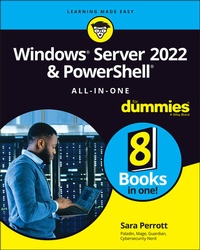
Windows Server 2022 & PowerShell All-in-One For Dummies
Description

Looking for a little help installing, configuring, securing, or running a network running Windows Server 2022? Windows Server 2022 & PowerShell All-in-One For Dummies delivers a thorough guide to network administration in a single, convenient book. Whether you need to start from scratch and install a new server or want to jump right into a more advanced topiclike managing security or working in Windows PowerShellyou'll find what you need right here.
In this 8-books-in-1 compilation, you'll:
* Learn what you need to install and set up a brand-new Windows server installation
* Configure your Windows Server and customize its settings based on your needs and preferences
* Discover how to install, configure, and work with Containers
The perfect book for server and system admins looking for a quick reference on Windows Server operation, this book is also a great resource for networking newcomers learning their way around the server software they'll encounter daily.
More details
Other editions
Additional editions
Person
Content
Book 1: Installing and Setting Up Windows Server 2022 5
Chapter 1: An Overview of Windows Server 2022 7
Chapter 2: Using Boot Diagnostics 19
Chapter 3: Performing the Basic Installation 33
Chapter 4: Performing Initial Configuration Tasks 45
Book 2: Configuring Windows Server 2022 73
Chapter 1: Configuring Server Roles and Features 75
Chapter 2: Configuring Server Hardware 103
Chapter 3: Using the Settings Menu 145
Chapter 4: Working with Workgroups 155
Chapter 5: Promoting Your Server to Domain Controller 171
Chapter 6: Managing DNS and DHCP with IP Address Management 203
Book 3: Administering Windows Server 2022 217
Chapter 1: An Overview of the Tools Menu in Server Manager 219
Chapter 2: Setting Group Policy 233
Chapter 3: Configuring the Registry 247
Chapter 4: Working with Active Directory 263
Chapter 5: Performing Standard Maintenance 279
Chapter 6: Working at the Command Line 313
Chapter 7: Working with PowerShell 325
Book 4: Configuring Networking In Windows Server 2022 339
Chapter 1: Overview of Windows Server 2022 Networking
Chapter 2: Performing Basic Network Tasks 359
Chapter 3: Accomplishing Advanced Network Tasks 371
Chapter 4: Diagnosing and Repairing Network Connection Problems 389
Book 5: Managing Security With Windows Server 2022 401
Chapter 1: Understanding Windows Server 2022 Security 403
Chapter 2: Configuring Shared Resources 419
Chapter 3: Configuring Operating System Security 439
Chapter 4: Working with the Internet 457
Chapter 5: Understanding Digital Certificates 471
Chapter 6: Installing and Configuring AD CS 479
Chapter 7: Securing Your DNS Infrastructure 499
Book 6: Working With Windows Powershell 513
Chapter 1: Introducing PowerShell 515
Chapter 2: Understanding the NET Framework 547
Chapter 3: Working with Scripts and Cmdlets 555
Chapter 4: Creating Your Own Scripts and Advanced Functions 565
Chapter 5: PowerShell Desired State Configuration 581
Book 7: Installing and Administering Hyper-V 593
Chapter 1: What Is Hyper-V? 595
Chapter 2: Virtual Machines 607
Chapter 3: Virtual Networking 619
Chapter 4: Virtual Storage 637
Chapter 5: High Availability in Hyper-V 651
Book 8: Installing, Configuring, and Using Containers 667
Chapter 1: Introduction to Containers in Windows Server 2022 669
Chapter 2: Docker and Docker Hub 675
Chapter 3: Installing Containers on Windows Server 2022 685
Chapter 4: Configuring Docker and Containers on Windows Server 2022 695
Chapter 5: Managing Container Images 705
Chapter 6: Container Networking 715
Chapter 7: Container Storage 725
Index 733
Chapter 1
An Overview of Windows Server 2022
IN THIS CHAPTER
Getting an overview of the features new to Windows Server 2022
Making sense of the Windows Server 2022 editions
Looking at the different Windows Server 2022 user experiences
Recognizing the benefits of Server Manager
Working with the Windows Admin Center
Making your data center bigger and better
Windows Server 2022 is the latest version of Microsoft's flagship server operating system. This chapter has something for everyone. If you're already familiar with Windows Server, I discuss the new features that Windows Server 2022 brings to the table. If you haven't worked with Microsoft Server operating systems much before, you'll appreciate the information on the editions and user experiences that you can use, depending on your needs.
Extra! Extra! Read All About It! Seeing What's New in Windows Server 2022
With each new version of Windows Server, Microsoft introduces new and innovative technologies to improve administration, add needed functionality, and improve security. Here are some of the new features in Windows Server 2022:
- Secured-core server: These systems have special hardware that enables them to use advanced security features. Trusted Platform Module (TPM) 2.0 is a standard feature, for example, which can be used for a variety of things, including secure key storage and improved boot time protection from BitLocker. Microsoft also provides increased protections against firmware-level attacks and virtualization-based security (VBS).
- Improvements to Domain Name System (DNS) security: DNS requests can now be made via Hypertext Transfer Protocol Secure (HTTPS), using an encrypted channel. This new feature is referred to as DNS-over-HTTPS, which is shortened to DoH. If you're like me, you probably pictured Homer Simpson yelling "D'oh!"
- Transport Layer Security (TLS): In Windows Server 2022, both HTTPS and TLS 1.3 are enabled by default to better protect your network and Internet activity. For more information on this feature, check out Book 5, Chapter 3.
- Server Message Block (SMB) security: Windows Server 2022 brings several improvements for SMB security. SMB can now be used over the QUIC protocol instead of Transmission Control Protocol (TCP). This allows you to take advantage of TLS 1.3 encryption. SMB Direct now supports encryption with little to no performance impact. Previously, if you enabled SMB encryption, direct data placement was disabled due to the impact to performance. Plus, traffic between storage clusters in Storage Spaces Direct can now be encrypted.
- Azure hybrid capabilities: In Windows Server 2022, you have Azure Arc, which provides centralized management of servers, and Azure Automanage: Hotpatch, which allows for rebootless updates. I discuss these features a bit more toward the end of this chapter.
- Windows Admin Center: Improvements have been made to Windows Admin Center to add support for the new secured-core server features.
- Improved support for Windows Containers: Container image sizes have been greatly reduced, and increased support for Kubernetes has been added. I discuss these subjects in greater detail in Book 8.
- Network performance: TCP and User Datagram Protocol (UDP) performance have both been improved in Windows Server 2022.
- Microsoft Edge browser: Microsoft Edge is now the browser of choice on Microsoft products. It has replaced Internet Explorer as the default browser in Windows Server 2022.
- Storage improvements: Migrating data has been made simpler with improvements to the Storage Migration Service. Storage Spaces Direct has also gotten some love with two big improvements. The first new feature, user adjustable storage repair speed, allows users to specify how many resources should be allocated to repairing data or servicing active storage needs. The second new feature is the storage bus cache being available on non-clustered systems, which allows you to create tiered storage on a stand-alone server.
Deciding Which Windows Server 2022 Edition Is Right for You
Windows Server 2022 comes in three editions: Essentials, Standard, and Datacenter. In the following sections, I walk you through each edition so you can determine which one is right for you.
Essentials
The Essentials edition is ideal for small organizations (usually no more than 25 to 50 users). It provides enough basic functionality to do most jobs and is a cost-effective solution for small organizations. Features of the Essentials edition include the following:
- Supports up to two CPU cores
- Supports a maximum of 64GB of random access memory (RAM)
Standard
The Standard edition is ideal for environments with little to no virtualization or when used as a guest operating system. Features of the Standard edition include the following:
- Up to two Hyper-V containers and unlimited Windows containers
- HGS and Nano Server support
- Storage Replica (with some limitations)
Datacenter
The Datacenter edition has the same features as the Standard edition and some additional features that make it the ideal edition for organizations with a lot of virtualization needs, the desire to do software-defined networking, or that need advanced storage options. Some of these features include the following:
- Unlimited Hyper-V containers in addition to unlimited Windows containers
- Unlimited Hyper-V virtual machines and support for shielded virtual machines
- Storage Replica (unlimited) and Storage Spaces Direct
- Software-defined networking
- Network controller
- Host Guardian Hyper-V support
Note: There is a specialized version of Windows Server Datacenter referred to as the Azure Edition. Windows Server 2022 Datacenter: Azure Edition provides greater integration with the Microsoft Azure cloud. You can only get this version through Microsoft Azure by installing it as a virtual machine in Azure. You can't install it on your own on-premises systems or run it on your own hypervisors. New features include the following:
- Azure Extended Network
- Hotpatching
- SMB over QUIC
- Shielded VM support
Note: You won't see Datacenter: Azure Edition called out in this book specifically. However, many of the topics I cover in this book can be applied to Datacenter: Azure Edition.
Walking the Walk: Windows Server 2022 User Experiences
Windows Server 2022 has two user experiences to choose from. What you use will depend on the workload you're wanting to support, as well as organizational requirements. In this section, I explain the Desktop Experience and the Server Core experience, as well as some pros and cons of each.
Desktop Experience
Desktop Experience is what you would consider to be the standard graphical user interface (GUI) that you may have used in previous versions of the Windows Server operating systems. It allows you to interact with the system with buttons and menus rather than through the command line. Server with Desktop Experience can be managed through Group Policy if attached to an Active Directory domain, and workgroup (non-domain) servers can be managed via local Group Policy.
Desktop Experience tends to be the easier form of server installation and administration for beginning system administrators, but I highly recommend that you don't rely on the GUI (shown in Figure 1-1). Become a PowerShell ninja instead! PowerShell is a very versatile language and can be used on a variety of systems, including some of the newer versions of Linux.
FIGURE 1-1: Server with Desktop Experience.
Server Core
Server Core (shown in Figure 1-2) provides a much simpler interface if you connect to the console. You're greeted by a somewhat familiar-looking command window that prompts you for your username and password. After you've logged in, by default you're presented with the sconfig window. When you choose to exit to command line from sconfig, you're given a PowerShell window to interact with. Initial configuration is done with the sconfig utility, though it could be done through a PowerShell script or PowerShell Desired State Configuration (DSC). This experience can be managed through Group Policy if attached to an Active Directory domain or through local Group Policy if they're workstation servers.
FIGURE 1-2: Server Core's sconfig utility is where you perform initial configuration.
Nano
Nano provides an even simpler interface and a much more limited console, which is referred to as the Recovery Console. It isn't available through the regular installer on the disc; instead, you have to download the container image from Microsoft. Nano has a much smaller footprint, both in terms of disk and compute needs, than Desktop Experience or Server Core. Because it has a smaller overall footprint, the attack surface is also reduced. Windows Server Nano 2022 is available only as a container base operating system image and can only be run as a container on a container...
