

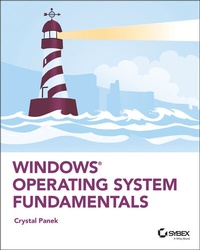
Windows Operating System Fundamentals
Description

Windows Operating System Fundamentals covers everything you need to know about Windows 10. Learn to master the installation process and discover the cool new features of Windows 10, including Edge, Cortana, and more. And because this book follows the Windows Server Operating System Fundamentals MTA Certification, it is perfect for IT professionals who are new to the industry and need an entry point into IT certification.
This book covers the basics of the Windows operating system, from setting up user accounts to using the start menu, running applications, and setting up internet access. You'll be prepared to upgrade a computer to Windows 10 and to master the basic tools necessary to work effectively within the OS. Each chapter closes with a quiz so you can test your knowledge before moving to the next section.
* Learn to configure your Windows 10 operating system, optimize account controls, configure user profiles, customize system options, and more!
* Understand how to use Windows applications and tools for managing LAN settings, configuring Microsoft Edge, and setting up remote assistance
* Use Windows to manage devices like printers, cloud storage, OneDrive, and system devices
* Maintain, update, protect, and backup your data by configuring Windows Update, automated backup, and system recovery and restore
With Windows Operating System Fundamentals, IT Professionals looking to understand more about Windows 10 will gain the knowledge to effectively use applications, navigate files and folders, and upgrade client systems. Thanks to the troubleshooting tools and tips in this book, you can apply your new skills in real-world situations and feel confident while taking the certification exam.
More details
Other editions
Additional editions
Person
Crystal Panek, MCP, MCP+I, MCSA, MCSE, MCTS, MCDBA has trained students and IT professionals at the MicroC, Stellacon Corporation, and the University of New Hampshire. She served as vice-president of a large IT training company for over 15 years developing training materials and courseware to help 1000's of students pass their certification exams. She currently creates courseware for several large IT training facilities.
Content
Introduction xix
Lesson 1 Installing and Upgrading Client Systems 1
Understanding Windows Systems 3
Understanding User Interfaces 4
Determining Appropriate Editions Per Device Type 5
Understanding Processor and Memory Architecture 10
Understanding Drivers 12
Understanding Windows 10 System Requirements 13
Understanding Installation Types 17
Installing Windows 10 18
Performing a Clean Install of Windows 10 20
Upgrading to Windows 10 23
Migrating to Windows 10 from Previous Versions of Windows 26
Skill Summary 31
Knowledge Assessment 32
Multiple Choice 32
Fill in the Blank 34
True/False 34
Case Scenarios 34
Scenario 1-1: Troubleshooting a Compatibility Problem 35
Scenario 1-2: Converting a Small Office to Windows 10 35
Scenario 1-3: Selecting the Right Computer and Operating System 35
Scenario 1-4: Installing Windows 10 35
Lesson 2 Understanding Operating System Configurations 37
Understanding User Accounts 39
Create a User Account 40
Configuring and Optimizing User Account Control (UAC) 42
Review UAC Settings 44
Configuring Windows 10 45
Introducing Windows 10 Settings 47
Using Control Panel 50
Configuring System Options 53
Changing the Date and Time 56
Configuring the Desktop and Taskbar Settings 56
Configuring the Start Menu 60
Configuring File Explorer Settings 60
Configuring User Profiles 62
Configuring Folder Locations 63
Configuring Libraries 65
Configuring Display Settings 67
Configuring Power Settings 70
Configuring Accessibility Options 74
Creating and Managing Shortcuts 78
Configuring Hyper-V 80
Enable the Hyper-V Feature 80
Creating and Configuring Virtual Machines 82
Creating and Managing Virtual Switches 87
Creating and Managing Virtual Disks 90
Creating and Managing Checkpoints 91
Skill Summary 92
Knowledge Assessment 94
Multiple Choice 94
Fill in the Blank 95
True/False 96
Case Scenarios 96
Scenario 2-1: Getting Administrative-Level Privileges 96
Scenario 2-2: Configuring Accessibility Features 96
Scenario 2-3: Running a Legacy Application 96
Scenario 2-4: Creating a Better User Experience 96
Lesson 3 Understanding Native Applications, Tools, Mobility, and Remote Management and Assistance 97
Configuring Internet Explorer 99
Managing Cookies and Privacy Settings 99
Configuring Security Zones 104
Using Dynamic Security and Protected Mode 106
Configuring the SmartScreen Filter and Phishing 108
Managing Add-Ons 109
Configuring Compatibility Mode 111
Configuring Secure Sockets Layer (SSL) and Certificates 112
Managing Favorites 113
Managing LAN Settings 114
Configuring Microsoft Edge 116
Configuring Cortana 118
Introducing Accessory Programs 119
Using Snip & Sketch 120
Using Windows Media Player 12 125
Supporting Mobile Access and Data Synchronization 130
Synchronizing Your PC Settings 130
Configuring Offline Files 132
Using Windows Mobility Center 136
Change Mobility Center Settings 138
Accessing a Computer Remotely 138
Configuring Remote Desktop 139
Configuring Remote Assistance 144
Configuring Remote Management Settings 148
Using the Microsoft Management Console to Manage Systems Remotely 149
Using Windows Remote Management 153
Using WinRS.exe 155
Introducing Windows PowerShell 155
Using Remote Windows PowerShell 160
Skill Summary 162
Knowledge Assessment 163
Multiple Choice 163
Fill in the Blank 164
True/False 165
Case Scenarios 165
Scenario 3-1: Securing Internet Explorer 11 165
Scenario 3-2: Offering Remote Assistance 165
Scenario 3-3: Viewing Logs Remotely 166
Scenario 3-4: Creating a Playlist 166
Lesson 4 Managing Applications, Services, and Disks 167
Configuring Applications 169
Configuring Desktop Apps 169
Configuring Windows Features 171
Supporting Desktop Application Co-Existence 172
Troubleshooting Program Compatibility 172
Configuring Startup Options 174
Managing Windows Store Apps 176
Configuring the Windows Store 176
Implementing Windows Store Apps 178
Understanding Group Policy and Network Application Installation 180
Understanding Services 181
Understanding Service Startup Types 183
Using MSConfig (System Configuration Utility) 189
Change System Configuration Settings 193
Managing Processes and Applications with Task Manager 194
Understanding Storage 198
Understanding Storage Device Types 198
Understanding Disk and Drive Types 201
Understanding File Systems 203
Using Disk Management to Configure Disks, Volumes, and File Systems 205
Encrypting and Compressing Files and Folders 212
Understanding Encrypting File System (EFS) 213
Understanding BitLocker 217
Skill Summary 220
Knowledge Assessment 222
Multiple Choice 222
Fill in the Blank 223
True/False 224
Case Scenarios 224
Scenario 4-1: Providing Redundancy on a Client Computer 224
Scenario 4-2: Protecting Laptop Computers 225
Scenario 4-3: Uninstalling Local Software 225
Scenario 4-4: Running a Windows 7 Application on Windows 10 225
Lesson 5 Managing Devices 227
Understanding Cloud Storage 228
Using OneDrive to Manage Files and Folders 229
Understanding Printing Devices 232
Understanding Local Printers 232
Understanding Network Printers 236
Printing a Document 237
Understanding Print Queues 239
Understanding Internet Printing 241
Understanding System Devices and Device Drivers 242
Managing Devices 243
Using the Devices and Printers Folder 245
Using Device Manager 247
Troubleshooting Problem Devices 252
Skill Summary 255
Knowledge Assessment 256
Multiple Choice 256
Fill in the Blank 257
True/False 258
Case Scenarios 258
Scenario 5-1: Troubleshooting Print Jobs 258
Scenario 5-2: Troubleshooting a Printer Driver 258
Scenario 5-3: Changing Print Drivers 259
Scenario 5-4: Using Cloud Services 259
Lesson 6 Understanding File and Print Sharing 261
Understanding File and Printer Sharing Basics 263
Configuring HomeGroup Connections 266
Creating Shares 271
Configuring Public Folders 271
Configuring File Sharing 272
Configuring File System Permissions 276
Understanding Effective NTFS Permissions 279
Viewing Effective Permissions on a Resource 283
Combining NTFS and Share Permissions 285
Mapping Drives 285
Configuring Printer Sharing 288
Skill Summary 290
Knowledge Assessment 291
Multiple Choice 291
Fill in the Blank 292
True/False 293
Case Scenarios 293
Scenario 6-1: Picking an Appropriate File Sharing Method 293
Scenario 6-2: Creating and Configuring a Homegroup 294
Scenario 6-3: Restricting Permissions 294
Scenario 6-4: Mapping a Network Drive 294
Lesson 7 Maintaining, Updating, and Protecting Windows 10 295
Exploring Built-in Maintenance Tools 297
Using Disk Defragmenter 297
Using Disk Cleanup 300
Using Task Scheduler 301
Using Security and Maintenance (formerly called Action Center) 308
Using System Information 310
Maintaining the Windows Registry 312
Browse and Back Up the Windows Registry 314
Configuring and Managing Updates 315
Configuring Windows Update Options 316
Managing Update History and Rolling Back Updates 319
Implementing Insider Preview 320
Implementing Semi-Annual Channel, Semi-Annual Channel (Targeted), & Long-Term Servicing Branch (LTSB) Scenarios 320
Defending Your System from Malicious Software 322
Understanding Windows Firewall 324
Managing Client Security Using Windows Defender 326
Skill Summary 331
Knowledge Assessment 332
Multiple Choice 332
Fill in the Blank 333
True/False 334
Case Scenarios 334
Scenario 7-1: Automating Computer Maintenance and Program Launching 334
Scenario 7-2: Removing Viruses Safely 334
Scenario 7-3: Gathering System Information 335
Scenario 7-4: Distributing Windows Updates Across a Network 335
Lesson 8 Understanding Backup and Recovery Methods 337
Understanding Local, Network, and Automated Backup Methods 338
Restoring Previous Versions of Files and Folders 339
Schedule a Windows 10 Backup to Include a System Image 340
Restore a File from a Windows 10 Backup 342
Configuring System Recovery 343
Configuring a System Restore 343
Configuring a Windows 10 File Recovery Drive 346
Configuring File History 347
Performing Recovery Operations Using Windows Recovery 351
Skill Summary 358
Knowledge Assessment 360
Multiple Choice 360
Fill in the Blank 361
True/False 362
Case Scenarios 362
Scenario 8-1: Scheduling File Backups 362
Scenario 8-2: Installing from an Image 363
Scenario 8-3: Creating a System Repair Disc 363
Scenario 8-4: Resolving a Driver Problem Using Recovery Boot Options 363
Appendix Answer Key 365
Lesson 1: Installing and Upgrading Client Systems 366
Answers to Knowledge Assessment 366
Answers to Business Case Scenarios 367
Lesson 2: Understanding Operating System Configurations 367
Answers to Knowledge Assessment 367
Answers to Business Case Scenarios 368
Lesson 3: Understanding Native Applications, Tools, Mobility, and Remote Management and Assistance 369
Answers to Knowledge Assessment 369
Answers to Business Case Scenarios 370
Lesson 4: Managing Applications, Services, Folders, and Libraries 371
Answers to Knowledge Assessment 371
Answers to Business Case Scenarios 372
Lesson 5: Managing Devices 372
Answers to Knowledge Assessment 372
Answers to Business Case Scenarios 373
Lesson 6: Understanding File and Print Sharing 374
Answers to Knowledge Assessment 374
Answers to Business Case Scenarios 375
Lesson 7: Maintaining, Updating, and Protecting Windows 10 376
Answers to Knowledge Assessment 376
Answers to Business Case Scenarios 377
Lesson 8: Understanding Backup and Recovery Methods 378
Answers to Knowledge Assessment 378
Answers to Business Case Scenarios 379
Index 381
Lesson 1
Installing and Upgrading Client Systems
Objective Domain Matrix
Technology Skill Objective Domain Description Objective Domain Number Understanding Windows SystemsIdentify Windows operating system editions
Understand operating system architecture
2.1
2.4
Understanding Installation TypesUnderstand installation types
Identify upgrade paths
2.3
2.2
Key Terms
- AppLocker
- Assigned Access 8.1
- BitLocker
- BranchCache
- Business Store
- clean installation
- Client Hyper-V
- cloud
- command-line interface (CLI)
- Continuum
- Cortana
- Credential Guard
- Current Branch for Business
- desktop PC
- device driver
- Device Guard
- DirectAccess
- Encrypting File System (EFS)
- Enterprise Mode Internet Explorer (EMIE)
- graphical user interface (GUI)
- Group Policy management
- hardware interrupts (IRQ)
- High Touch Installation (HTI)
- hybrid computer
- joining to a domain
- kernel mode
- laptop
- Lite Touch Installation (LTI)
- LoadState.exe
- Long-Term Servicing Branch
- Private catalog
- Remote Desktop
- RemoteApp
- ScanState.exe
- smartphone
- tablet
- text user interface (TUI)
- upgrade installation
- User Experience control and lockdown
- user interface (UI)
- user mode
- User State Migration Tool (USMT)
- UsmtUtils.exe
- virtual desktops
- Windows 10
- Windows 10 Education
- Windows 10 Enterprise
- Windows 10 Home
- Windows 10 Media Creation tool
- Windows 10 Pro
- Windows Deployment Services
- Windows Hello
- Windows Spotlight
- Windows To Go
- Windows Update
- Windows Update for Business
- x64
- x86
- Zero Touch Installation (ZTI)
Lesson 1 Case
You work as an IT technician for Interstate Snacks, Inc., a mid-market food service and vending company. Management has decided to standardize on Windows 10 Pro and has asked your IT group to evaluate all existing computers to determine if they can support the operating system. Any newly acquired computers should have Windows 10 Pro installed. You need to learn as much as possible about Windows 10 system requirements, types of installations, and upgrade paths.
Understanding Windows Systems
The client version of Windows is the version that is purchased and installed on personal computers such as desktop computers, laptops, workstations, and tablets. Windows Server operating systems are purchased and installed on stand-alone physical servers, blade servers, and virtual machines.
Windows XP merged the consumer-oriented Windows 9x series with Windows NT/2000, while introducing a redesigned user interface that included the Start menu, Internet Explorer 6, and Remote Assistance functionality. As a result, Windows XP became one of the most popular client operating systems in history.
Microsoft attempted to replace Windows XP with Windows Vista, which had an updated graphical user interface and improved security. Unfortunately, Windows Vista was not well received, and it failed to overtake Windows XP. To overcome the shortcomings of Windows Vista, Microsoft released Windows 7, which offered increased performance, a more intuitive interface, and fewer User Account Control pop-ups. Windows 7 included some terrific new features as well, such as large and animated task thumbnails, HomeGroups, Jump Lists, libraries, and Windows XP Mode.
The next version of Windows introduced was Windows 8, which was upgraded to support desktop computers, mobile computers, and tablets, while optimized for touch screens. Windows 8 replaced the Start button and menu with the Start screen, a new platform for developing apps, and the Windows Store. Unfortunately, the new interface made it confusing and difficult to learn. To address some of these concerns, Microsoft released Windows 8.1, which improved the Start screen.
There are some common threads throughout all editions of Windows. For example, every edition contains the same integrated applications, such as Network and Sharing Center, Control Panel, and Windows Media Player. The different editions also include many of the same multimedia features. All Windows editions support 32-bit systems, and all editions except Windows 7 Starter support 64-bit systems.
is the newest client operating system. After the failure of Windows 8, Microsoft listened to customer complaints to develop Windows 10. To distance the new version of Windows from Windows 8/8.1, Microsoft skipped Windows 9 and went to Windows 10. Unlike previous versions of Windows, Windows 10 is released as an "operating system as a service," which means that it will receive ongoing updates to its features and functionality.
As client operating systems are developed and released, Microsoft also develops and releases server operating systems, as shown in Table 1.1. Until Windows 10, the client operating system and server operating system were introduced together. While both client and server operating systems can provide and request services, server operating systems can provide additional services and can service many more clients simultaneously.
TABLE 1.1 Client and Server Operating Systems
Client Operating Systems Server Operating Systems Version Number Windows 10 Windows Server 2016 10.0 Windows 8.1 Windows Server 2012 R2 6.3 Windows 8 Windows Server 2012 6.2 Windows 7 Windows Server 2008 R2 6.1 Windows Vista Windows Server 2008 6.0 Windows XP Windows Server 2003/Windows Server 2003 R2 5.1/5.2 Windows 2000 Professional Windows 2000 Server 5.0 Windows NT 4.0 Workstation Windows NT 4.0 Server 4.0Understanding User Interfaces
A is the part of the operating system, program, or device that users use to input and receive data, and to tell the computer what to do. For example, to play a video, navigate to the folder where the video file is located, and double-click the file. Windows typically identifies the program, opens a video player, and plays the file.
User interfaces are organized into two types:
- : Performs functions by clicking and moving buttons, icons, and menus with a pointing device, such as a mouse or track pad.
- : Performs functions by using a keyboard to type commands.
Most operating systems have a GUI, as do Windows 10 and Windows Server 2016. These operating systems include a Start menu with program groups, a taskbar showing the programs currently in use, a desktop, and various icons and quick-launch icons.
Early operating systems, such as UNIX and Microsoft DOS, were text user interface operating systems, in which you would type commands to perform tasks. However, even GUI operating systems include a text user interface that you can access to perform functions that may or may not also be available with the GUI. For example, when using Windows 10, you can use the command prompt (which allows you to type commands similar to Microsoft DOS) or Windows PowerShell. Use the command prompt or Windows PowerShell to create scripts, which can be used for repetitive tasks or for automation.
Determining Appropriate Editions Per Device Type
Like previous client version operating systems, Windows 10 offers multiple editions. The barest version is Windows 10 Home, which has the fewest number of features. Windows 10 Pro includes more features, and Windows 10 Enterprise and Windows 10 Education have the most features. Of course, Windows 10 Home is the least expensive edition, whereas Windows 10 Enterprise is the most expensive edition.
Before installing Windows, you should do a little bit of planning and ask the following questions:
- What will the computer be used for?
- What type of environment will the computer run in?
- Does the computer need to be portable?
Determining what the computer will be used for will help you determine what hardware you need. For example, for a computer-aided design (CAD) system, you need a fast processor, lots of memory, and a fast video card. In addition, a CAD system would greatly benefit from a solid-state drive.
Examining the...
