

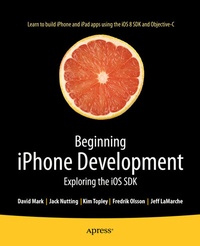
Beginning iPhone Development
Description

You'll have everything you need to create your very own apps for the latest iOS devices. Every single sample app in the book has been rebuilt from scratch using Xcode 6.1 and the latest 64-bit iOS 8-specific project templates, and designed to take advantage of the latest Xcode features.
Assuming only a minimal working knowledge of Objective-C, and written in a friendly, easy-to-follow style, Beginning iPhone Development offers a complete soup-to-nuts course in iPhone, iPad, and iPod touch programming. The book starts with the basics, walking through the process of downloading and installing Xcode 6.1 and the iOS 8 SDK, and then guides you though the creation of your first simple application.
From there, you'll learn how to integrate all the interface elements iOS users have come to know and love, such as buttons, switches, pickers, toolbars, and sliders. You'll master a variety of design patterns, from the simplest single view to complex hierarchical drill-downs. The confusing art of table building will be demystified, and you'll learn how to save your data using the iPhone file system. You'll also learn how to save and retrieve your data using a variety of persistence techniques, including Core Data and SQLite. And there's much more!
More details
Other editions
Additional editions
Previous edition
Persons
Content
- Intro
- Contents at a Glance
- Contents
- About the Authors
- About the Technical Reviewer
- Chapter 1: Welcome to the Jungle
- What This Book Is
- What You Need
- Developer Options
- What You Need to Know
- What's Different About Coding for iOS?
- Only One Active Application
- Only One Window
- Limited Access
- Limited Response Time
- Limited Screen Size
- Limited System Resources
- No Garbage Collection, But.
- Some New Stuff
- A Different Approach
- What's in This Book
- What's New in This Update?
- Are You Ready?
- Chapter 2: Appeasing the Tiki Gods
- Setting Up Your Project in Xcode
- The Xcode Project Window
- The Toolbar
- The Navigator
- The Jump Bar
- The Utility Area
- Interface Builder
- New Compiler and Debugger
- A Closer Look at Our Project
- Introducing Xcode's Interface Builder
- File Formats
- The Storyboard
- The Library
- Adding a Label to the View
- Changing Attributes
- Some iPhone Polish: Finishing Touches
- The Launch Screen
- Bring It on Home
- Chapter 3: Handling Basic Interaction
- The Model-View-Controller Paradigm
- Creating Our Project
- Looking at the View Controller
- Understanding Outlets and Actions
- Outlets
- Actions
- Cleaning Up the View Controller
- Designing the User Interface
- Adding the Buttons and Action Method
- Adding the Label and Outlet
- Writing the Action Method
- Trying It Out
- Previewing Layout
- Adding Some style
- Looking at the Application Delegate
- Bring It on Home
- Chapter 4: More User Interface Fun
- A Screen Full of Controls
- Active, Static, and Passive Controls
- Creating the Application
- Implementing the Image View and Text Fields
- Adding the Image View
- Resizing the Image View
- Setting View Attributes
- The Mode Attribute
- Tag
- Interaction Check Boxes
- The Alpha Value
- Background
- Tint
- Drawing Check Boxes
- Stretching
- Adding the Text Fields
- Text Field Inspector Settings
- Setting the Attributes for the Second Text Field
- Adding Constraints
- Creating and Connecting Outlets
- Closing the Keyboard
- Closing the Keyboard When Done Is Tapped
- Touching the Background to Close the Keyboard
- Adding the Slider and Label
- Adding More Constraints
- Creating and Connecting the Actions and Outlets
- Implementing the Action Method
- Implementing the Switches, Button, and Segmented Control
- Adding Two Labeled Switches
- Connecting and Creating Outlets and Actions
- Implementing the Switch Actions
- Adding the Button
- Spiffing Up the Button
- Stretchable Images
- Control States
- Connecting and Creating the Button Outlets and Actions
- Implementing the Segmented Control Action
- Implementing the Action Sheet and Alert
- Showing an Action Sheet
- Showing an Alert
- Crossing the Finish Line
- Chapter 5: Rotation and Adaptive Layout
- The Mechanics of Rotation
- Points, Pixels, and the Retina Display
- Handling Rotation
- Choosing Your View Orientations
- Supported Orientations at the App Level
- Per-Controller Rotation Support
- Designing an Interface Using Constraints
- Overriding Default Constraints
- Full-Width Labels
- Creating Adaptive Layouts
- The Restructure Application
- Size Classes
- Size Classes and Storyboards
- Creating the iPhone Landscape Layout
- Adding the iPad Layout
- Rotating Out of Here
- Chapter 6: Multiview Applications
- Common Types of Multiview Apps
- The Architecture of a Multiview Application
- The Root Controller
- Anatomy of a Content View
- Building View Switcher
- Renaming the View Controller
- Adding the Content View Controllers
- Modifying SwitchingViewController.m
- Building a View with a Toolbar
- Linking the Toolbar Button to the View Controller
- Writing the Root View Controller
- Implementing the Content Views
- Animating the Transition
- Switching Off
- Chapter 7: Tab Bars and Pickers
- The Pickers Application
- Delegates and Data Sources
- Creating the Pickers Application
- Creating the View Controllers
- Creating the Tab Bar Controller
- The Initial Test Run
- Implementing the Date Picker
- Implementing the Single-Component Picker
- Building the View
- Implementing the Controller As a Data Source and Delegate
- Implementing a Multicomponent Picker
- Declaring Outlets and Actions
- Building the View
- Implementing the Controller
- Implementing Dependent Component s
- Creating a Simple Game with a Custom Picker
- Writing the Controller Header File
- Building the View
- Implementing the Controller
- The spin Method
- The viewDidLoad Method
- Final Details
- Final Spin
- Chapter 8: Introduction to Table Views
- Table View Basics
- Table Views and Table View Cells
- Grouped and Plain Tables
- Implementing a Simple Table
- Designing the View
- Writing the Controller
- Adding an Image
- Using Table View Cell Styles
- Setting the Indent Level
- Handling Row Selection
- Changing the Font Size and Row Height
- Customizing Table View Cells
- Adding Subviews to the Table View Cell
- Creating a UITableViewCell Subclass
- Adding New Cells
- Implementing the Controller's Code
- Loading a UITableViewCell from a Nib
- Designing the Table View Cell in Interface Builder
- Using the New Table View Cell
- Grouped and Indexed Sections
- Building the View
- Importing the Data
- Implementing the Controller
- Adding an Index
- Implementing a Search Bar
- How Many Tables?: View Debugging
- Putting It All on the Table
- Chapter 9: Navigation Controllers and Table Views
- Navigation Controller Basics
- Stacky Goodness
- A Stack of Controllers
- Fonts: A Simple Font Browser
- Meet the Subcontrollers
- The Font List Controller
- The Font Sizes View Controller
- The Font Info View Controller
- The Fonts Application's Skeleton
- Setting Up the Navigation Controller
- Keeping Track of Favorites
- Creating the Root View Controller
- Initial Storyboard Setup
- First Subcontroller: The Font List View
- Storyboarding the Font List
- Making the Root View Controller Prepare for Segues
- Creating the Font Sizes View Controller
- Storyboarding the Font Sizes View Controller
- Making the Font List View Controller Prepare for Segues
- Creating the Font Info View Controller
- Storyboarding the Font Info View Controller
- Setting Up Constraints
- Adapting the Font List View Controller for Multiple Segues
- My Favorite Fonts
- Table View Niceties
- Implementing Swipe-to-Delete
- Implementing Drag-to- Reorder
- Breaking the Tape
- Chapter 10: Collection View
- Creating the DialogViewer Project
- Fixing the View Controller's Class
- Defining Custom Cells
- Configuring the View Controller
- Providing Content Cells
- Making the Layout Flow
- Providing Header Views
- Chapter 11: Using Split Views and Popovers
- Building Master-Detail Applications with UISplitViewController
- The Storyboard Defines the Structure
- The Code Defines the Functionality
- The App Delegate
- The Master View Controller
- The Detail View Controller
- How the Master-Detail Template Application Works
- Here Come the Presidents
- Creating Your Own Popover
- Split Views on the iPhone
- Split Views on the iPhone 6 Plus
- Getting the iPhone 6 Plus Behavior on All iPhones
- Customizing the Split View
- Time to Wrap Up and Split
- Chapter 12: Application Settings and User Defaults
- Getting to Know Your Settings Bundle
- The Bridge Control Application
- Creating the Project
- Working with the Settings Bundle
- Adding a Settings Bundle to Our Project
- Setting Up the Property List
- Adding a Text Field Setting
- Adding an Application Icon
- Adding a Secure Text Field Setting
- Adding a Multivalue Field
- Adding a Toggle Switch Setting
- Adding the Slider Setting
- Adding Icons to the Settings Bundle
- Adding a Child Settings View
- Reading Settings in Our Application
- Retrieving User Settings
- Creating the Main View
- Updating the First View Controller
- Changing Defaults from Our Application
- Registering Default Values
- Keeping It Real
- Switching to the Settings Application
- Beam Me Up, Scotty
- Chapter 13: Basic Data Persistence
- Your Application's Sandbox
- Getting the Documents and Library Directories
- Getting the tmp Directory
- File-Saving Strategies
- Single-File Persistence
- Multiple-File Persistence
- Using Property Lists
- Property List Serialization
- The First Version of the Persistence Application
- Creating the Persistence Project
- Designing the Persistence Application View
- Editing the Persistence Classes
- Archiving Model Objects
- Conforming to NSCoding
- Implementing NSCopying
- Archiving and Unarchiving Data Objects
- The Archiving Application
- Implementing the FourLines Class
- Implementing the ViewController Class
- Using iOS's Embedded SQLite3
- Creating or Opening the Database
- Using Bind Variables
- The SQLite3 Application
- Linking to the SQLite3 Library
- Modifying the Persistence View Controller
- Using Core Data
- Entities and Managed Objects
- Key-Value Coding
- Putting It All in Context
- Creating New Managed Objects
- Retrieving Managed Objects
- The Core Data Application
- Designing the Data Model
- Creating the Persistence View
- Persistence Rewarded
- Chapter 14: Documents and iCloud
- Managing Document Storage with UIDocument
- Building TinyPix
- Creating TinyPixDocument
- Code Master
- Initial Storyboarding
- Creating TinyPixView
- Storyboard Detailing
- Adding iCloud Support
- Creating a Provisioning Profile
- How to Query
- Save Where?
- Storing Preferences on iCloud
- What We Didn't Cover
- Chapter 15: Grand Central Dispatch, Background Processing, and You
- Grand Central Dispatch
- Introducing SlowWorker
- Threading Basics
- Units of Work
- GCD: Low-Level Queuing
- Becoming a Blockhead
- Improving SlowWorker
- Don't Forget That Main Thread
- Giving Some Feedback
- Concurrent Blocks
- Background Processing
- Application Life Cycle
- State-Change Notifications
- Creating State Lab
- Exploring Execution States
- Using Execution State Changes
- Active ? Inactive
- Inactive ? Background
- Background ? Inactive
- Inactive ? Active
- Handling the Inactive State
- Handling the Background State
- Removing Resources When Entering the Background
- Saving State When Entering the Background
- Requesting More Backgrounding Time
- Grand Central Dispatch, Over and Out
- Chapter 16: Drawing with Core Graphics
- Paint the World
- The Quartz 2D Approach to Drawing
- Quartz 2D's Graphics Contexts
- The Coordinate System
- Specifying Colors
- A Bit of Color Theory for Your iOS Device's Display
- Other Color Models
- Color Convenience Methods
- Drawing Images in Context
- Drawing Shapes: Polygons, Lines, and Curves
- Quartz 2D Tool Sampler: Patterns, Gradients, and Dash Patterns
- The QuartzFun Application
- Setting Up the QuartzFun Application
- Creating a Random Color
- Defining Application Constants
- Implementing the QuartzFunView Skeleton
- Creating and Connecting Outlets and Actions
- Implementing the Action Methods
- Adding Quartz 2D Drawing Code
- Drawing the Line
- Drawing the Rectangle and Ellipse
- Drawing the Image
- Optimizing the QuartzFun Application
- Drawing to a Close
- Chapter 17: Getting Started with Sprite Kit
- Simple Beginnings
- Initial Scene Customization
- Player Movement
- Adding the Player to the Scene
- Handling Touches: Player Movement
- Geometry Calculations
- Wobbly Bits
- Creating Your Enemies
- Putting Enemies in the Scene
- Start Shooting
- Defining Your Physics Categories
- Creating the BulletNode Class
- Applying Physics
- Adding Bullets to the Scene
- Attacking Enemies with Physics
- Finishing Levels
- Keeping Tabs on the Enemies
- Transitioning to the Next Level s
- Customizing Collisions
- Adding a Category to SKNode
- Adding Custom Collision Behavior to Enemies
- Showing Accurate Player Lives
- Spicing Things Up with Particles
- Your First Particle
- Putting Particles into the Scene
- The End Game
- At Last, a Beginning: Create a StartScene
- A Sound Is Worth a Thousand Pictures
- Making the Game a Little Harder: Force Fields
- Game On
- Chapter 18: Taps, Touches, and Gestures
- Multitouch Terminology
- The Responder Chain
- Responding to Events
- Forwarding an Event: Keeping the Responder Chain Alive
- The Multitouch Architecture
- The Four Touch Notification Methods
- The TouchExplorer Application
- The Swipes Application
- Using Touch Events to Detect Swipes
- Automatic Gesture Recognition
- Implementing Multiple Swipes
- Detecting Multiple Taps
- Detecting Pinch and Rotation
- Defining Custom Gestures
- The CheckPlease Application
- The CheckPlease Touch Methods
- Garçon? Check, Please!
- Chapter 19: Where Am I? Finding Your Way with Core Location and Map Kit
- The Location Manager
- Setting the Desired Accuracy
- Setting the Distance Filter
- Getting Permission to Use Location Services
- Starting the Location Manager
- Using the Location Manager Wisely
- The Location Manager Delegate
- Getting Location Updates
- Getting Latitude and Longitude Using CLLocation
- Error Notifications
- Trying Out Core Location
- Using Location Manager Updates
- Visualizing Your Movement on a Map
- Changing Location Service Permissions
- Wherever You Go, There You Are
- Chapter 20: Whee! Gyro and Accelerometer!
- Accelerometer Physics
- Don't Forget Rotation
- Core Motion and the Motion Manager
- Event-Based Motion
- Proactive Motion Access
- Gyroscope and Attitude Results
- Accelerometer Results
- Detecting Shakes
- Baked-In Shaking
- Shake and Break
- Accelerometer As Directional Controller
- Rolling Marbles
- Writing the Ball View
- Calculating Ball Movement
- Rolling On
- Chapter 21: The Camera and Photo Library
- Using the Image Picker and UIImagePickerController
- Using the Image Picker Controller
- Implementing the Image Picker Controller Delegate
- Road Testing the Camera and Library
- Designing the Interface
- Implementing the Camera View Controller
- It's a Snap!
- Chapter 22: Application Localization
- Localization Architecture
- Strings Files
- What's in a Strings File?
- The Localized String Macro
- Real-World iOS: Localizing Your Application
- Setting Up LocalizeMe
- Trying Out LocalizeMe
- Localizing the Project
- Localizing the Storyboard
- Generating and Localizing a Strings File
- Previewing Localizations in Xcode
- Localizing the App Display Name
- Adding Another Localization
- Auf Wiedersehen
- Index
