

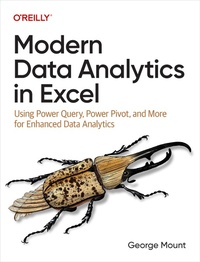
Modern Data Analytics in Excel
Published on 26. April 2024
244 pages
978-1-0981-4879-9 (ISBN)
Description

If you haven't modernized your data cleaning and reporting processes in Microsoft Excel, you're missing out on big productivity gains. And if you're looking to conduct rigorous data analysis, more can be done in Excel than you think. This practical book serves as an introduction to the modern Excel suite of features along with other powerful tools for analytics.George Mount of Stringfest Analytics shows business analysts, data analysts, and business intelligence specialists how to make bigger gains right from your spreadsheets by using Excel's latest features. You'll learn how to build repeatable data cleaning workflows with Power Query, and design relational data models straight from your workbook with Power Pivot. You'll also explore other exciting new features for analytics, such as dynamic array functions, AI-powered insights, and Python integration.Learn how to build reports and analyses that were previously difficult or impossible to do in Excel. This book shows you how to:Build repeatable data cleaning processes for Excel with Power QueryCreate relational data models and analysis measures with Power PivotPull data quickly with dynamic arraysUse AI to uncover patterns and trends from inside ExcelIntegrate Python functionality with Excel for automated analysis and reporting
More details
Other editions
Additional editions
George Mount
Modern Data Analytics in Excel
Using Power Query, Power Pivot and More for Enhanced Data Analytics
Book
05/2024
O'Reilly
€59.50
Shipment within 15-20 days
Content
- Cover
- Copyright
- Table of Contents
- Preface
- Learning Objective
- Prerequisites
- Technical Requirements
- Technological Requirements
- How I Got Here
- What Is "Modern Analytics"? Why Excel?
- Book Overview
- Part I, Data Cleaning and Transformation with Power Query
- Part II, Data Modeling and Analysis with Power Pivot
- Part III, The Excel Data Analytics Toolkit
- End-of-Chapter Exercises
- This Is Not a Laundry List
- Conventions Used in This Book
- Using Code Examples
- O'Reilly Online Learning
- How to Contact Us
- Acknowledgments
- Part I. Data Cleaning and Transformation with Power Query
- Chapter 1. Tables: The Portal to Modern Excel
- Creating and Referring to Table Headers
- Viewing the Table Footers
- Naming Excel Tables
- Formatting Excel Tables
- Updating Table Ranges
- Organizing Data for Analytics
- Conclusion
- Exercises
- Chapter 2. First Steps in Excel Power Query
- What Is Power Query?
- Power Query as Excel Myth Buster
- "Excel Is Not Reproducible"
- "Excel Does Not Have a True null"
- "Excel Can't Process More Than 1,048,576 Rows"
- Power Query as Excel's ETL Tool
- Extract
- Transform
- Load
- A Tour of the Power Query Editor
- The Ribbon Menu
- Queries
- The Imported Data
- Exiting the Power Query Editor
- Returning to the Power Query Editor
- Data Profiling in Power Query
- What Is Data Profiling?
- Exploring the Data Preview Options
- Overriding the Thousand-Row Limit
- Closing Out of Data Profiling
- Conclusion
- Exercises
- Chapter 3. Transforming Rows in Power Query
- Removing the Missing Values
- Refreshing the Query
- Splitting Data into Rows
- Filling in Headers and Cell Values
- Replacing Column Headers
- Filling Down Blank Rows
- Conclusion
- Exercises
- Chapter 4. Transforming Columns in Power Query
- Changing Column Case
- Delimiting by Column
- Changing Data Types
- Deleting Columns
- Working with Dates
- Creating Custom Columns
- Loading & Inspecting the Data
- Calculated Columns Versus Measures
- Reshaping Data
- Conclusion
- Exercises
- Chapter 5. Merging and Appending Data in Power Query
- Appending Multiple Sources
- Connecting to External Excel Workbooks
- Appending the Queries
- Understanding Relational Joins
- Left Outer Join: Think VLOOKUP()
- Inner Join: Only the Matches
- Managing Your Queries
- Grouping Your Queries
- Viewing Query Dependencies
- Conclusion
- Exercises
- Part II. Data Modeling and Analysis with Power Pivot
- Chapter 6. First Steps in Power Pivot
- What Is Power Pivot?
- Why Power Pivot?
- Power Pivot and the Data Model
- Loading the Power Pivot Add-in
- A Brief Tour of the Power Pivot Add-In
- Data Model
- Calculations
- Tables
- Relationships
- Settings
- Conclusion
- Exercises
- Chapter 7. Creating Relational Models in Power Pivot
- Connecting Data to Power Pivot
- Creating Relationships
- Identifying Fact and Dimension Tables
- Arranging the Diagram View
- Editing the Relationships
- Loading the Results to Excel
- Understanding Cardinality
- One-to-One Cardinality
- One-to-Many Relationships
- Many-to-Many Relationships
- Why Does Cardinality Matter?
- Understanding Filter Direction
- Filtering orders with users
- Filtering users with orders
- Filter Direction and Cardinality
- From Design to Practice in Power Pivot
- Creating Columns in Power Pivot
- Calculating in Power Query Versus Power Pivot
- Example: Calculating Profit Margin
- Recoding Column Values with SWITCH()
- Creating and Managing Hierarchies
- Creating a Hierarchy in Power Pivot
- Using Hierarchies in the PivotTable
- Loading the Data Model to Power BI
- Power BI as the Third Piece of "Modern Excel"
- Importing the Data Model to Power BI
- Viewing the Data in Power BI
- Conclusion
- Exercises
- Chapter 8. Creating Measures and KPIs in Power Pivot
- Creating DAX Measures
- Creating Implicit Measures
- Creating Explicit Measures
- Creating KPIs
- Adjusting Icon Styles
- Adding the KPI to the PivotTable
- Conclusion
- Exercises
- Chapter 9. Intermediate DAX for Power Pivot
- CALCULATE() and the Importance of Filter Context
- CALCULATE() with One Criterion
- CALCULATE() with Multiple Criteria
- AND Conditions
- OR Conditions
- CALCULATE() with ALL()
- Time Intelligence Functions
- Adding a Calendar Table
- Creating Basic Time Intelligence Measures
- Conclusion
- Exercises
- Part III. The Excel Data Analytics Toolkit
- Chapter 10. Introducing Dynamic Array Functions
- Dynamic Array Functions Explained
- What Is an Array in Excel?
- Array References
- Array Formulas
- An Overview of Dynamic Array Functions
- Finding Distinct and Unique Values with UNIQUE()
- Finding Unique Versus Distinct Values
- Using the Spill Operator
- Filtering Records with FILTER()
- Adding a Header Column
- Filtering by Multiple Criteria
- Sorting Records with SORTBY()
- Sorting by Multiple Criteria
- Sorting by Another Column Without Printing It
- Creating Modern Lookups with XLOOKUP()
- XLOOKUP() Versus VLOOKUP()
- A Basic XLOOKUP()
- XLOOKUP() and Error Handling
- XLOOKUP() and Looking Up to the Left
- Other Dynamic Array Functions
- Dynamic Arrays and Modern Excel
- Conclusion
- Exercises
- Chapter 11. Augmented Analytics and the Future of Excel
- The Growing Complexity of Data and Analytics
- Excel and the Legacy of Self-Service BI
- Excel for Augmented Analytics
- Using Analyze Data for AI Powered Insights
- Building Statistical Models with XLMiner
- Reading Data from an Image
- Sentiment Analysis with Azure Machine Learning
- Conclusion
- Exercises
- Chapter 12. Python with Excel
- Reader Prerequisites
- The Role of Python in Modern Excel
- A Growing Stack Requires Glue
- Network Effects Mean Faster Development Time
- Bring Modern Development to Excel
- Using Python and Excel Together with pandas and openpyxl
- Other Python Packages for Excel
- Demonstration of Excel Automation with pandas and openpyxl
- Cleaning Up the Data in pandas
- Summarizing Findings with openpyxl
- Adding a Styled Data Source
- Conclusion
- Exercises
- Chapter 13. Conclusion and Next Steps
- Exploring Excel's Other Features
- LET() and LAMBDA()
- Power Automate, Office Scripts, and Excel Online
- Continued Exploration of Power Query and Power Pivot
- Power Query and M
- Power Pivot and DAX
- Power BI for Dashboards and Reports
- Azure and Cloud Computing
- Python Programming
- Large Language Models and Prompt Engineering
- Parting Words
- Index
- About the Author
- Colophon
