

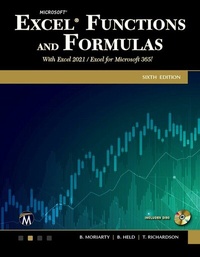
Microsoft Excel Functions and Formulas
With Excel 2021 / Microsoft 365
6th Edition
Published on 27. May 2022
538 pages
978-1-68392-852-2 (ISBN)
Description

No detailed description available for "Microsoft Excel Functions and Formulas".
All prices
More details
Edition
6th Revised edition
Language
English
Place of publication
Herndon, VA
United States
Target group
Professional and scholarly
US School Grade: College Graduate Student
Edition type
Revised edition
File size
22,37 MB
ISBN-13
978-1-68392-852-2 (9781683928522)
Copyright in bibliographic data and cover images is held by Nielsen Book Services Limited or by the publishers or by their respective licensors: all rights reserved.
Schweitzer Classification
Other editions
Additional editions
Brian Moriarty | Bernd Held | Theodor Richardson
Microsoft Excel Functions and Formulas
With Excel 2021 / Microsoft 365
Book
07/2022
6th Edition
Mercury Learning & Information
€64.95
Article not available at the moment
Brian Moriarty | Bernd Held | Theodor Richardson
Microsoft Excel Functions and Formulas
With Excel 2021 / Microsoft 365
E-Book
05/2022
6th Edition
Mercury Learning and Information
€64.95
Available for download
Previous edition
Brian Moriarty | Bernd Held | Theodor Richardson
Microsoft Excel Functions and Formulas
E-Book
02/2018
4th Edition
Mercury Learning & Information
€54.95
Available for download
Content
- Cover
- Half-Title
- Title
- Copyright
- Contents
- Acknowledgments
- Introduction
- Chapter 1: Formulas in Excel
- Calculate production per hour
- Calculate the age of a person in days
- Calculate a price reduction
- Convert currency
- Convert from hours to minutes
- Determine fuel consumption
- Calculate your ideal and recommended weights
- The quick calendar
- Design your own to-do list
- Increment row numbers
- Convert negative values to positive
- Calculate sales taxes
- Combine text and numbers
- Combine text and date
- Combine text and time
- Generate a special ranking list
- Determine average output
- Determine stock gains and losses
- Evaluate profitability
- Determine percentage of completion
- Convert miles per hour to kilometers per hour
- Convert feet per minute to meters per second
- Convert liters to barrels, gallons, quarts, and pints
- Convert from Fahrenheit to Celsius
- Convert from Celsius to Fahrenheit
- Calculate total with percentage
- Monitor the daily production plan
- Calculate the number of hours between two dates
- Determine the price per pound
- Determine how many pieces to put in a box
- Calculate the number of employees required for a project
- Distribute sales
- Calculate your net income
- Calculate the percentage of price reduction
- Divide and double every three hours
- Calculate the average speed
- Calculate number of characters in a string
- Chapter 2: Logical Functions
- Use the AND function to compare two columns
- Use the AND function to show sales for a specific period of time
- Use the OR function to check cells for text
- Use the OR function to check cells for numbers
- Use the XOR function to check for mutually exclusive conditions
- Use the IF function to compare columns and return a specific result
- Use the IF function to check for larger, equivalent, or smaller values
- Combine IF with AND to check several conditions
- Use the IF function to determine the quarter of a year
- Use the IF function to check cells in worksheets and workbooks
- Use the IF function to calculate with different tax rates
- Use the IF function to calculate the commissions for individual sales
- Use the IFS function to calculate the commissions for individual sales
- Use the IF function to compare two cells
- Use the IFS function to compare two cells
- Use the SWITCH function to compare two cells
- Use the INT function with the IF function
- Use the TYPE function to check for invalid values
- Use nested IF functions to cover multiple possibilities
- Use IFS function to cover multiple possibilities
- Use SWITCH function to cover multiple possibilities
- Use the IF function to check whether a date is in the past or the future
- Use the IF function to create your own timesheet
- Use the IFERROR function to display a default
- Chapter 3: Text Functions
- Use the LEFT and RIGHT functions to separate a text string of numbers
- Use the LEFT function to convert invalid numbers to valid numbers
- Use the SEARCH function to separate first name from last name
- Use the MID function to separate last name from first name
- Use the MID function to sum the digits of a number
- Use the EXACT function to compare two columns
- Use the SUBSTITUTE function to substitute characters
- Use the SUBSTITUTE function to substitute parts of a cell
- Use the SUBSTITUTE function to convert numbers to words
- Use the SUBSTITUTE function to remove word wrapping in cells
- Use the SUBSTITUTE function to combine and separate columns
- Use the REPLACE function to replace and calculate
- Use the FIND function to combine text and date
- Use the UPPER function to convert text from lowercase to uppercase
- Use the LOWER function to convert text from uppercase to lowercase
- Use the PROPER function to convert initial characters from lowercase to uppercase
- Use the FIXED function to round and convert numbers to text
- Use the TRIM function to delete spaces
- Use the TRIM function to convert "text-numbers" to real numbers
- Use the CLEAN function to remove all non-printable characters
- Use the REPT function to show data in graphic mode
- Use the REPT function to show data in a chart
- Use the CHAR function to check your fonts
- Use the CHAR function to determine special characters
- Use the CODE function to determine the numeric code of a character
- Use the UNICHAR function to determine the Unicode character from a number
- Use the UNICODE function to determine the numeric Unicode value of a character
- Use the DOLLAR function to convert numbers to currency in text format
- Use the T function to check for valid numbers
- Use the TEXT function to combine and format text
- Use CONCATENATE function to combine text
- Use CONCAT function to combine text
- Use TEXTJOIN function to combine text
- Use ARRAYTOTEXT function to combine text
- Use VALUETOTEXT function to display text from any cell value
- Chapter 4: Date and Time Functions
- Use custom formatting to display the day of the week
- Use the WEEKDAY function to determine the weekend
- Use the TODAY function to check for future dates
- Use the TEXT function to calculate with the TODAY function
- Use the NOW function to show the current time
- Use the NOW function to calculate time
- Use the DATE function to combine columns with date parts
- Use the LEFT, MID, and RIGHT functions to extract date parts
- Use the TEXT function to extract date parts
- Use the DATEVALUE function to recalculate dates formatted as text
- Use the YEAR function to extract the year part of a date
- Use the MONTH function to extract the month part of a date
- Use the DAY function to extract the day part of a date
- Use the MONTH and DAY functions to sort birthdays by month
- Use the DATE function to add months to a date
- Use the EOMONTH function to determine the last day of a month
- Use the DAYS360 function to calculate with a 360-day year
- Use the WEEKDAY function to calculate with different hourly pay rates
- Use the WEEKNUM function to determine the week number
- Use the EDATE function to calculate months
- Use the WORKDAY function to calculate workdays
- Use the NETWORKDAYS function to determine the number of workdays
- Use the YEARFRAC function to calculate ages of employees
- Use the DATEDIF function to calculate ages of employees
- Use the WEEKDAY function to calculate the weeks of Advent
- Use the TIMEVALUE function to convert text to time
- Use a custom format to create a time format
- Use the HOUR function to calculate with 100-minute hours
- Use the TIME function to combine single time parts
- Chapter 5: Basic Statistical Functions
- Use the MAX function to determine the largest value in a range
- Use the MIN function to discover the lowest sales volume for a month
- Use the MINIFS function to discover the lowest sales volume for a month based on criteria
- Use the MAXIFS function to discover the highest sales volume for a month based on criteria
- Use the MIN function to detect the smallest value in a column
- Use the SMALL function to find the smallest values in a list
- Use the LARGE function to find the highest values
- Use the INDEX, MATCH, and LARGE functions to determine and locate the best salesperson
- Use the SMALL function to compare prices and select the cheapest offer
- Use the AVERAGE function to calculate the average output
- Use the SUBTOTAL function to sum a filtered list
- Use the COUNT function to count cells containing numeric data
- Use the COUNTA function to count cells containing data
- Use the COUNTA function to count cells containing text
- Use the COUNTBLANK function to count empty cells
- Use the COUNTA function to determine the last filled row
- Use the SUBTOTAL function to count rows in filtered lists
- Use the RANK, RANK.EQ, RANK.AVG functions to determine the rank of sales
- Use the MEDIAN function to calculate the median sales
- Use the QUARTILE, QUARTILE.INC, QUARTILE.EXC functions to calculate quartiles
- Use the STDEV, STDEV.S, STDEV.P functions to determine the standard deviation
- Use the FORECAST.LINEAR function to determine future values
- Use the FORECAST.ETS function to determine future values
- Use the FORECAST.ETS.CONFINT function to determine confidence in future values
- Use the FORECAST.ETS.SEASONALITY function to future value patterns
- Use the CORREL function to determine data correlation
- Use the AVERAGE, GEOMEAN, HARMEAN, TRIMMEAN to determine meaningful averages
- Chapter 6: Mathematical Functions
- Use the SUM function to sum a range
- Use the SUM function to sum several ranges
- Use the SUMIF function to determine sales of a team
- Use the SUMIF function to sum costs higher than $1,000
- Use the SUMIF function to sum costs up to a certain date
- Use the COUNTIF function to count phases that cost more than $1,000
- Use the COUNTIF function to calculate an attendance list
- Use the SUMPRODUCT function to calculate the value of the inventory
- Use the SUMPRODUCT function to sum sales of a team
- Use the SUMPRODUCT function to multiply and sum at the same time
- Use the ROUND function to round numbers
- Use the ROUNDDOWN function to round numbers down
- Use the ROUNDUP function to round numbers up
- Use the ROUND function to round time values to whole minutes
- Use the ROUND function to round time values to whole hours
- Use the MROUND function to round prices to 5 or 25 cents
- Use the MROUND function to round values to the nearest multiple of 10 or 50
- Use the CEILING/CEILING.MATH functions to round up prices to the nearest $100
- Use the FLOOR/FLOOR.MATH function to round down prices to the nearest $100
- Use the PRODUCT function to multiply values
- Use the PRODUCT function to multiply conditional values
- Use the QUOTIENT function to return the integer portion of a division
- Use the POWER function to calculate square and cube roots
- Use the POWER function to calculate interest
- Use the MOD function to extract the remainder of a division
- Modify the MOD function for divisors larger than the number
- Use the ROW function to mark every other row
- Use the SUBTOTAL function to perform several operations
- Use the SUBTOTAL function to count all visible rows in a filtered list
- Use the RAND function to generate random values
- Use the RANDBETWEEN function to generate random values in a specified range
- Use the RANDARRAY function to generate random values in a range of rows and columns
- Use the EVEN and ODD functions to determine the nearest even/odd value
- Use the ISEVEN and ISODD functions to check if a number is even or odd
- Use the ISODD and ROW functions to determine odd rows
- Use the ISODD and COLUMN functions to determine odd columns
- Use the ROMAN function to convert Arabic numerals to Roman numerals
- Use the ARABIC function to convert Roman numerals to Arabic numerals
- Use the BASE function to convert decimal numbers to binary numbers
- Use the DECIMAL function to convert binary numbers to decimal numbers
- Use the SIGN function to check for the sign of a number
- Use the SUMSQ function to determine the square sum
- Use the GCD function to determine the greatest common divisor
- Use the LCM function to determine the least common multiple
- Use the SUMIFS function to determine sales of a team and gender of its members
- Use the COUNTIFS function to count phases that cost more than $1,000 within a certain duration
- Compare the INT, TRUNC, and ROUND functions
- Use the ABS function to return only positive differences between numbers
- Use the SQRT function to determine the hypotenuse of a right triangle
- Use the COMBIN function to determine the number of combinations in a lottery
- Use the FACT function to determine the number of combinations in a lottery
- Use the LET and IFS functions to determine sales bonuses
- Use the SEQUENCE function to generate a sequential list of dates in a row, column, or an array
- Chapter 7: Basic Financial Functions
- Use the SYD function to calculate depreciation
- Use the SLN function to calculate straight-line depreciation
- Use the PV function to decide an amount to invest
- Use the PV function to compare investments
- Use the DDB function to calculate using the double-declining balance method
- Use the PMT function to determine the payment of a loan
- Use the FV function to calculate total savings account balance
- Use the RATE function to calculate interest rate
- Use the INTRATE function to calculate interest over an entire period
- Use the NOMINAL function to calculate real interest rate given an annual rate
- Chapter 8: Database Functions
- Use the DCOUNT function to count special cells
- Use the DCOUNT function to count cells in a range between x and y
- Use the DCOUNTA function to count all cells beginning with the same character
- Use the DGET function to search for a product by number
- Use the DMAX function to find the most expensive product in a category
- Use the DMIN function to find the least expensive product in a category
- Use the DMIN function to find the oldest person on a team
- Use the DSUM function to sum sales for a period
- Use the DSUM function to sum all prices in a category that are above a particular level
- Use the DAVERAGE function to determine the average price in a category
- Chapter 9: Lookup and Reference Functions
- Use the ADDRESS, MATCH, and MAX functions to find the position of the largest number
- Use the ADDRESS, MATCH, and MIN functions to find the position of the smallest number
- Use the ADDRESS, MATCH, and TODAY functions to sum sales up to today's date
- Use the XMATCH function to find who sold cookie boxes at or near the goal
- Use the VLOOKUP function to look up and extract data from a database
- Use the XLOOKUP function to return a row of information
- Use the VLOOKUP function to compare offers from different suppliers
- Use the HLOOKUP function to determine sales and costs for a team
- Use the HLOOKUP function to determine sales for a particular day
- Use the HLOOKUP function to generate a list for a specific month
- Use the LOOKUP function to get the directory of a store
- Use the LOOKUP function to get the indicator for the current temperature
- Use the INDEX function to search for data in a sorted list
- Use the INDIRECT function to play "Battleship"
- Use the INDIRECT function to copy cell values from different worksheets
- Use the INDEX function to determine the last number in a column
- Use the INDEX and COUNTA functions to determine the last number in a row
- Use the OFFSET function to sum sales for a specified period
- Use the OFFSET function to consolidate sales for a day
- Use the OFFSET function to filter every other column
- Use the OFFSET function to filter every other row
- Use the HYPERLINK function to jump directly to a cell inside the current worksheet
- Use the HYPERLINK function to link to the Internet
- Use the CHOOSE function to lookup values
- Use the ROW and COLUMN functions to determine how many rows and columns are in a worksheet
- Use the FORMULATEXT function to display a formula in a cell
- Use the TRANSPOSE function to rearrange information on a worksheet
- Use the FILTER function to filter data from a range
- Use the SORT function to sort an existing range into another range
- Use the SORTBY function to sort an existing range into another range
- Use the UNIQUE function to return unique rows of data into another range
- Chapter 10: Conditional Formatting with Formulas
- Use the WEEKDAY function to determine weekends and shade them
- Use the TODAY function to show completed sales
- Use conditional formats to indicate unavailable products
- Use the TODAY function to shade a specific column
- Use the WEEKNUM and MOD functions to shade every other Tuesday
- Use the MOD and ROW functions to shade every third row
- Use the MOD and COLUMN functions to shade every third column
- Use the MAX function to find the largest value
- Use the LARGE function to find the three largest values
- Use the MIN function to find the month with the worst performance
- Use the MIN function to search for the lowest nonzero number
- Use the COUNTIF function to mark duplicate input automatically
- Use the COUNTIF function to check whether a number exists in a range
- Use conditional formatting to control font styles in a specific range
- Use a user-defined function to detect cells with formulas
- Use a user-defined function to detect cells with valid numeric values
- Use the EXACT function to perform a case-sensitive search
- Use the SUBSTITUTE function to search for text
- Use conditional formatting to shade project steps with missed deadlines
- Use conditional formatting to create a Gantt chart in Excel
- Use the OR function to indicate differences higher than 5% and lower than -5%
- Use the CELL function to detect unlocked cells
- Use the COUNTIF function to shade matching numbers in column B
- Use the ISERROR function to mark errors
- Use the DATEDIF function to determine all friends younger than 30
- Use the MONTH and TODAY functions to find birthdays in the current month
- Use conditional formatting to border summed rows
- Use the LEFT function in a product search
- Use the AND function to detect empty rows in a range
- Use the COUNTIFS function to determine value based on multiple filters
- Chapter 11: Working with Dynamic Array Formulas
- Use the ADDRESS, MAX, and ROW functions to determine the last cell used
- Use the INDEX, MAX, ISNUMBER, and ROW functions to find the last number in a column
- Use the INDEX, MAX, ISNUMBER, and COLUMN functions to find the last number in a row
- Use the MAX, IF, and COLUMN functions to determine the last column used in a range
- Use the MIN and IF functions to find the lowest nonzero value in a range
- Use the AVERAGE and IF functions to calculate the average of a range, taking zero values into consideration
- Use the SUM and IF functions to sum values with several criteria
- Use the INDEX and MATCH functions to search for a value that matches two criteria
- Use the SUM function to count values that match two criteria
- Use the SUM function to count values that match several criteria
- Use the SUM function to count numbers from x to y
- Use the SUM and DATEVALUE functions to count today's sales of a specific product
- Use the SUM function to count today's sales of a specific product
- Use the SUM, OFFSET, MAX, IF, and ROW functions to sum the last row in a dynamic list
- Use the SUM, MID, and COLUMN functions to count specific characters in a range
- Use the SUM, LEN, and SUBSTITUTE functions to count the occurrences of a specific word in a range
- Use the SUM and LEN functions to count all digits in a range
- Use the MAX, INDIRECT, and COUNT functions to determine the largest gain/loss of shares
- Use the SUM and COUNTIF functions to count unique records in a list
- Use the UNIQUE function to list unique records in a list
- Use the AVERAGE and LARGE functions to calculate the average of the x largest numbers
- Use the TRANSPOSE and OR functions to determine duplicate numbers in a list
- Use the MID, MATCH, and ROW functions to extract numeric values from text
- Use the MAX and COUNTIF functions to determine whether all numbers are unique
- Use the TRANSPOSE function to copy a range from vertical to horizontal or vice versa
- Use the FREQUENCY function to calculate the number of products sold for each group
- Use the FILTER function to determine wins for a specific division
- Use the SORT function to list an existing table of data by a certain column
- Use the SORTBY function to list an existing table of data by a certain column
- Use the RANDARRAY function to return a list of random numbers across any number of rows and columns
- Use the SEQUENCE function to return a list of a sequence of numbers across any number of rows and columns
- Chapter 12: Special Solutions with Formulas
- Use the COUNTIF function to prevent duplicate input through validation
- Use the EXACT function to allow only uppercase characters
- Use data validation to allow data input by a specific criterion
- Use data validation to limit data to a specific list
- Use controls with formulas
- Use Goal Seek as a powerful analysis tool
- Use a custom function to shade all cells containing formulas
- Use a custom function to change all formulas in cells to values
- Use a custom function to document and display all cells containing formulas
- Use a custom function to delete external links in a worksheet
- Use a custom function to delete external links in a workbook
- Use a custom function to enter all formulas into an additional worksheet
- Chapter 13: User-Defined Functions
- Use a user-defined function to copy the name of a worksheet into a cell
- Use a user-defined function to copy the name of a workbook into a cell
- Use a user-defined function to get the path of a workbook
- Use a user-defined function to get the full name of a workbook
- Use a user-defined function to determine the current user of Windows or Excel
- Use a user-defined function to display formulas of a specific cell
- Use a user-defined function to check whether a cell contains a formula
- Use a user-defined function to check whether a cell contains data validation
- Use a user-defined function to find all comments
- Use a user-defined function to sum all shaded cells
- Use a user-defined function to sum all cells with a colored font
- Use a user-defined function to delete leading zeros for specified cells
- Use a user-defined function to delete all letters in specified cells
- Use a user-defined function to delete all numbers in specified cells
- Use a user-defined function to determine the position of the first number
- Use a user-defined function to calculate the cross sum of a cell
- Use a user-defined function to sum each cell's cross sum in a range
- Use a user-defined function to check whether a worksheet is empty
- Use a user-defined function to check whether a worksheet is protected
- Use a user-defined function to create your own AutoText
- Chapter 14: Examples
- Calculate average fuel consumption
- Calculate net and corresponding gross prices
- Determine the economic value of a product
- Calculate the final price of a product, taking into account rebates and price reductions
- Search for data that meets specific criteria
- Separate cities from zip codes
- Eliminate specific characters
- Combine text, dates, and timestamps
- Determine the last day of a month
- Determine the number of available workdays
- Determine a person's exact age
- Determine the number of values in a specific range
- Determine the weekly sales for each department
- Round a value to the nearest 5 cents
- Determining inventory value
- Determine the top salesperson for a month
- Determine the three highest values in a list
- Determine amount to invest
- Determine how many items are in various categories
- Find a specific value in a complex list
- Dynamically show costs and sales per day
- Extract every fourth value from a list
- Display names in a list or in an array
- Filter for certain job positions
- Display the mile time for a runner
- Create a list of random telephone numbers
- Create a list of sequential Friday dates
- Sort a list of names
- Sort a list of names to include all their data
- List unique data based on names and city
- Retrieve student's math and history scores
- Retrieve student's total score
- Chapter 15: Other Features
- Insert Icons
- Draw Freestyle
- Smart Lookup
- Share Files
- Flash Fill
- Quick Analysis Tool
- Map Chart
- Funnel Chart
- Data Types - Stocks
- Data Types - Geography
- View workbook objects using the navigation pane
- Review workbook statistics
- Smooth scrolling when cells cross over viewable pages
- Unhiding multiple worksheets at once
- Resizing the conditional formatting window
- Duplicating a conditional formatting rule
- Chapter 16: Data Analytics Using Excel
- Activate "Analysis ToolPak"
- Display a Histogram to view the frequency of Sales
- Display many statistics describing a data set
- Reveal how numbers correlate to each other
- Smooth a natural progression of numbers
- Determine a moving average for a data set
- Create a list of random numbers
- Rank a list of clients obtained in a month
- Determine an accurate house price
- Select four random customers to receive a prize
- Chapter 17: Shortcut Keys
- Go to cells or highlight cell ranges
- Other Common Shortcuts
- Appendix: Excel Interface Guide
- Anatomy of Excel
- Microsoft 365 vs 2021
- Microsoft Excel 2021
- Microsoft Excel 2021 for Macintosh
- Microsoft Excel Web App
- Index
