

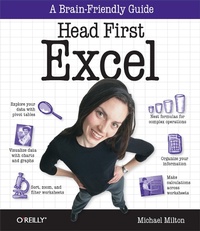
Head First Excel
A learner's guide to spreadsheets
Published on 11. March 2010
440 pages
978-1-4493-7009-1 (ISBN)
Description

Do you use Excel for simple lists, but get confused and frustrated when it comes to actually doing something useful with all that data? Stop tearing your hair out: Head First Excel helps you painlessly move from spreadsheet dabbler to savvy user. Whether you're completely new to Excel or an experienced user looking to make the program work better for you, this book will help you incorporate Excel into every aspect of your workflow, from a scratch pad for data-based brainstorming to exploratory analysis with PivotTables, optimizing outcomes with Goal Seek, and presenting your conclusions with sophisticated data visualizations.Organize and clearly present information in a spreadsheetMake calculations across a number of worksheetsChange your point of view with sorting, zooming, and filteringManipulate numerical data to extract and use just what you needLeverage Excel as a grid-based layout programWrite formulas for optimal functionalityNest formulas for more complex operationsCreate sophisticated data visualizations with charts and graphsUse Goal Seek to optimize possible outcomes based on different assumptionsCreate summaries from large data sets for exploratory data analysis with PivotTablesWe think your time is too valuable to waste struggling with new concepts. Using the latest research in cognitive science and learning theory to craft a multi-sensory learning experience, Head First Excel uses a visually rich format designed for the way your brain works, rather than a text-heavy approach that will put you to sleep.
More details
Other editions
Additional editions
Book
04/2010
1st Edition
O'Reilly
€33.00
Article not available at the moment
Content
- Intro
- Advance Praise for Head First Excel
- Praise for other Head First books
- Copyright
- Author of Head First Excel
- Table of Contents
- How to Use this Book: Intro
- Chapter 1. Introduction to Formulas: Excel's Real Power
- Can you live it up on the last night of your vacation?
- Here's what you budgeted and what you spent
- Excel is great for keeping records...
- Formulas work with your data
- Looks like Bob forgot a receipt...
- Your friends sent you all the receipts
- References keep your formulas working even if your data changes
- Check your formulas carefully
- Refer to a bunch of cells using a range
- Use SUM to add the elements in a range
- Bob and Sasha wonder whether we've been taking the right approach...
- Your friends agree: split the checks individually
- When you copy and paste a formula, the references shift
- Excel formulas let you drill deep into your data
- Everyone has plenty of cash left for a food-filled night in New York City!
- Chapter 2. Visual Design: Spreadsheets as Art
- CRMFreak needs to present their financials to analysts
- The dollar sign is part of your cell's formatting
- How to format your data
- The boss approves!
- Design principle: keep it simple
- Clash of the design titans.
- Use fonts to draw the eye to what is most important
- Cell styles keep formatting consistent for elements that repeat
- With your cell styles selected, use Themes to change your look
- He likes it, but there's something else.
- Use proximity and alignment to group like things together
- Your spreadsheet is a hit!
- Chapter 3. References: Point in the Right Direction
- Your computer business is in disarray
- Your production manager has a spreadsheet with costs
- MIN returns the lowest number in a series
- Let Excel fill in ranges by starting your formula and using your mouse
- Excel got the right answer using a more sophisticated reference
- Things just got even better.
- Use absolute references to prevent shifting on copy/paste
- Your profit margin is now even higher.
- Absolute references give you a lot of options
- Named ranges simplify your formulas
- With all this data, you'd have to write a ton of formulas
- Excel's Tables make your references quick and easy
- Structured references are a different dimension of absolute reference
- Your profitability forecasts proved accurate
- Chapter 4. Change Your Point of View: Sort, Zoom, and Filter
- Political consultants need help decoding their fundraising database
- Find the names of the big contributors
- Sort changes the order of rows in your data
- Sorting shows you different perspectives on a large data set
- See a lot more of your data with Zoom
- Your client is impressed!
- Filters hide data you don't want to see
- Use Filter drop boxes to tell Excel how to filter your data
- An unexpected note from the Main Campaign.
- The Main Campaign is delighted with your work
- Donations are pouring in!
- Chapter 5. Data Types: Make Excel Value Your Values
- Your doctor friend is on a deadline and has broken data
- Somehow your average formula divided by zero
- Data in Excel can be text or numbers
- The doctor has had this problem before
- You need a function that tells Excel to treat your text as a value
- A grad student also ran some stats.and there's a problem
- Errors are a special data type
- Now you're a published scientist
- Chapter 6. Dates and Times: Stay on Time
- Do you have time to amp up your training for the Massachusetts Marathon?
- VALUE() returns a number on dates stored as text
- Excel sees dates as integers
- Subtracting one date from another tells you the number of days between the two dates
- When subtracting dates, watch your formatting
- Looks like you don't have time to complete training before a 10K
- Coach has a better idea
- DATEDIF() will calculate time bet ween dates using a variety of measures
- Coach is happy to have you in her class
- Excel represents time as decimal numbers from 0 to 1
- Coach has an Excel challenge for you
- You qualified for the Massachusetts Marathon
- Chapter 7. Finding Functions: Mine Excel's Features on Your Own
- Should you rent additional parking?
- You need a plan to find more functions
- Excel's help screens are loaded with tips and tricks
- Here's the convention center's ticket database for the next month
- Anatomy of a function reference
- The Dataville Convention Center COO checks in.
- Functions are organized by data type and discipline
- Your spreadsheet shows ticket counts summarized for each date
- Box tickets for you!
- Chapter 8. Formula Auditing: Visualize Your Formulas
- Should you buy a house or rent?
- Use Net Present Value to discount future costs to today's values
- The broker has a spreadsheet for you
- Models in Excel can get complicated
- Formula auditing shows you the location of your formula's arguments
- Excel's loan functions all use the same basic elements
- The PMT formula in the broker's spreadsheet calculates your monthly payment
- Formulas must be correct, and assumptions must be reasonable
- The broker weighs in.
- Your house was a good investment!
- Chapter 9. Charts: Graph Your Data
- Head First Investments needs charts for its investment report
- Create charts using the Insert tab
- Use the Design and Layout tabs to rework your chart
- Your pie chart isn't going over well with the corporate graphic artist
- You're starting to get tight on time.
- Your report was a big success.
- Chapter 10. What If Analysis: Alternate Realities
- Should your friend Betty advertise?
- Betty has projections of best and worst cases for different ad configurations
- You need to evaluate all her scenarios
- Scenarios helps you keep track of different inputs to the same model
- Scenarios saves different configurations of the elements that change
- Betty wants to know her breakeven
- Goal Seek optimizes a value by trying a bunch of different candidate values
- Betty needs you to add complexity to the model
- Solver can handle much more complex optimization problems
- Do a sanity check on your Solver model
- Solver calculated your projections
- Betty's best-case scenario came to pass.
- Chapter 11. Text Functions: Letters as Data
- Your database of analytic customers just crashed!
- Here's the data
- Text to Columns uses a delimiter to split up your data
- Text to Columns doesn't work in all cases
- Excel has a suite of functions for dealing with text
- LEFT and RIGHT are basic text extraction functions
- You need to vary the values that go into the second argument
- Business is starting to suffer for lack of customer data
- This spreadsheet is starting to get large!
- FIND returns a number specifying the position of text
- Text to Columns sees your formulas, not their results
- Paste Special lets you paste with options
- Looks like time's running out.
- Your data crisis is solved!
- Chapter 12. Pivot Tables: Hardcore Grouping
- Head First Automotive Weekly needs an analysis for their annual car review issue
- You've been asked to do a lot of repetitive operations
- Pivot tables are an incredibly powerful tool for summarizing data
- Pivot table construction is all about previsualizing where your fields should go
- The pivot table summarized your data way faster than formulas would have
- Your editor is impressed!
- You're ready to finish the magazine's data tables
- Your pivot tables are a big hit!
- Chapter 13. Booleans: TRUE and FALSE
- Are fishermen behaving on Lake Dataville?
- You have data on catch amounts for each boat
- Boolean expressions return a result of TRUE or FALSE
- IF gives results based on a Boolean condition
- Your IF formulas need to accommodate the complete naming scheme
- Summarize how many boats fall into each category
- COUNTIFS is like COUNTIF, only way more powerful
- When working with complex conditions, break your formula apart into columns
- Justice for fishies!
- Chapter 14. Segmentation: Slice and Dice
- You are with a watchdog that needs to tally budget money
- Here's the graph they want
- Here's the federal spending data, broken out by county
- Sometimes the data you get isn't enough
- Your problems with region are bigger
- Here's a lookup key
- VLOOKUP will cross-reference the two data sources
- Create segments to feed the right data into your analysis
- Geopolitical Grunts would like a little more nuance
- You've enabled Geopolitical Grunts to follow the money trail.
- Appendix i: Leftovers: The Top Ten Things (We Didn't Cover)
- #1: Data analysis
- #2: The format painter
- #3: The Data Analysis ToolPak
- #4: Array formulas
- #5: Shapes and SmartArt
- #6: Controlling recalculation and performance tuning
- #7: Connecting to the Web
- #8: Working with external data sources
- #9: Collaboration
- #10: Visual Basic for Applications
- Appendix ii: Install Excel's Solver: The Solver
- Install Solver in Excel
- Index
- Symbols
- A
- B
- C
- D
- E
- F
- G
- H
- I
- K
- L
- M
- N
- O
- P
- R
- S
- T
- U
- V
- W
- X
- Z
