

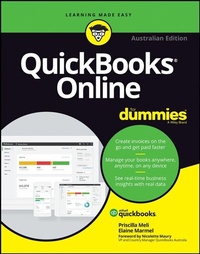
QuickBooks Online For Dummies
Description

QuickBooks Online For Dummies, Australian Edition is your key guide to getting business finances under control. From budgeting and payroll to tax, inventory, accounts and beyond, this book shows you everything you need to know to keep the cash flow flowing. Whether you're a small business owner, accountant or bookkeeper, this guide walks you through essential bookkeeping tasks, and hands-on tutorials provide quick and practical instruction using the QuickBooks Online and QuickBooks Online Accountant cloud-based accounting solution. Stop juggling files and notes and calendars, stressing about what's due, what's coming and what you may have overlooked; this book shows you how to track and manage everything in one place, with alerts, reminders and detailed reports that help you gain a clearer picture of the business's financial state - and all you need is an internet connection.
Using the many helpful, timesaving features of QuickBooks Online and QuickBooks Online Accountant to their utmost capability requires a little insider knowledge and hands-on instruction; this book has you covered, with clear, practical guidance to help you:
- Manage payroll, invoices and accounts payable
- Track inventory, costs and expenses
- Create reports and simplify tax return preparation
- Organise finances in one intuitive place
Wouldn't you enjoy the peace of mind that comes from knowing that your finances are under control? Wouldn't you prefer the freedom to access the books on any device, at any time? QuickBooks Online can help with that, and QuickBooks Online For Dummies, Australian Edition is the ultimate guide to working with the latest innovation in cloud-based accounting.
Priscilla Meli is from Melbourne, Australia and is one of a handful of members of the Intuit Trainer / Writer Network.
Elaine Marmel is President of Marmel Enterprises, Inc., an organization that specializes in technical writing and software training.
More details
Other editions
Additional editions
Content
- Cover
- Title Page
- Copyright Page
- Table of Contents
- Foreword
- Introduction
- About This Book
- Foolish Assumptions
- Icons Used in This Book
- Beyond the Book
- Where to Go from Here
- Part 1 Getting Started with QBO and QBOA
- Chapter 1 Introducing QBO and QBOA
- QBO for the Business User and QBOA for the Accountant
- Comparing interfaces
- To browse or not to browse . . .
- Understanding the Cloud
- Should You Move to the Cloud?
- System Requirements
- Chapter 2 Embracing the QBO/QBOA Format
- It's All about Subscriptions
- The Self-Employed version
- The Simple Start version
- The Essentials version
- The Plus version
- What Does QBO Cost?
- Addressing Payroll Needs
- Switching from QuickBooks Desktop
- Where Add-On Apps Fit In
- Part 2 Managing the Books for the Business User
- Chapter 3 Setting Up a Business in QBO
- Signing Up for QBO
- Setting Up a New Business
- Importing Company Data into QBO
- Understanding the Dashboard
- Establishing Company Settings
- Examining company preferences
- Setting sales preferences
- Taking a look at expense preferences
- Reviewing advanced preferences
- Examining billing and subscription settings
- Working with Multiple Currencies
- Updating the Chart of Accounts
- Activating the GST Centre
- Taking Advantage of QuickBooks Labs
- Signing In to and Out of QBO
- Chapter 4 Managing List Information
- Importing People into a List
- Merging Accounts
- Adding New People to a List
- Searching Lists for People
- Working with a particular person
- Sorting a list
- Exporting a list to Excel
- Working with a batch of people
- Changing Settings for People Lists
- Working with Products and Services Items
- Establishing categories
- Adding service and non-inventory items
- Creating an inventory item
- Changing item types
- Adjusting inventory item information
- Looking at Other Lists
- Chapter 5 Dealing with the Outflow of Money
- Writing a Cheque
- Assigning a cheque to accounts or items
- Writing a cheque for an outstanding bill
- Creating an Expense Transaction
- Setting Up Transaction Templates
- Entering a Purchase Order
- Entering and Paying Bills
- Entering a bill
- Recording a supplier's credit
- Recording a supplier's refund cheque
- Paying bills
- Chapter 6 Managing the Inflow of Money
- Customising Forms to Handle Subtotals
- Preparing an Invoice
- Recording a Customer Payment
- Working with Quotes
- Preparing a quote
- Converting a quote to an invoice
- Copying an existing quote
- Working with Sales Receipts
- Entering a sales receipt
- Printing sales receipts and delivery notes
- Giving Money Back to a Customer
- Recording an adjustment note
- Issuing a refund to a customer
- Creating Billable Time Entries
- Entering a single time activity
- Using a timesheet to record time
- Adding a billable expense to an invoice
- Chapter 7 Diving into Account History via the Ledger
- Understanding Account History
- Entering and Editing Transactions
- Entering a transaction
- Editing a transaction
- Looking at Other Account History Features
- Sorting transactions
- Filtering transactions
- Printing an Account History
- Chapter 8 Handling Bank and Credit Card Transactions
- Controlling the Appearance of Bank Accounts
- Connecting QBO Accounts to Financial Institutions
- Connecting . . . or not connecting
- Connecting Bank or Credit Card accounts
- Downloading Bank Activity
- Downloading information for a directly connected account
- Manually downloading banking information
- Importing transactions via Excel
- Handling Downloaded Activity
- Excluding transactions
- Including transactions
- Establishing rules to accept transactions
- Fixing mistakes
- Making a Bank Deposit
- Reconciling a Bank Account
- Chapter 9 Paying Employees
- Understanding the Connection between QuickBooks and KeyPay
- Turning on Payroll
- Getting started with QBO Payroll
- Fine-tuning your payroll preferences
- Setting Up Employees
- Adding employees
- Fine-tuning employee details
- Entering Payroll History
- Exporting and importing your business's payroll opening balances
- Entering payroll opening balances manually for each employee
- Paying Employees Using Timesheets
- Invoicing customers for time incurred
- Using KeyPay's Time Sheet function
- Allowing employees to use WorkZone
- Creating New Payruns
- Taking Advantage of Payroll-Related Reports
- Employer Liability Report
- PAYG Withholding Report
- Payroll Tax Report
- Super Contributions Report
- Payment Summaries
- Chapter 10 Reporting Taxes
- Getting Up and Running
- Understanding your GST liability at a glance
- Running Business Activity Statement reports
- Completing BAS
- Viewing your BAS History
- Recording Monthly IAS Payments for PAYG Withholding
- One click PAYG
- Manually creating a PAYG payment
- Ensuring Quarterly BAS reflects manual monthly PAYG payments
- Using Running Balance Accounts
- Entering and Paying Income Tax
- Creating Additional Taxes and Special Transactions
- Additional tax rate
- Additional group rate
- Custom tax
- Taxes requiring special transactions
- Chapter 11 How's the Business Doing?
- Quickly Review Income and Expenses
- Finding the Report You Want
- Examining recommended reports
- Looking at frequently run reports
- Finding reports you customise
- Taking a look at management reports
- Exploring all QBO reports
- Searching for a report
- Generating a Report
- Customising the appearance of reports
- Customising a report
- Printing, exporting and emailing reports
- Saving a customised report
- Auto generate reports
- Running Reports for Individual Accounts
- Chapter 12 Preparing a Budget in QBO
- Checking Financial Year Settings in QBO
- Budgeting with QBO
- Using the Budget Wizard
- Finding your budgets
- Part 3 Working in QuickBooks Online Accountant
- Chapter 13 Setting Up Shop in QBOA
- Signing Up for and into QBOA
- Examining the QBOA Interface
- Working with the Your Practice view
- Working with the Your Books view
- Setting Up Your Team
- Controlling the Appearance of the Client List
- Understanding and Using the Free QBOA Company
- Working with the Sample Company
- Closing Companies and QBOA
- Working with Wholesale Billing
- Signing up for Wholesale Billing
- Adding clients to your Wholesale Billing subscription
- Removing clients from your Wholesale Billing subscription
- Stop using Wholesale Billing
- Chapter 14 Adding Companies to the QBOA Client List
- Adding a Client's Company to the Client List
- Adding a company created by a client
- Creating a QBO company for a client
- Transferring Master Administrator rights back to your client
- General conversion considerations
- After converting . . .
- Starting Again
- Switching between Client QBO Companies
- Chapter 15 Exploring a Client's Company from QBOA
- Opening a Client's Company
- Reviewing a Client QBO Company
- Examining company setup information
- Taking a look at the Chart of Accounts
- Reviewing list information
- Exporting and importing bank feed rules
- Chapter 16 Working in a Client's Company
- Making Navigation Easy
- Using keyboard shortcuts
- Opening multiple windows
- Working in two companies simultaneously
- Examining Available Transaction Types
- Searching for Transactions
- Chapter 17 Using Accountant Tools
- Facilitating Accountant Activities
- Running through Accountant Tools
- Using Reports Tools
- Reclassifying transactions
- Examining voided and deleted transactions
- Writing off invoices
- Closing the books
- Reviewing reports
- Part 4 The Part of Tens
- Chapter 18 Almost Ten Things about the Chrome Browser Interface
- Understanding Users
- Windows and Tabs
- Using the Omnibox to Visit a Web Page
- Using the Omnibox to Search the Web
- What's the Star?
- Examining the Chrome Menu
- About Signing in to (and out of) Chrome
- Creating a Google account
- Signing in to Chrome
- Signing out of Chrome
- Using the Chrome Web Store
- Selecting a Theme
- Chapter 19 Ten Ways to Use Chrome Effectively
- Setting a Home Page
- Chrome and Security
- Chrome and Privacy
- Handling cookies
- Chrome and JavaScript
- Allowing plug-ins
- Working in Incognito mode
- Deleting browsing history
- Reviewing miscellaneous privacy settings
- Using Google tools to manage privacy
- Using Bookmarks in Chrome
- Creating a bookmark
- Displaying the Bookmarks bar
- Importing bookmarks
- Managing bookmarks
- Duplicating and Pinning Tabs
- Using Chrome on Multiple Monitors
- Setting Up Chrome Users
- Zooming In and Out
- Downloading Files
- Chrome on Mobile Devices
- Appendix QBO, QuickBooks Desktop and Data Conversion
- General Limitations of Importing Desktop QuickBooks Data into QuickBooks Online
- How QuickBooks Desktop Lists Convert to QuickBooks Online
- Customer and Job List
- Item List
- Employee List
- Supplier List
- A look at inventory . . .
- Features That Convert Completely
- Transactions and Features for Which Most Information Converts in QuickBooks Online
- Features That Might Not Convert but Have Comparable Features in QuickBooks Online
- Features That Don't Convert and Don't Exist in QuickBooks Online
- Index
- EULA
