

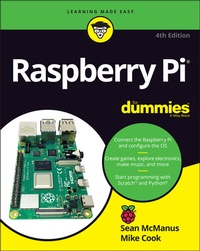
Raspberry Pi For Dummies
Description

The Raspberry Pi makes it easy to learn about computers and computer programming, and Raspberry Pi For Dummies makes it even easier! Using this extremely affordable and compact computer, you can learn to code in languages like Scratch and Python, explore how electronics work, create computer-generated buildings in Minecraft and music in Sonic Pic, become Linux-savvy, make Internet-of-Things devices, or just play around! This book gets you up and running on your Raspberry Pi, starting with setting it up, downloading the operating system, and using the desktop environment. Then, the only limit is your imagination! It doesn't matter whether you have a Raspberry Pi 4, Raspberry Pi 400, Raspberry Pi Zero W or an older model: we've got you covered.
Raspberry Pi For Dummies explores the latest technology--the Raspberry Pi 4 and 400, Scratch 3 programming language, new games bundled with the Raspberry Pi, and the hottest Add-Ons out there. This introductory guide is the perfect place to start if you want to get a taste of everything the Raspberry Pi can do!
* Set up your Raspberry Pi, install the operating system, and connect to the Internet
* Learn the basics of the Linux desktop and Linux shell so you can program, work, and play
* Use Python, Scratch, and Sonic Pi to write your first programs and make games and digital music
* Discover how circuits work hand-in-hand with your Pi
If you want to make the most of the Raspberry Pi for school, work, or play, you'll love this easy-to-read reference.
More details
Other editions
Additional editions
Persons
Mike Cook is a former professor in physics at Manchester Metropolitan University. His other books include Raspberry Pi Projects and Raspberry Pi Projects For Dummies.
Content
Part 1: Setting Up Your Raspberry Pi 5
Chapter 1: Introducing the Raspberry Pi 7
Chapter 2: Downloading the Operating System 25
Chapter 3: Connecting Your Raspberry Pi 33
Part 2: Getting Started with Linux 49
Chapter 4: Using the Desktop Environment 51
Chapter 5: Using the Linux Shell 79
Part 3: Using the Raspberry Pi for Both Work and Play 119
Chapter 6: Being Productive with the Raspberry Pi 121
Chapter 7: Editing Photos on the Raspberry Pi with GIMP 133
Chapter 8: Playing Audio and Video on the Raspberry Pi 143
Part 4: Programming the Raspberry Pi 155
Chapter 9: Introducing Programming with Scratch 157
Chapter 10: Programming an Arcade Game Using Scratch 177
Chapter 11: Writing Programs in Python 201
Chapter 12: Creating a Game with Python and Pygame Zero 233
Chapter 13: Programming Minecraft with Python 251
Chapter 14: Making Music with Sonic Pi 275
Part 5: Exploring Electronics with the Raspberry Pi 291
Chapter 15: Understanding Circuits 293
Chapter 16: Taking Control of Your Pi's Circuitry 319
Chapter 17: Lots of Multicolored LEDs 357
Chapter 18: Old McDonald's Farm and Other RFID Adventures. 391
Part 6: The Part of Tens 425
Chapter 19: Ten Great Software Packages for the Raspberry Pi 427
Chapter 20: Ten Inspiring Projects for the Raspberry Pi 439
Chapter 21: Ten Great Add-Ons for the Raspberry Pi 447
Appendix: Troubleshooting and Configuring the Raspberry Pi 455
Index 467
Chapter 1
Introducing the Raspberry Pi
IN THIS CHAPTER
Getting up close and personal with the Raspberry Pi
Taking stock of your Raspberry Pi
Purchasing your very own Raspberry Pi
Figuring out what else you need
The Raspberry Pi is perhaps the most inspiring computer available today. Although most of the computing devices being used (including phones, tablets, and game consoles) are designed to stop people from tinkering with them, the Raspberry Pi is exactly the opposite. It invites you to prod it, play with it, and create with it. It comes with the tools you need to start creating your own software (or programming), and you can connect your own electronic inventions to it. Some models are cheap enough that breaking them won't break the bank, so you can experiment with confidence.
Lots of people are fired up about the Raspberry Pi's potential, and they're discovering exciting new ways to use it. Dave Akerman (www.daveakerman.com) and friends attached one to a weather balloon and sent it nearly 40 kilometers high to take pictures of the Earth from near space using a webcam. (You can read about Dave's ballooning project in Chapter 20.)
Professor Simon Cox and his team at the University of Southampton connected 64 Raspberry Pi boards to build an experimental supercomputer, held together by Lego bricks. In the supercomputer (see Figure 1-1), the Raspberry Pis work together to solve a single problem. The project has been able to cut the cost of a supercomputer from millions of dollars to thousands or even hundreds of dollars, making supercomputing much more accessible to schools and students. Others have also experimented with combining the processing power of multiple Pis. There's even an off-the-shelf kit you can use to combine four Raspberry Pi Zeros with a full-size Raspberry Pi (the Cluster HAT from Pimoroni) so that you can experiment with running programs across multiple Pis at the same time.
Courtesy of Simon Cox and Glenn Harris, University of Southampton.
FIGURE 1-1: Two of the Raspberry Pi boards used in the University of Southampton's supercomputer, with the rest of the supercomputer in the background.
The Pi is also being used to make fitness gadgets, gaming devices, electric skateboards, and much more, as you discover in Chapter 20.
Although those projects are grabbing headlines, another story is less visible but more important: the thousands of people of all ages who are taking their first steps in computer science, thanks to the Raspberry Pi.
Both of the authors of this book used computers in the 1980s, when the notion of a home computer first became a reality. Back then, computers were less friendly than they are today. When you switched them on, you were faced with a flashing cursor and had to type something in to get it to do anything. As a result, though, a whole generation grew up knowing at least a little bit about how to give the computer commands, and how to create programs for it. As computers started to use mice and windows, people didn't need those skills any more, and they lost touch with them.
Eben Upton, designer of the Raspberry Pi, noticed the slide in skill levels when he was working at Cambridge University's computer laboratory in 2006. Students applying to study computer science started to have less experience with programming than students of the past did. Upton and his university colleagues hatched the idea of creating a computer that would come supplied with all the tools needed to program it - and would sell for a target price of $25 (about £20). It had to be able to do other interesting things, too, so that people were drawn to use it, and it had to be robust enough to survive being pushed in and out of school bags hundreds of times.
That idea started a six-year journey that led to the Raspberry Pi you probably have on your desk you as you read this book. It was released in February 2012, and sold half a million units by the end of the quarter. By July 2017, there were more than 14 million Raspberry Pis in homes, schools, and workplaces, 10 million of them made in the UK. More than 30 million Raspberry Pi computers have now been sold. It is, by a large margin, the best-selling British computer of all time.
Introducing the Raspberry Pi Range
Over the years, the Raspberry Pi has evolved, increasing its memory, improving its performance, and adding features. So which one should you get? Here's an overview designed to help you decide.
Raspberry Pi 4 Model B
This model is a circuit board with components and sockets stuck on it, as shown in Figure 1-2. In an age when most computing devices are sleek and shiny boxes, the spiky Pi, with tiny codes printed in white all over it, seems alien. That's a big part of its appeal, though: Many of the cases you can buy for the Raspberry Pi are transparent because people love the look of it.
The Raspberry Pi 4 is the latest Raspberry Pi board. It features the following:
- Up to 8GB of memory
- Four USB ports (two USB 2 ports and two higher-speed USB 3 ports)
- Built-in Wi-Fi and Bluetooth and a Gigabit Ethernet port for a wired Internet or network connection
- A headphones-style audio-out socket
- 40 general-purpose input/output (GPIO) pins, which you can use to connect your own electronics projects or specially designed add-ons (see Chapter 21)
FIGURE 1-2: The Raspberry Pi 4 Model B (center), Model A+ (top right), and Pi Zero W (top left).
- Support for two monitors at resolutions of up to 4K
- Compatibility with the Raspberry Pi Camera Module
- Power over Ethernet (PoE) support when used with the Raspberry Pi PoE HAT, which enables you to use your Ethernet cable for both networking and powering your Pi
Like previous Pi models, the Raspberry Pi 4 is about the size of a deck of cards. As with any current Raspberry Pi, it uses a microSD card for storage. Its price is around $35 for 2GB of memory or $75 for 8GB of memory.
The Raspberry Pi Desktop Kit is also available, which includes the accessories you'll need, except for the monitor.
The Raspberry Pi 4 is our recommendation for the most powerful budget-friendly Raspberry Pi. You may be able to use it with your own keyboard and mouse to save money. The GPIO pins are great for electronics projects.
It's called the Model B, incidentally, as a tribute to the BBC Microcomputer that was popular in the UK in the 1980s. It's sobering to think that the BBC Micro cost about ten times the price of a Raspberry Pi, which, thanks to 40 years of progress in computer science, has more than 15,600 times more memory.
Raspberry Pi 400
The Raspberry Pi 400 (see Figure 1-3) takes even more inspiration from the classic computers of the '80s by building the Raspberry Pi 4 computer into a computer keyboard. It makes the whole setup much more compact, because you don't have the separate Pi unit on the table, with a cable going to the keyboard.
FIGURE 1-3: The Raspberry Pi 400 hides the computer inside the keyboard.
There are performance improvements, too. The Raspberry Pi 400 is faster than the Raspberry Pi 4, and it's designed with passive cooling built in.
The Raspberry Pi 400 is a white keyboard, with all the sockets on the back of it. It features the following:
- 4GB of memory.
- Three external USB ports (one USB 2 port and two higher-speed USB 3 ports). This is fewer than the four ports you get on a Raspberry Pi 4. The fourth port is used to connect the keyboard inside the case.
- Built-in Wi-Fi and Bluetooth and a Gigabit Ethernet port for a wired Internet or network connection.
- 40 GPIO pins, but these are on the back of the case, not on the top surface. You'll need to use an extension cable or board to use the pins easily and to use add-on boards (see Chapter 21). Although add-on boards can be connected directly, few will work well because their top surface will face away from you.
- Support for two monitors at resolutions of up to 4K.
- No compatibility with the Raspberry Pi Camera Module. You can use a USB camera, as you can on any Raspberry Pi computer.
There is no audio out socket, so you'll need to pass audio through your monitor.
The Raspberry Pi 400 costs $70. The Raspberry Pi 400 Personal Computer Kit adds the accessories you'll need, except for the monitor. The Raspberry Pi 400 is a fantastic value, but it's more expensive than the bare board. We recommend the Raspberry Pi 400 if your budget will bear it and you plan to use the Raspberry Pi as a desktop computer. For electronics projects, we find the bare board easier to use.
The official Raspberry Pi keyboard and the Raspberry Pi 400 look the same. If you have both on your desk, put a sticker on one of them; otherwise, you'll waste time trying to use the wrong one!
Raspberry Pi 3 Model A+
The Model A+ is a cut-down bare-board Raspberry Pi. It's useful for projects that need lower power consumption - typically battery-based projects. It is suitable for robots and projects in remote locations, where a wired electricity supply isn't viable and batteries must be used instead.
It features the following:...
